Keep your sensor awake with a Home Assistant helper
When an apollo_ota_mode toggle in Home Assistant is on, your Apollo battery devices stay awake so you can update them. In this guide you create that toggle, then add an automation that turns it off again after one hour.
This keeps every Apollo device awake
While apollo_ota_mode is on, none of your Apollo devices go back to sleep. Finish the second part of this guide to create an automation that turns the helper off after it has been on for one hour.
Create the OTA mode toggle
Start by creating the toggle helper and switching it on.
1. Go to Settings → Devices & services and select the Helpers tab at the top. Or use the button below to go straight there.

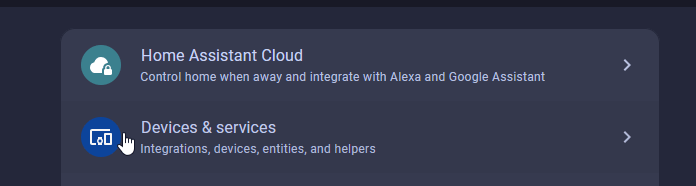

2. Select Create helper in the bottom right.

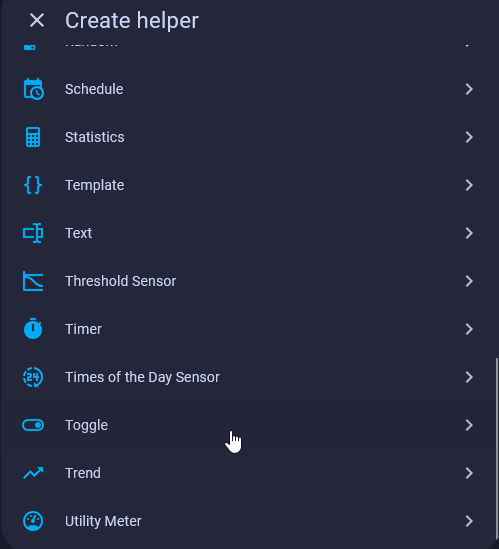
3. Scroll to the bottom of the list and select Toggle.
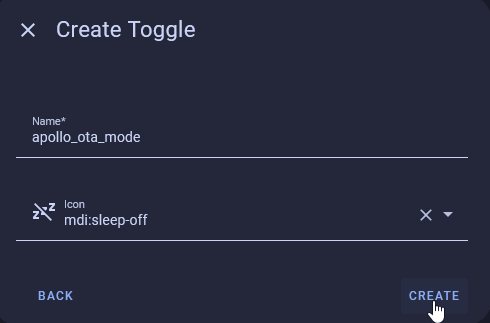
4. Name the toggle apollo_ota_mode, choose an icon such as mdi:sleep-off, and click Create.
5. Search the helpers list for apollo_ota_mode and click the helper that appears.

6. Switch the toggle on.
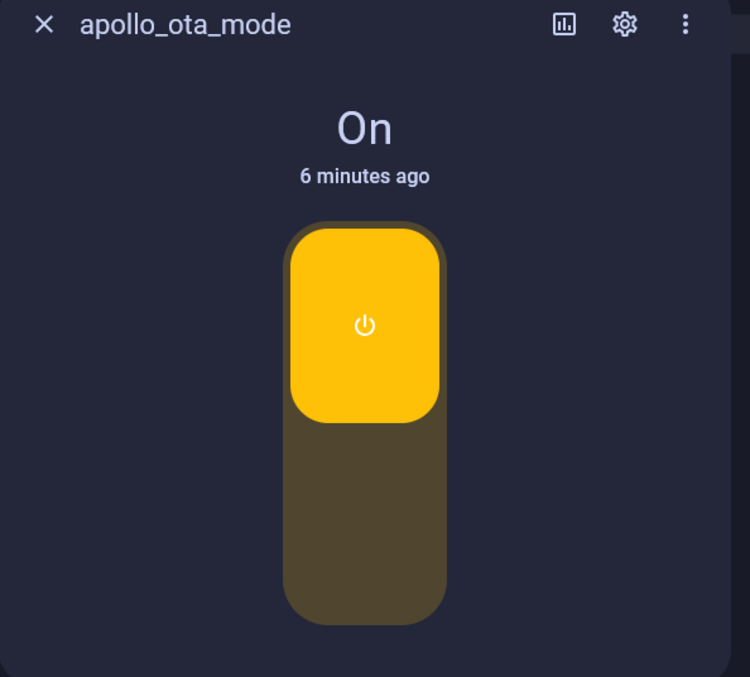
OTA mode is now on. The next time your Apollo device reboots or wakes up on its wake timer, it stays awake instead of going back to sleep.
Turn OTA mode off after one hour
Next, create an automation that switches apollo_ota_mode off once it has been on for one hour, so you never leave your devices awake by accident.
1. Go to Settings → Automations & scenes and click Create automation.

2. Click Add trigger, then select Entity.
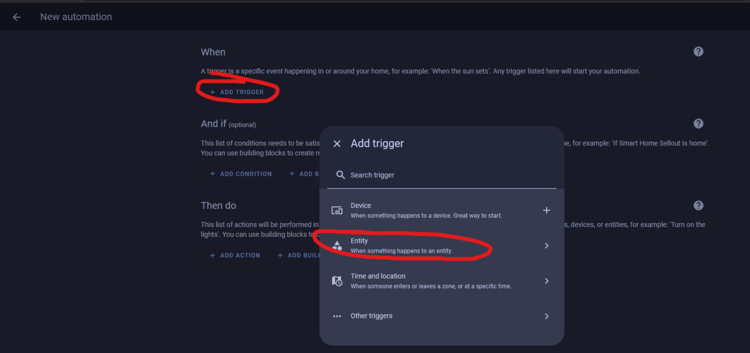
3. Select State.

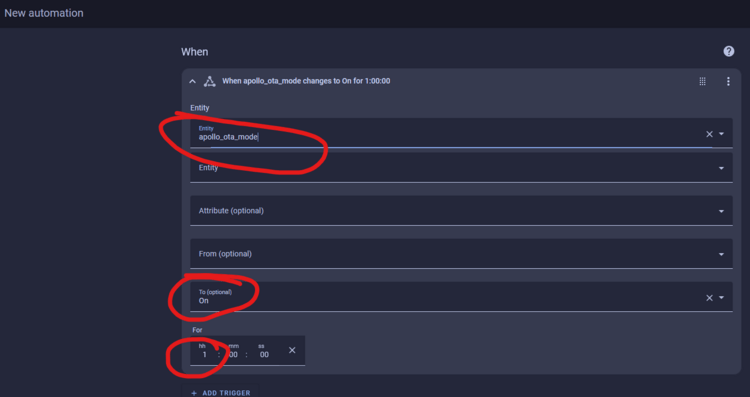
4. In the Entity box, enter apollo_ota_mode. Set To to On, and enter 1 in the hours box under For. This trigger fires once apollo_ota_mode has been on for one hour.
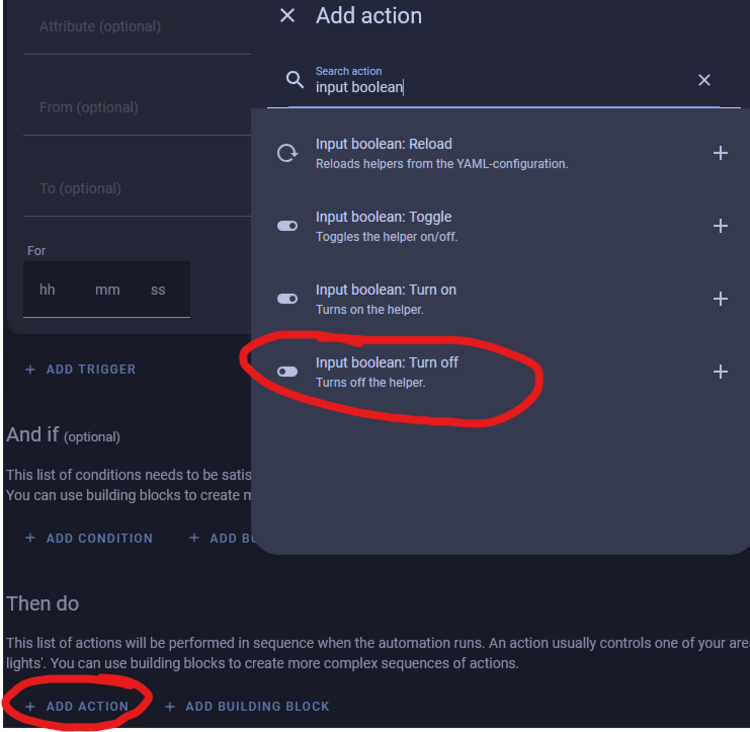
5. Scroll down to Then do, click Add action, search for input boolean, and choose Input boolean: Turn off.
6. Click Choose entity and select apollo_ota_mode.
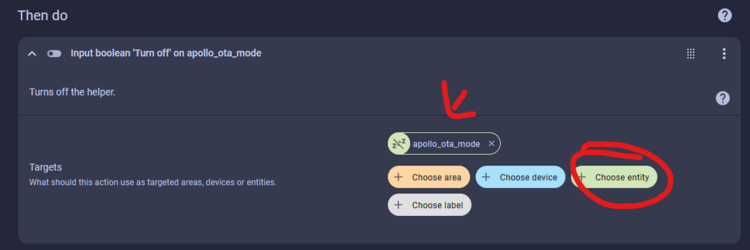
You're done. Turn apollo_ota_mode on whenever you want to update your devices, and the automation turns it off for you after one hour.