CAST-1 getting started
This will guide you through connecting your CAST-1 to your speakers, adding it to your Wi-Fi and Home Assistant, and streaming to it with Music Assistant.
Physical setup

Run a 3.5mm cable from the CAST-1 into the line-in on your powered speakers, receiver, or active soundbar, then plug the CAST-1 into power with USB-C. A 5V 1A power supply is plenty. (1)
- The CAST-1 has no amplifier of its own, so it needs powered speakers or an amp. If your speakers use RCA or 6.35mm inputs, use a 3.5mm-to-RCA or 3.5mm-to-6.35mm adapter cable.
Connect to your network
There are three ways to get your CAST-1 online. Pick whichever is easier, you only need to do one.
- Hotspot works on any phone or computer. The CAST-1 broadcasts its own Wi-Fi network, you join it, then enter your Wi-Fi details. No extra hardware needed.
- Improv via BLE sets the CAST-1 up over Bluetooth straight from Home Assistant. It's quick, but it needs Bluetooth on your Home Assistant host or an ESP32 Bluetooth proxy.
- Ethernet is for a CAST-1 with the Ethernet add-on module fitted. It connects over a network cable straight to your router or switch.
1. Plug the CAST-1 in via USB-C. A 5V 1A power supply will work fine.
If your CAST-1 is restarting or not broadcasting Wi-Fi try another USB-C cable and power supply!
The CAST-1 is sensitive to power fluctuations and needs constant 5V power. Most quality phone chargers will work fine.
Still no hotspot? Follow the Reset Wi-Fi Credentials guide to make it broadcast again.
2. On your phone or PC, open the Wi-Fi settings and connect to "Apollo CAST 1 Hotspot". Once connected it should automatically open a dashboard for your CAST-1. If it doesn't, open your web browser and go to http://192.168.4.1
3. Select the Wi-Fi network that you would like your CAST-1 to connect to and type in your Wi-Fi password, then click "Save".

4. Once connected, the dashboard will automatically close. You've successfully connected your CAST-1 to your Wi-Fi.
Pre-requirement: Bluetooth proxy or Bluetooth Home Assistant hardware required
Bluetooth built in such as a Raspberry Pi or at least one ESP32 BLE Proxy is required to use this to set up your Apollo device.
1. Open your integrations page in Home Assistant.

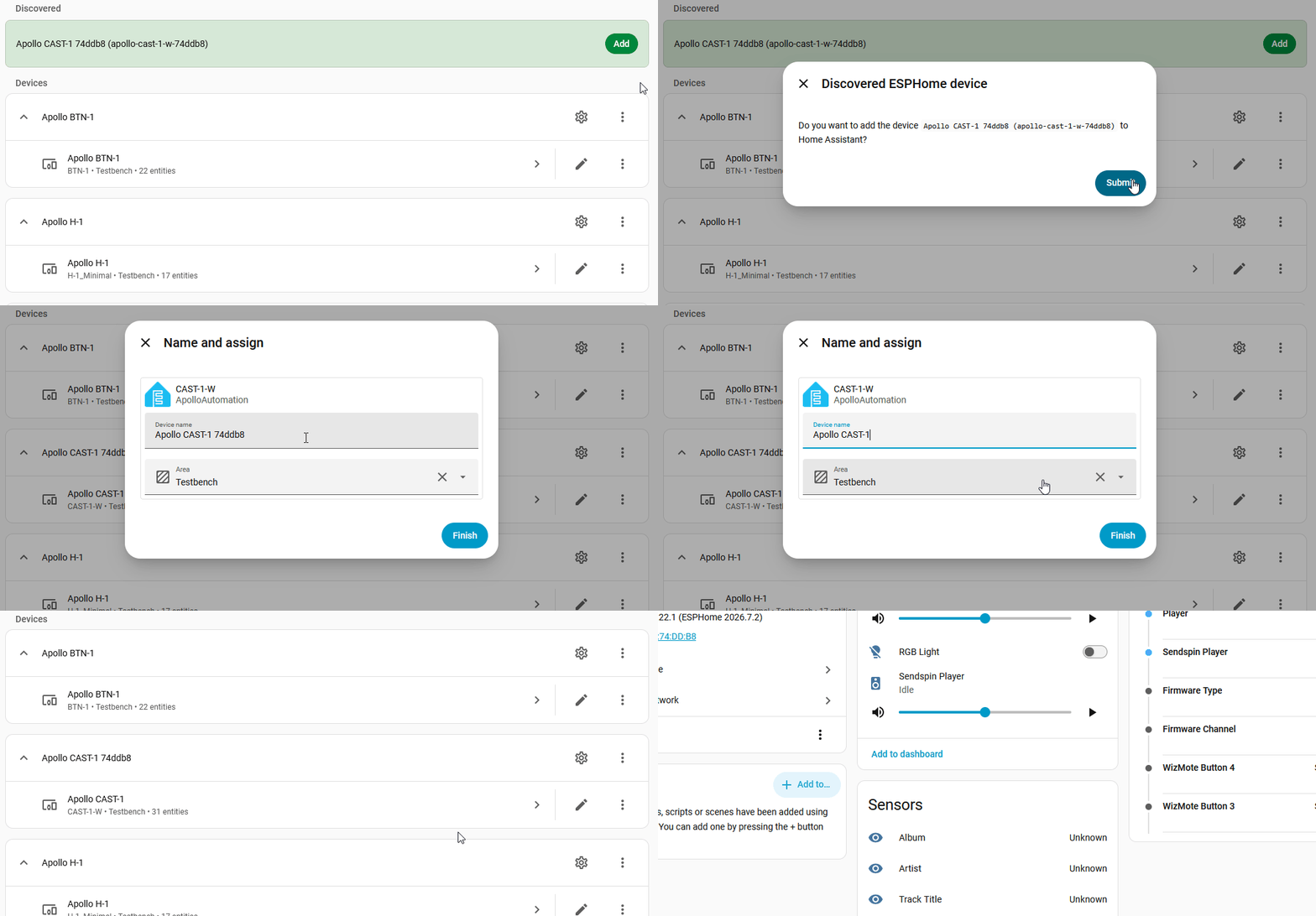
2. Click the Add button on your discovered CAST-1, type in your Wi-Fi SSID and password, then click Submit.
3. Click Submit again, give it an Area, then click Finish.
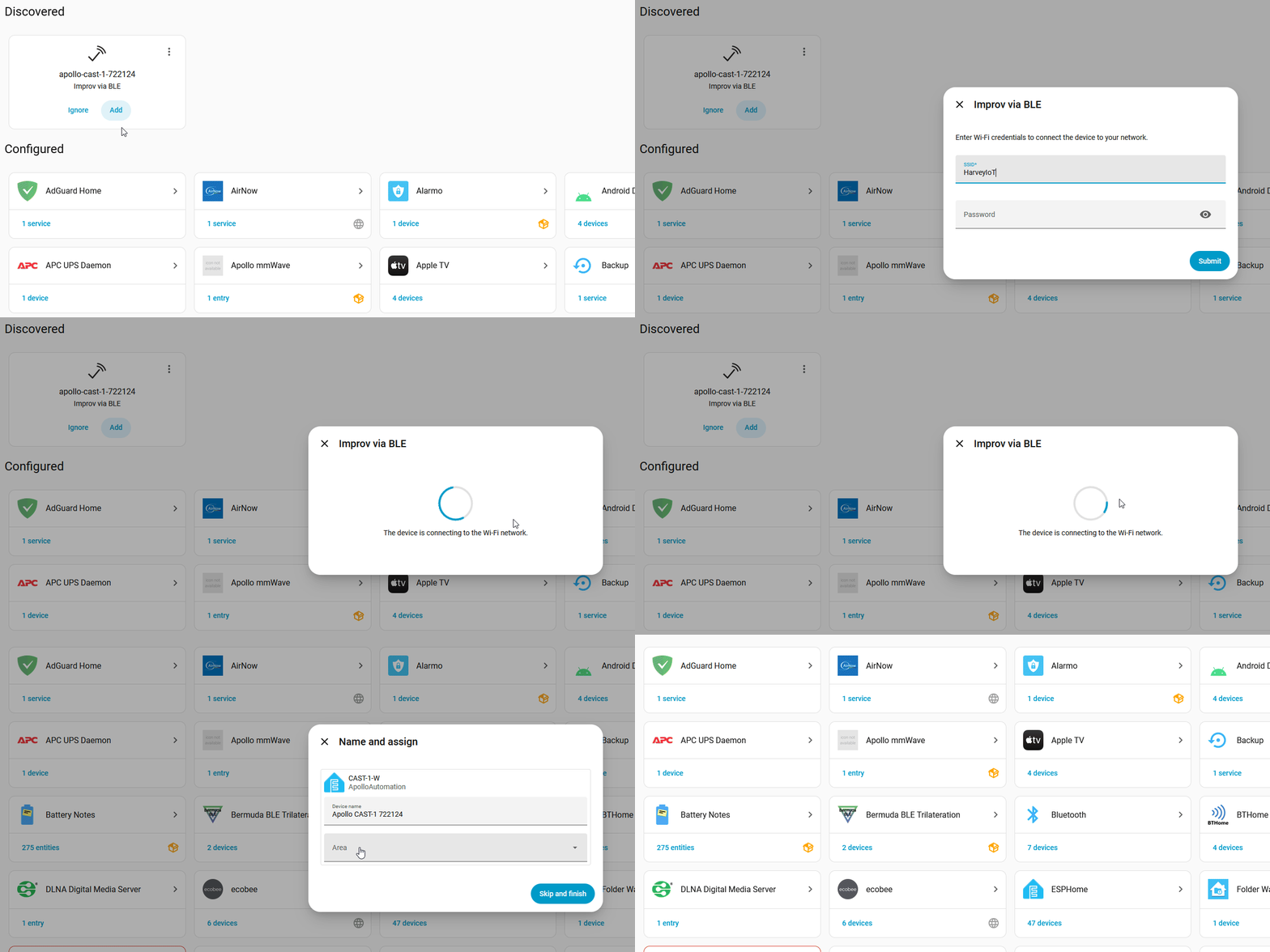
Improv adds your CAST-1 to Home Assistant as part of setup, so skip ahead to installing Music Assistant.
With the CAST-1 unplugged, line the Ethernet module up with the two rows of female header pins on top of the case, pin side down, and press it straight down until it sits flat.

1. Plug an Ethernet cable into the module, then plug the CAST-1 into power.
2. Your CAST-1 picks up an address from your router on its own, so there's nothing to enter. (1)
- Unplug the cable later and your CAST-1 falls back to Wi-Fi on its own. The FAQ covers how the two connections work together.
3. Home Assistant discovers your CAST-1 automatically. Add it below, then check the Network Connection sensor on the device page to confirm it reads Ethernet.
Add to Home Assistant
Open the ESPHome Integration, then click Add and Submit. Edit the name and choose an Area then click Finish.

Music Assistant
The CAST-1 streams through Music Assistant. Once Music Assistant is running, your CAST-1 shows up as a player automatically, no extra configuration needed.
Use Music Assistant 2.10.7 or newer
Newer CAST-1 firmware needs Music Assistant 2.10.7 or newer to connect. If Music Assistant is already installed, update it from its app page first.
Install Music Assistant
You'll install the Music Assistant app, then add its integration in Home Assistant.
1. Head to the App Store to install Music Assistant.

2. Click Install, then click Start once it finishes.
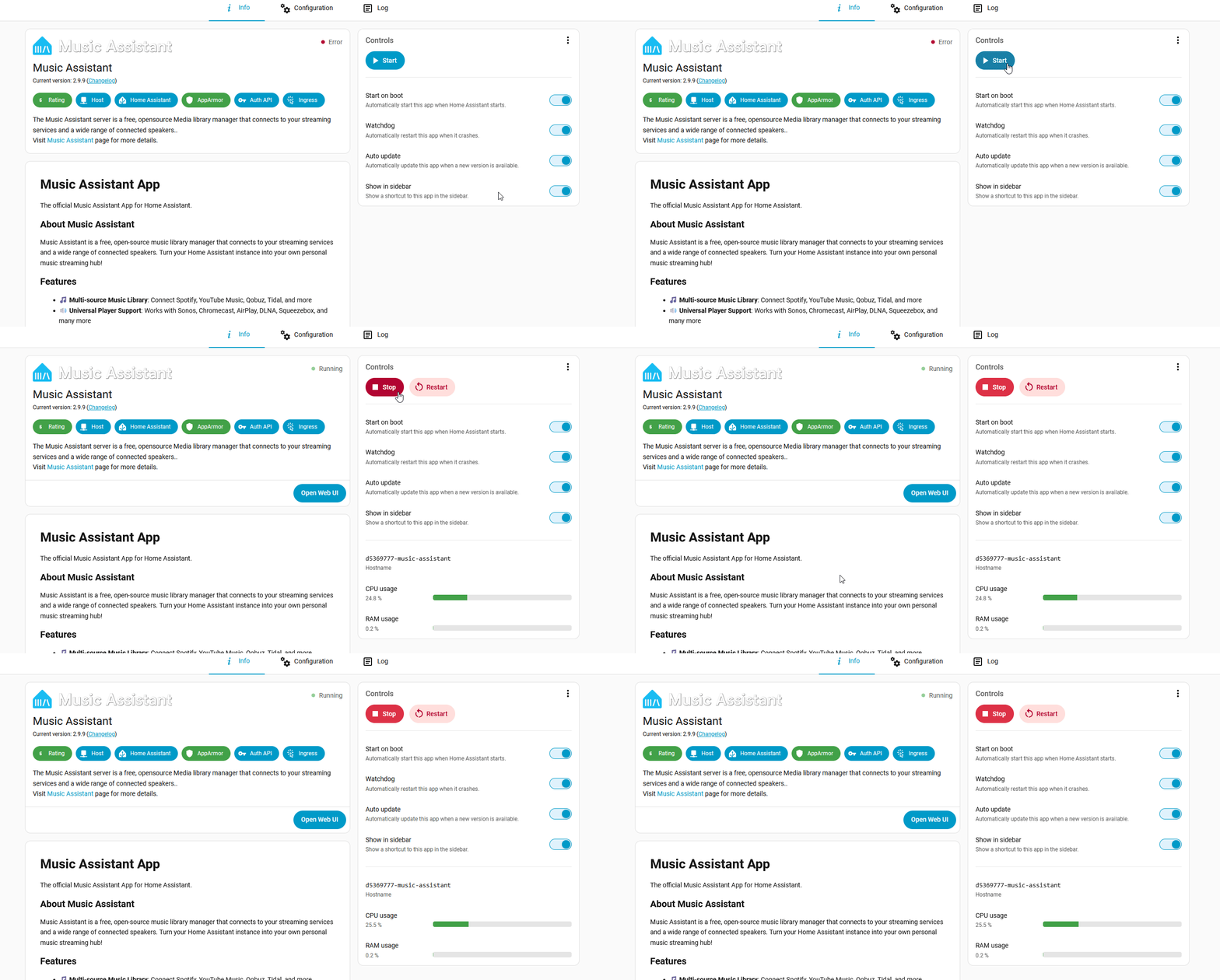
3. Home Assistant discovers the Music Assistant integration automatically. Open your integrations page, find Music Assistant, then click Add and Submit.
Stream to your CAST-1
With Music Assistant running, you can start playing music through your speakers.
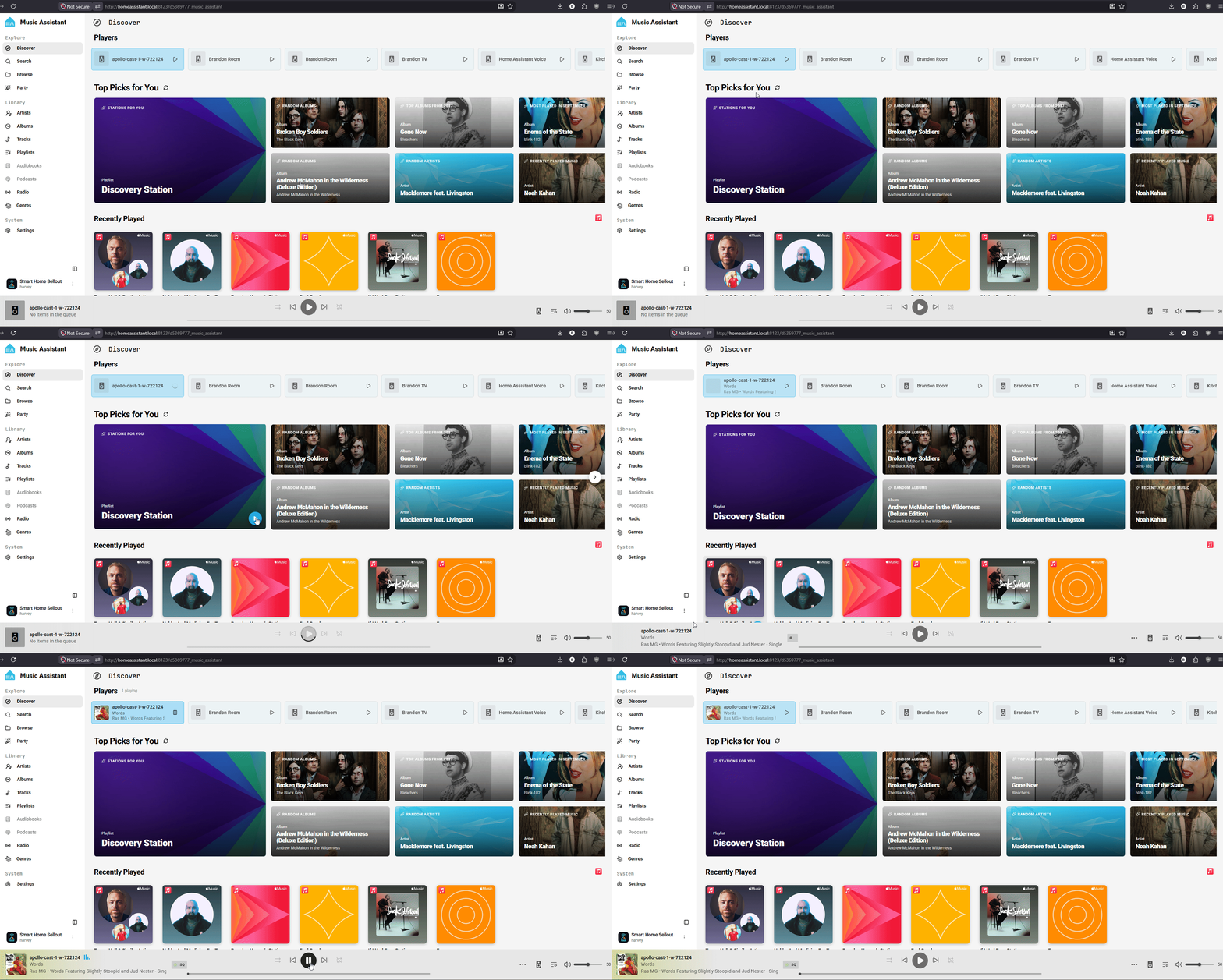
1. Open Music Assistant from the Home Assistant sidebar.
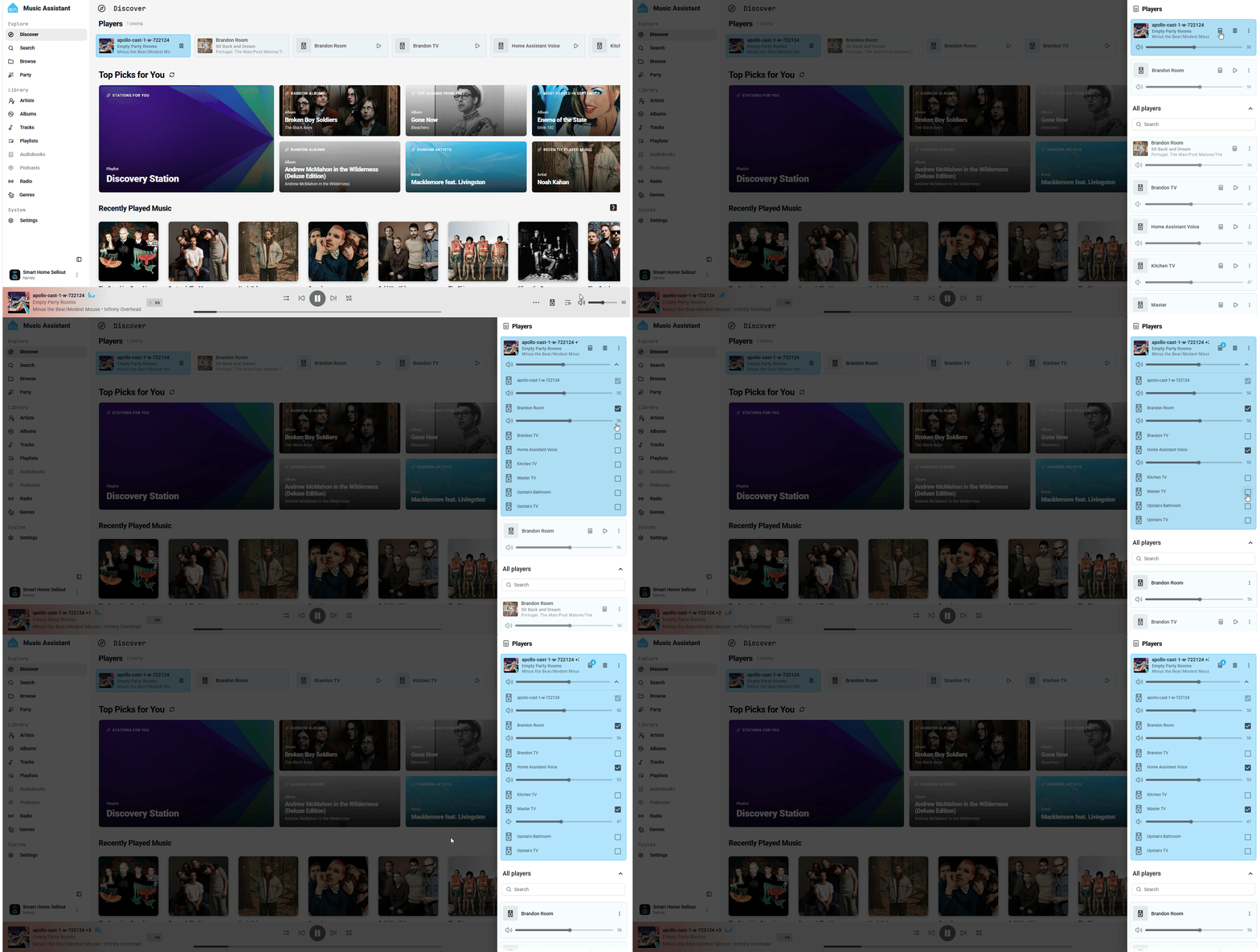
2. Your CAST-1 appears in the player list in Music Assistant. Select it as your player.
3. Pick any song, playlist, or radio station and it plays through the speakers connected to your CAST-1.
Play in multiple rooms
Have more than one CAST-1? Group them to play the same music in sync across every room.
1. In Music Assistant, open the player you're listening on.
2. Click the group/sync button and select the other CAST-1 players you want to join.
3. All grouped CAST-1 players now play the same audio together. Adjust the volume for the whole group or per player.