Tune the MSR-2 radar from its web page
The radar in your Apollo MSR-2 divides the room into gates: bands 0.75 m deep that reach out to 6 m from the sensor. Each gate has a move threshold and a still threshold, the amount of radar energy it takes to count as a person. If your MSR-2 reports presence in an empty room, or loses you while you sit still, adjusting those thresholds fixes it. Radar Engineering Mode (REM) shows the live energy in every gate, so you can see which gate is causing the trouble.
Before you start
- Connect your MSR-2 to Wi-Fi and add it to Homey. See Getting started.
- Have a phone or computer on the same network as your MSR-2. You tune the radar in a web browser.
Why you tune on the web page, not in Homey
The Apollo Automation app for Homey doesn't show the gate thresholds, Radar Engineering Mode, or the gate energy readings. Your MSR-2 has a built-in web page with all three. The thresholds you set there are stored in the radar itself, so the presence readings on your MSR-2 in Homey follow them.
Watch the videos
Two short videos from Apollo cover the basics. The first explains the radar's gates and zones, and the second shows how to tune it with Radar Engineering Mode. Both use the MSR-1, which has the same LD2410B radar as your MSR-2. If a video tunes the radar in Home Assistant, follow along on your MSR-2's web page instead, using the steps below.
Open your MSR-2's web page
Your MSR-2 serves its own web page on your network, with the sensor's controls and readings. You open it in any browser with the sensor's .local address.
- In the Homey app, open your MSR-2 and note the last 6 characters of its name. For example, Apollo MSR-2 c64a28 gives you
c64a28. - In a browser on the same network, go to
http://apollo-msr-2-c64a28.local/, using your own 6 characters.
The page opens with your MSR-2's readings and controls, grouped into sections such as Configuration and Diagnostic.
If the .local address doesn't load
Some networks and browsers can't open .local addresses, and a renamed device no longer shows the 6 characters. Use the IP address instead and go to http://<device IP>. Your router's list of connected devices shows the IP address. Homey shows it too: open your MSR-2's settings in Homey, choose Repair, and read the address under IP address or hostname. Leave without tapping Test and save.
Find the gates that cause false triggers
With Radar Engineering Mode on, the web page shows how much movement energy and still energy the radar picks up in each gate, from 0 to 100%. A gate reports presence when its energy rises above its threshold, so comparing the two tells you which gate is at fault.
- In the Configuration section, turn on Radar Engineering Mode.
- Scroll to the Diagnostic section. The gate energy readings, g0 move energy and g0 still energy through g8 move energy and g8 still energy, now update live.
- Leave the room empty, or stand in a spot where the MSR-2 shouldn't detect you, and watch the readings for a minute or two.
- Compare each gate's readings with its thresholds in the Configuration section, g0 move threshold and g0 still threshold through g8 move threshold and g8 still threshold.
Any gate whose energy climbs above its threshold while nobody is there is causing your false triggers. Note those gates, and the highest energy you saw in each, before you move on.
Where each gate sits
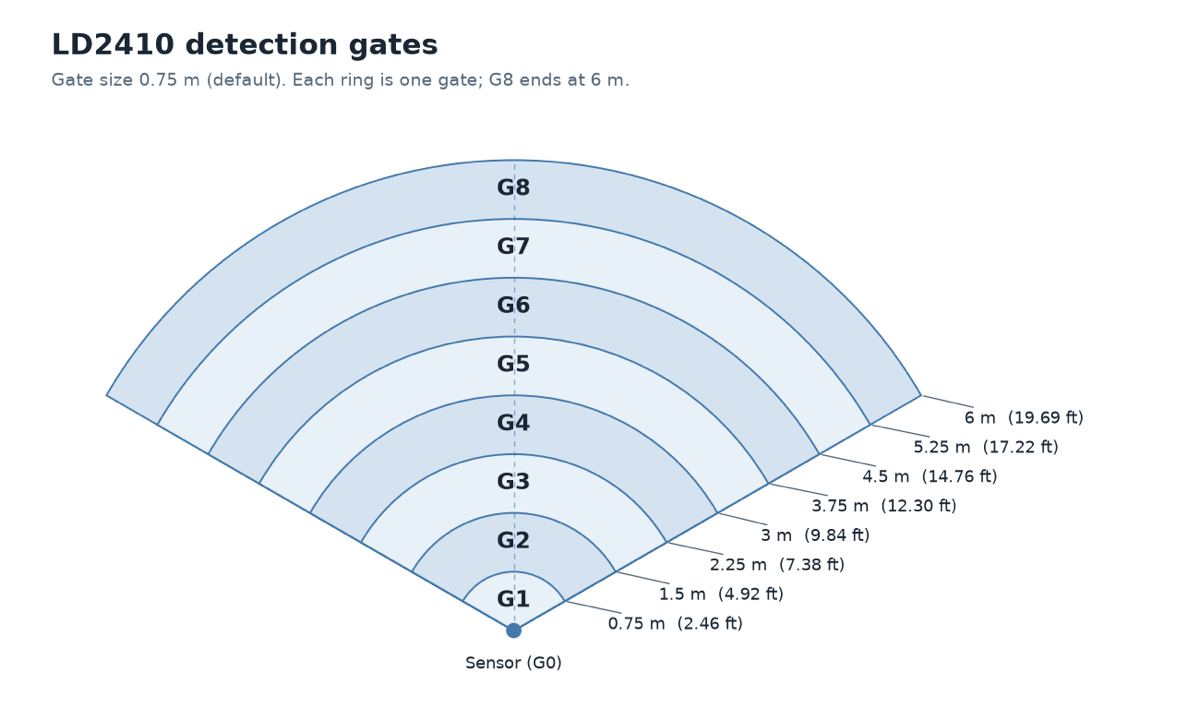
Each gate covers 0.75 m, counted out from the sensor. Use the table to match a gate to a spot in your room.
| Gate | Distance | Default move threshold | Default still threshold |
|---|---|---|---|
| 0 | 0 m / 0 ft | 50 | 0 |
| 1 | 0-0.75 m / 0-2.46 ft | 50 | 0 |
| 2 | 0.75-1.5 m / 2.46-4.92 ft | 40 | 40 |
| 3 | 1.5-2.25 m / 4.92-7.38 ft | 40 | 40 |
| 4 | 2.25-3 m / 7.38-9.84 ft | 40 | 40 |
| 5 | 3-3.75 m / 9.84-12.30 ft | 40 | 40 |
| 6 | 3.75-4.5 m / 12.30-14.76 ft | 30 | 15 |
| 7 | 4.5-5.25 m / 14.76-17.22 ft | 30 | 15 |
| 8 | 5.25-6 m / 17.22-19.69 ft | 30 | 15 |
Adjust the thresholds
Each gate has a move threshold slider for people walking around and a still threshold slider for people sitting or standing still. Moving a slider to the right raises the energy needed to trigger the sensor, so the gate becomes less sensitive. Moving it to the left lowers it, so the gate becomes more sensitive.
- In the Configuration section, find the sliders for a gate you noted, for example g6 move threshold and g6 still threshold.
- Move each slider to the right, a little above the highest energy you saw in that gate while the room was empty.
- Repeat for every gate you noted.
- Walk through the room, then sit where you usually sit. Check that the gates covering those spots still rise above their thresholds. If one doesn't, move its slider back to the left a little.
- Turn Radar Engineering Mode back off. You only need the gate energy readings while you tune.
Your MSR-2 now ignores the spots that caused false triggers. To confirm it in Homey, open your MSR-2 and watch Has Target as you walk in and out of the room. It turns on when you arrive and off once you have left and the radar timeout has passed.
Another approach from Make It Work Tech
I ended up maxing out the sliders on all gates and then bringing them down just enough to pick up human presence. Definitely easier than using the LD2410B app. - MakeItWorkTech
Example: kitchen lights in an open-plan room
Say your kitchen and living room share one open space, and you want the MSR-2 to turn on your under-cabinet lights only when someone is in the kitchen. Gate tuning makes that work.
- With Radar Engineering Mode on, stand in the kitchen, then in the living room, and note which gates rise in each spot.
- Move the sliders for the living room gates to the right, so walking past no longer triggers the sensor.
- Move the still threshold sliders for the kitchen gates to the left, so the lights stay on while you stand still reading a recipe or doing the dishes.
The lights now follow you into the kitchen and ignore the living room.
From the community: clarinetJWD
Engineering mode is what I was missing at first. I did exactly that, and now detection is basically perfect! My under cabinet lights now come on to max brightness whenever someone is in the kitchen, and return to their previous value when they leave.
Set the range and timeout in Homey
Three radar settings are in Homey itself, so you can change them without the web page. They are the same settings as Radar Max Move Distance, Radar Max Still Distance, and Radar Timeout on the web page, and a change in either place shows up in the other.
In the Homey app, open your MSR-2's Settings and look under Radar tuning (MSR-1 / MSR-2):
- Radar max move distance gate and Radar max still distance gate: the farthest gate the radar watches, from 2 to 8. Each gate is 0.75 m, so gate 4 stops detection at 3 m. Lower them to ignore movement beyond your room, such as in a hallway.
- Radar timeout: how many seconds the MSR-2 keeps reporting presence after it last detects someone. Raise it if presence drops out while someone is still in the room.
The MSR-2's three distance zones are on the same screen, under Radar zones for MSR-2.
Other ways to tune
- Let the radar set the thresholds. The HLKRadarTool phone app can measure your room's background noise and set every gate for you. See How to tune mmWave using HLKRadarTool.
- Also use Home Assistant? The same controls are on your MSR-2's device page in Home Assistant, and the Apollo mmWave integration adds a guided tuning dashboard. See the Home Assistant version of this guide.
Further reading
- LD2410 radar presence detector video by Andreas Spiess
- LD2410 ESPHome tips thread on the Home Assistant community forum
Run into issues? Click here to join our Discord for fast support!