(Better) HLK Radar Tool App
Finding your MTR-1's web server address
Some steps below require opening your device's web server in a browser. To find your address:
- In Homey, open your MTR-1 device and note the last 6 characters of its name. For example, Apollo MTR-1 c64a28 gives you
c64a28. - Build your URL:
http://apollo-mtr-1-c64a28.local/
If the .local address doesn't load, use your router to find the device's IP address and use that instead.
Configure zones
Ensure that the LD2450 firmware version is V2.02.23090617 or later for proper integration functionality.
The newer version of the firmware includes an "auto calibrate" function so you might want to test it out!
The HLK-LD2450 mmWave sensor is used in the MTR-1. Click Here for the datasheet.
With the app installed, you'll turn on the radar's Bluetooth, connect to it from the HLKRadarTool app, and set up your zones.
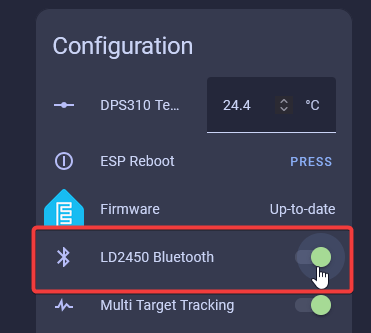
1. Open your MTR-1's web server (see address tip above), scroll down until you see LD2450 Bluetooth, and toggle it on.
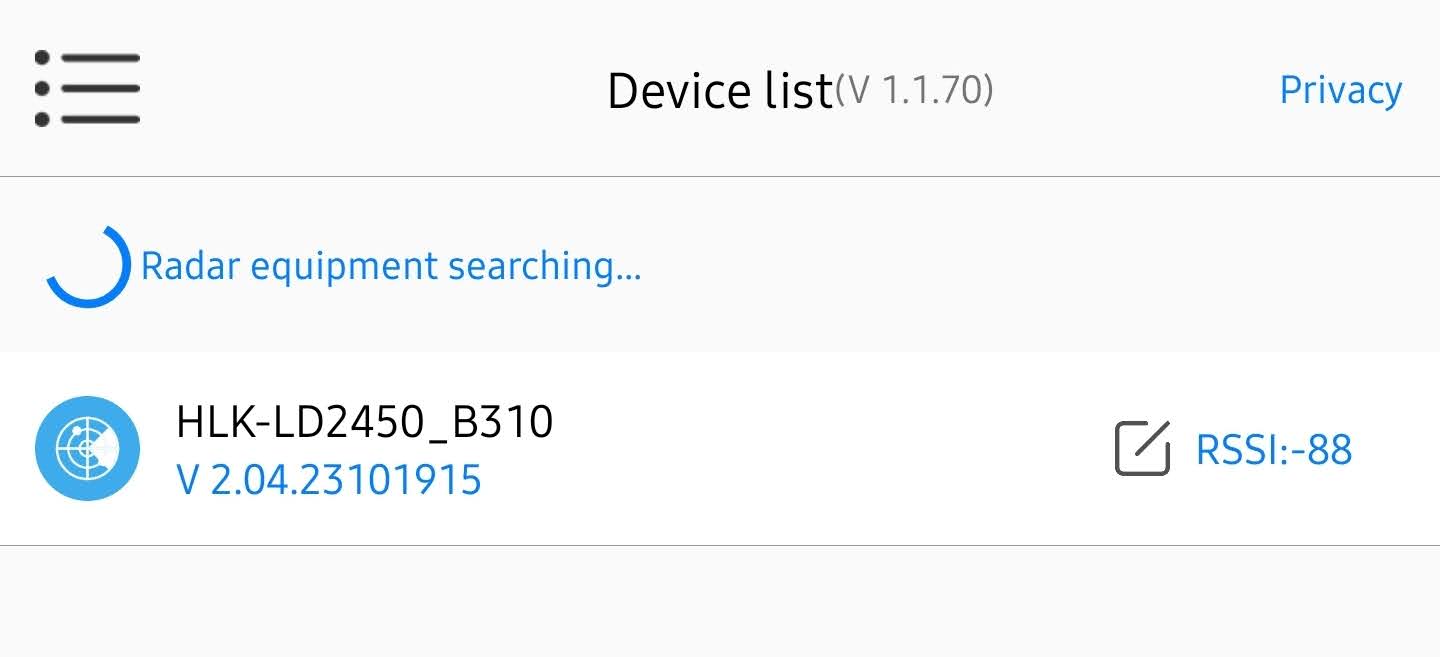
2. Open the HLKRadarTool App and select your device.
You need to be close to your device!
The LD2450 mmWave sensor is a very tiny sensor with no external antenna, which means it cannot connect to Bluetooth devices unless they are very close. Sometimes this means you need to be within a few feet of the sensor to connect directly to it!
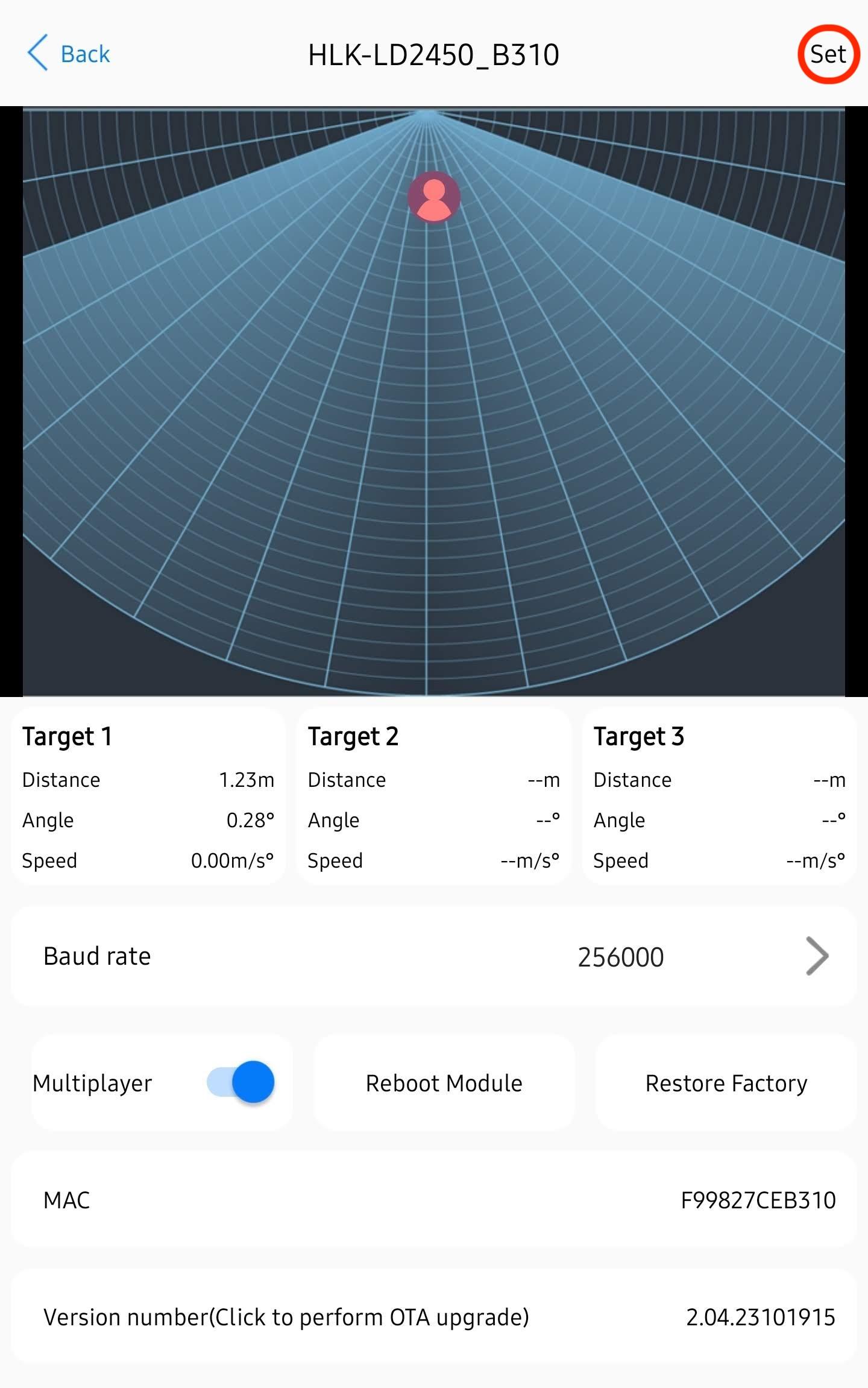
3. Select Set in the top right.
4. Select Area Detection, then toggle Area 1, 2, or 3 and you will see a box with the corresponding number pop up. Then you can press and hold the box to move it and resize it. When your zones are set then select Submit and you should see Setup successfully.
There are three ways to use your MTR-1!
You can use any of these three choices to control your MTR-1 differently. The most common option is Area Detection, which lets you set up three areas and track three targets within them.
Close detection (Disabled on the web server): zone detection is off
Area Detection (Detection): only detects targets inside your zones
Area Filtering (Filter): ignores targets inside your zones
Close detection lets you use the sensor as a basic presence sensor, and Area Filtering lets you filter out an area and detect everything else, which is useful to avoid a fan!
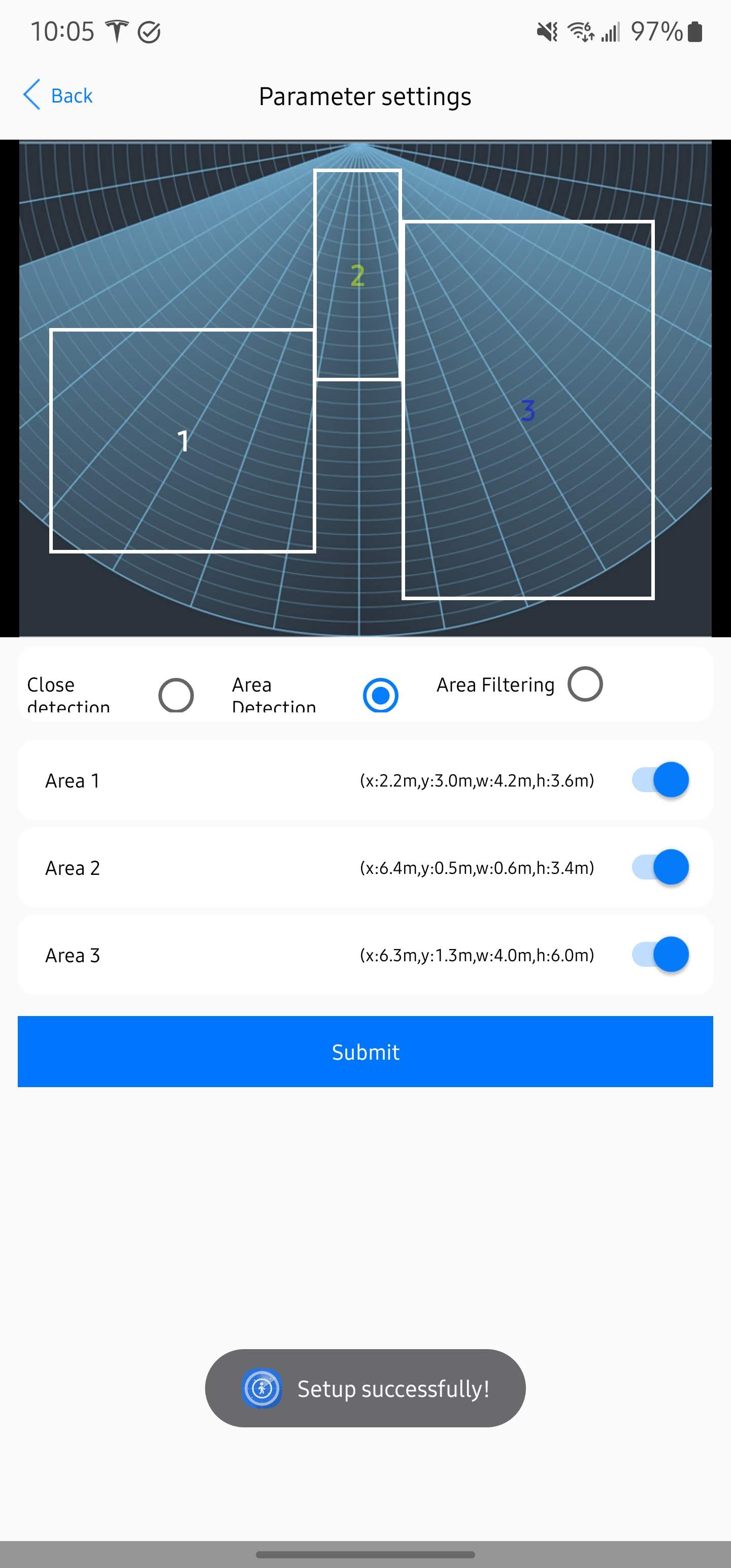
5. If set up correctly the zones should be saved as different colors. You should be all set!
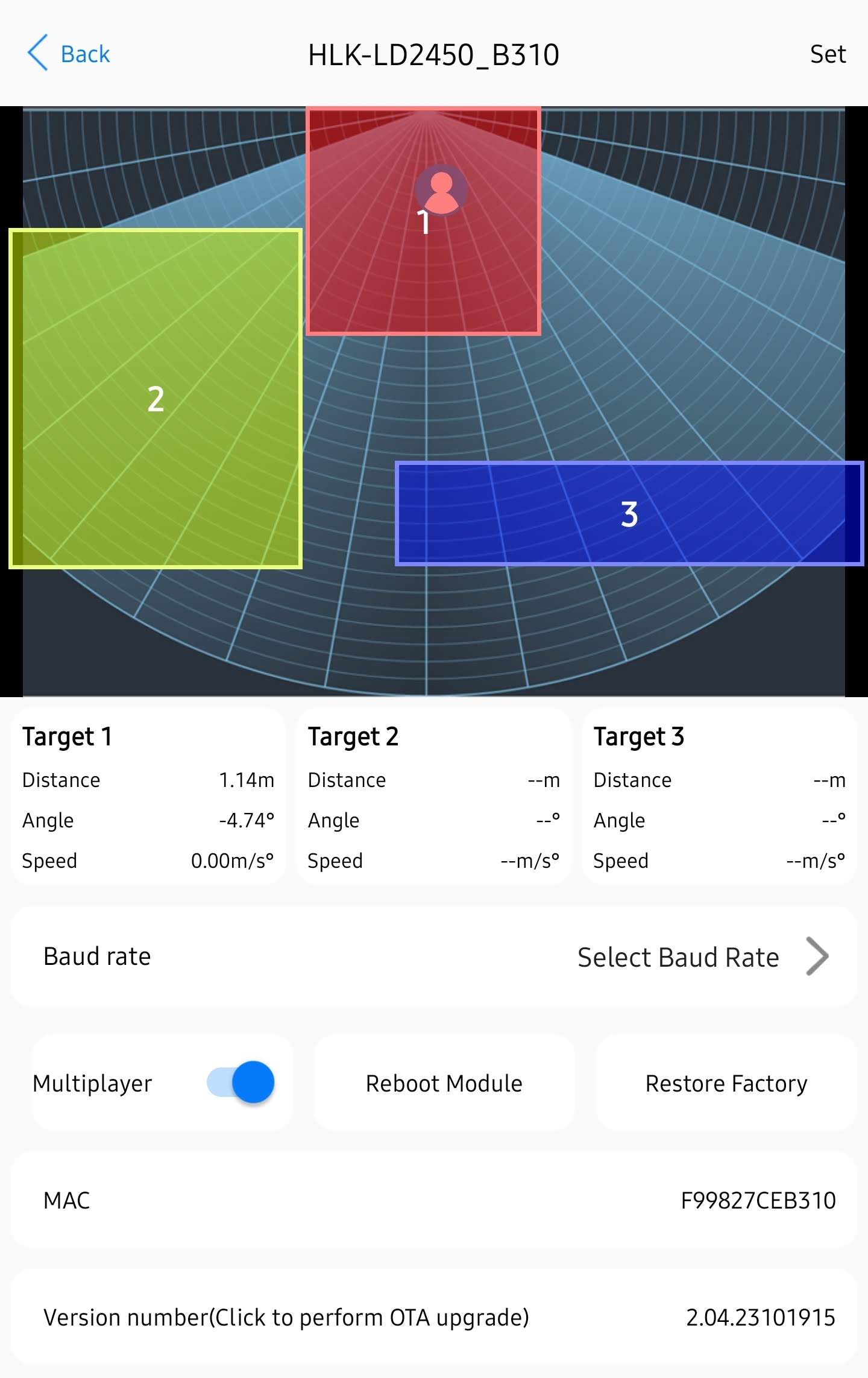
Helpful Hints to understand zones better!
-
X1 must always be less than X2, and Y1 must always be less than Y2.
-
The Y axis is easier since it's never negative.
- The X axis is where you can get tripped up, especially when both values are negative: -3456 is less than -2345.
- The zones cannot overlap.