How to wake up your sensor
Once Prevent sleep is off, your Apollo TEMP-1B, PLT-1B, or BTN-1 sleeps between reports to make its battery last, and Homey can't reach it while it sleeps. In the Homey app, a sleeping sensor shows as Device disconnected, and if you try to change a setting, Homey shows The device is asleep. Settings can be changed when it next wakes up. The sensor wakes on its own after each Sleep duration and reconnects to Homey. Wake it yourself when you want fresh readings right away, or need it awake to change a setting, update the firmware, or troubleshoot.
Using a USB-powered TEMP-1?
Your TEMP-1 normally stays awake in Homey, so there's nothing to wake. If it keeps losing its connection to Homey, it may have been set to sleep earlier, for example in Home Assistant. Turn Prevent sleep back on with its boot button.
Wake your sensor
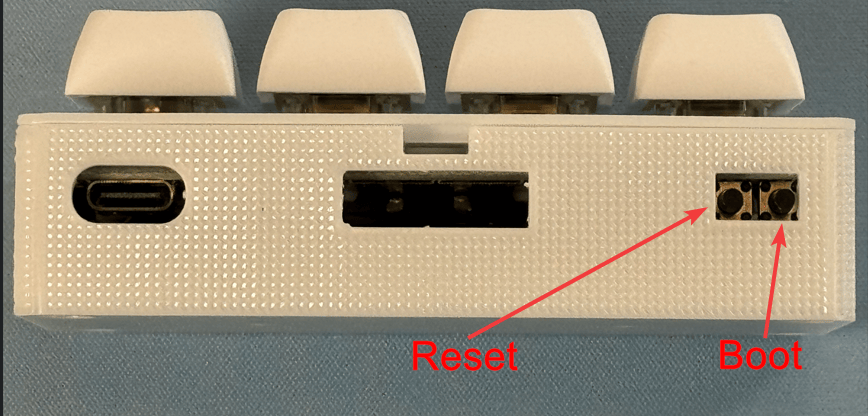
Pressing the reset button restarts your sensor, so it wakes up right away, connects to your Wi-Fi, and reports to Homey. On a BTN-1, any of its four buttons wakes it too. The boot button can't wake a sleeping sensor. Once the sensor is awake, the boot button is what keeps it awake. Select your device below to find both buttons.
The buttons are on the board inside the case. To reach the reset button, gently pry the lid off at the small slit near the top of the case. You can press the boot button with the lid off too, or with a paperclip through the small opening on the right side of the case when the USB-C port faces you. Putting the TEMP-1B in boot mode has more photos.
To wake the TEMP-1B, press and release the reset button. You can also take the battery out and put it back in.
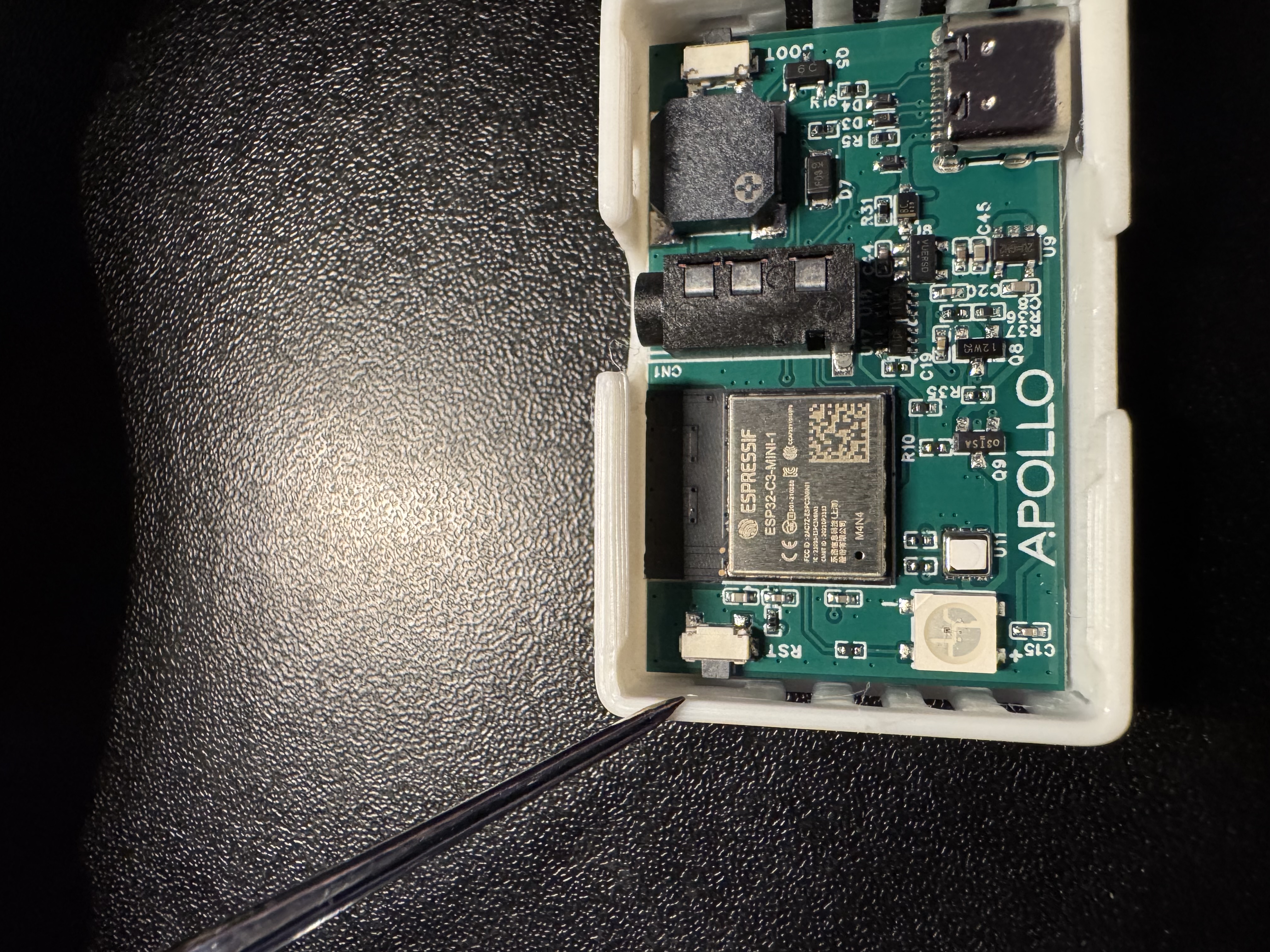
This is the boot button, which you'll use to keep the sensor awake.
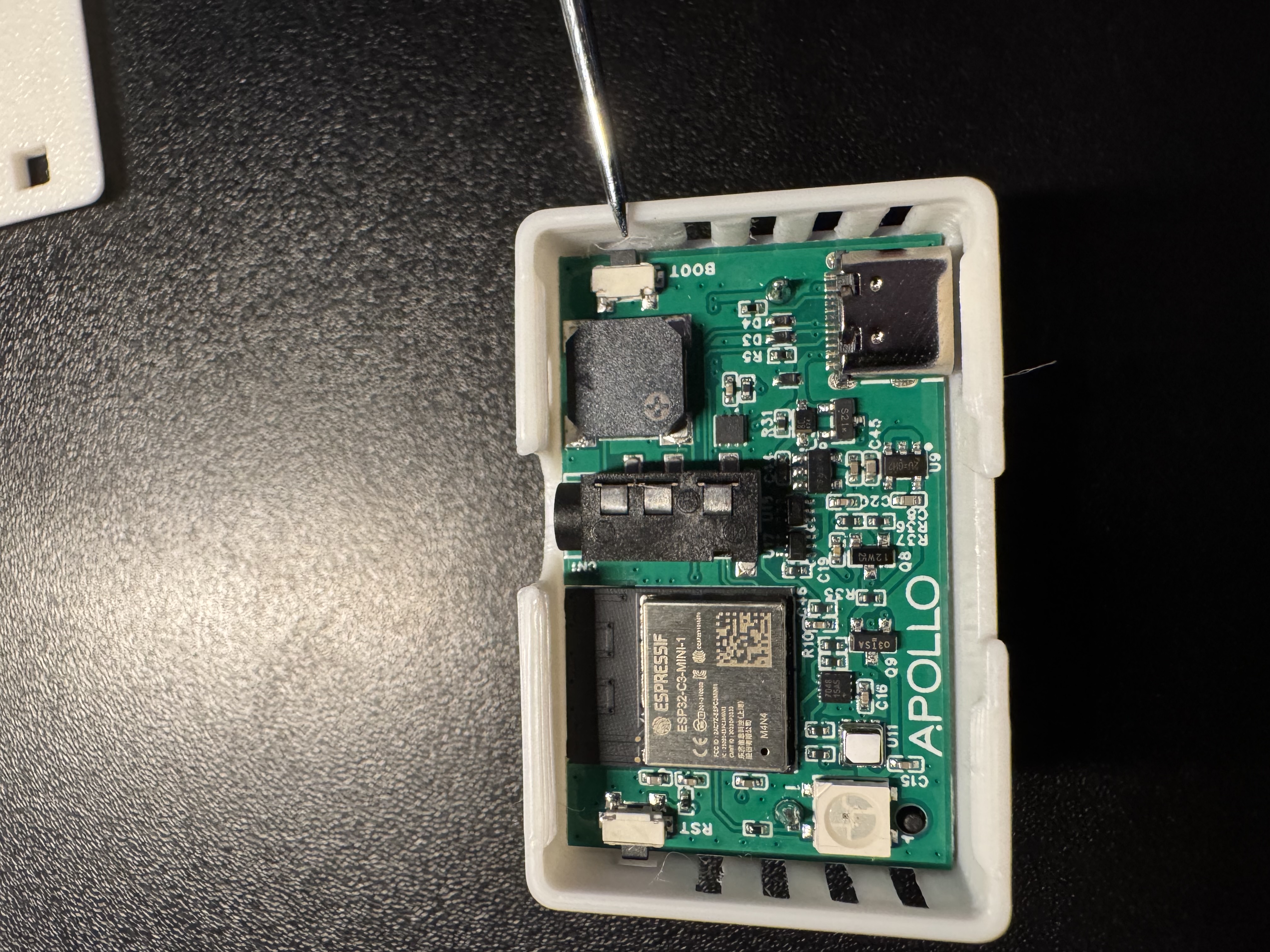
You can press both buttons with a pin through small openings in the case. Putting the PLT-1B in boot mode shows where the openings are.
To wake the PLT-1B, press and release the reset button. You can also take the battery out and put it back in.
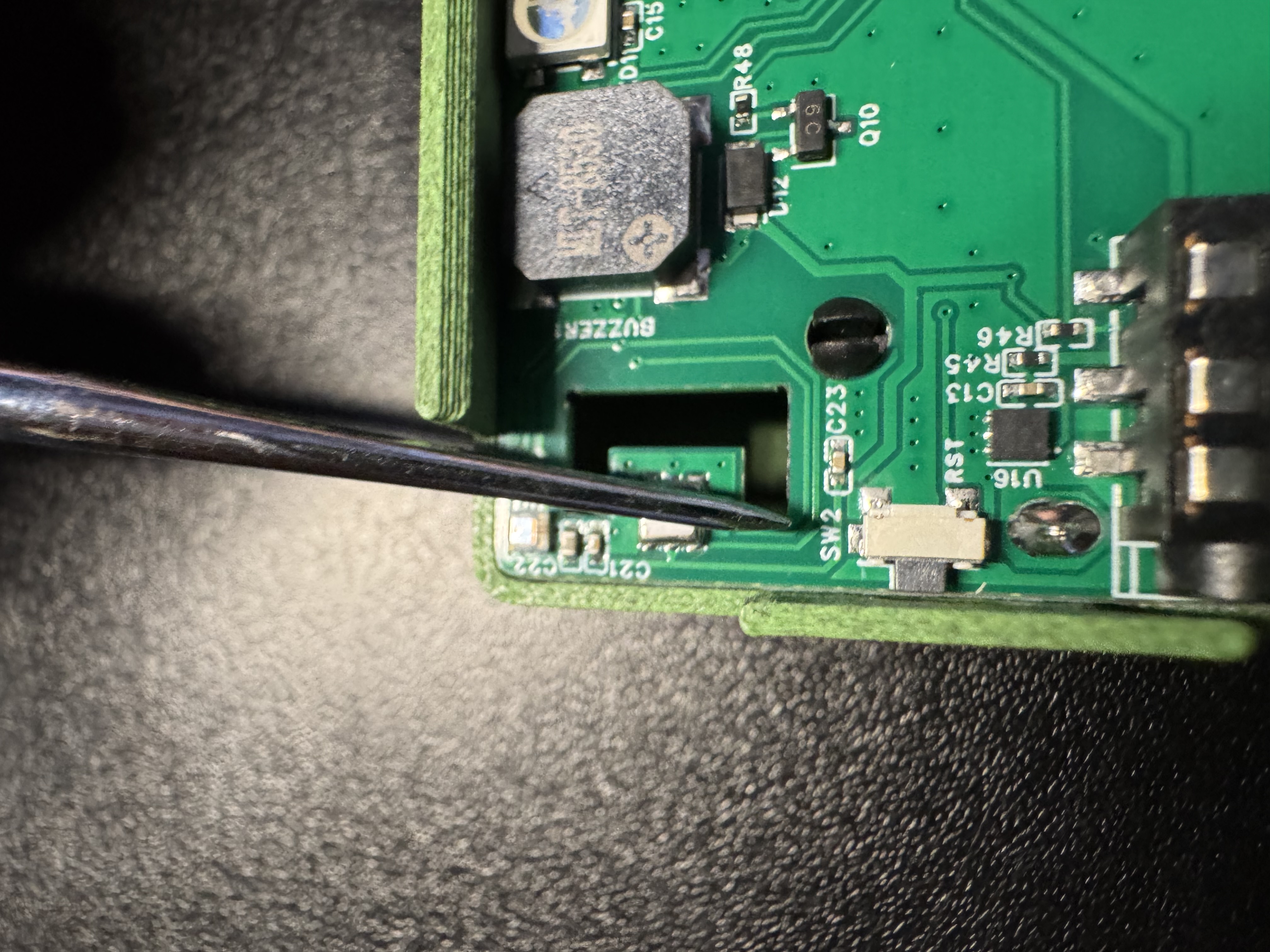
The boot button, which you'll use to keep the sensor awake, sits next to the USB-C port.
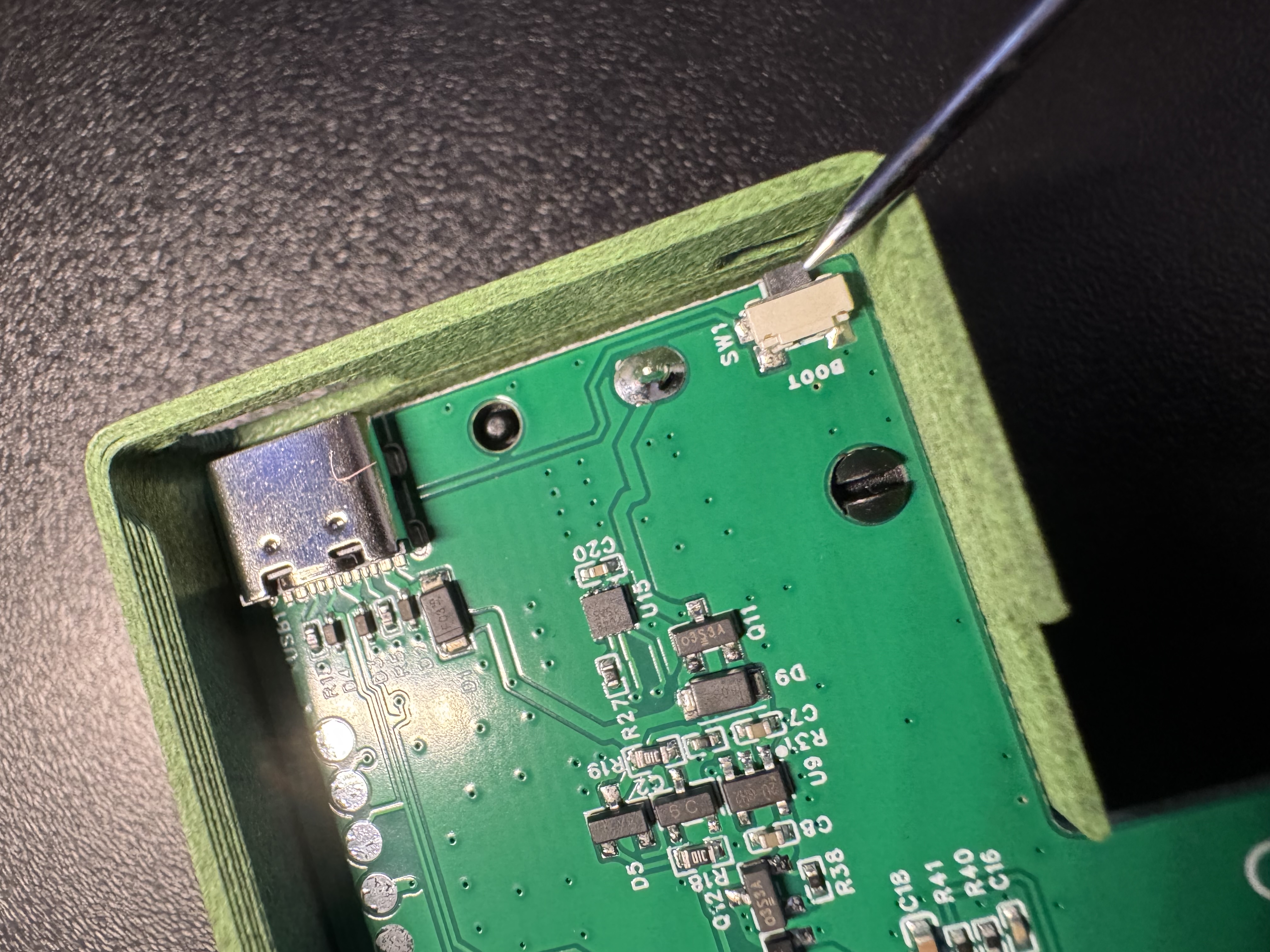
To wake the BTN-1, press and release the reset button, on the left in the photo below. The boot button, which you'll use to keep the BTN-1 awake, is on the right.
Pressing Button 1, 2, 3, or 4 also wakes the BTN-1. Homey receives that press as a Click of that button once the BTN-1 reconnects, so any flow you've tied to a click of that button runs. Use the reset button when you only want to wake it.
Your sensor is now awake. Homey reconnects to it on its own, and the Homey app no longer shows it as Device disconnected. It doesn't stay awake for long, though. Unless Prevent sleep is on, it sends fresh readings and goes back to sleep about 20 seconds after Homey connects (about 10 seconds for the BTN-1), or after about 90 seconds if Homey doesn't connect at all. Not sure your TEMP-1B or PLT-1B woke up? The sensor connection check tells you in a few seconds.
Keep your sensor awake
A wake-up doesn't last long enough to change settings or troubleshoot comfortably. Turn on Prevent sleep and your sensor stays awake until you turn it off again. You can turn it on from the sensor itself or from the Homey app, where it sits in your sensor's Settings under Battery settings (if battery is present).
With the buttons on the sensor
The buttons work even when Homey can't reach the sensor, which makes this the most reliable way. It's also the better choice for the BTN-1, which stays awake for only about 10 seconds after Homey connects. Press the two buttons one after the other, never together: holding the boot button while you press reset puts the sensor in boot mode for flashing firmware instead.
Watch how long you hold the boot button
Hold the boot button for 4 to 5 seconds, no longer. Holding it for 10 seconds or more resets your sensor to factory settings and erases its Wi-Fi, and you'd have to connect it to Wi-Fi again.
- Press and release the reset button to wake the sensor.
- Wait a few seconds, then press and hold the boot button for 4 to 5 seconds and let go.
Your sensor turns Prevent sleep on and stays awake. In Homey, Prevent sleep shows as checked once the sensor is connected. If Homey loses the connection again a few seconds later, the sensor was already on its way back to sleep. It still remembers Prevent sleep, so press the reset button once more and it stays awake this time.
From the Homey app
The sensor stays awake for only about 20 seconds after Homey connects, or about 10 seconds for the BTN-1, so have the Homey app open and ready before you start.
- Wake the sensor with the reset button.
- In the Homey app, open your sensor and wait until it no longer shows Device disconnected.
- Right away, open its Settings, check Prevent sleep under Battery settings (if battery is present), and save.
- If Homey loses the connection again a few seconds later, press the reset button once more.
Your sensor now stays awake until you uncheck Prevent sleep again. If the sensor was already on its way back to sleep at step 3, it still keeps the change and starts up with Prevent sleep on after the reset in step 4. If Homey shows The device is asleep. Settings can be changed when it next wakes up. instead, the change didn't reach the sensor: start again from step 1, or use the buttons.
The Prevent sleep guide for the TEMP-1B, PLT-1B, or BTN-1 covers both settings in detail, including Sleep duration. On a BTN-1, Prevent sleep also decides which presses reach Homey.
Next step: let your sensor sleep again
Staying awake drains the battery far faster. Once you're done, turn Prevent sleep off and choose how long the sensor sleeps between reports.
TEMP-1B: Prevent sleep PLT-1B: Prevent sleep BTN-1: Prevent sleep