Air quality notification
Difficulty: Level 1
This flow watches the CO2 reading on your Apollo AIR-1 and tells you when the air in your home is less than ideal. When CO2 rises above 999 ppm, the AIR-1's light turns red and everyone who's home gets a push notification with the current reading. When CO2 drops below 900 ppm, the light turns green, and 5 minutes later the flow turns it off.
Before you start
This guide uses the Homey web app in a web browser, because the flow is built with Homey's Advanced Flow editor.
Add the CO2 triggers
Start with two trigger cards: one for when CO2 gets too high, and one for when it comes back down.
1. Open a web browser, such as Firefox, and go to the Homey webapp. Click the Flow tab on the left side.
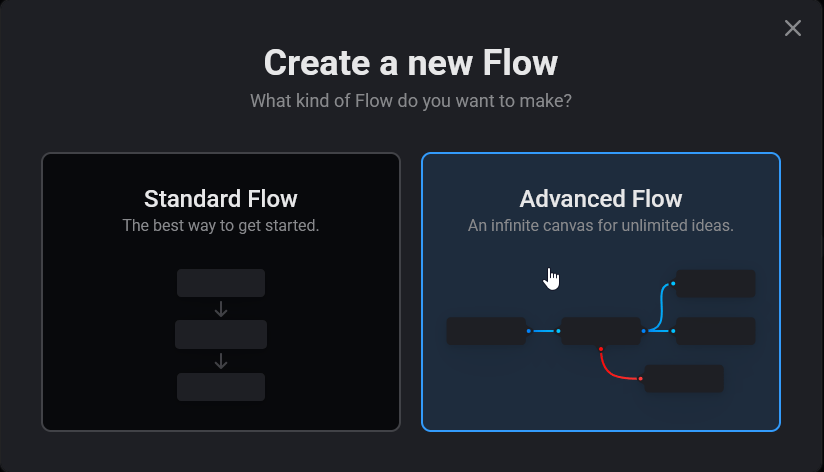
2. Click New Flow, then Advanced Flow.
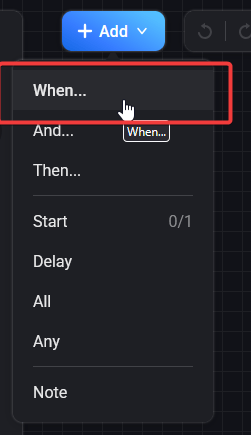
3. Click Add and select When.
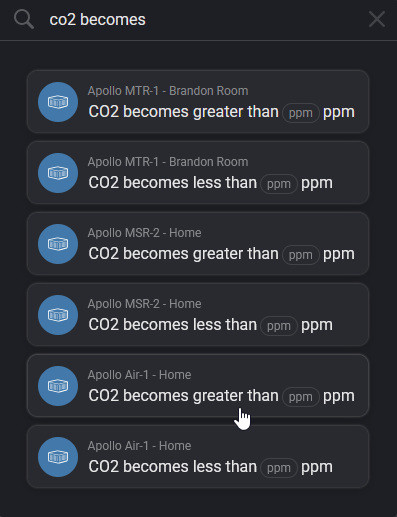
4. In the search bar at the top, type co2 becomes and select the card for the sensor you want to track. This guide uses CO2 becomes greater than for the Apollo AIR-1 device.
5. Left-click on your flow area to place the card. Your flow canvas now shows this card:
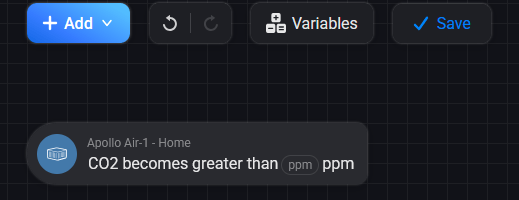
6. Select ppm and type in your value. This guide uses 999.
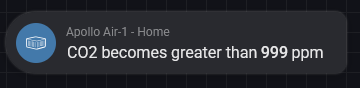
7. Repeat steps 4 and 5, but this time select CO2 becomes less than and place it on your flow canvas. Fill in your less-than ppm value, such as 900.
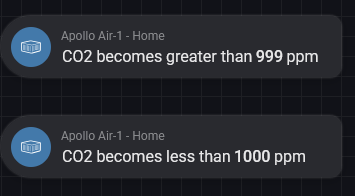
Use 900, even though the screenshots show 1000
From step 7 on, the screenshots show 1000 ppm on the less-than card; use 900. The gap between 900 and 999 keeps the light from flickering between red and green when CO2 hovers around 1000 ppm.
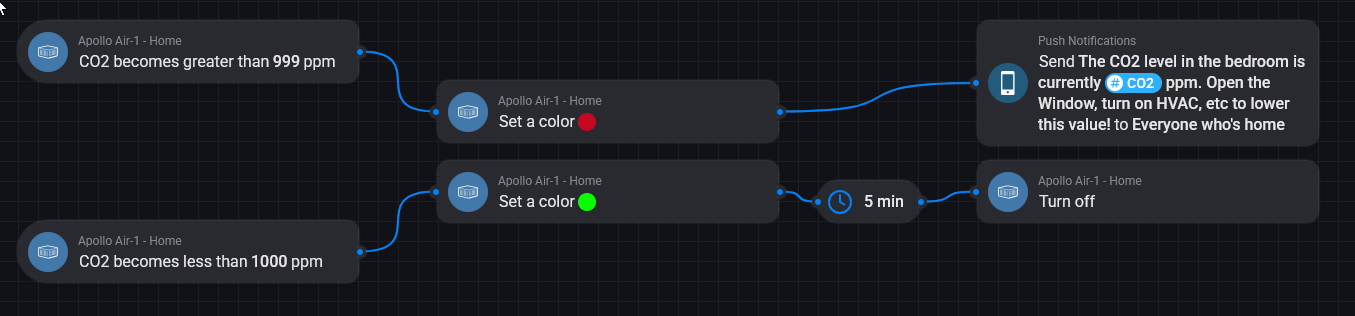
Both triggers are now on your canvas.
Set the light color
Next, link each trigger to a color on the AIR-1's light: red for high CO2, green once it drops.
8. Click Add, select Then, search for set a color, and choose the AIR-1 device option.
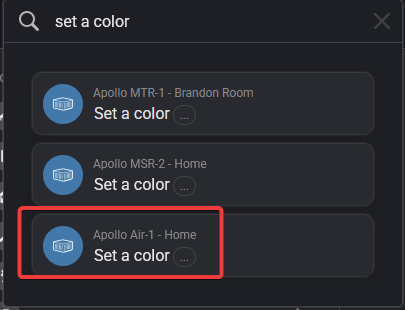
9. Draw a line from CO2 becomes greater than 999 ppm to the Set a color card. Click the 3 dots and select a color. This guide uses red to indicate a problem.

10. Repeat steps 8 and 9 for the other trigger: add another Set a color card, connect it to CO2 becomes less than 900 ppm, and select green.
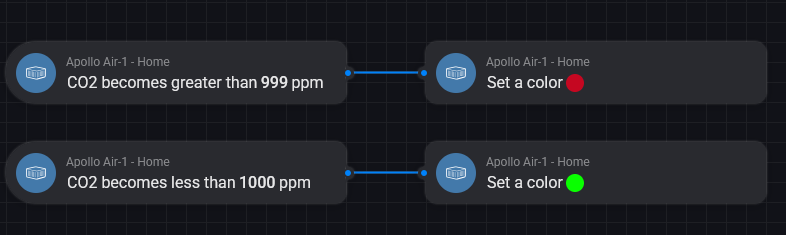
The light now turns red when CO2 is high and green when it drops.
Send a push notification
Now add a message that tells everyone at home what the CO2 level is and what to do about it.
11. Click Add, select Then, search for push, and choose Send message to user.
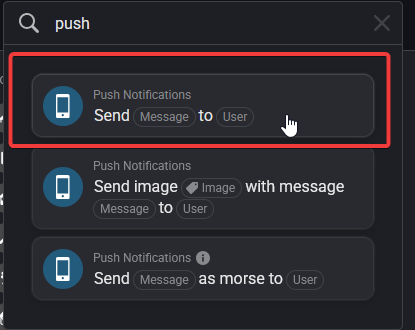
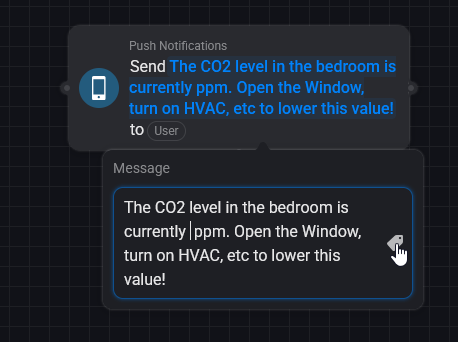
12. Draw a line from the red Set a color card to the push notification card. Then write the message:
- Type
The CO2 level in the bedroom is currently CO2 ppm. Open the Window, turn on HVAC, etc to lower this value! - Delete the second
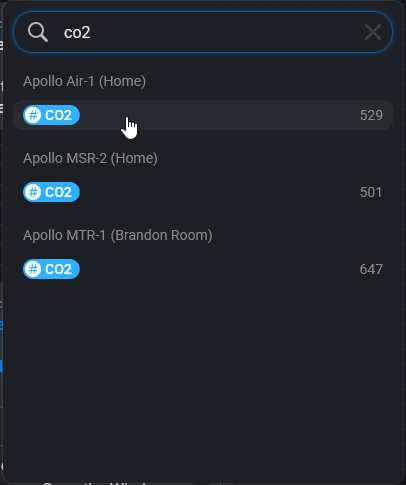
CO2(the one right beforeppm) and leave your cursor in its place. - Click the small tag icon, type
CO2, and select the blue CO2 option under Apollo AIR-1. The tag puts the live CO2 reading into the message.

13. Click User and choose Everyone who's home or your preferred option.
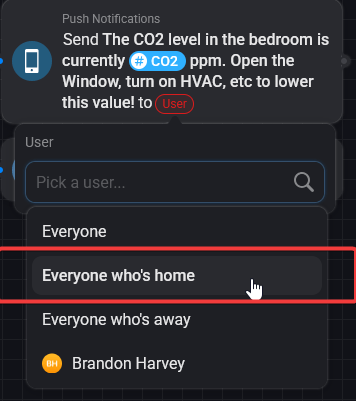
High CO2 now sends the alert along with the red light.
Turn the light off after 5 minutes
Finally, switch the light off 5 minutes after it turns green, so it doesn't stay on once the air is clear.
14. Click Add, select Delay, and place it on your flow canvas. Change it to minutes and enter 5 for a 5 minute delay. Then drag a line from the green Set a color card to the delay.

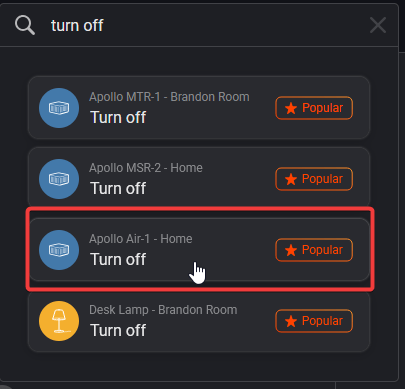
15. Click Add, select Then, search for turn off, and choose the AIR-1 device option.
16. Drag a line from the delay you added in step 14 to the Turn off card. Click Save at the top and give your flow a name. Your finished flow looks like this:
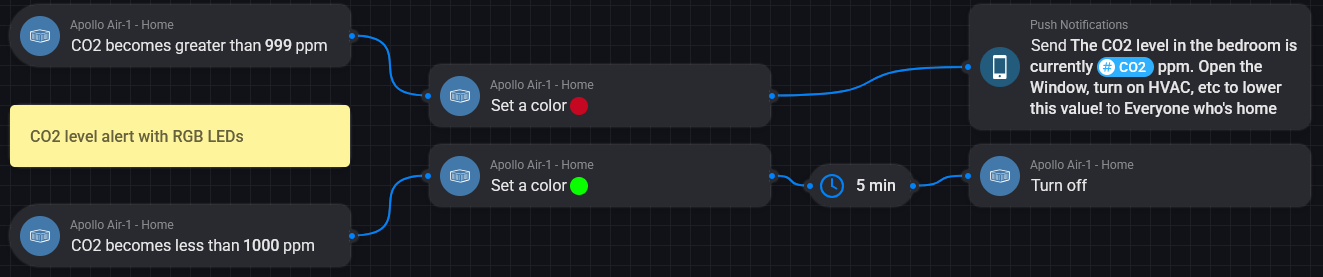
17. Optional: add a note that reminds you what this flow does. Click Add, then Note, and type CO2 level alert with RGB LEDs on the note. Your flow now looks like this:
You're done! Your flow is saved, and the next time CO2 rises above 999 ppm, your AIR-1 turns red and everyone who's home gets the alert.