Flower Card
A Flower Card shows your plant's readings on your Home Assistant dashboard, with a bar for each one, such as moisture, temperature, light, and humidity.
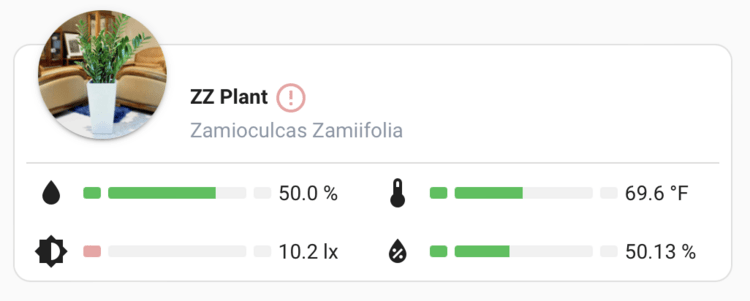
To set one up, you install up to three things through HACS, then add the card to a dashboard. Work through the sections below in order:
- Install the Plant integration.
- Install the OpenPlantBook integration (optional).
- Install the Flower Card.
- Add the card to your dashboard.
Install the Plant integration
The Home Assistant Plant integration lets you set up your plants in the Home Assistant UI. You can manage all of their configuration there or with automations and scripts.
If you're a registered OpenPlantBook user, the Plant integration can automatically fetch data from it. Registration is free.
Install the Plant integration through HACS with the button below.

Install the OpenPlantBook integration (optional)
The OpenPlantBook integration fetches plant information from OpenPlantBook and uploads your plant sensors' data to it. It creates a few service calls in Home Assistant for working with the OpenPlantBook API:
- Search plant
- Get plant details
- Upload plants sensors data
The Plant integration uses this data to add threshold values, such as moisture, temperature, and conductivity, based on your plant's species.
Install OpenPlantBook through HACS with the button below.
Install the Flower Card
The Flower Card is the dashboard card that shows your plant. You can read more about it on the Flower Card GitHub page.
Install the card through HACS with the button below.
Add the card to your dashboard
Edit your dashboard, add a Manual card, and replace its contents with the Flower Card code below. Then swap in your own entities: replace plant.my_plant with the plant you set up in the Plant integration, and sensor.demo_battery with your own battery sensor.
type: custom:flower-card
entity: plant.my_plant
show_bars:
- illuminance
- humidity
- moisture
- temperature
battery_sensor: sensor.demo_battery
Save the card, and your plant's readings appear as bars, like the example at the top of this page.