How to tune MSR-2 using HLKRadarTool
Auto-calibration
You'll connect the HLKRadarTool app to your sensor, measure your room's background noise, and pick one of the auto-calibration settings.
1. Download the HLKRadarTool app.
The default password to connect to the HLKRadarTool is "HiLink".
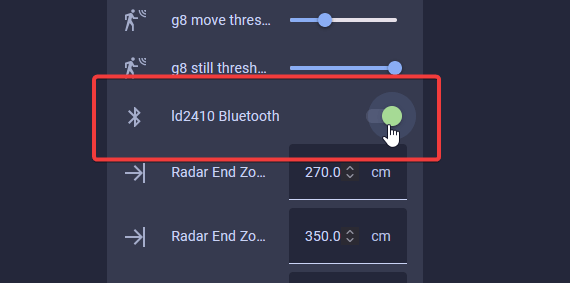
2. Head to the ESPHome integration page (Settings → Devices & services → ESPHome) then select your MSR-2 and scroll down until you see LD2410 Bluetooth.

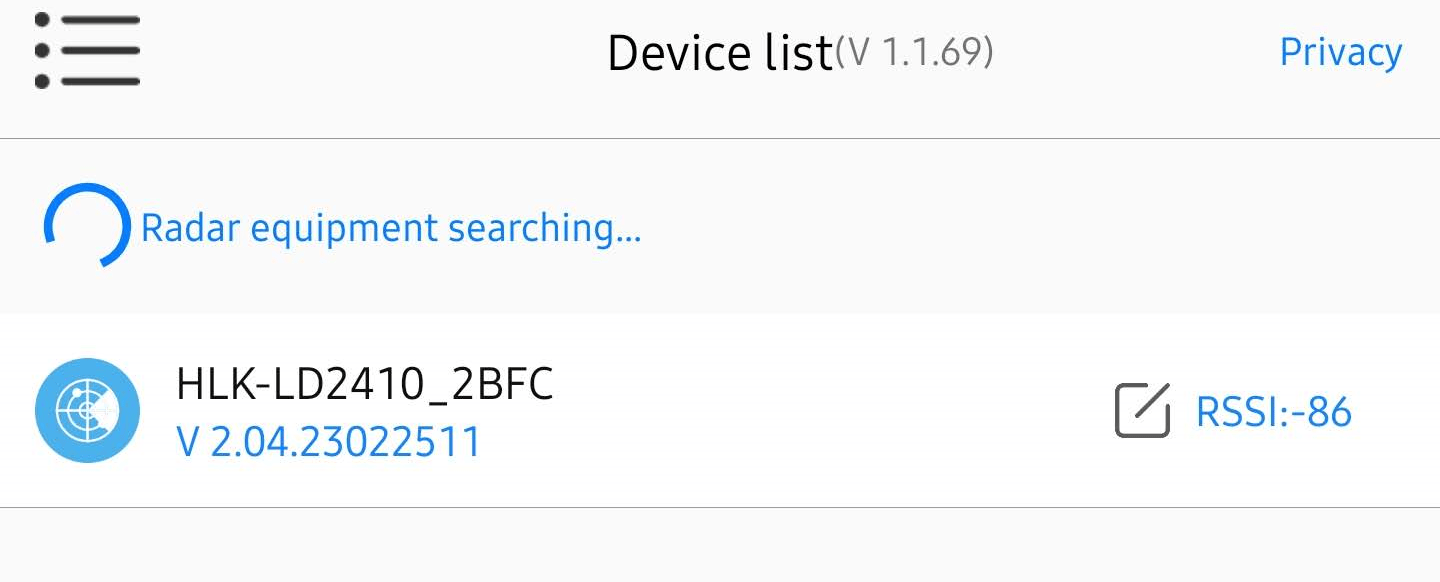
3. Open the app and select your device
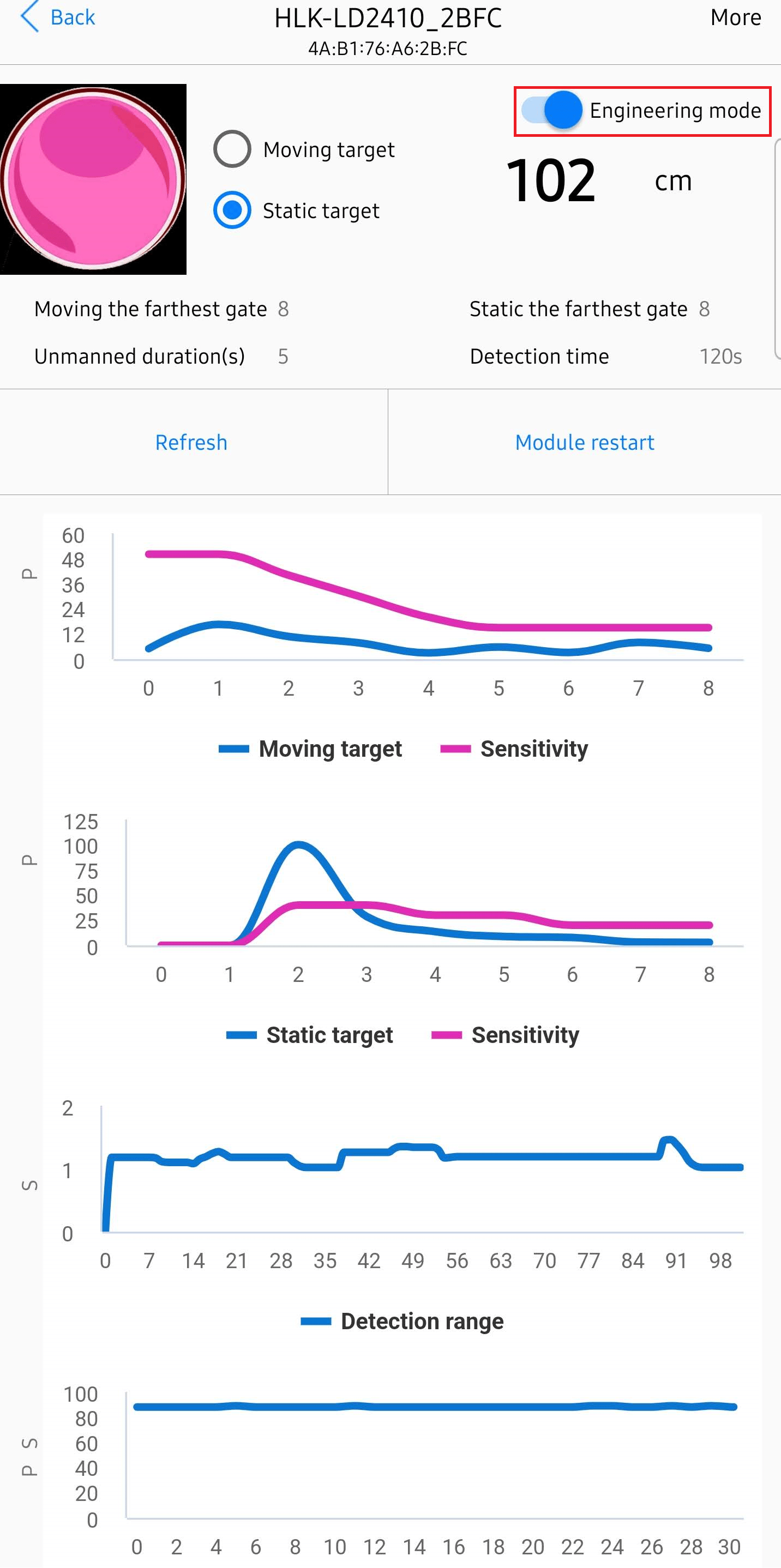
4. Turn on Engineering Mode
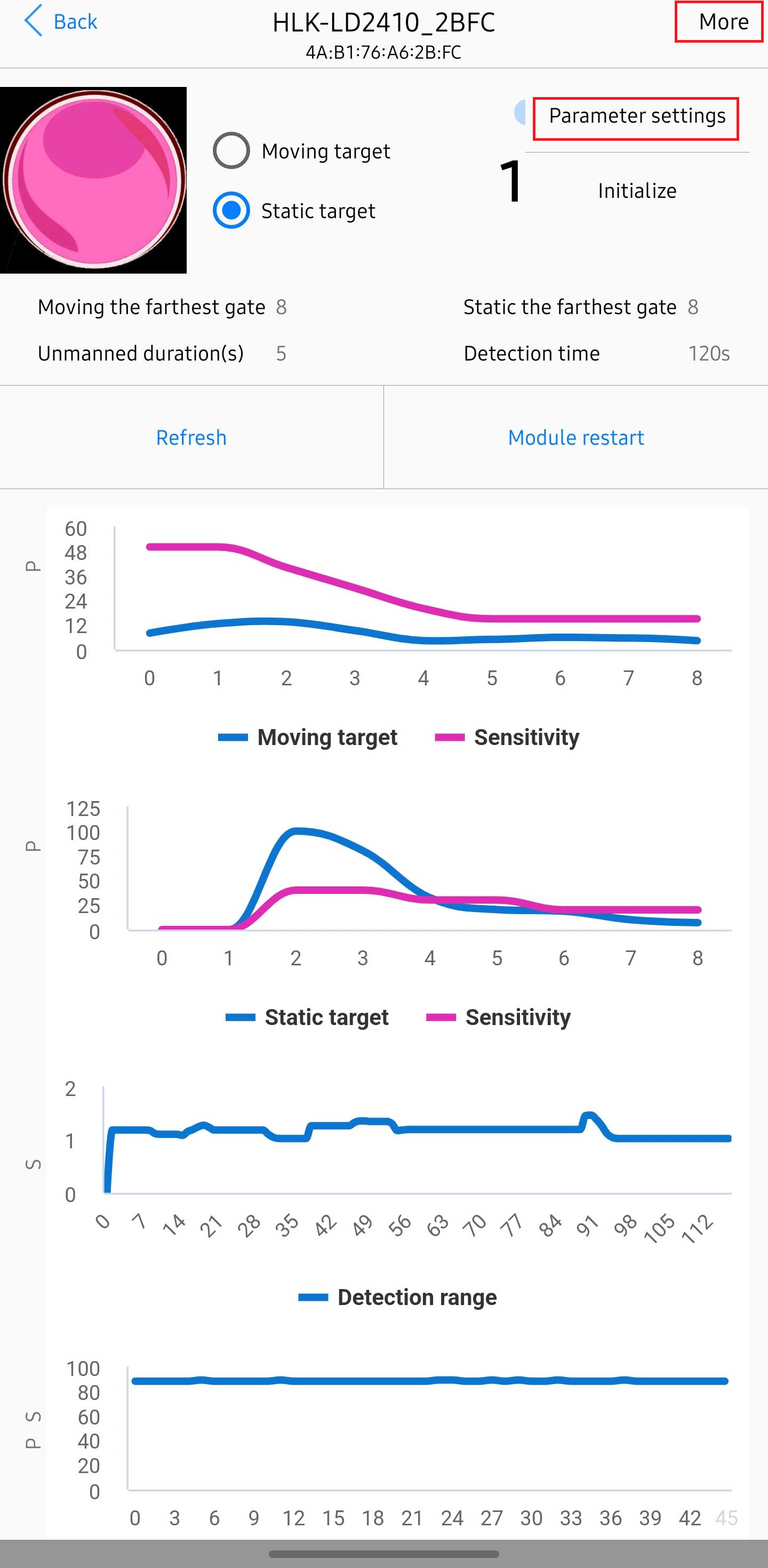
5. Select More and then select Parameter settings
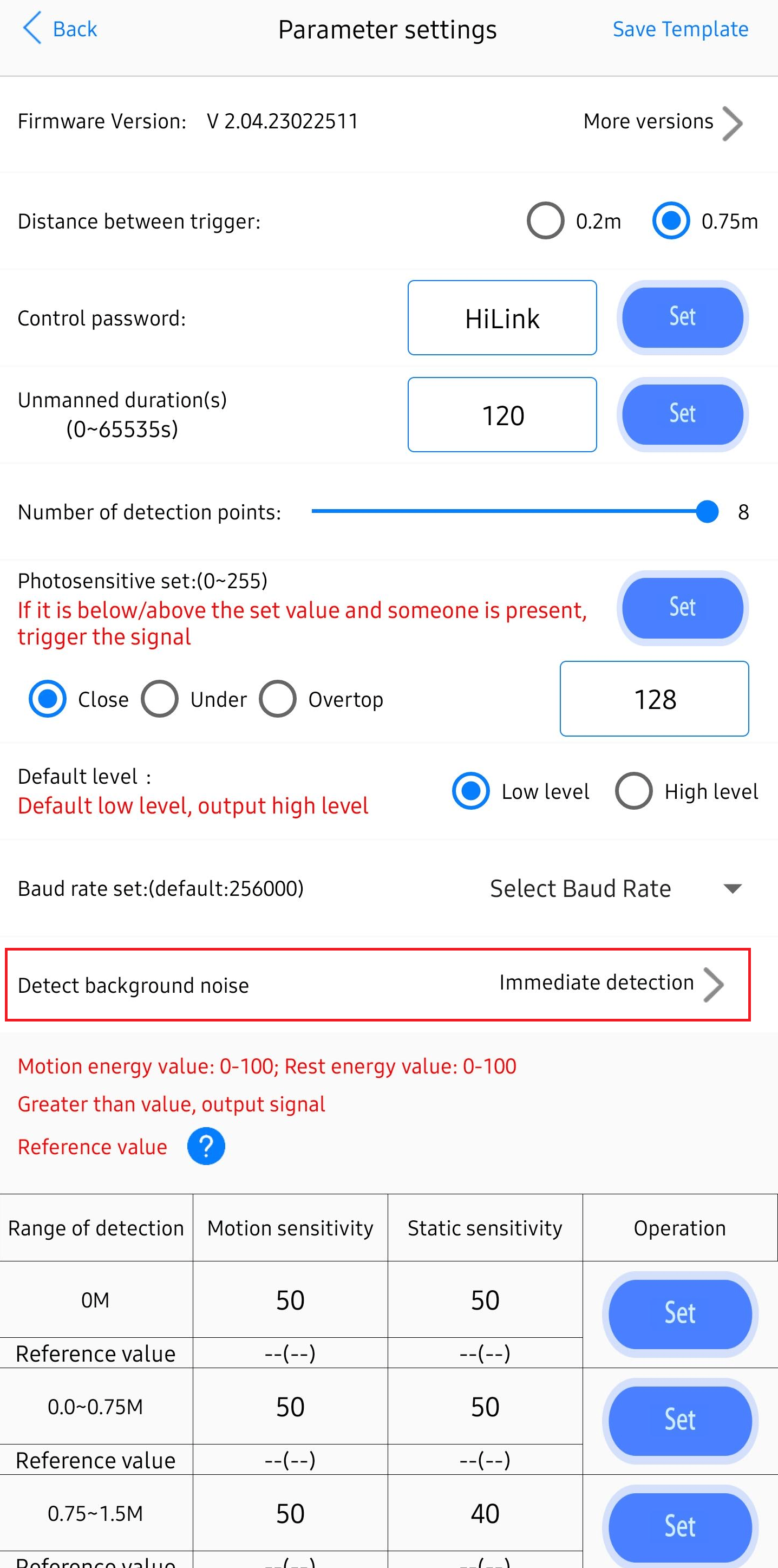
6. Select Detect background noise
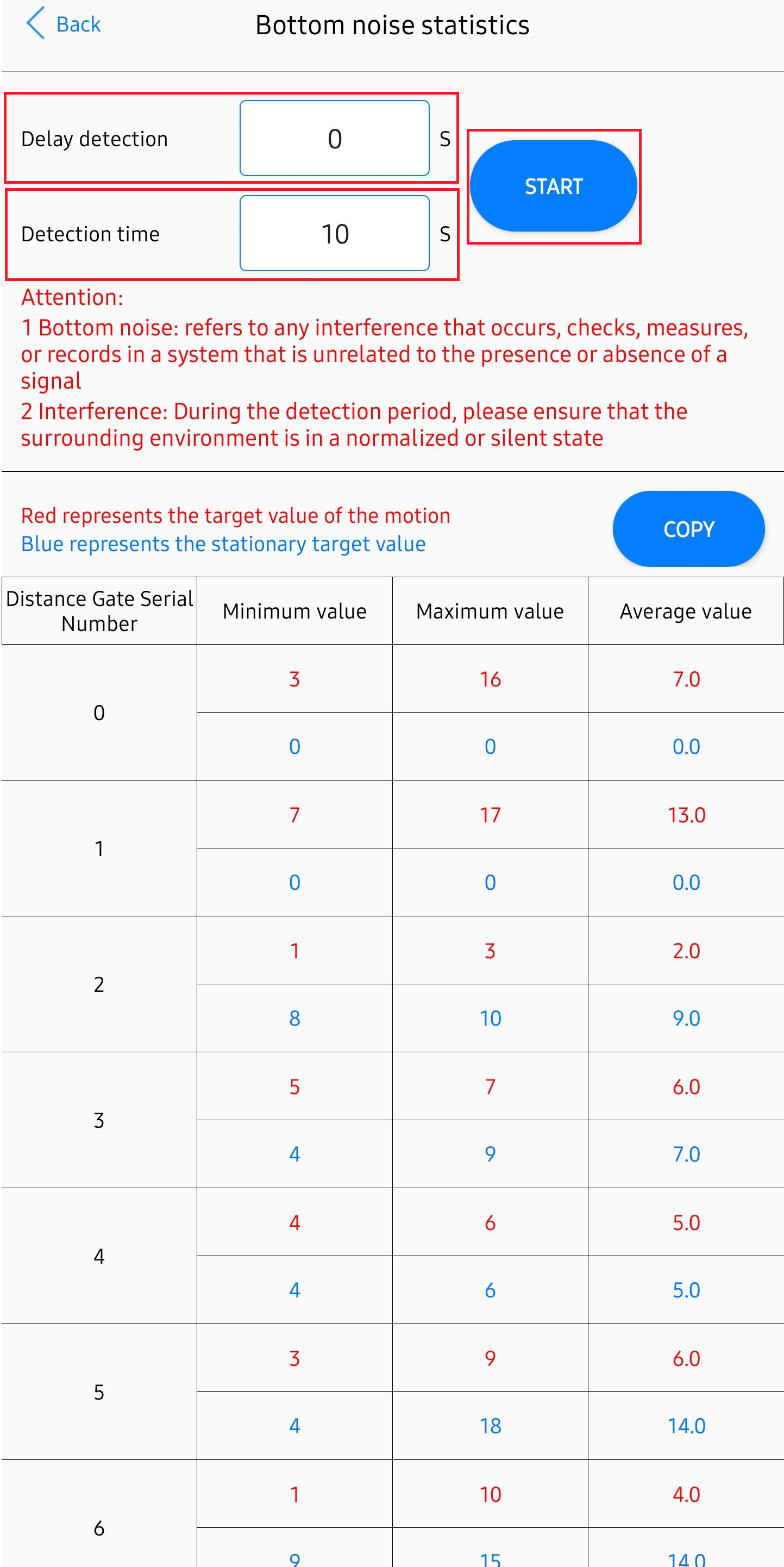
7. Insert Delay detection and Detection time values. (For iPhone users Delay detection cannot be 0). Then select Start. This will give us our reference values so we can auto-calibrate the mmWave sensor.
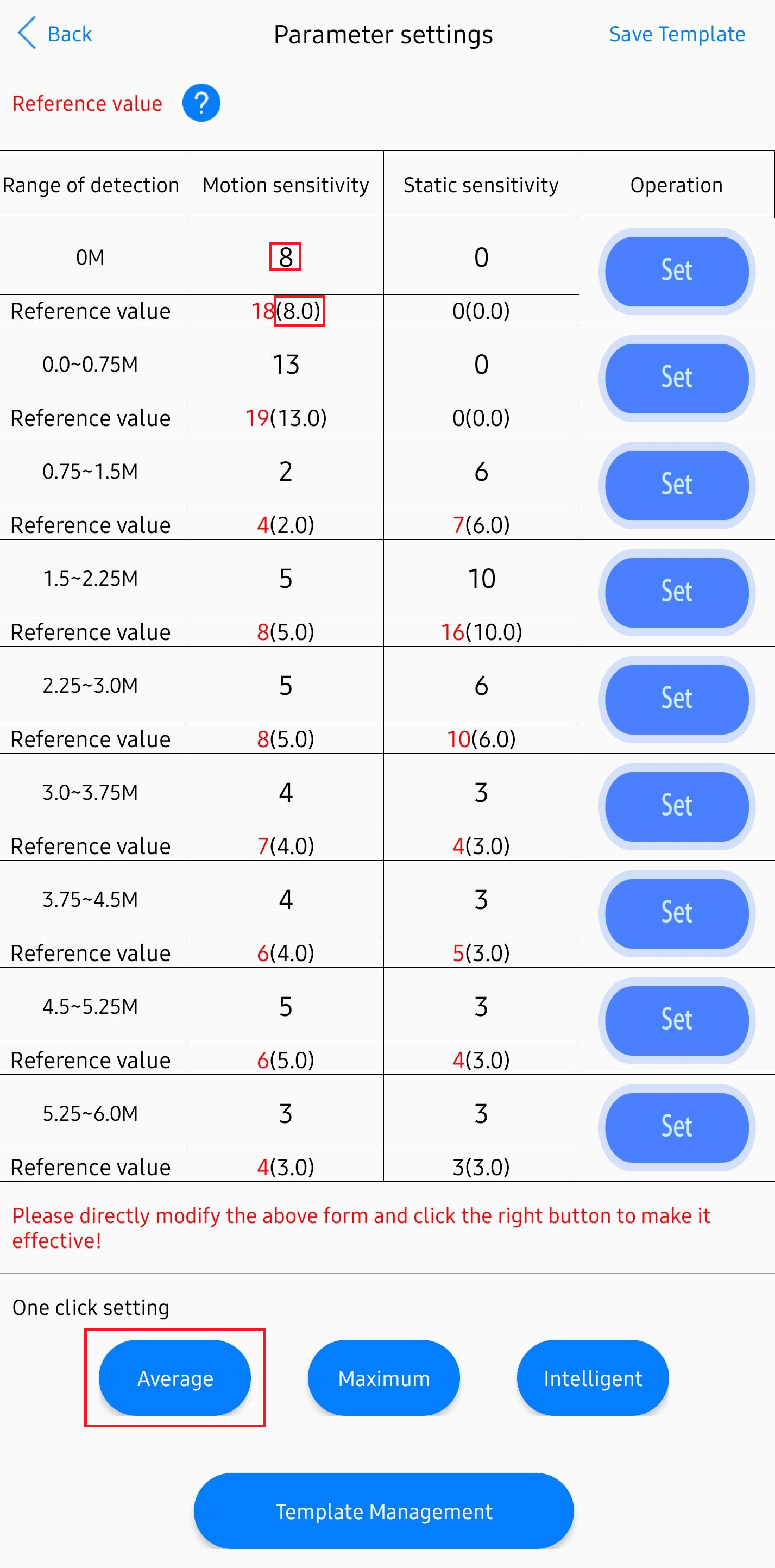
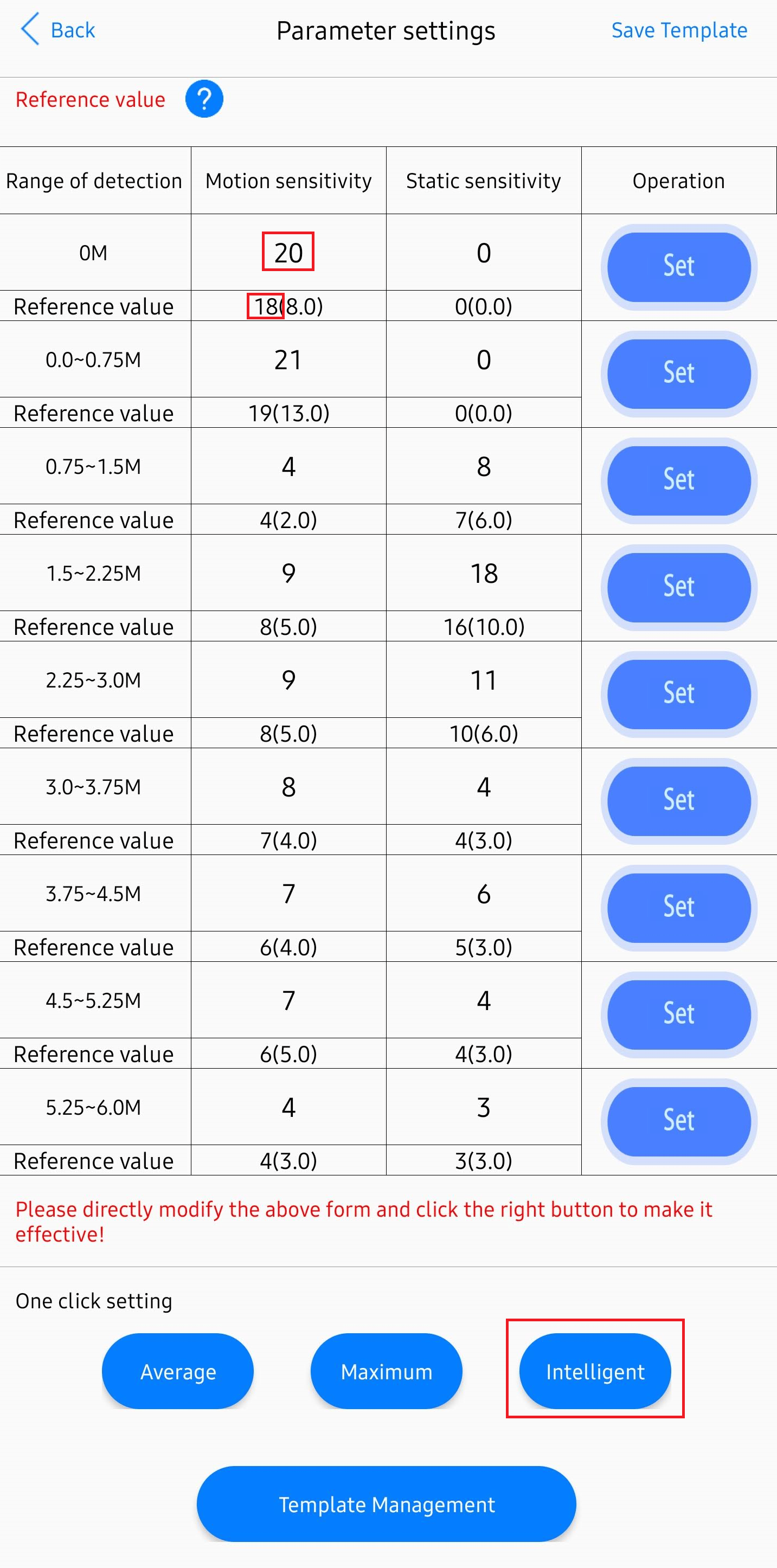
8. Select Back to navigate to the Parameter settings. Then select one of the auto-calibration buttons.
Average: Sets the gate sensitivity to the average move and still energy
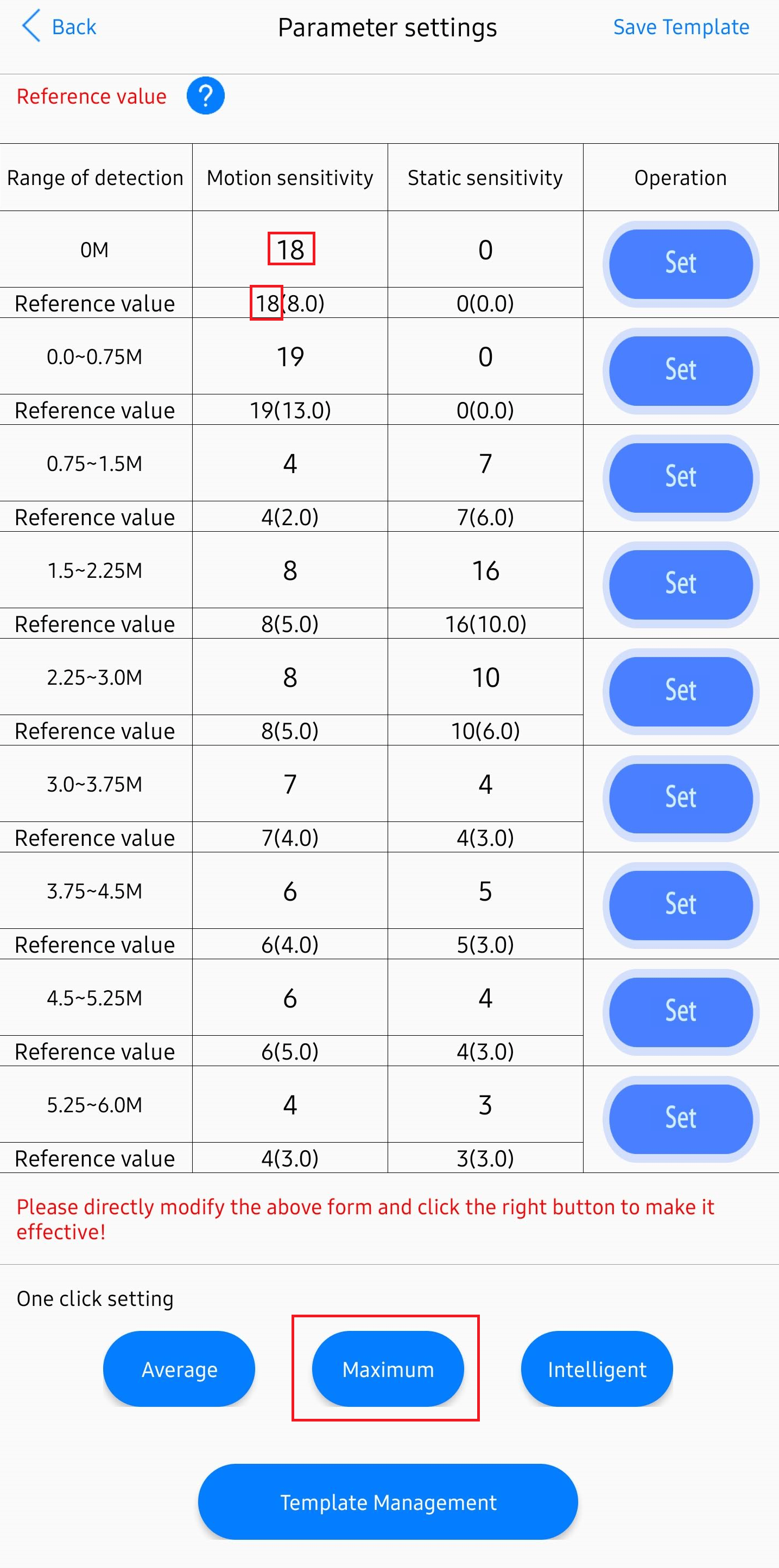
Maximum: Sets the gate sensitivity to the maximum move and still energy
Intelligent: Sets the gate sensitivity equal to or just above the maximum move and still energy.
Manual calibration
You'll set the motion and static sensitivity values yourself in the app.
1. Repeat steps 1-5 above.
2. Select Motion or Static sensitivity, change it to your desired value, and select Set.
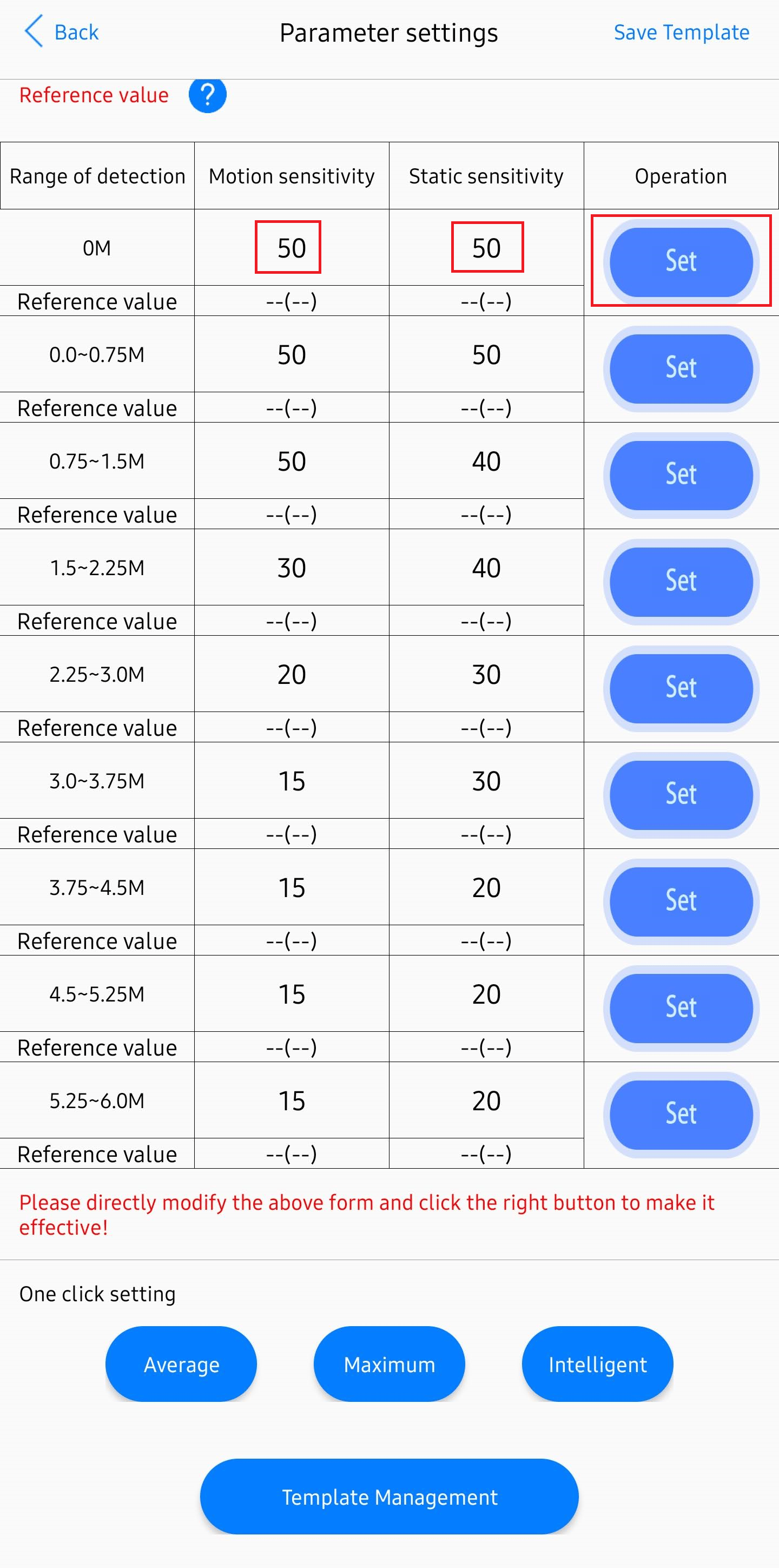
3. Now your MSR-2 should be tuned to your environment!