R PRO-1 Zone Mapper tool
The Apollo R PRO-1's LD2450 mmWave sensor tracks up to three people across the room. With the Zone Mapper tool you turn that map into rooms within a room: a desk, a sofa, a bed, each with its own occupancy and its own flow cards in Homey.
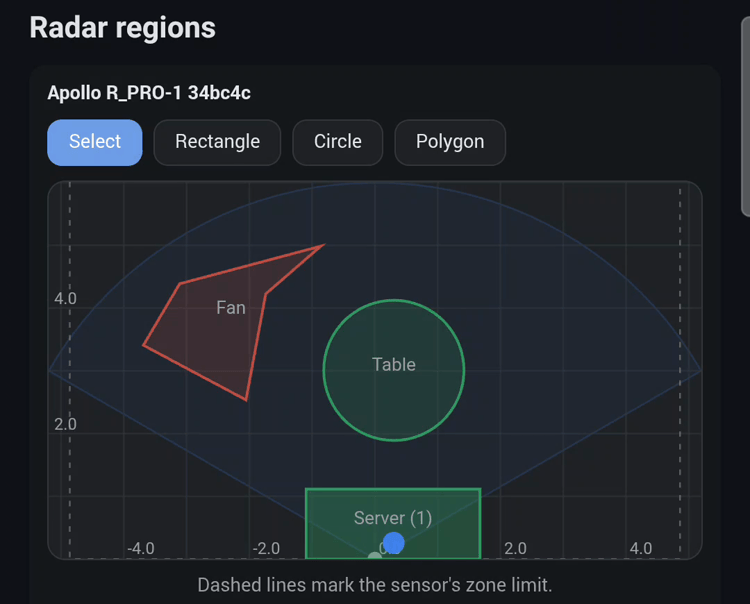
In Homey, the Zone Mapper tool is a dashboard widget called Radar regions. You draw regions on a live map of the radar's view, and each region becomes its own occupancy tile on the device, with flow cards that fire when someone enters or leaves it.
- The map shows up to three tracked people as moving dots, in real time.
- A region can be a rectangle, a circle, or a polygon, up to 32 per device.
- Each region reports occupied or empty, with a hold time so a brief step outside does not clear it.
- An exclusion region hides a spot the radar misreads, such as a fan, a pet bed, or a doorway into the hall.
- Optionally, regions can be pushed into the radar's own three zone slots for other tools that read them.
There is nothing extra to install: the widget ships inside the Apollo Automation app for Homey.
What you need
| Item | Why |
|---|---|
| Homey Pro, firmware 12.3 or newer | Dashboards and widgets arrived in 12.3. Homey Cloud is not supported. |
| Apollo Automation app 2.4.4 or newer | 2.4.0 added the tool; 2.4.4 draws with taps and adds the Map range setting. |
| An MTR-1 or R PRO-1, added to Homey and connected | Both carry the LD2450 radar the map is built on. |
| The Homey mobile app (iOS or Android) | Dashboards only exist in the mobile app. The Homey Web App has none. |
Multi target tracking on the radar is switched on for you the first time the device connects after the app update. If it was turned off later, the widget shows an Enable button at the top.
Video walkthrough
Watch the whole flow on a phone: adding the widget to a new dashboard, drawing a rectangle and a circle, and marking a polygon as an area to ignore.
Open the tool
The Radar regions widget lives on a dashboard, not on the device page. Once it is placed, the dashboard becomes your live view of the room and the place you draw regions.
- In the Homey mobile app, tap More in the bottom bar, then Dashboards.
- Tap New Dashboard, or open an existing dashboard and start editing it.
- Tap Add Widget, switch to the Apps tab, and choose Radar regions under Apollo Automation.
- Tap Select Device, pick your MTR-1 or R PRO-1, and tap the check mark at the top right. Only devices with an LD2450 radar are listed, and only once they have connected at least once.
- Optionally, set Map range: 6 m (the default) shows the radar's whole field of view, 4 or 5 m zooms in for small rooms, and 7.5 m shows the sensor's full reach. Saved regions beyond the range stay in view either way.
- Tap Add Widget, then Done. A new dashboard asks for a name: enter one and tap Save.
The widget now shows the live map. If you have several radars, add one widget per device. Each widget keeps its own set of regions.
Reading the map
The map is the radar's own view: the sensor sits at the bottom center, looking up into the room.
- The shaded wedge is the radar's 120 degree field of view, out to the Map range you chose. Nothing outside it is tracked. If a saved region lies further out, the map grows to keep it in view.
- Grid lines are one meter apart, with labels every two meters.
- Dashed lines mark the sensor's zone limit (4.86 m to each side and 7.56 m straight ahead) wherever the map reaches further than that. A note under the map says so.
- Left and right are as the sensor sees them. If the dots move the wrong way, the sensor is mounted mirrored to how you expect, so draw your regions on the side where the dots actually appear.
- Up to three people show as moving dots with a short trail. A hollow dot is a target that an exclusion region is hiding from detection.
- A caption under the map says when nobody is being tracked. A banner says when the device stops sending updates.
The map does not rotate. Place the sensor so the room is in front of it, and the map matches the room.
Draw regions
Drawing works by tapping, not dragging. Pick a shape, tap its points on the map, and press Save when you are done. Nothing reaches the device until you save.
- Tap Rectangle, Circle, or Polygon in the toolbar above the map. A hint under the toolbar says what to tap next.
- Tap the points for your shape:
- Rectangle: tap one corner of the area, then the opposite corner. A crosshair marks the first tap.
- Circle: tap the center, then a point on the edge.
- Polygon: tap each corner in turn. Finish by tapping the first corner again, or press Done.
- Adjust the new region. It appears with a name like Region 1 and its settings open. Use the arrows to move it and Bigger or Smaller to resize it.
- Press Save, or Cancel to throw the unsaved changes away.
Your region now shows on the map, and a matching occupancy tile appears on the device. Once your regions are in place, put one to work in a flow.
Why taps instead of drags
A phone hands a single-finger drag to the dashboard as a scroll before the widget sees it, so dragging is not reliable there. Taps always arrive.
A few more drawing tips:
- A region needs at least a fingertip of size. Two taps too close together are refused with a short message.
- Draw regions a little larger than the furniture they cover. The radar places a person by their center, and a seated person can read 30 to 50 cm from where you expect.
- If the dashboard scrolls between your two taps, the first tap is kept. Switching tools drops it.
- With Select active (the default tool), swiping on the map scrolls the dashboard as usual, and tapping a region opens its settings.
Region settings
With Select active, tap a region to open its settings. Changes apply when you press Save.
| Setting | What it does |
|---|---|
| Name | The label on the map, the occupancy tile, and the flow cards. Up to 40 characters. |
| Detect people here | The region reports occupied while someone is inside it. This is the default. |
| Ignore this area | Makes the region an exclusion region, drawn in red. Targets inside it are hidden from every detect region. Use it for a fan, a curtain, a pet bed, or a hallway seen through a doorway. |
| Move arrows | Move the region 10 cm per tap: left, right, away from the sensor, or toward it. |
| Size: Bigger, Smaller | Grow or shrink a rectangle or circle by 10 cm on each side, keeping its center. |
| Hold time (under More) | Seconds the region stays occupied after the last person leaves, 0 to 300, default 5. Set it longer for a sofa or a desk so a short trip to the kitchen keeps the lights on. |
| Width, Depth, Radius, Center (under More) | Exact values in centimeters: width and depth for a rectangle, radius for a circle, and center position for every shape. A value past the sensor's limits is pulled back inside. |
| Enabled | Uncheck it to switch a region off without deleting it. A disabled region is drawn dotted and ignored. |
| Delete region | Removes it. Its occupancy tile disappears on save. |
Regions may overlap. A person inside two detect regions counts for both; a person inside any exclusion region counts for none.
Here a polygon is drawn over a fan and set to Ignore this area:
Use regions in flows
This is where regions pay off. Every saved detect region is an occupancy tile on the device, named after the region, and the device gets three region flow cards.
Next step: build your first region flow
Your regions are drawn. Now make one do something: the step-by-step guide walks you through a flow that turns a light on when someone enters a region and off when they leave.
| Card | Type | Asks for | Tokens |
|---|---|---|---|
| A region became occupied | Trigger (When) | The device, then a region or Any region | Region name, Target count |
| A region became empty | Trigger (When) | The device, then a region or Any region | Region name |
| A region is occupied | Condition (And) | The device, then one region | None |
The tile also shows in Insights, so you can see how long the sofa or the desk was in use.
Three flows to start with:
- Desk lamp: when Desk became occupied, turn on the lamp. When Desk became empty, turn it off. Give the region a hold time of 60 seconds so a stretch does not switch the lamp off.
- One flow for every region: when Any region became occupied, send a notification with the Region name token, or run a HomeyScript that uses it.
- Keep the lights on while someone is on the sofa: in your room's lights-off flow, add the condition Sofa is not occupied.
The device's whole-room Occupancy Alarm keeps working as before. Regions add detail inside the room; they do not replace it.
Advanced: the radar's own zones
Homey detects occupancy itself from the target positions, so regions work without touching the radar. The Advanced section of the widget is for people who also use the LD2450's built-in zones, for example in ESPHome or Home Assistant on the same sensor.
- Sync regions to sensor writes up to three enabled regions into the radar's three zone slots. Detect regions go in as detection zones. If any exclusion region is enabled, the radar is switched to filter mode and only the exclusion regions are written.
- The radar's zones are rectangles. A circle or polygon is written as the rectangle around it, and the preview text under the button says so.
- The preview also lists which regions will be written and which are skipped because the slots are full.
- Clear sensor zones empties all three slots and disables the radar's zone filtering.
- The Multi target tracking checkbox controls whether the radar reports up to three people or only one. The app turns it on once by itself; if you turn it off, the app leaves it off.
Troubleshooting
Most problems come down to the device not being connected yet, or a region drawn where the radar does not see people.
| Symptom | What to check |
|---|---|
| The widget is not in the Add widget list | Update the Homey mobile app and check the Homey Pro is on firmware 12.3 or newer. Dashboards are not in the Homey Web App. |
| My device is not offered in the widget's device picker | It must have connected at least once since the app update. Open the device and wait for its readings, then try again. |
| No dots on the map | Nobody is in view, or multi target tracking is off: press Enable at the top of the widget. A banner says if the device stopped sending updates. |
| Drawing on the phone does nothing or leaves a tiny region | Update the Apollo Automation app to 2.4.4 or newer and draw with two taps: a corner, then the opposite corner. If a tap pair is refused, tap further apart. Advanced → Touch log shows what the map received. |
| The area I want is off the map, or the map is too small | Change Map range in the widget's settings: 7.5 m shows the sensor's full reach, 4 m zooms in. |
| A region never clears | Lower its hold time. If a chair, fan, or curtain keeps a dot alive, draw an exclusion region over that spot. |
| A region does not trigger when I am clearly in it | The radar places a person by their center. Make the region larger with Bigger or the arrows, and check left and right against the dots on the map. |
| My regions disappeared after removing and re-adding the device | They come back by themselves on the first connect: the app keeps a backup per device. |
| Saving fails with a reconnecting message | The device is reconnecting. Wait a moment and press Save again; the drawn regions are kept. |
Regions are stored on the Homey Pro, in the device's own storage, with a backup in the app keyed by the sensor's MAC address. Nothing is written to the radar unless you use Sync regions to sensor. For a support request, create a diagnostics report from the app's settings page; the region engine writes its own log lines.
Coming from the Home Assistant Zone Mapper
The Homey widget covers the same job as the Zone Mapper tool for Home Assistant and needs no install. A few things sit in different places or work differently.
| Home Assistant Zone Mapper | Homey Radar regions | |
|---|---|---|
| Install | Two HACS repositories (integration and card), restart, add integration | Built into the Apollo Automation app |
| Where you draw | A dashboard card on any dashboard, mouse or touch | The Radar regions widget on a mobile dashboard, by tapping |
| Shapes | Rectangle, ellipse, polygon | Rectangle, circle, polygon |
| Move or resize after drawing | Redraw | Arrow buttons, Bigger and Smaller, exact centimeters |
| What a zone becomes | A binary sensor per zone | An occupancy tile per region, plus three flow cards |
| Hold time before empty | No; the sensor turns off at once | Yes, per region, 0 to 300 seconds |
| Exclusion areas | No | Yes, exclude mode |
| People count per zone | No | Yes, as a flow token |
| Map extent, rotation, and units | Rotation slider; configurable grid; mm, cm, m, in, ft | Map range 4 to 7.5 m; no rotation; meters, sensor orientation as mounted |
| Writing to the radar's own zones | No | Yes, optional sync and clear |
| Regions after re-adding the device | Lost | Restored from the app's backup |
Running both platforms on one sensor
Draw your zones in one platform only. Syncing Homey regions to the radar changes the zones the Home Assistant card reads from the LD2450.