Factory re-flash TEMP-1
If your device becomes unresponsive and you've exhausted the other troubleshooting methods you can reflash the factory firmware by following the below guide.
This needs to be done in Chrome, Edge, or another Chromium based browser.
If your device has already been added to Homey, please remove it from Homey before continuing.
Follow these steps to put your device in boot mode and install the factory firmware.
1. Put your device in boot mode by holding down the boot button and then plugging in the USB cable.
2. Navigate to the Apollo TEMP-1 installer.
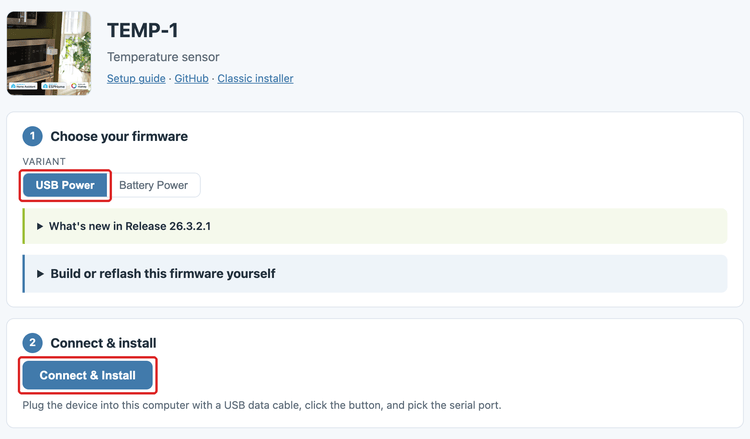
3. Choose USB Power since you are using a TEMP-1, then click Connect & Install.
Use R2 version unless instructed to use R1 by support!
The Apollo installer installs the Revision 2 (R2) firmware. R2 is what all of our devices use except a very small batch of TEMP-1 and TEMP-1B boards. If support tells you your board needs Revision 1 (R1), click Connect under Non Battery Firmware Revision 1 on the classic TEMP-1 installer instead. In the next steps, the firmware option is named Install ApolloAutomation.TEMP-1.
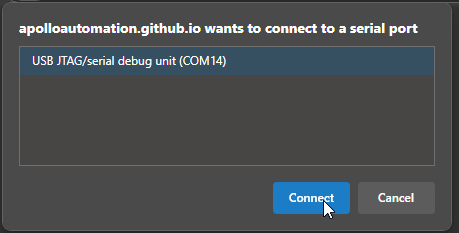
4. Select the open com port then click Connect.
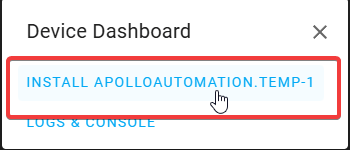
5. Click Install Apollo.TEMP-1_R2.
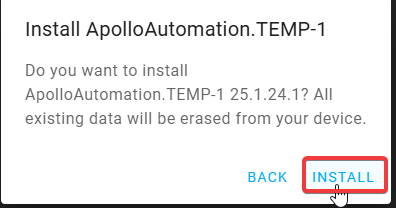
6. Click "INSTALL".
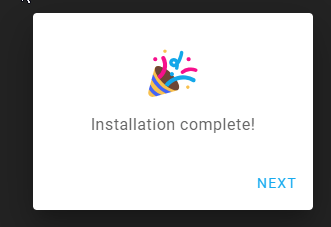
7. Once you see "Installation complete!" you are finished. Click Next then close out of the browser window.
Power cycle your device before doing anything else!
Your device is still in boot mode and needs to be power cycled aka power removed to make it boot in a normal mode!
8. Please proceed to the getting started guide and set up your sensor as a new device!