ESPHome Starter Kit - First steps
This guide walks you through installing the ESPHome Device Builder app, and making your first ESPHome YAML configuration from scratch.
By the end you'll have your ESPHome Starter Kit flashed with a working configuration, showing up in Home Assistant, and reachable in a browser at its IP address or http://esphome-starter-kit.local via its built-in web server.
Click the Apollo dog for extra context
When you see a small Apollo dog peeking over a step or word, give it a click (1). It opens a side note with tips, gotchas, or examples you don't need on first read.
- Like this, you just opened your first annotation. Click outside the box to close it. Good dog.
Fun fact: the dog is Apollo Automation's original logo. Both the company name and the logo come from cofounder Trevor's real dog, Apollo.
ESPHome Device Builder
ESPHome Device Builder is the app that gives you a user interface for writing, compiling, and flashing ESPHome YAML configurations. You'll use it to build the software for your kit. (1)
- We say software because it's the friendlier word. The technically correct term is firmware: code that runs directly on the chip instead of on a computer. That's the word ESPHome's own docs use.
Think of it like telling the starter kit about what devices it has connected and how to use them!
Pick the platform you'll be running ESPHome Device Builder on:
You'll download and run the ESPHome Device Builder installer for Windows.
- Open esphome.io/install and click Download installer (.exe) on the Windows tab.
- Open the downloaded
.exefile. If Windows asks whether to allow the app to make changes, choose Yes, then follow the installer prompts. - On the last screen, leave Run ESPHome Device Builder checked and click Finish.
- When Allow network pairing appears, click Allow access. Windows then asks for administrator approval and shows its own firewall prompt for the Python backend. Allow that one too, or other ESPHome dashboards on your network won't be able to reach this computer.
If Windows blocks the installer
If a blue Windows protected your PC warning appears when you open the .exe, click More info → Run anyway to continue.
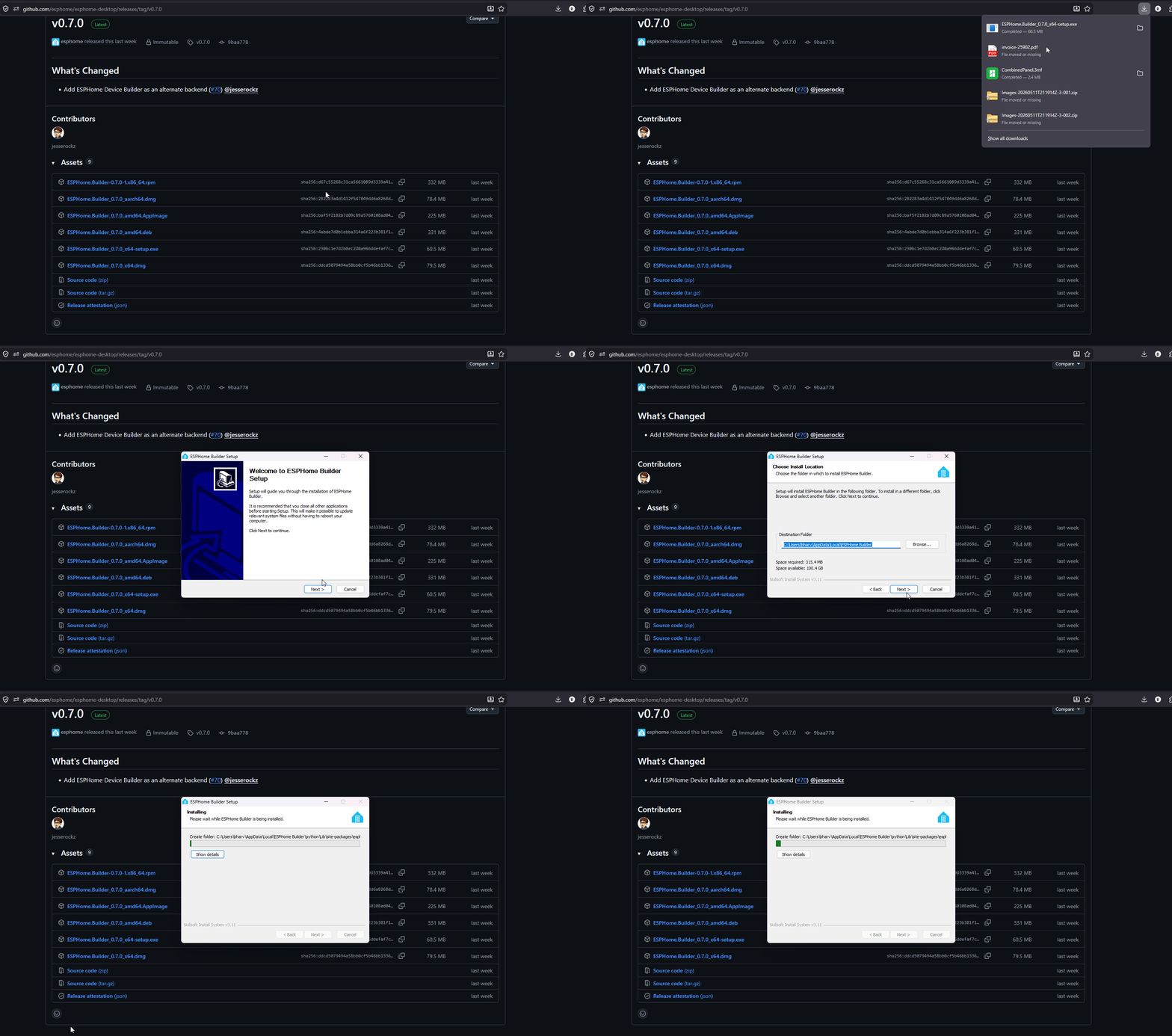
The first launch takes a moment while it sets itself up, then the dashboard opens in your browser at http://localhost:6052/. An ESPHome icon lands in your notification area for getting back to it later.
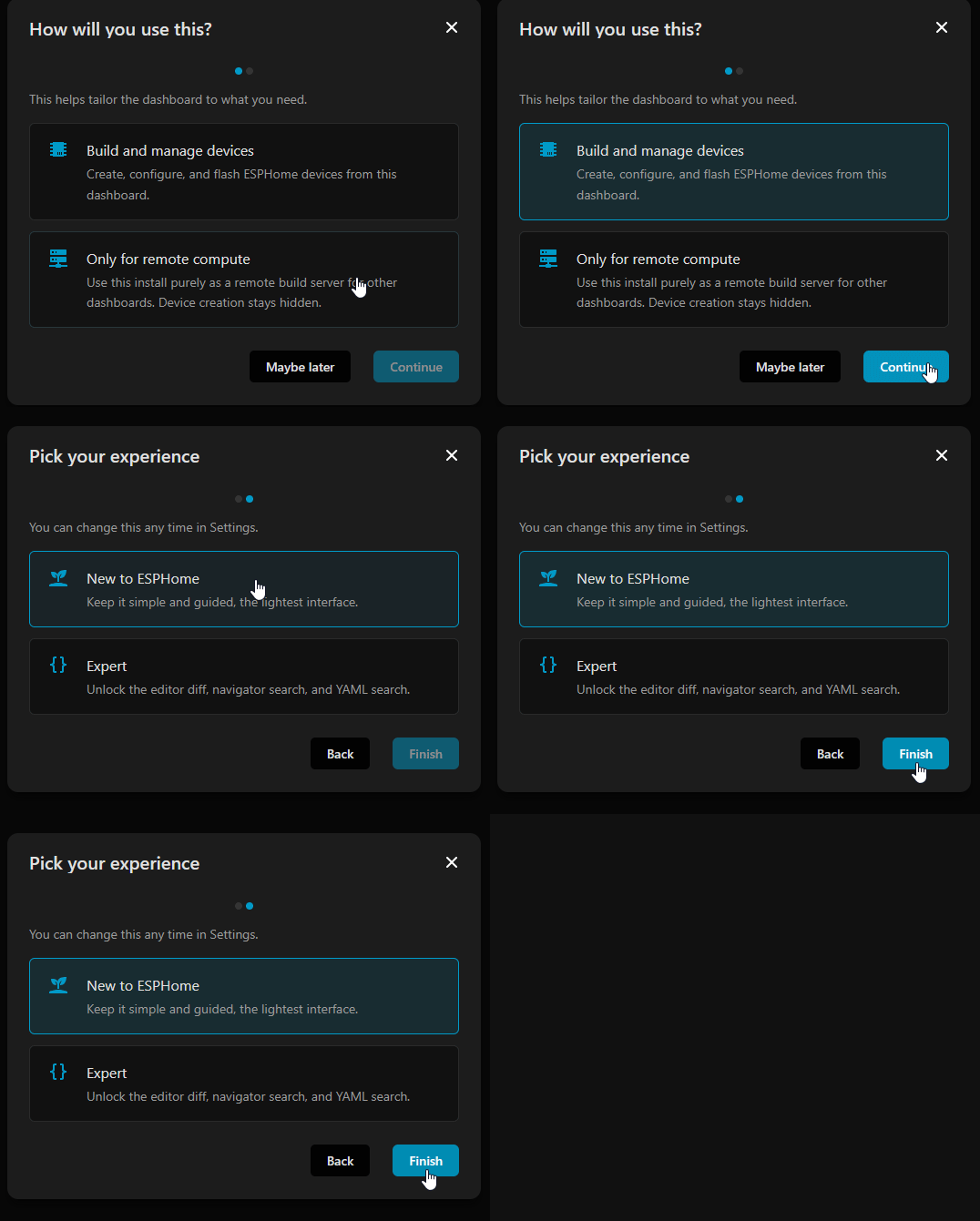
A short wizard runs the first time:
- Click Continue on the welcome screen.
- Choose Installation of the ESPHome Device Builder, since you're building on this computer.
- Choose New to ESPHome for the simpler, guided interface.
Then take Start guided tour for a five minute walkthrough, or Maybe later.
You'll download the macOS build of ESPHome Device Builder and install it in your Applications folder.
-
Open esphome.io/install. The page detects your OS and opens the macOS tab. Pick the build that matches your chip:
- Apple Silicon (M1, M2, M3, M4, M5)
- Intel
Not sure which you have? Click the Apple menu → About This Mac.
-
Open the
.dmgand drag ESPHome Device Builder into your Applications folder. -
Open your Applications folder and double-click ESPHome Device Builder. The first time you run it, macOS may ask you to confirm. Click Open.
- If macOS blocks it outright with a Gatekeeper warning instead, right-click the app in Applications and choose Open, then click Open in the confirmation dialog. After that, double-click works normally.
The first launch takes a moment while it sets itself up, then the dashboard opens in your browser at http://localhost:6052/. An ESPHome icon lands in your menu bar for getting back to it later.
A short wizard runs the first time:
- Click Continue on the welcome screen.
- Choose Installation of the ESPHome Device Builder, since you're building on this computer.
- Choose New to ESPHome for the simpler, guided interface.
Then take Start guided tour for a five minute walkthrough, or Maybe later.
The ESPHome Device Builder runs as a Home Assistant app served right inside your existing HA dashboard. This is the easiest option if you already run Home Assistant OS or a supervised install.
Speed up builds on a Green, Yellow, or Pi
Those boards take a few minutes per build. Once you're up and running, a Build Server hands the compiling to a Windows PC or Mac and cuts that wait down.
Method 1
To add the ESPHome Device Builder to your Home Assistant instance, use this My button:

Method 2
You can also install the Device Builder from the App Store in Home Assistant.
- In Home Assistant, open Settings → Apps → App Store.
- Search for ESPHome Device Builder and click Install.
- Once installed, click Start, then Open Web UI. The Device Builder will open inside your Home Assistant dashboard.
You'll download the package for your distro, install it, and launch ESPHome Device Builder.
-
Open esphome.io/install. The page opens on the Linux tab with Debian / Ubuntu selected. Choose the package format your distro uses, then the CPU architecture (x86_64 for a normal desktop or laptop, arm64 for a Raspberry Pi or similar board):
- Debian / Ubuntu → downloads a
.deb - Fedora / openSUSE → downloads a
.rpm - Arch (AUR) → installs the
esphome-desktop-binpackage - AppImage → a portable build that runs on any distro
- Debian / Ubuntu → downloads a
-
Install it. Double-click the downloaded
.debor.rpmin your file manager, or run the matching command in a terminal:- Debian / Ubuntu:
sudo apt install ./ESPHome.Device.Builder_*.deb - Fedora / openSUSE:
sudo dnf install ./ESPHome.Device.Builder-*.rpm - Arch:
yay -S esphome-desktop-bin - AppImage:
chmod +x ESPHome.Device.Builder_*.AppImagethen run./ESPHome.Device.Builder_*.AppImage
- Debian / Ubuntu:
-
Launch ESPHome Device Builder from your applications menu.
If your kit doesn't appear as a serial port later when you flash it, add your user to the
dialoutgroup withsudo usermod -a -G dialout $USER, then log out and back in.
The first launch takes a moment while it sets itself up, then the dashboard opens in your browser at http://localhost:6052/. An ESPHome icon lands in your system tray for getting back to it later. Some Linux desktops, notably GNOME without a tray extension, don't show tray icons at all. The app still runs, so use the dashboard in your browser.
A short wizard runs the first time:
- Click Continue on the welcome screen.
- Choose Installation of the ESPHome Device Builder, since you're building on this computer.
- Choose New to ESPHome for the simpler, guided interface.
Then take Start guided tour for a five minute walkthrough, or Maybe later.
Add a new device
With the app installed, it's time to tell it about your kit. If you took the guided tour, these next steps will look familiar.
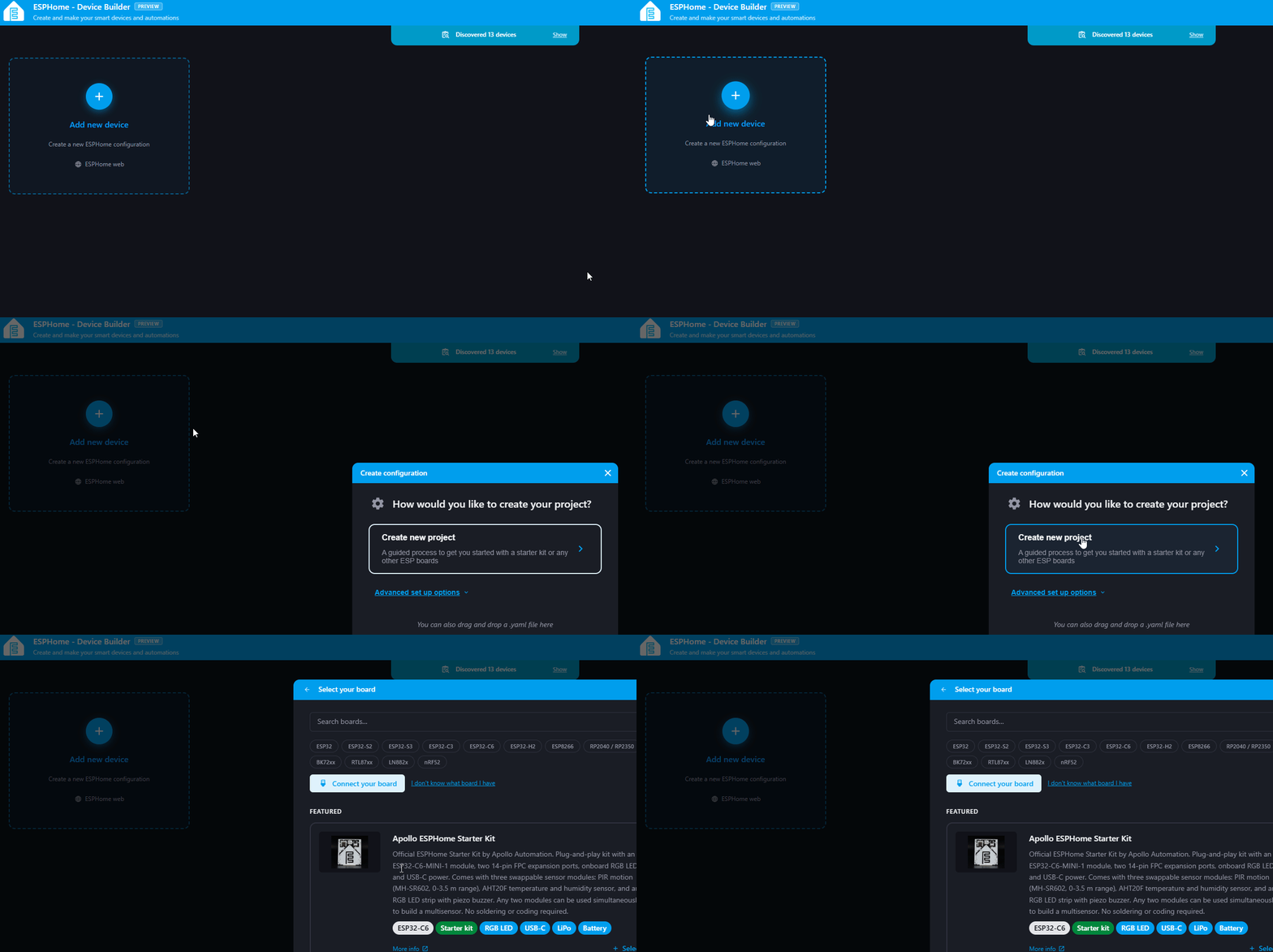
1. Navigate back to the ESPHome Device Builder and click Add new device then click Create new project.
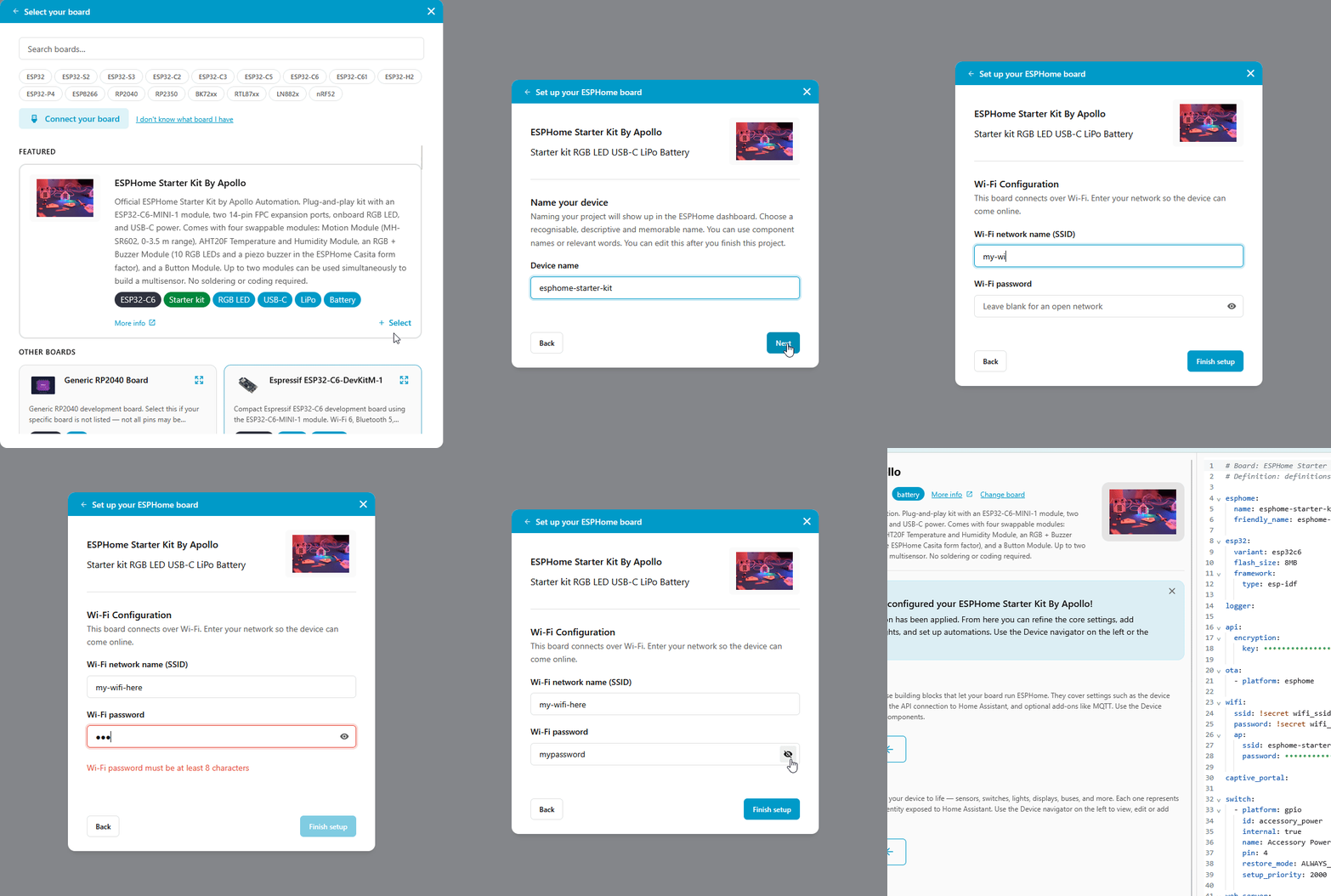
2. Under Featured, select ESPHome Starter Kit By Apollo and give it a name such as esphome-starter-kit, then click Next. Type in your Wi-Fi network name (SSID) and Wi-Fi password, then click Finish Setup. (1)
- Remember the name you choose. You'll use it later to reach your device's web server at
http://your-name.local(for example, http://esphome-starter-kit.local/).
Configure components
We're now ready to add your first component and turn your project into a smart device!
Below you will be learning how to add the Onboard RGB LED which will help you learn how to add a Component. You will be using this in the future for the other modules such as the Button and Motion modules!
When you create a new ESPHome Starter Kit project in ESPHome Device Builder, the Web Server and Accessory Power Rail components are already configured for you, so there's nothing extra to do for those. In this tutorial we'll add one more component: the Onboard RGB LED.
Keep the Accessory Power Rail in every project
The Onboard RGB LED and every module you plug in get their power from the Accessory Power Rail. Leave it in your project. Without it, the LED and modules don't get enough power to work. Core components explains what it does.
Onboard RGB LED
The Onboard RGB LED is a small LED above the Reset button of your ESP32-C6. Useful for testing automations and doubles as a status light.
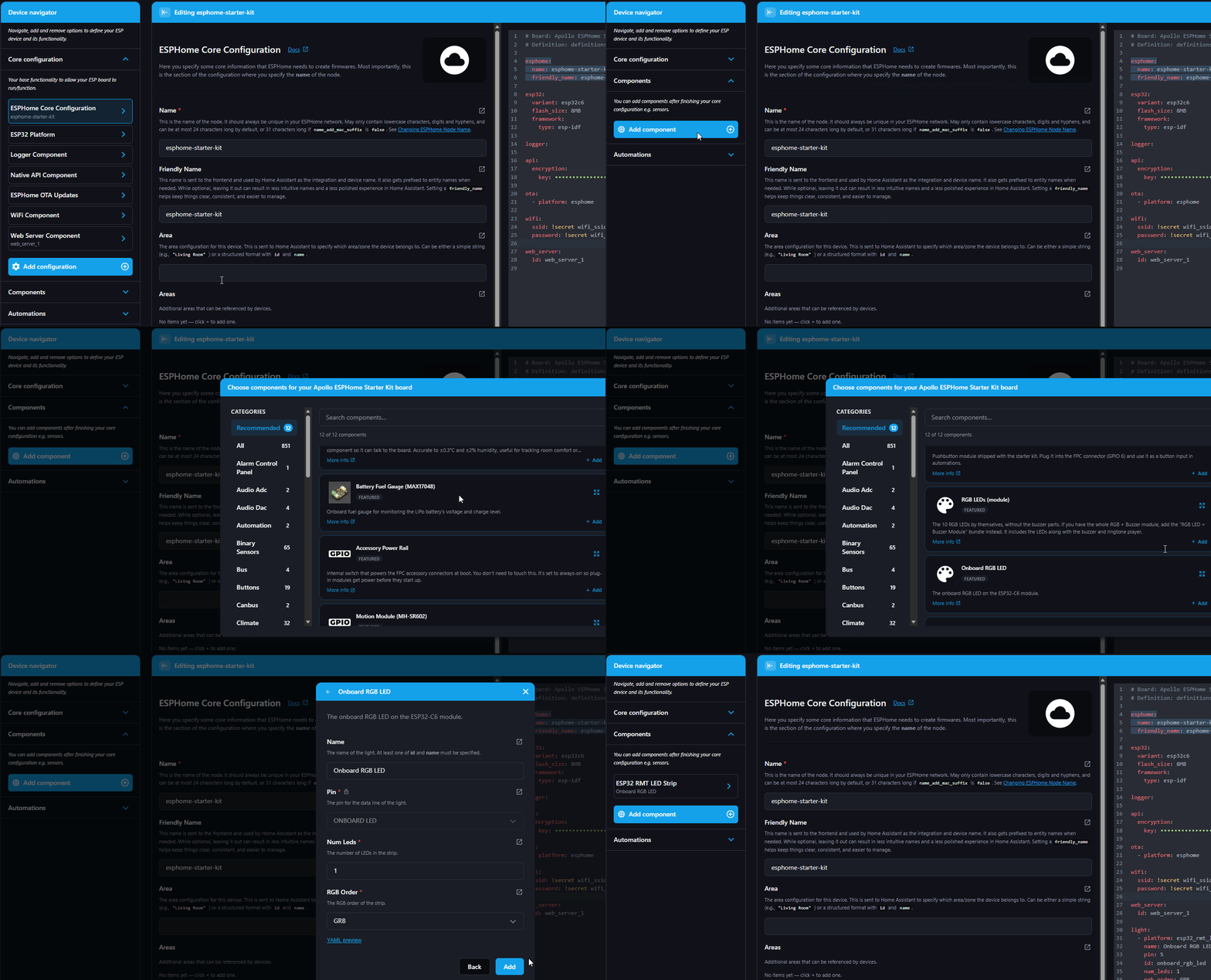
- In the ESPHome Device Builder, navigate to the Components section.
- Click Add component.
- Scroll to Onboard RGB LED and click Add.
Boot mode
The device is required to be flashed via USB using the bootloader mode the very first time it is used. Once you flash it once, you do not have to do these steps again.
Use a quality USB-C cable and power source
ESP32 boards are sensitive to power. If your device keeps restarting, won't be detected, or won't broadcast its hotspot, try a different USB-C cable or a different USB port. A 5V 1A supply is plenty.

1. Hold the sides of the ESP32-C6 and gently push the USB-C cable firmly into the USB-C port. Plug in the other side of the USB-C cable into your computer. Please be careful not to snap or damage the FPC ribbon cable connectors located on the sides of the device.
2. Put your ESP32-C6 in boot mode. Use both buttons, in this order:
- Press and hold the Boot button (labeled BOOT on the board, to the left of the USB-C port when the cable points toward you). Keep holding it.
- While you're still holding Boot, press and release the Reset button (labeled RESET, to the right of the USB-C port).
- Let go of Boot.
Keep holding Boot the whole time
Pressing Reset by itself only restarts the ESP32-C6. It goes into boot mode only when Boot is held down while you press and release Reset.

3. Your device is now in boot mode. The ESP32-C6 will now stay in bootloader mode until you flash it.
Installing software
Before we continue, confirm that you installed the ESPHome Device Builder, configured your components, and put your device in boot mode.
- Click Save in the bottom right which will then show an Install button.
- Click Install in the bottom right.
- Click Plug into this computer.
- Select the COM port, then click Connect to connect to the ESP32-C6.
- Wait for the software to compile and install. This usually takes two to five minutes.
- Once it completes, click Stop, then press the Reset button on your device. Your device will reboot and it's now ready to test out!
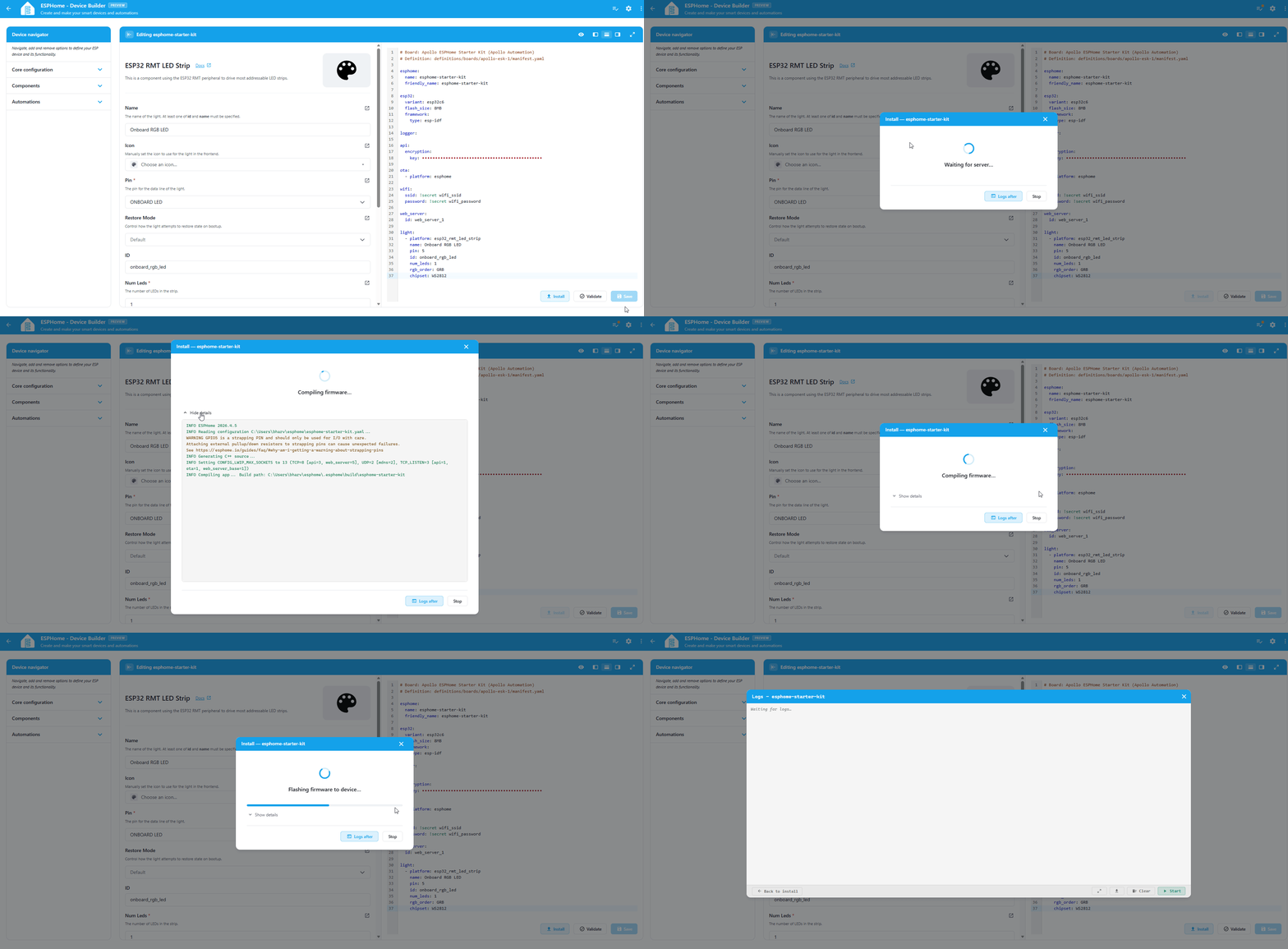
Click Show details during the install to watch the compile and flash process
It's a great way to see what's happening under the hood.
Test your LED
Your kit's default project includes the Web Server component, which lets you navigate to the IP address of your device or the hostname.local such as http://esphome-starter-kit.local/
Use http:// not https://
Your kit only speaks http://. Some browsers quietly try https:// first, and the page won't load. If that happens, click the address bar and add http:// before the name (so it looks like http://esphome-starter-kit.local/).

It should load your new device with the Onboard RGB LED listed. Click its toggle and the LED on your kit turns on and off.
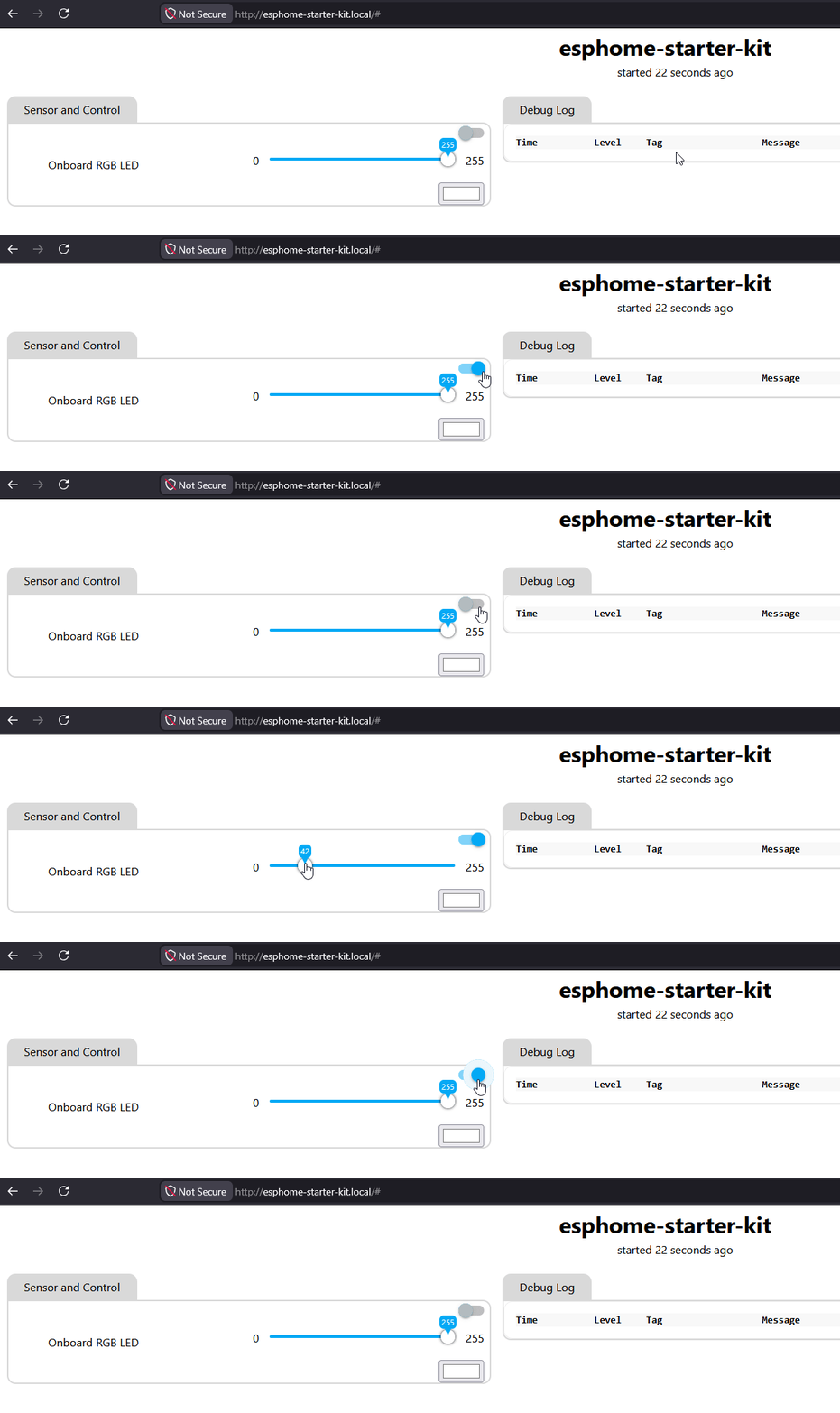
The LED on the board, switching on and off.
 Back - Start Here Add More Modules Connect to Home Assistant
New to ESPHome? We're here to help.
Stuck on a step or want to show off what you built? Ask questions and share projects with the Apollo community.