How to tune mmWave using Home Assistant
Prefer a guided dashboard?
The Apollo mmWave integration gives your Apollo MSR-1 a tuning dashboard with a Gate Energy chart and a Calibrate with empty room button that sets the gate thresholds for you. It also works on the MSR-2, and on an R PRO-1 with the optional LD2412 radar addon. The Apollo mmWave dashboard guide walks you through it as a guided alternative to the manual steps below, which are written for the MSR-1.
If you're experiencing false triggers, use Radar Engineering Mode (REM) to track them down. REM shows the move and still energy the radar picks up in each gate, so you can see which gates cause the false triggers and adjust their thresholds to eliminate them.
Watch the videos
These two videos cover the basics before you start tuning.
A quick introduction to the LD2410B gates and zones:
How to tune the mmWave sensor using Radar Engineering Mode:
Turn on Radar Engineering Mode
Turn on REM from your MSR-1's device page in Home Assistant to see the energy readings for every gate.
- Open Home Assistant.
-
Go to Settings → Devices & services → ESPHome and select your MSR-1.

-
Scroll down to the Configuration section.
-
Turn on Radar Engineering Mode.

-
Scroll down to the Diagnostic section. With REM on, it shows the move and still energy for gates 0 to 8.

REM is now on, so you can monitor the energy in each gate while you adjust its thresholds.
How the gates work
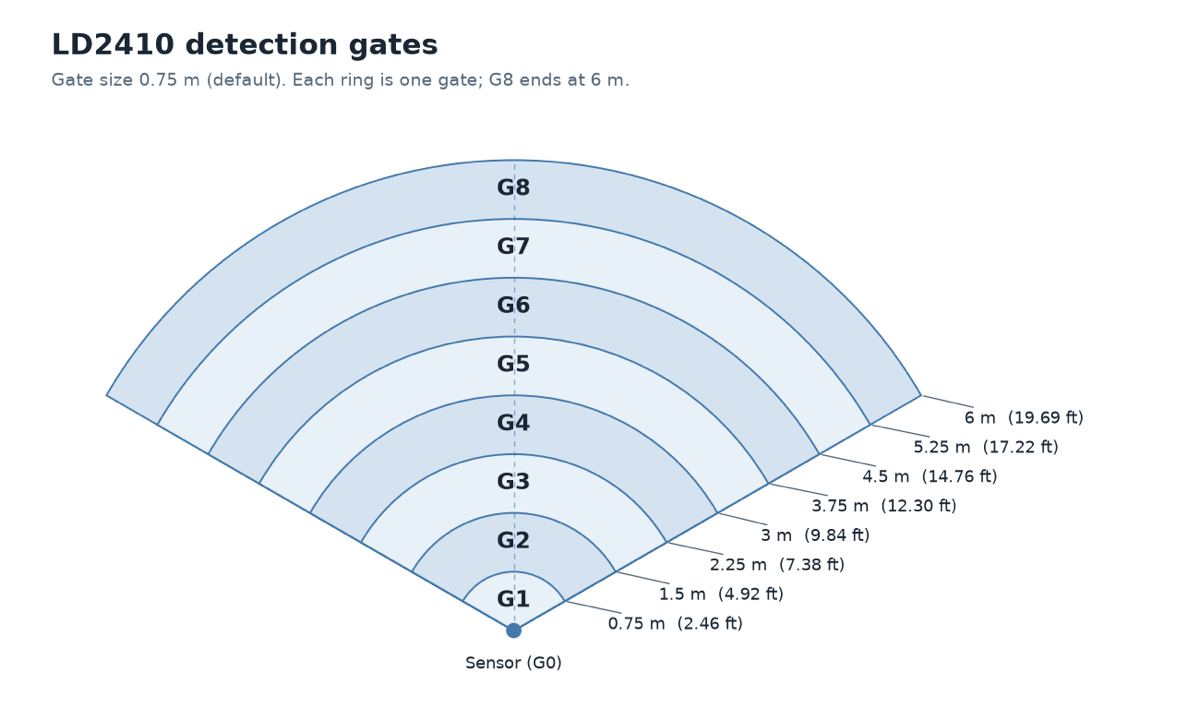
Each gate covers a different distance from the sensor. Use this table to match a gate to a spot in your room.
| Gate | Distance | Default move threshold | Default still threshold |
|---|---|---|---|
| 0 | 0 m / 0 ft | 50 | 0 |
| 1 | 0-0.75 m / 0-2.46 ft | 50 | 0 |
| 2 | 0.75-1.5 m / 2.46-4.92 ft | 40 | 40 |
| 3 | 1.5-2.25 m / 4.92-7.38 ft | 40 | 40 |
| 4 | 2.25-3 m / 7.38-9.84 ft | 40 | 40 |
| 5 | 3-3.75 m / 9.84-12.30 ft | 40 | 40 |
| 6 | 3.75-4.5 m / 12.30-14.76 ft | 30 | 15 |
| 7 | 4.5-5.25 m / 14.76-17.22 ft | 30 | 15 |
| 8 | 5.25-6 m / 17.22-19.69 ft | 30 | 15 |
Adjust a gate's sensitivity
Each gate has a move threshold slider and a still threshold slider. The sliders set how much energy it takes for that gate to trigger the sensor, so to stop false triggers, make the gates that cause them less sensitive.
-
To make a gate less sensitive, move its still and move threshold sliders to the right. This increases the amount of energy needed to trigger the sensor.

-
To make a gate more sensitive, move its still and move threshold sliders to the left. This decreases the amount of energy needed to trigger the sensor.

Alternate method: start with every slider at maximum
Another way to tune is to start with every gate at its least sensitive and work down from there. Thanks to MakeItWorkTech for this method!
MakeItWorkTech
I ended up maxing out the sliders on all gates and then bringing them down just enough to pick up human presence. Definitely easier than using the LD2410B app.
Example: kitchen lights in an open-concept room
Say you have an open-concept kitchen and living room, and you want the MSR-1 to activate your under-cabinet lights only when you're in the kitchen. Here's how to tune the gates for that:
- Stand in the spots where you want the lights to trigger.
- Observe the gate energy to see which gates pick you up.
- Move the threshold sliders to the right on the gates that cover the living room. This increases the energy required to trigger the mmWave sensor, so your kitchen lights only come on when you're actually in the kitchen, not when you're walking by in the living room.
- Optionally, move the threshold sliders to the left on the gates that cover the kitchen. This lowers the gate threshold and makes the mmWave sensor more sensitive, even when you're standing still, so the lights don't go off while you're reading a recipe or doing the dishes.
Your MSR-1 now detects you in the kitchen, but not when you walk by in the living room.
clarinetJWD
Engineering mode is what I was missing at first. I did exactly that, and now detection is basically perfect! My under cabinet lights now come on to max brightness whenever someone is in the kitchen, and return to their previous value when they leave. Next up is replacing the really flaky motion switch in my garage so it stops shutting off when I'm doing a project at the workbench! Thanks, these are really good.
References
For more background on tuning the radar, see: