Button toggles a room light
Difficulty: Level 1
This is an alternative way to use the Starter Kit's button. Instead of toggling the kit's own RGB LEDs on the device, the button fires a Home Assistant automation that toggles any light in your home. Same physical button, but now it can target any entity or fire any script or scene in Home Assistant. It's one or the other, though: if you've already built the on-device Button Controlled LEDs automation, remove it in ESPHome Device Builder first, otherwise a single press toggles both the kit's RGB LEDs and your room light.
Before you start
Work through these pages first. This tutorial assumes your device is flashed, the Button module is wired up, and the kit is connected to Home Assistant:
- First Steps to create your starter kit device in ESPHome Device Builder.
- Adding the Button Module to wire up the input.
- Connect to Home Assistant to bring the device's entities into HA.
Build the automation
You'll build a Home Assistant automation that toggles a light in your home each time you press the Button module.
-
Open Settings → Automations & scenes in Home Assistant.

-
Click + Create automation in the bottom right, then choose Create new automation.
-
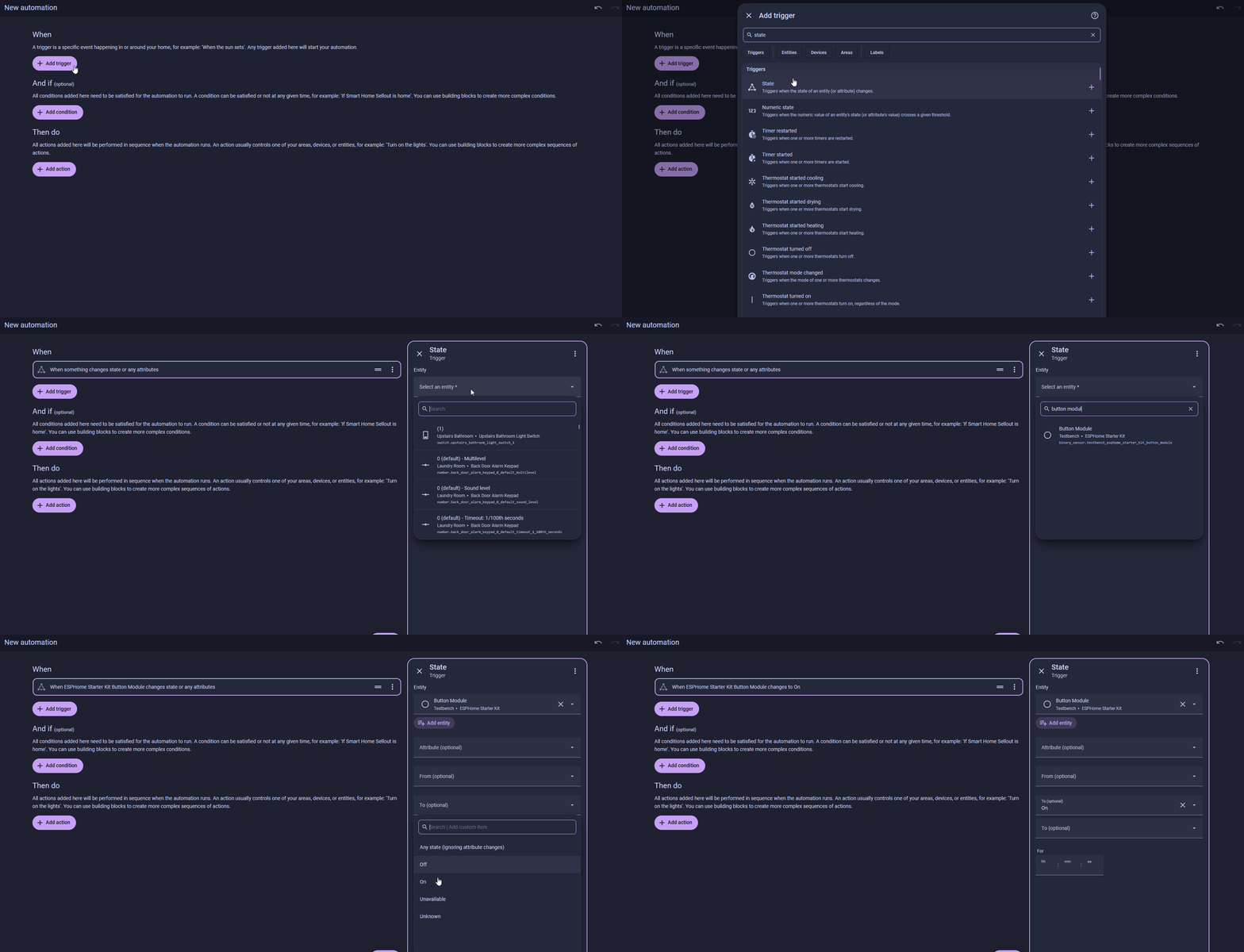
Under Triggers, click + Add trigger, type
state, and choose State.- In the Entity field, type
button moduleand select Button Module. - To →
On(1)
- The button registers as a binary sensor.
Onmaps to a pressed state: the moment you push the button down. Home Assistant fires the automation at that instant.
- In the Entity field, type
-
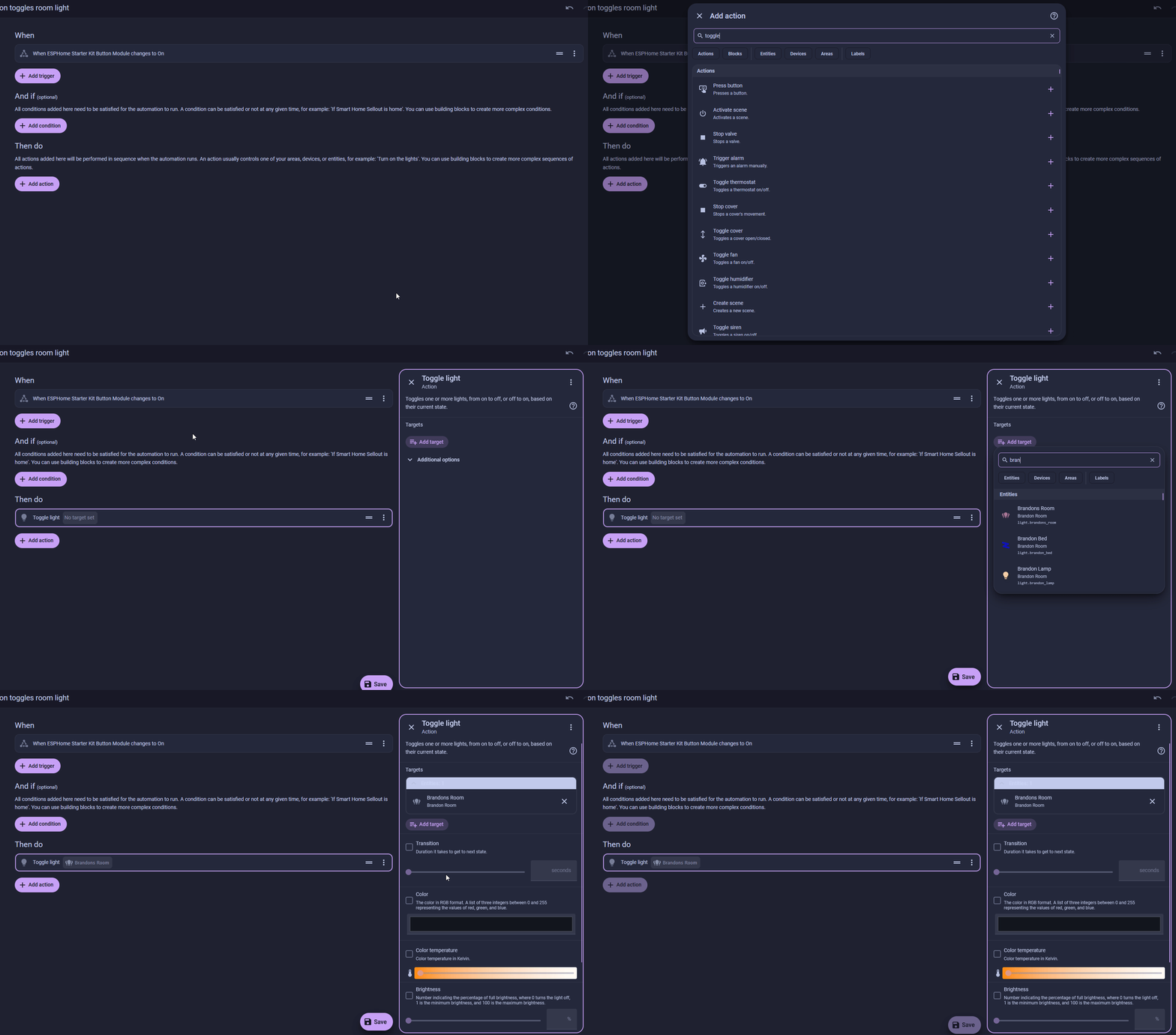
Under Then do, click + Add action, type
toggle light, and select Light: Toggle.- Light: Toggle handles both directions: on if the light is off, off if it's on. (1)
- Under Targets, click + Choose entity, search for your light such as
Brandons Room, and select it. (2)
- If you'd rather it always turn on or always turn off, use Light: Turn on or Light: Turn off instead.
- You can also set a Color, Color temperature, or Brightness here for when the light turns on. Toggling it off ignores them.
-
Click Save.
-
Give the automation a name like
Button toggles room light, then click Save again.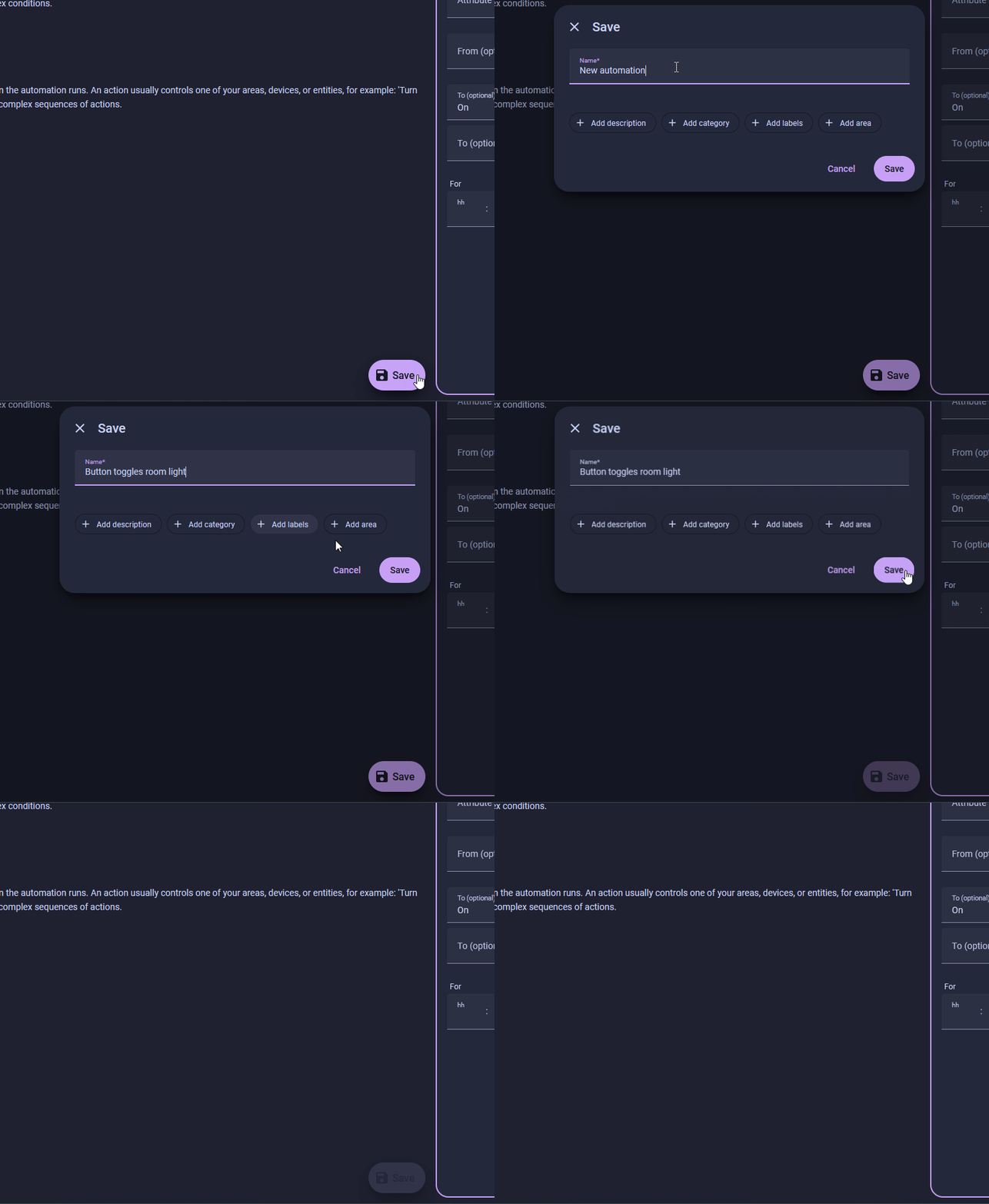
What the automation looks like in YAML
Home Assistant stores automations as YAML. Select Edit in YAML from the three-dot menu on the automation to see or paste the raw config. Your entity IDs will differ from the example below.
Test the automation
Press the button on the Button module. The light you targeted toggles. Press again and it toggles back.
Your kit is now a physical remote for Home Assistant!
Any light in your home (a bedside lamp, a ceiling group, a smart bulb strip) is one button press away. Swap light.toggle for light.turn_on with a brightness_pct to land on a specific brightness, or target a light group to control a whole room at once.
 Next: Trash Night Reminder
New to ESPHome? We're here to help.
Stuck on a step or want to show off what you built? Ask questions and share projects with the Apollo community.