Device Builder Tour
The ESPHome Device Builder is the app you used in First Steps to install firmware on your Starter Kit. It is also where you go every time you change something on the device. This page is a tour of every screen and every button you will see, using your ESPHome Starter Kit as the example device throughout.
The Device Builder is two tools in one:
- A device manager that lists every ESPHome device on your network, shows whether each one is online, and lets you open, install, or view logs for any of them.
- A configuration editor that turns the long ESPHome YAML file into clickable forms, while keeping the YAML right next to you in case you want to read or hand-edit it.
By the end of this page you will know what every section is for, how to read the dashboard and info panel, how the form view and YAML view stay in sync, and where to click for Validate, Save, Install, and Logs.
Dashboard
When you open ESPHome Device Builder, this is the first thing you see.
Working from the top down:
- Header. The app name shows a PREVIEW badge because the new GUI is still officially in preview. The three-dot icon on the far right opens app-level options like Secrets and Settings.
- Discovered devices banner. When ESPHome finds a device on your network that has not been adopted yet, it shows up here. Click Show to see the list and adopt them. Your Starter Kit was adopted during First Steps, so it does not appear in this banner anymore.
- Search. Filter the list below by device name.
- View toggles. Three icons next to the search bar switch between a grid of cards (the default), a compact table, and a
{ }view that shows the raw YAML filename for each device. Grid view is the default. - Labels and Status. Optional filters. Once you have more than a handful of devices you can tag them with labels (kitchen, garage, test-bench, etc.) and filter the dashboard down.
- Select multiple. Lets you tick checkboxes on multiple device cards and run actions on all of them at once.
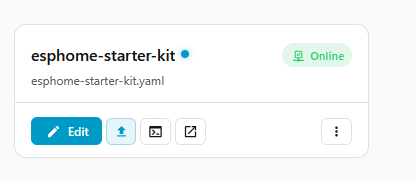
- Your device card. Each device gets a card showing its name, the YAML file backing it, and an online state pill. The green Online pill means the device is powered up and reachable over Wi-Fi. The blue Edit button opens the configuration editor. The two small icons next to it open the device's built-in web page and a dashboard link. The three-dot menu holds per-device actions like Install, Validate, Logs, and Delete.
- Create device. The floating blue button in the bottom-right corner kicks off the new-device wizard. You will not need this for the Starter Kit because it adopted itself, but this is how you would add a second Apollo device or a DIY ESP32 board later.
Device Details
Click anywhere on the body of the device card (not the blue Edit button) to slide open the device info panel on the right side of the screen. This panel is read-only. It tells you everything about the device as it currently exists, without letting you change anything.
The panel is organised top-to-bottom into:
- Device Online. A green banner confirming the device is currently reachable. If it ever drops offline, you will see a red Device Offline banner here instead.
- Encrypted. Means the link between the device and Home Assistant is using an encryption key. Every Apollo device ships with encryption already on, so you should always see this for your Starter Kit.
- Device Information. Six fields that describe the physical device:
- Name is the hostname on your network (
esphome-starter-kitby default). - Address is the mDNS address (
esphome-starter-kit.local). Most laptops can reach the device using this without knowing its IP. - IP Address is the actual IP your router handed out. The arrow next to it opens the device's web page in a new tab.
- MAC Address is the hardware address of the ESP32-C6. Useful if you want to assign the device a fixed IP in your router.
- Platform is the chip family. The Starter Kit uses
esp32. - Build Size is how big the compiled firmware ended up. Helpful when you start adding components and want to make sure you have room.
- Name is the hostname on your network (
- Labels. Same labels you can filter by on the dashboard. Add one from Add labels.
- Reachability. How the Device Builder is currently talking to the device. mDNS with an ACTIVE badge means it is using local network discovery. Expand Show mDNS TXT records to see the raw broadcast data, useful for debugging network issues.
- Version. Shows the ESPHome version running on the device, and whether it is In sync with the version of the Device Builder you have installed. If you ever see an out-of-sync warning here, a reinstall from the editor will fix it.
- Configuration. Points at the YAML file that defines this device. For the Starter Kit that is
esphome-starter-kit.yaml. The Comment field is a free-text note to remind yourself what the device does. - Config Hash. Two short hashes that answer "is what's on the chip the same as what's in the file?":
- Local is the hash of the YAML file as it sits in the Device Builder right now.
- Deployed is the hash of the YAML actually running on the device.
- Matching hashes mean the device is running exactly what you see in the editor. Different hashes mean you have unsaved or uninstalled changes.
- Loaded Integrations. Every chip is a piece of ESPHome being used by your device right now. For the Starter Kit you will see things like
aht10(the temperature and humidity module),i2c(the bus that talks to it),gpio(for the buttons and accessory power switch),wifi,api(the Home Assistant connection), andweb_server(the on-device webpage). Each chip corresponds to a real piece of hardware or a real feature you turned on. - Edit and Logs buttons at the bottom of the panel. Edit opens the configuration editor (covered next). Logs opens a live stream of what the device is saying right now (covered at the end).
Editor
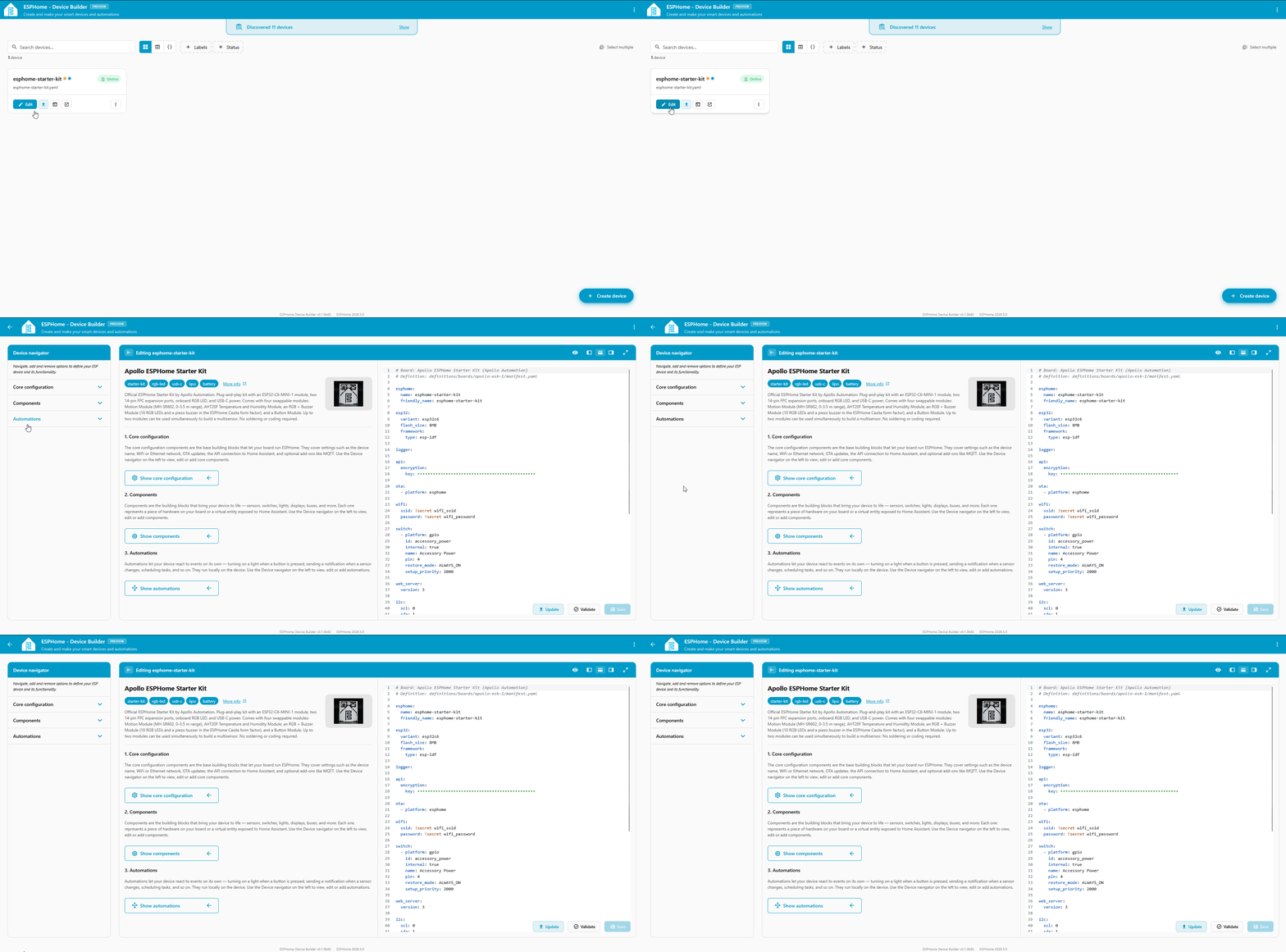
Click Edit on the device card or in the info panel. The screen flips into the configuration editor.
The editor has three panes:
- Left: Device navigator. A collapsible outline of your entire configuration, grouped into Core configuration, Components, and Automations. Use it to jump to any section of the config.
- Middle: Form pane. When you click anything in the navigator, its settings show up here as a form with labeled fields and inline help. When you have not clicked anything yet, you get a friendly overview of the board itself.
- Right: YAML editor. The actual YAML for your device, colour-coded, with line numbers. You can read it, scroll it, and edit it directly.
Across the top of the editor:
- The back arrow returns you to the device dashboard.
- The layout toggles in the header show or hide the navigator and YAML panes. Hide the YAML if you want all the room for the form. Hide both side panes to focus on one form at a time.
- The expand icon puts the editor in fullscreen.
At the bottom right:
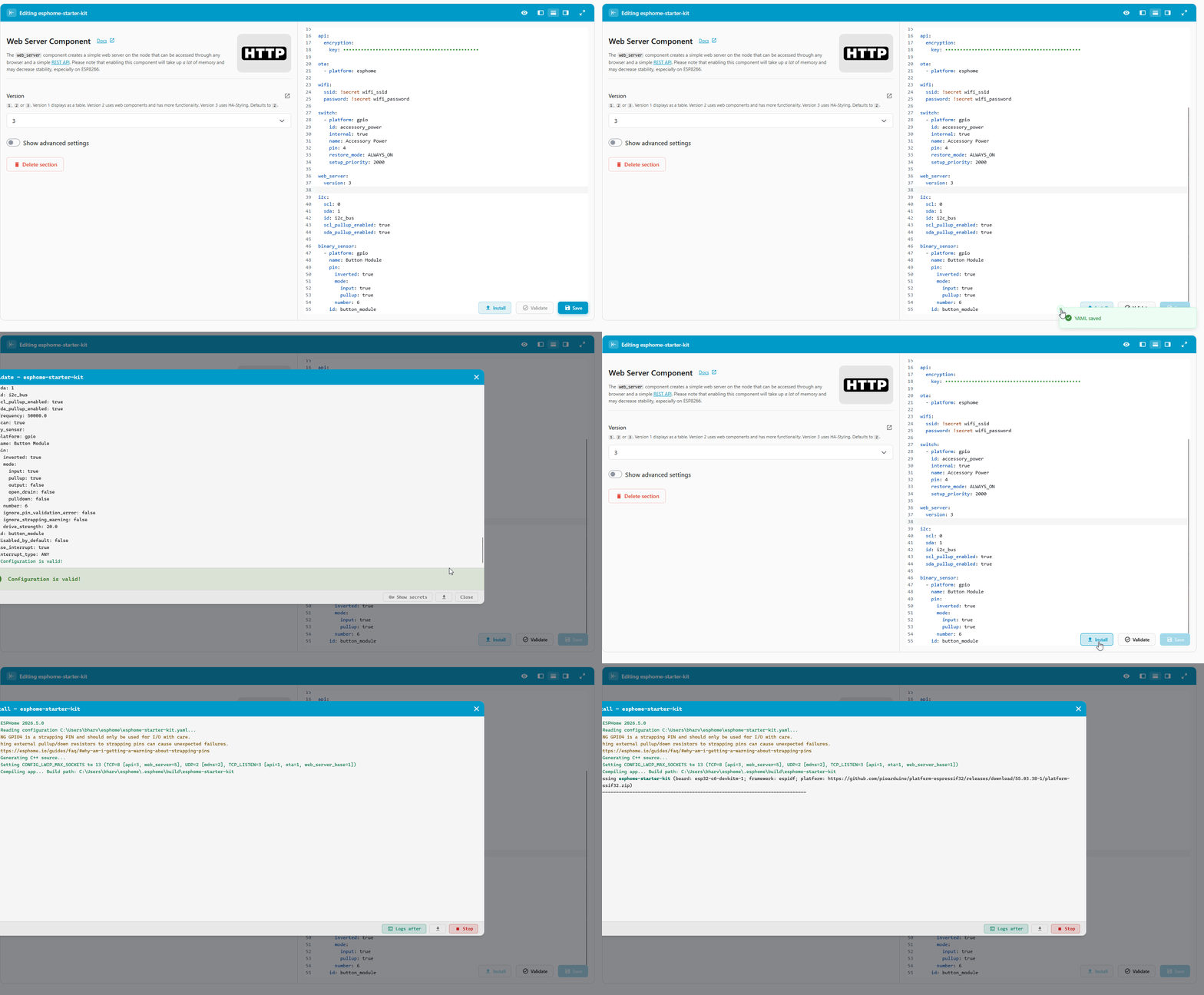
- Validate runs a syntax and compile check on your YAML without installing anything. Always do this before saving a large change.
- Save writes your changes to the YAML file. It does not install to the device yet, that is a separate step from the dashboard.
Apollo board overview
The middle pane defaults to the Apollo ESPHome Starter Kit board overview with tags like starter-kit, rgb-led, usb-c, lipo, and battery, and a description of every module that ships in the kit. This overview comes from Apollo's official board manifest, so what you see here is exactly what is in the box.
Core Configuration
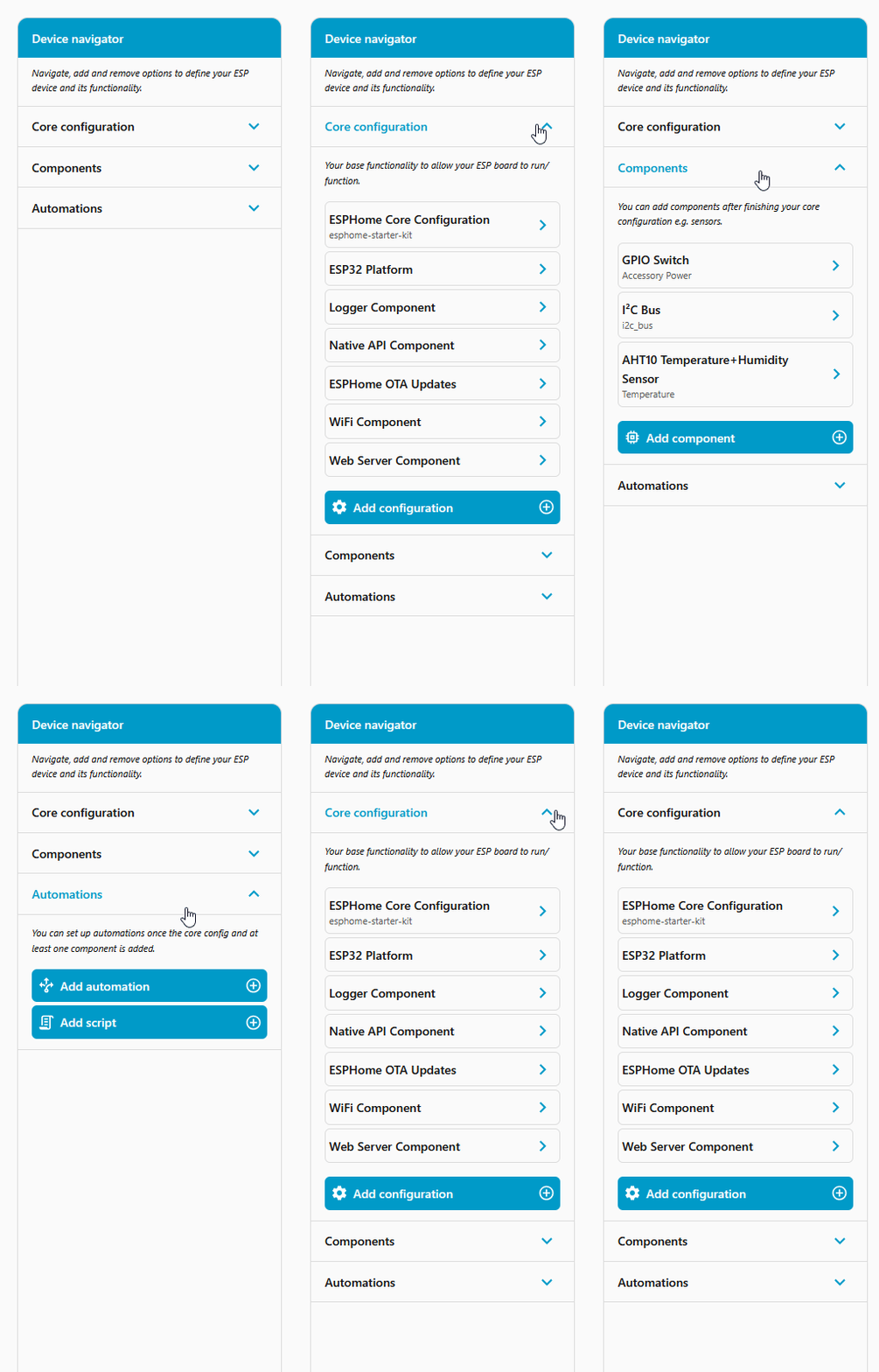
Expand Core configuration in the Device navigator. These are the foundational settings every ESPHome device needs.
For the Starter Kit you will see:
- ESPHome Core Configuration. The name and friendly name of the device, its area in Home Assistant, and a free-text comment. Sets how the device identifies itself to Home Assistant.
- ESP32 Platform. Which chip variant the device uses (
esp32c6for the Starter Kit), how much flash it has, and which framework to compile against. You almost never change this on a pre-built Apollo board. - Logger Component. Controls how chatty the device is when you open Logs. The defaults are fine.
- Native API Component. The encrypted link to Home Assistant. The key shown as dots is your encryption key. Treat it like a password.
- ESPHome OTA Updates. Lets you re-flash the device over the network instead of plugging in USB every time. Already configured.
- WiFi Component. The Wi-Fi name and password the device uses to get online. The SSID and password are pulled from your Secrets file using
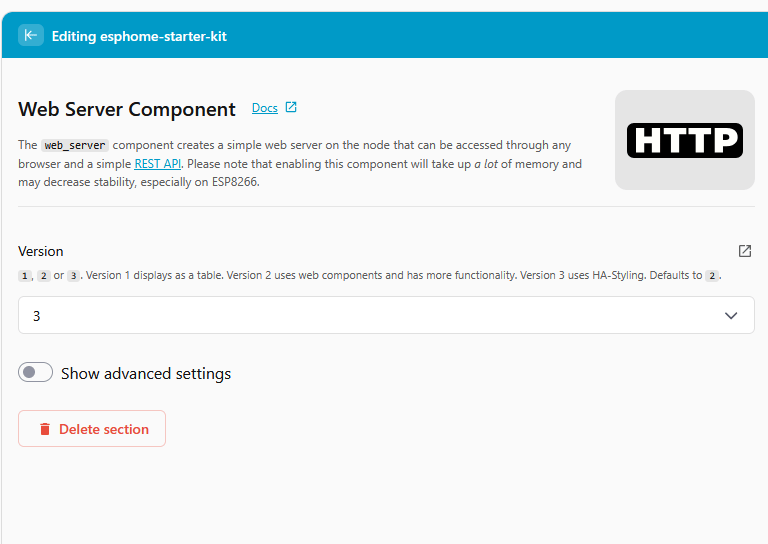
!secret, so you do not see them in plain text here. See What is secrets.yaml? for the why. - Web Server Component. Powers the small built-in webpage you can visit at the device's IP address. Handy for poking at sensors without opening Home Assistant.
You can add new core-level configuration with + Add configuration. For the Starter Kit you will rarely need to, because everything you need is already set up.
Components
Components are the actual things your device does: switches, sensors, lights, buses, displays. Anything that produces a value, controls a piece of hardware, or shows up as an entity in Home Assistant is a component.
Expand Components in the navigator to see what your Starter Kit ships with.
For the default Starter Kit configuration:
- GPIO Switch (Accessory Power). A switch wired to the Starter Kit's accessory power rail. Toggling this powers the modules connected to the expansion ports on and off.
- I²C Bus. The two-wire bus the AHT20 temperature and humidity module talks on. Most expansion modules use this same bus.
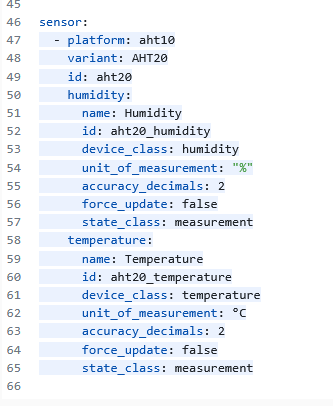
- AHT10 Temperature+Humidity Sensor. The temperature and humidity sensor from the included module. Exposes two values to Home Assistant.
Click any component to see its settings: name, icon, pin, device class, restore mode, and more. Every field has inline help text describing what it does, and a Docs link in the top right of every form takes you to the official ESPHome documentation for that component.
Adding a component. When you swap one module for another (say, the Motion Module or the LED & Buzzer Module), or you add an entirely new sensor to a project of your own, do it from + Add component at the bottom of the navigator. The Device Builder shows you a searchable picker of every component ESPHome supports.
When you add a component this way, the Device Builder writes the YAML for you. When you later read the YAML, the new component shows up as another entry in the navigator. The standard workflow is to add components visually and read the YAML as a reference, so you do not have to remember exact indentation or key names.
Automations
Automations are reactions that run on the device itself. Things like "when this button is pressed, turn that switch on", or "when the temperature crosses 80°F, blink the LED". They run locally without round-tripping to Home Assistant, so they are fast and they work even if your network is down.
The Starter Kit does not ship with any automations by default, but this is where you would add things like:
- Blink the onboard RGB LED every time the AHT20 reports a new temperature reading.
- Beep the buzzer when the Motion Module sees motion.
- Turn off accessory power at night and back on in the morning.
Build these visually with + Add automation, or write the YAML by hand on the right. Either way you end up with the same result.
Two-Way Editing
The form pane and the YAML pane are always in sync. They are two views of the same underlying file:
- Add a component visually, and the YAML grows the right lines.
- Change a field in the form, and the matching YAML key updates.
- Hand-edit the YAML, and the form fields fill themselves in.
You can build a config with the forms, read the YAML to see how each setting is expressed, and start writing your own YAML for the parts you already understand.
If you want to go deeper on the YAML side first, see What is YAML?.
Publishing Changes
When you have finished making changes, three things have to happen, in order.
Validate
Click Validate at the bottom right of the editor. ESPHome checks that your YAML parses, that every component is configured legally, and that the whole config will compile.
- A green result means your config is ready.
- A red result expands to show the exact line and reason something is wrong.
Save
Click Save. This writes the YAML file. Nothing is sent to the device yet.
Install
To get your changes onto the actual Starter Kit, go back to the device dashboard, open the device's three-dot menu, and choose Install. You get three install options:
- Wirelessly. Over the air, using OTA. This is the normal path for a device already on your network.
- Plug into this computer. USB cable, for the very first flash or when OTA is broken.
- Manual download. Get the compiled firmware file and flash it yourself.
For day-to-day editing of your Starter Kit, choose Wirelessly. The Device Builder compiles, uploads, and reboots the device automatically. When it comes back online, the Deployed hash on the info panel matches the Local hash and you are done.
If this is the first time you are flashing a device, see the First Steps install walkthrough for the full USB process.
Logs
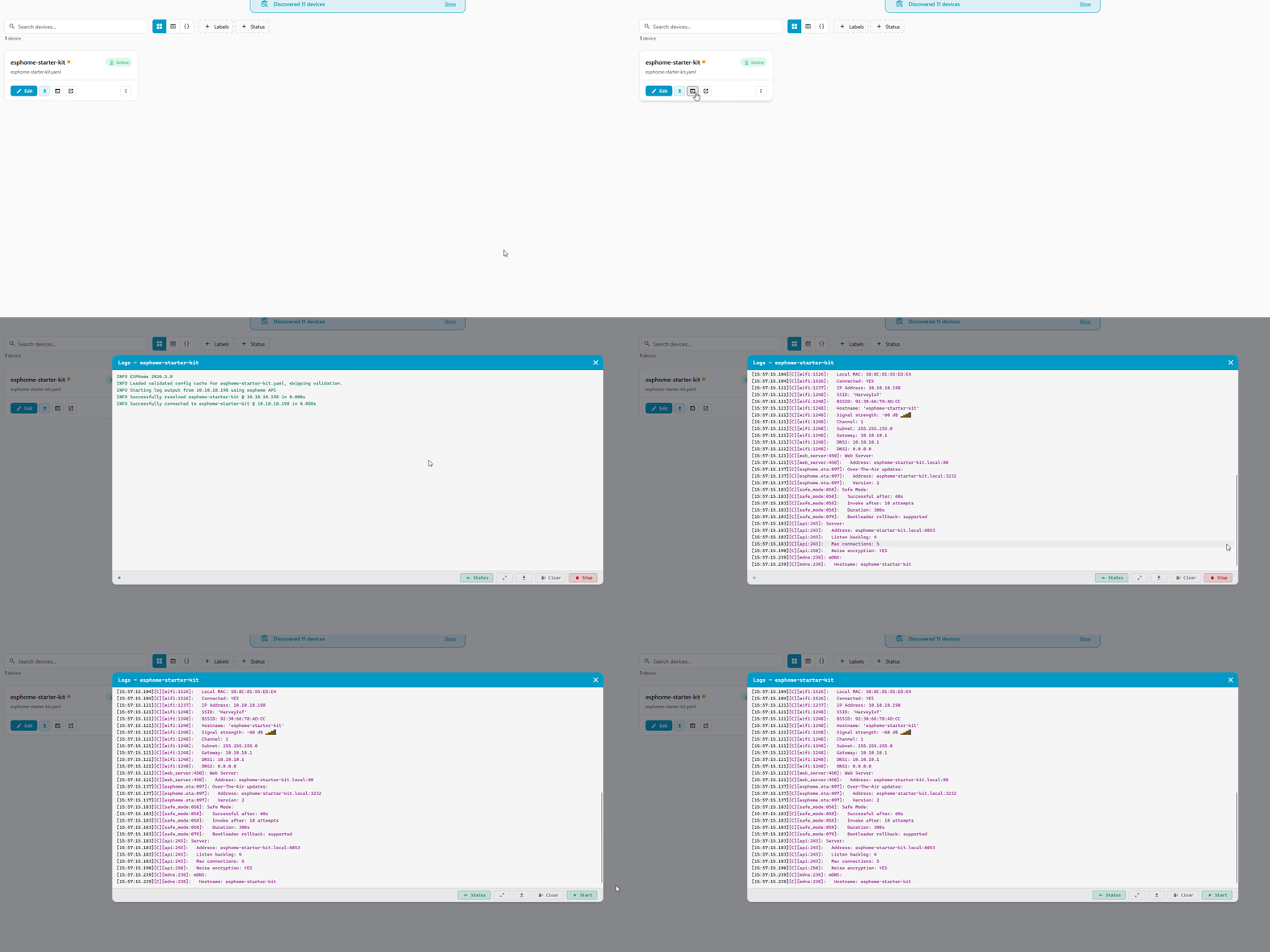
Click Logs from the info panel or the device card's three-dot menu to open a live stream of what the device is reporting.
Open the logs whenever something is not behaving the way you expect. The AHT20 module reads a temperature every few seconds and you can watch it report. The GPIO switch logs when it turns on and off. Every Wi-Fi reconnect, every API event, and every error shows up here.
Next Steps
You have now seen every screen in the ESPHome Device Builder. From here:
- Pick a module from the Modules section to add to your Starter Kit and watch the components list update.
- Read What is secrets.yaml? to understand how Wi-Fi and encryption keys are stored.
- Bookmark the official ESPHome documentation for component reference whenever you click a Docs link.