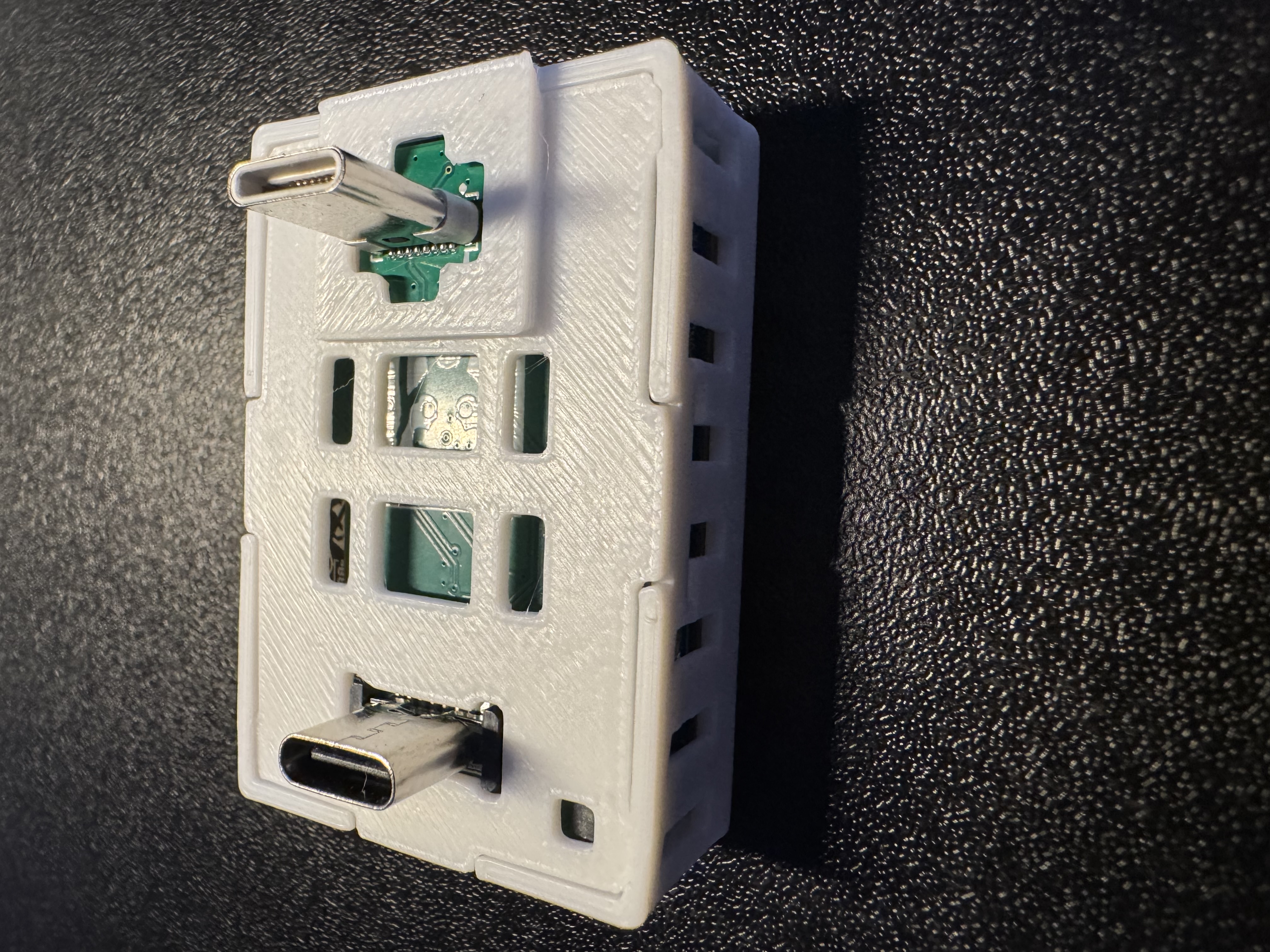
Adding rear male USB-C to MTR-1
You'll seat the Rear Male USB-C addon on the mezzanine connector on the back of your sensor, then fit the new back that came with it.
1. Unplug your MTR-1 from power and remove the stand if attached.
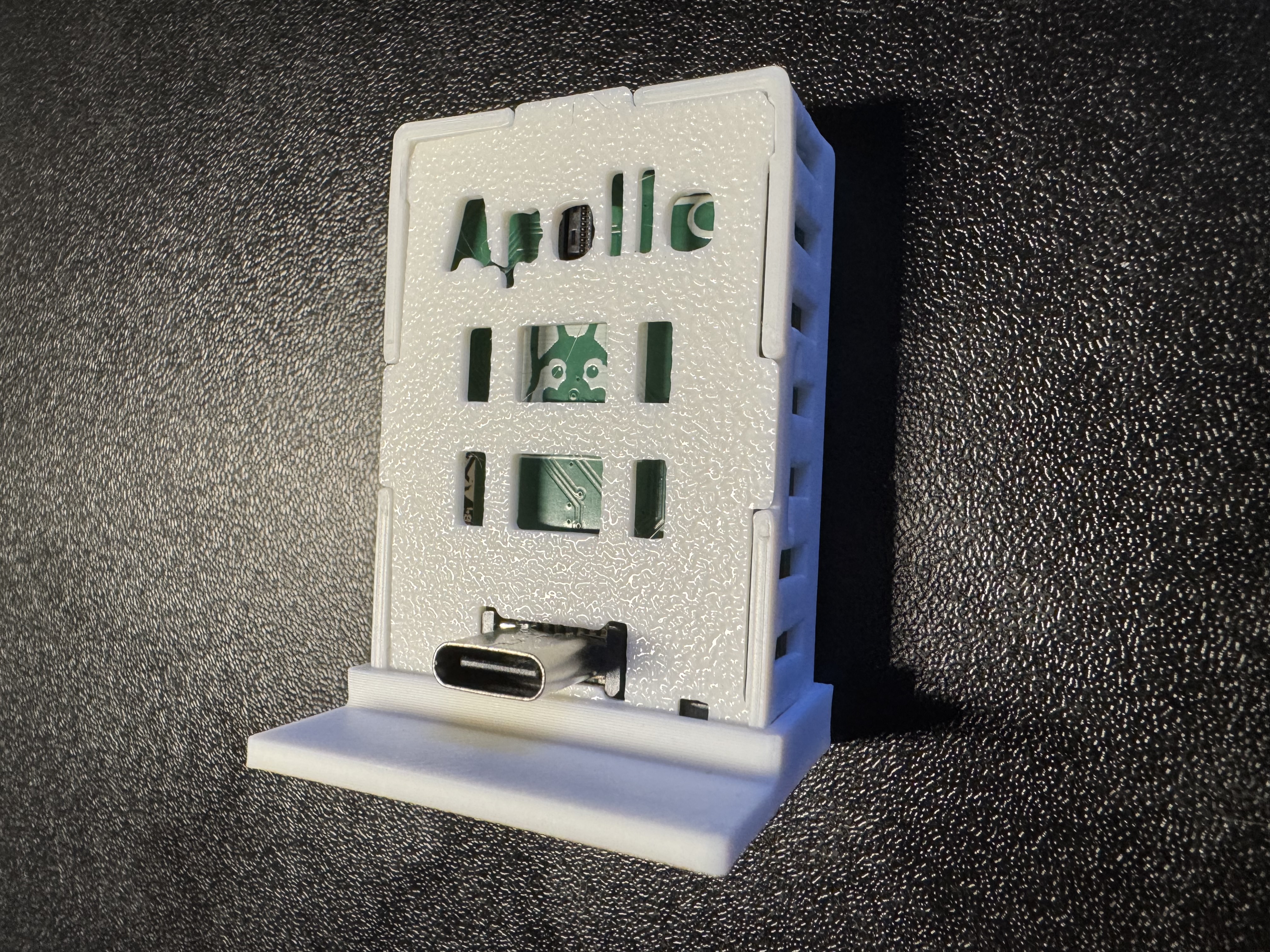
2. Remove the backplate of the MTR-1.
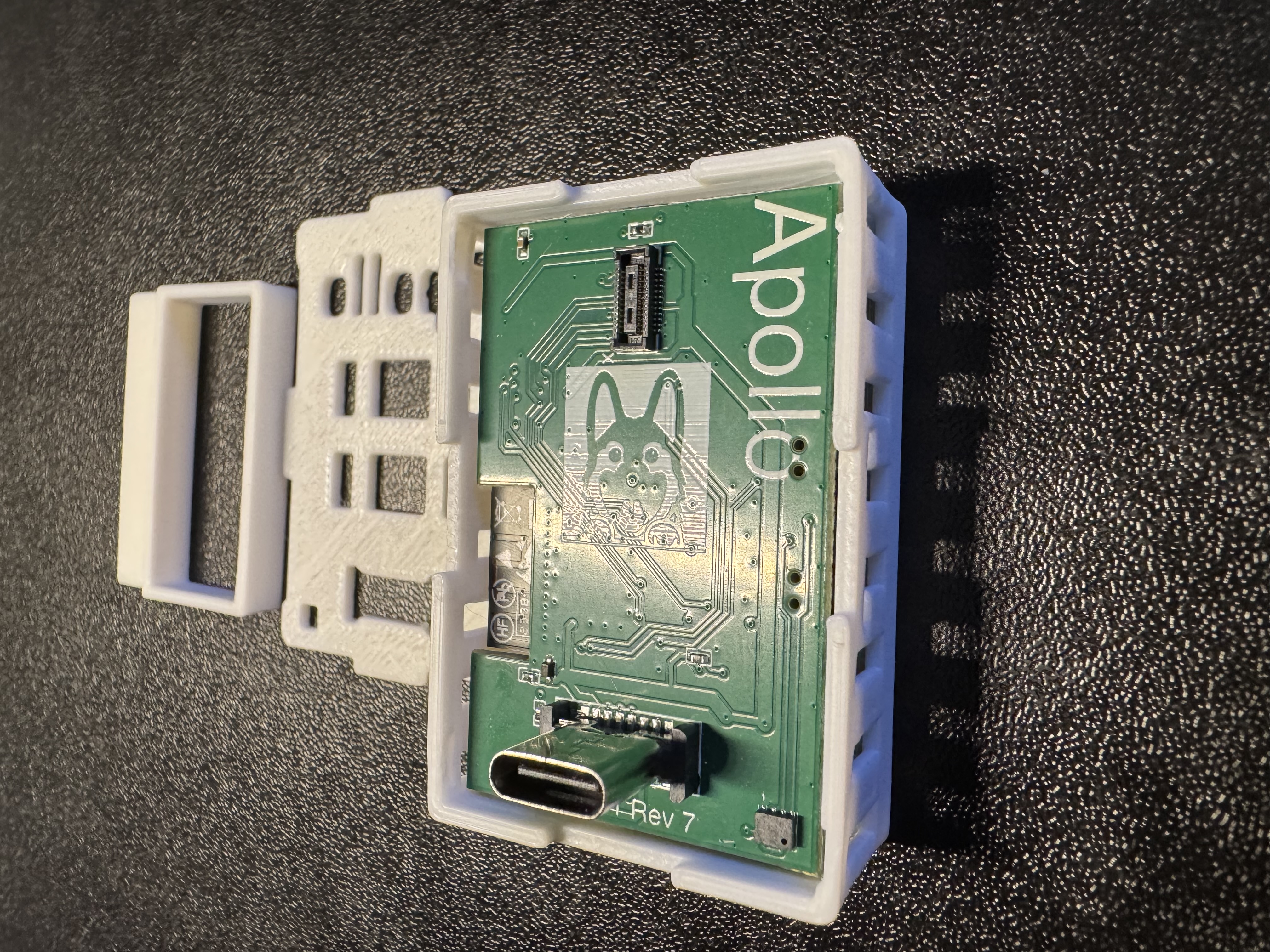
3. Identify the "X" on the PCB on the back of your MTR-1 and the "X" on the top left corner of the male Rear USB-C addon.
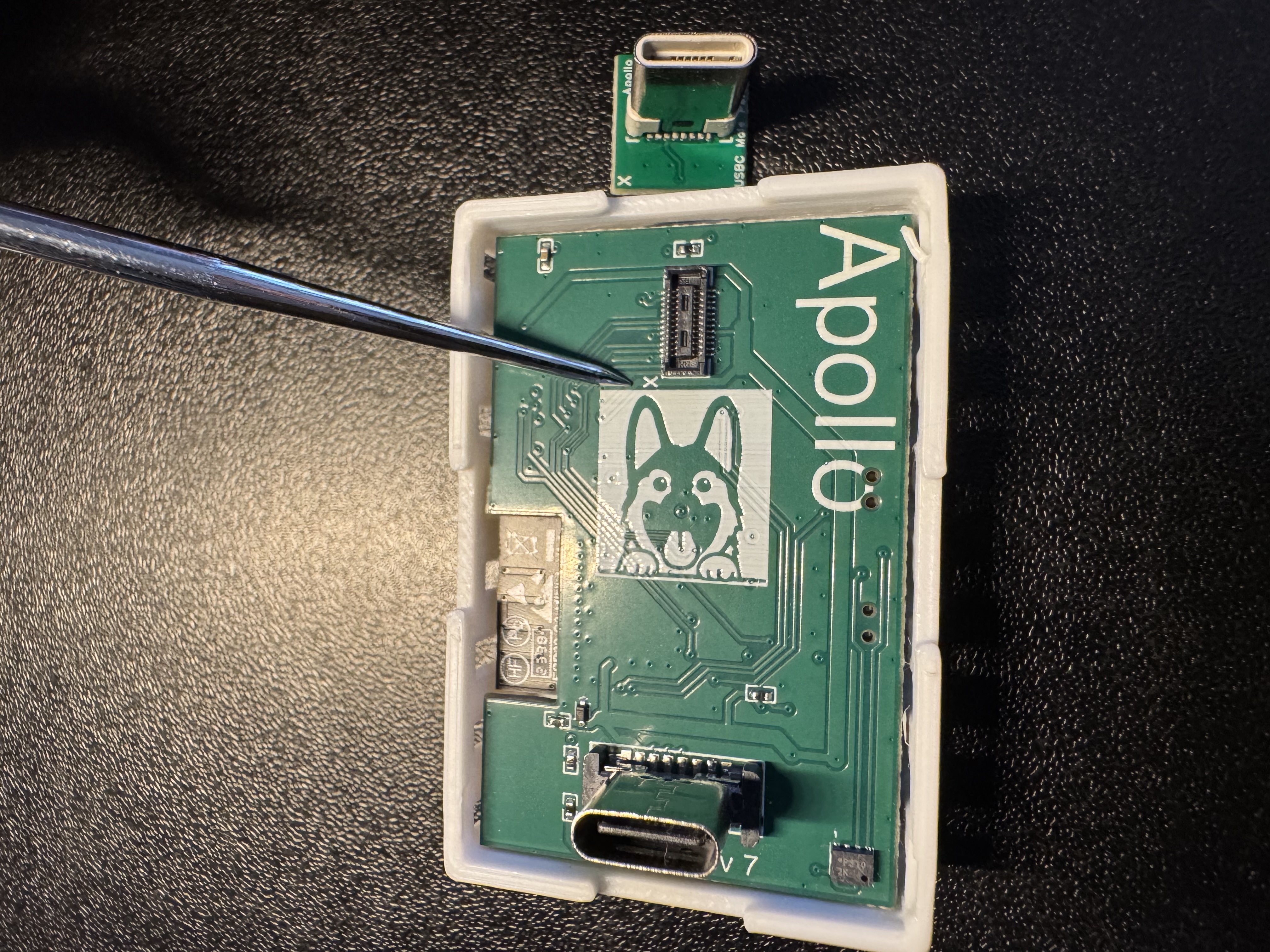
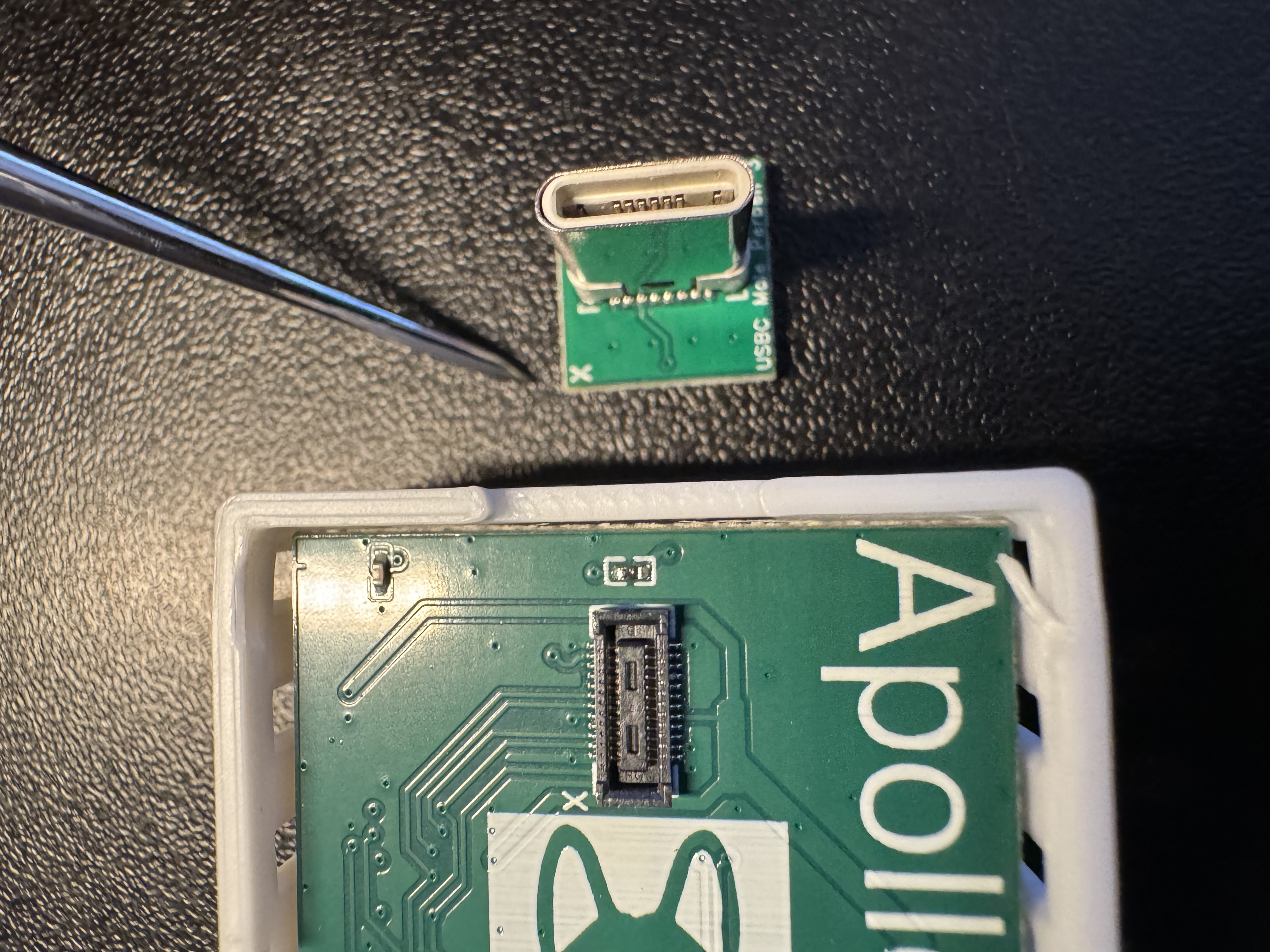
4. Keep the "X" aligned on both sides and gently push down until it securely seats in the small mezzanine connector.
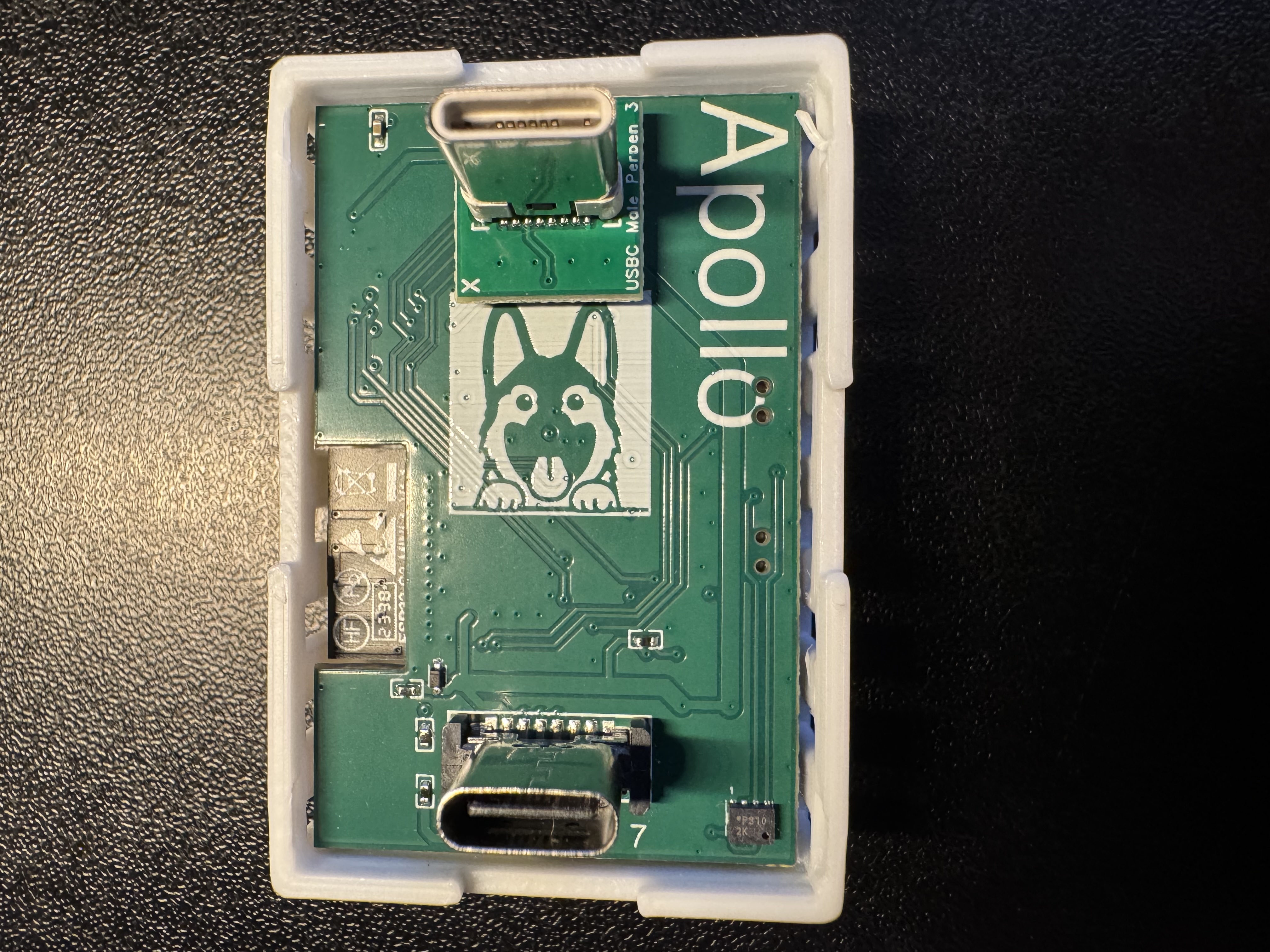
5. Align the new back for your MTR-1 that came with the Male USB-C addon. Push down on the corners closest to the USB-C addon first, and then push the back on securely on the other two corners.
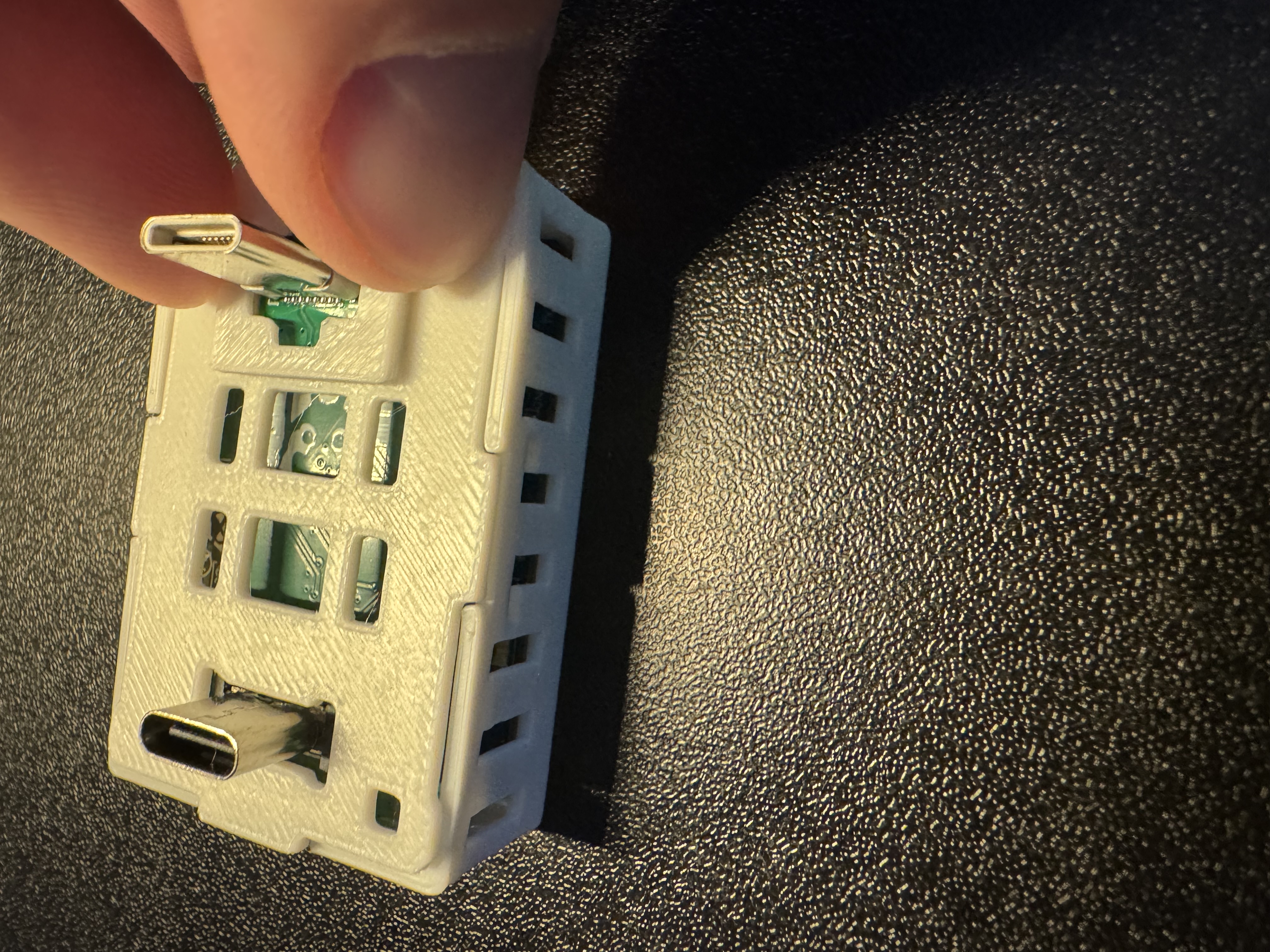
6. The case should sit flush and you're now ready to plug into a USB-C Outlet!