How to add temp and humidity from SCD40
You add YAML in ESPHome Builder to get SCD40 temperature and humidity entities, with offsets you can adjust in Home Assistant.
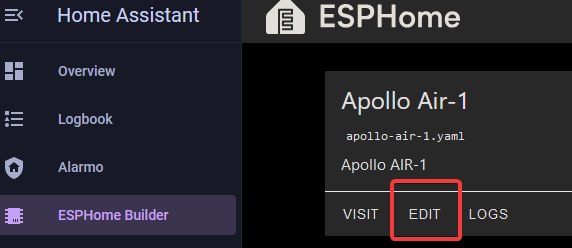
1. Select the ESPHome Builder in the sidebar then click "EDIT" on the device you want to change. If it isn't in your sidebar, the button below opens the app.

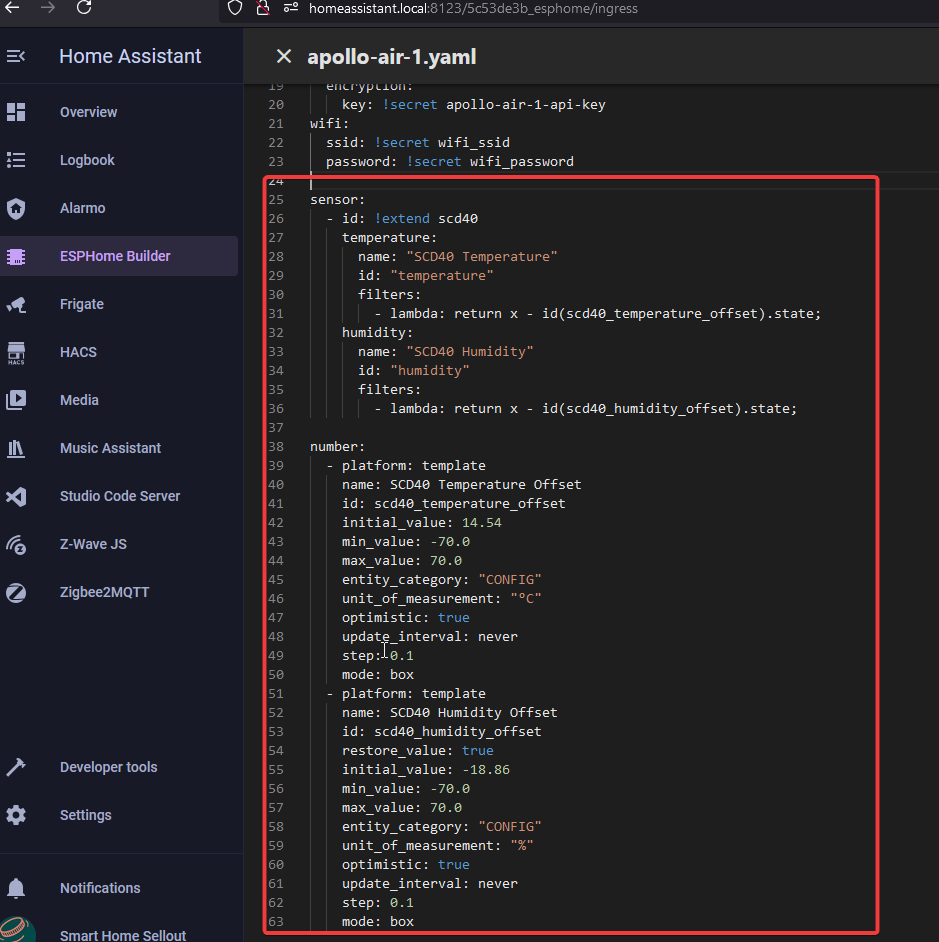
2. Copy the YAML below and put it at the bottom on a new line with no spaces before it.
This example is for the AIR-1
It also works on the MSR-2 once the CO2 addon is installed. The MTR-1 firmware already includes SCD40 Temperature and SCD40 Humidity entities with their offsets (disabled by default), so on an MTR-1 with the CO2 addon, enable those entities on the device page instead of adding this YAML.
sensor:
  - id: !extend scd40
    temperature:
      name: "SCD40 Temperature"
      id: "temperature"
      filters:
        - lambda: return x - id(scd40_temperature_offset).state;
    humidity:
      name: "SCD40 Humidity"
      id: "humidity"
      filters:
        - lambda: return x - id(scd40_humidity_offset).state;

number:
  - platform: template
    name: SCD40 Temperature Offset
    id: scd40_temperature_offset
    restore_value: true
    initial_value: 14.54
    min_value: -70.0
    max_value: 70.0
    entity_category: "CONFIG"
    unit_of_measurement: "°C"
    optimistic: true
    update_interval: never
    step: 0.1
    mode: box
  - platform: template
    name: SCD40 Humidity Offset
    id: scd40_humidity_offset
    restore_value: true
    initial_value: -18.86
    min_value: -70.0
    max_value: 70.0
    entity_category: "CONFIG"
    unit_of_measurement: "%"
    optimistic: true
    update_interval: never
    step: 0.1
    mode: box
3. In the top right of the same screen click "SAVE" and then "INSTALL".
4. Once you see "INFO OTA successful" you are done. Click "STOP" to exit.

5. Once you are finished, you will have two new boxes inside the Home Assistant ESPHome integration device page for your device where you can fill in an offset. Give them up to 1 minute to take effect!