Reflashing the BTN-1
If your device becomes unresponsive and you've exhausted the other troubleshooting methods you can reflash the factory firmware by following the steps below.
This factory re-flash needs to be done in Chrome, Edge, or another Chromium based browser.
1. Plug in a USB cable that supports power and data into your computer and connect the other end to your BTN-1.

2. With the device facing you, locate the reset (left) and boot (right) buttons.
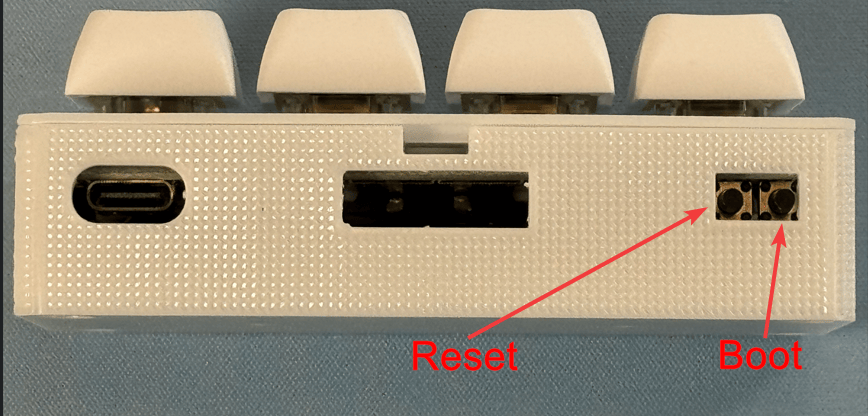

3. Hold down the boot button (the right button), then press and release the reset button (the left button) while keeping the boot button pressed. Finally, release the boot button.
4. Open the Apollo BTN-1 installer in a Chromium-based browser such as Chrome or Edge and click Connect & Install. Select the open com port and click Connect.
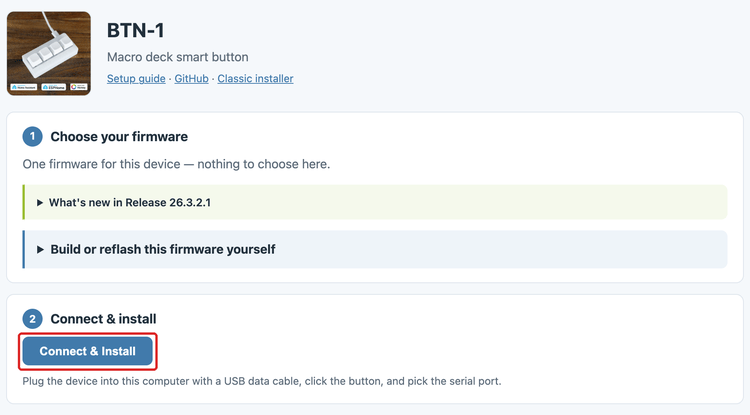
5. Click Install ApolloAutomation.BTN-1, then click Install again.
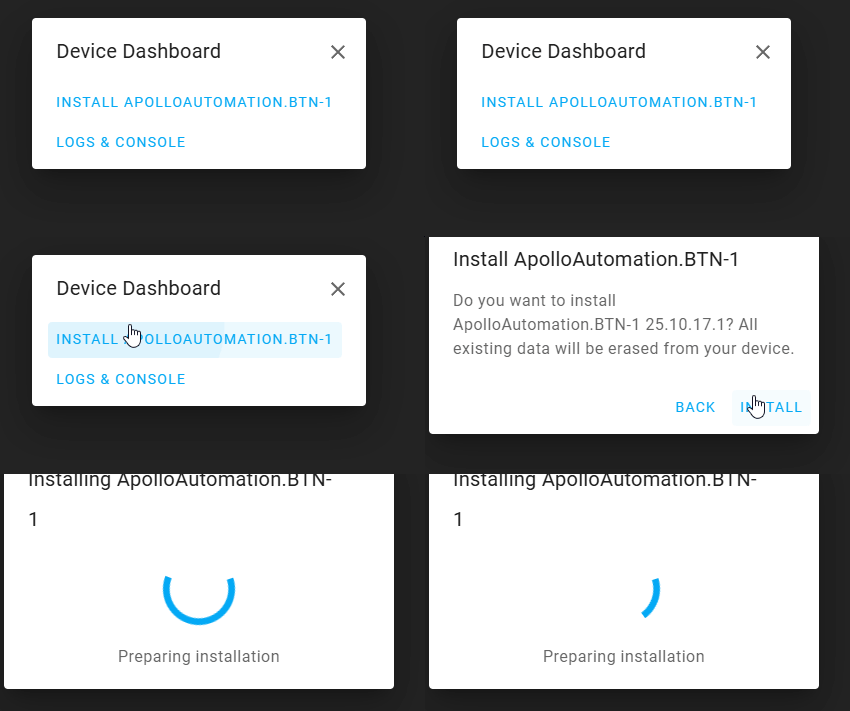
6. Once you see "Installation complete!" you are finished. Click Next then close out of the browser window.

Power cycle your device before doing anything else!
Your device is still in boot mode and needs to be power cycled aka power removed to make it boot in a normal mode!
Head to the Getting Started article to set up your BTN-1 as a new device!