Turn On a Light with Motion
Difficulty: Level 1
This tutorial uses the Motion module and the LED & Buzzer module connected to the ESP32-C6. When the PIR sensor detects movement, the RGB light turns on, and when the movement stops, the light turns back off. It's the same trigger-then-action pattern as the Button Controlled LEDs automation, swapping the button trigger for a motion trigger.
Before you start
Work through these pages first. This tutorial assumes your device is flashed and both modules are connected:
- First Steps to create your starter kit device in ESPHome Device Builder.
- Adding the Motion Module to wire up the PIR sensor.
- Adding the LED & Buzzer Module to wire up the RGB light.
Build the automation
ESPHome Device Builder has a GUI for building automations, so you can wire a trigger to an action without hand-writing YAML. The trigger is the when, the thing that makes it fire. The action is the then do, what happens when it fires. You'll build two automations on the same Motion module: one that turns the lights on when motion is detected, and one that turns them off when motion stops.
Turn the lights on
- Open your starter kit device in ESPHome Device Builder and click Edit. If you need a refresher on the editor, see the Device Builder Tour.
-
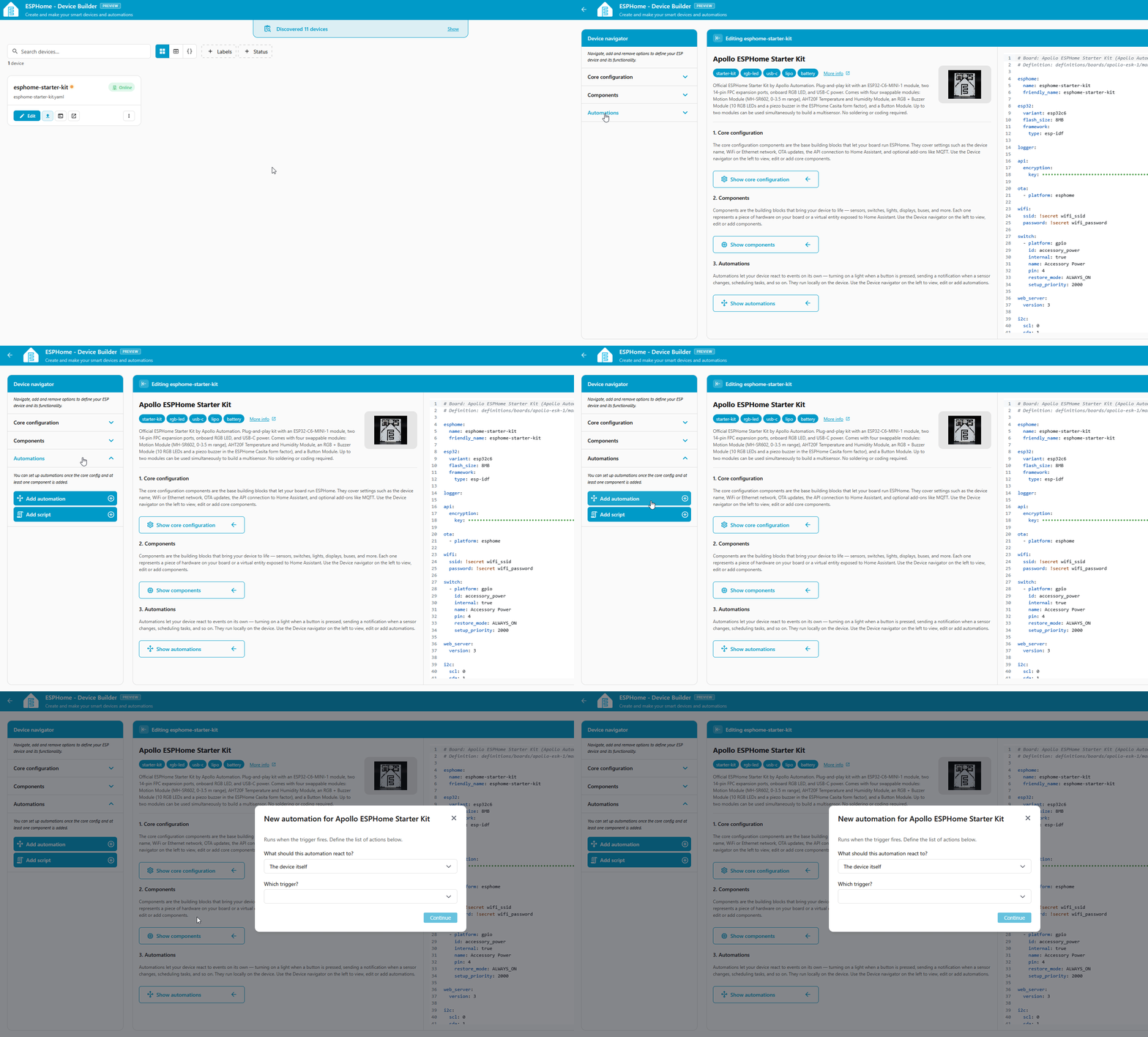
In the editor's left pane, expand the Automations dropdown and click Add Automation.
-
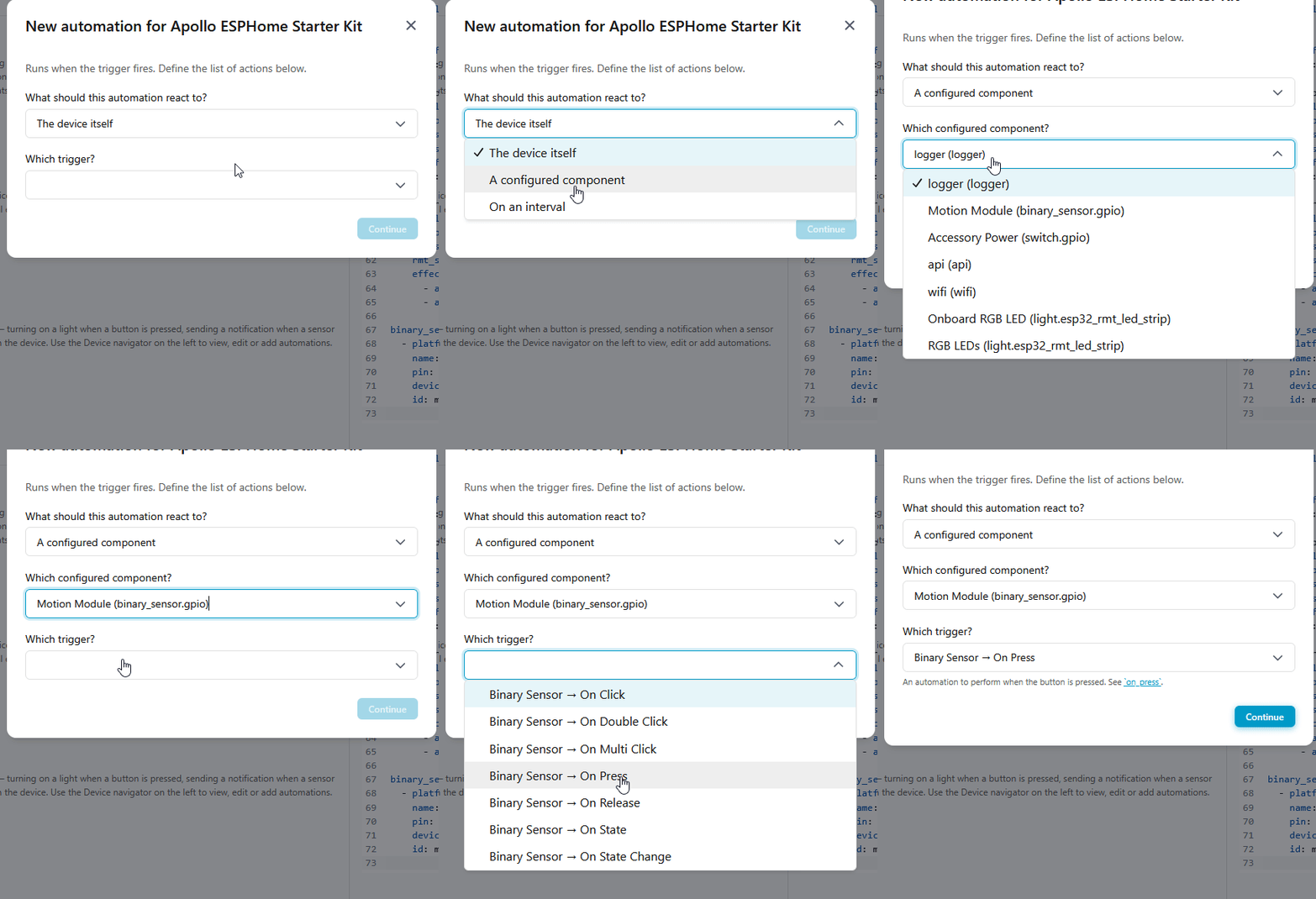
Set up the trigger:
- What should this automation react to? → A configured component
- Which configured component? → Motion Module (binary_sensor.gpio)
- Which trigger? → Binary Sensor → On Press (1)
- On Press fires the moment the sensor detects motion. The dropdown also offers On Release (the moment motion stops) and On State for other occupancy behaviors. You'll use On Release in the next section to turn the lights back off.
-
Click Continue. You land on the Binary Sensor → On Press editor with the Target already set to your Motion module.
-
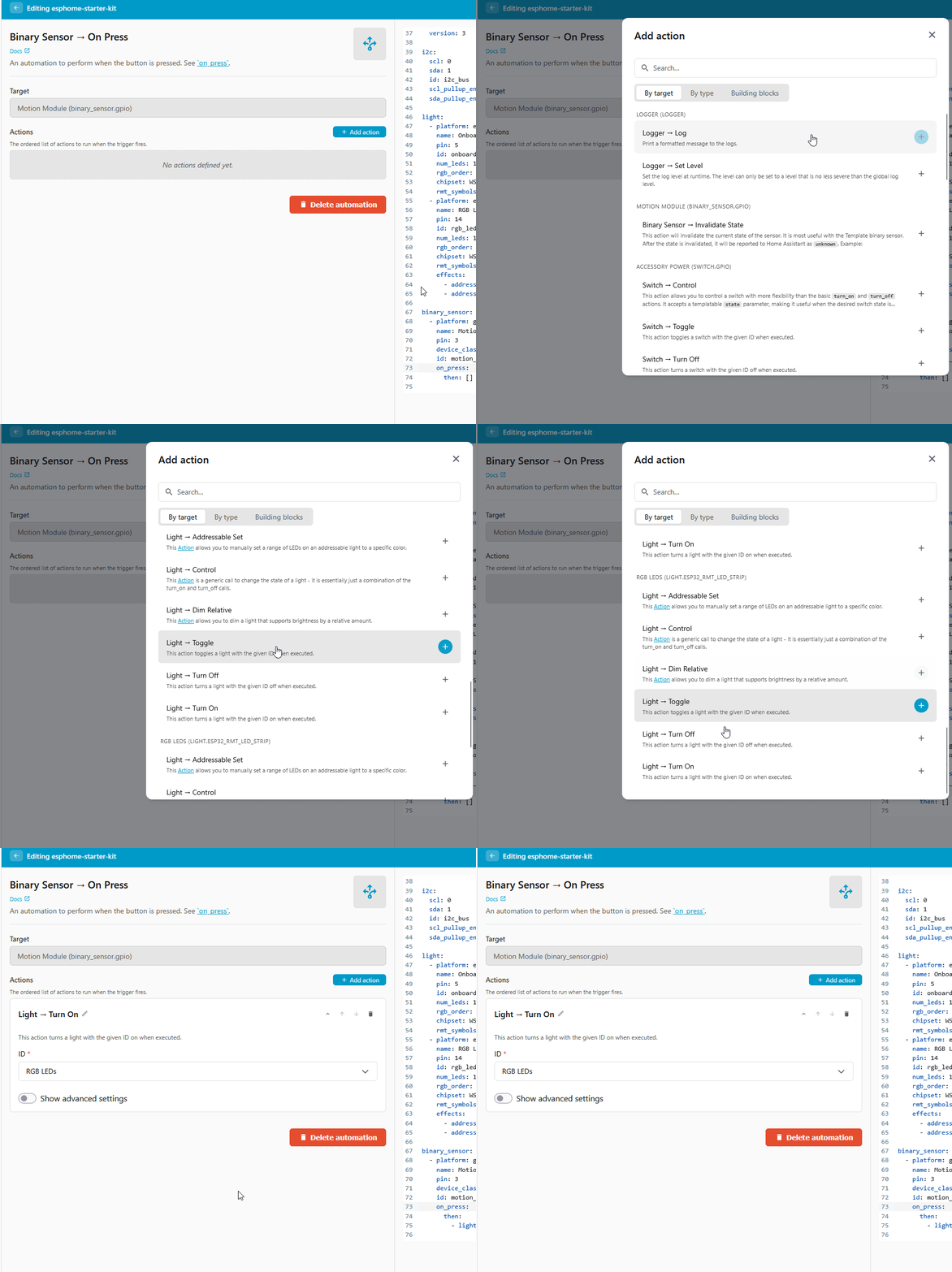
Set up the action:
- Under Actions, click + Add action.
- In the Add action dialog, stay on the By target tab and scroll down towards the bottom, then choose Light → Turn On under the RGB LED group.
- On the new action, click the ID dropdown and select RGB LEDs. (1)
- The ID dropdown only needs changing if your device also has an Onboard RGB LED component configured. If RGB LEDs is the only light, it's already selected.
What the GUI built in YAML
The form pane and the YAML editor on the right of the editor stay in sync. Your motion section now grows an on_press trigger with a light.turn_on action:
binary_sensor:
  - platform: gpio
    name: Motion Module
    pin: 3
    device_class: motion
    id: motion_module
    on_press: # (1)!
      then:
        - light.turn_on: rgb_leds
on_pressis the YAML name for the On Press trigger you picked in the GUI.
See Device Builder Tour → YAML editor (right) for the full breakdown of the YAML pane.
Turn the lights off
Right now the lights turn on with motion but never turn off. Add a second trigger to the same Motion module so the lights switch off once motion clears.
-
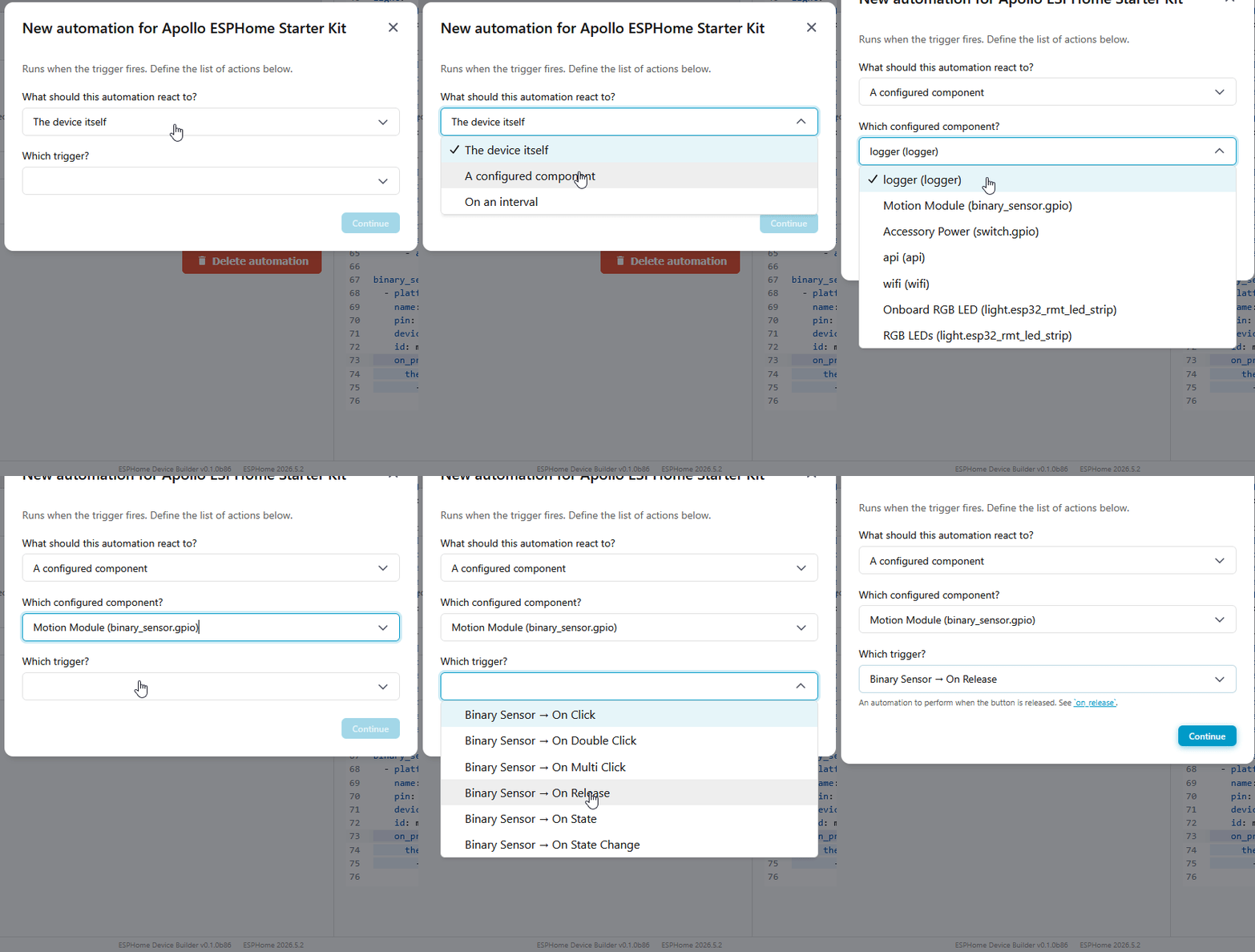
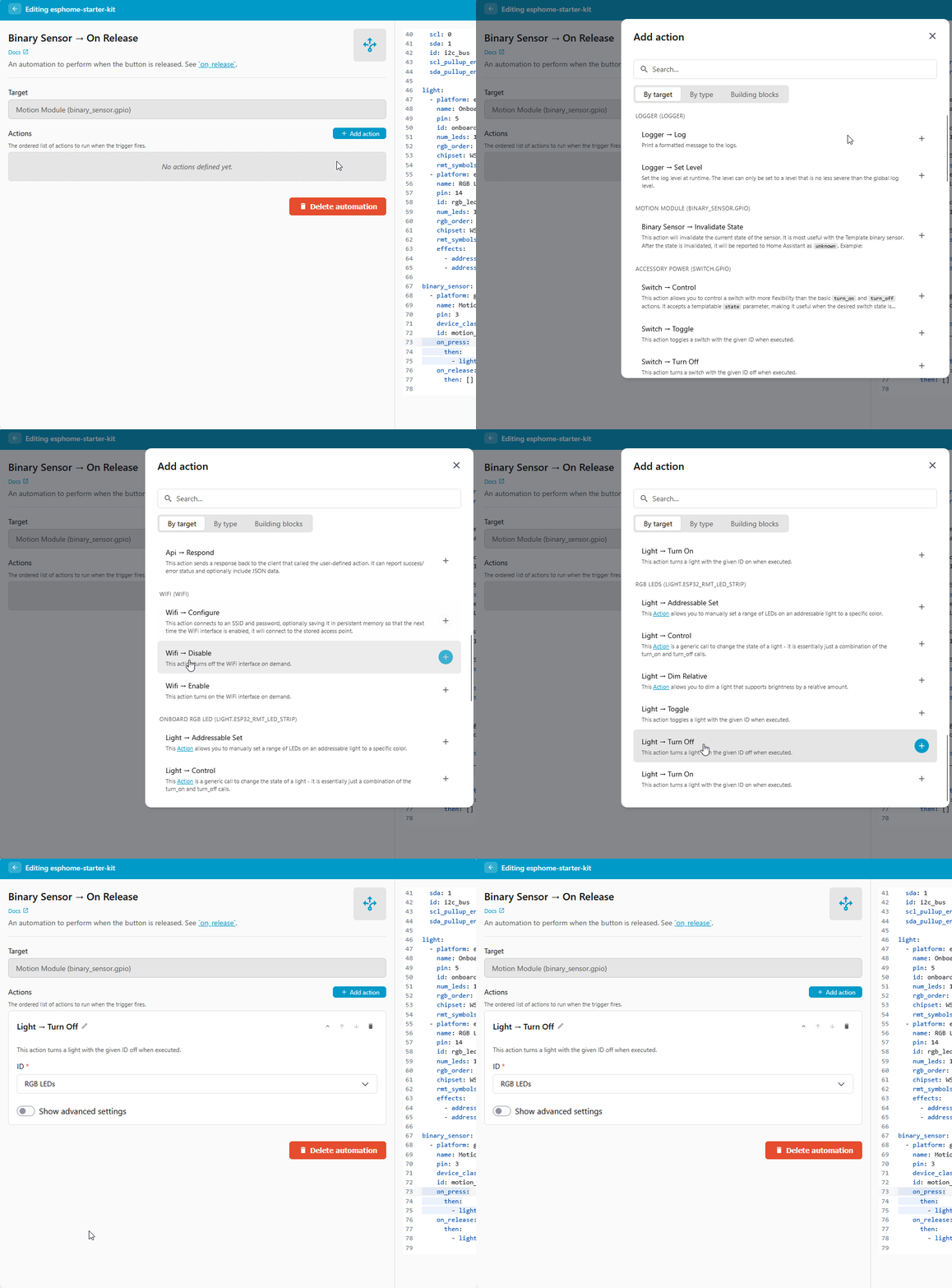
Add another automation, this time choosing Binary Sensor → On Release as the trigger for the Motion module. (1)
-
Give it a Light → Turn Off action targeting RGB LEDs. (2)
- PIR sensors hold their "motion detected" state for a few seconds after movement stops, so On Release fires shortly after the room goes still, not the instant you stop moving.
- As before, the ID dropdown only needs changing if your device also has an Onboard RGB LED component configured. If RGB LEDs is the only light, it's already selected.
What the GUI built in YAML
Your motion section now has both triggers:
binary_sensor:
  - platform: gpio
    name: Motion Module
    pin: 3
    device_class: motion
    id: motion_module
    on_press: # (1)!
      then:
        - light.turn_on: rgb_leds
    on_release: # (2)!
      then:
        - light.turn_off: rgb_leds
- The On Press trigger from the first automation.
on_releaseis the YAML name for the On Release trigger, firing when the sensor stops reporting motion.
Install the software
Your automation is saved in Device Builder, but the device is still running its old software. Compile and install the new code to push the change.
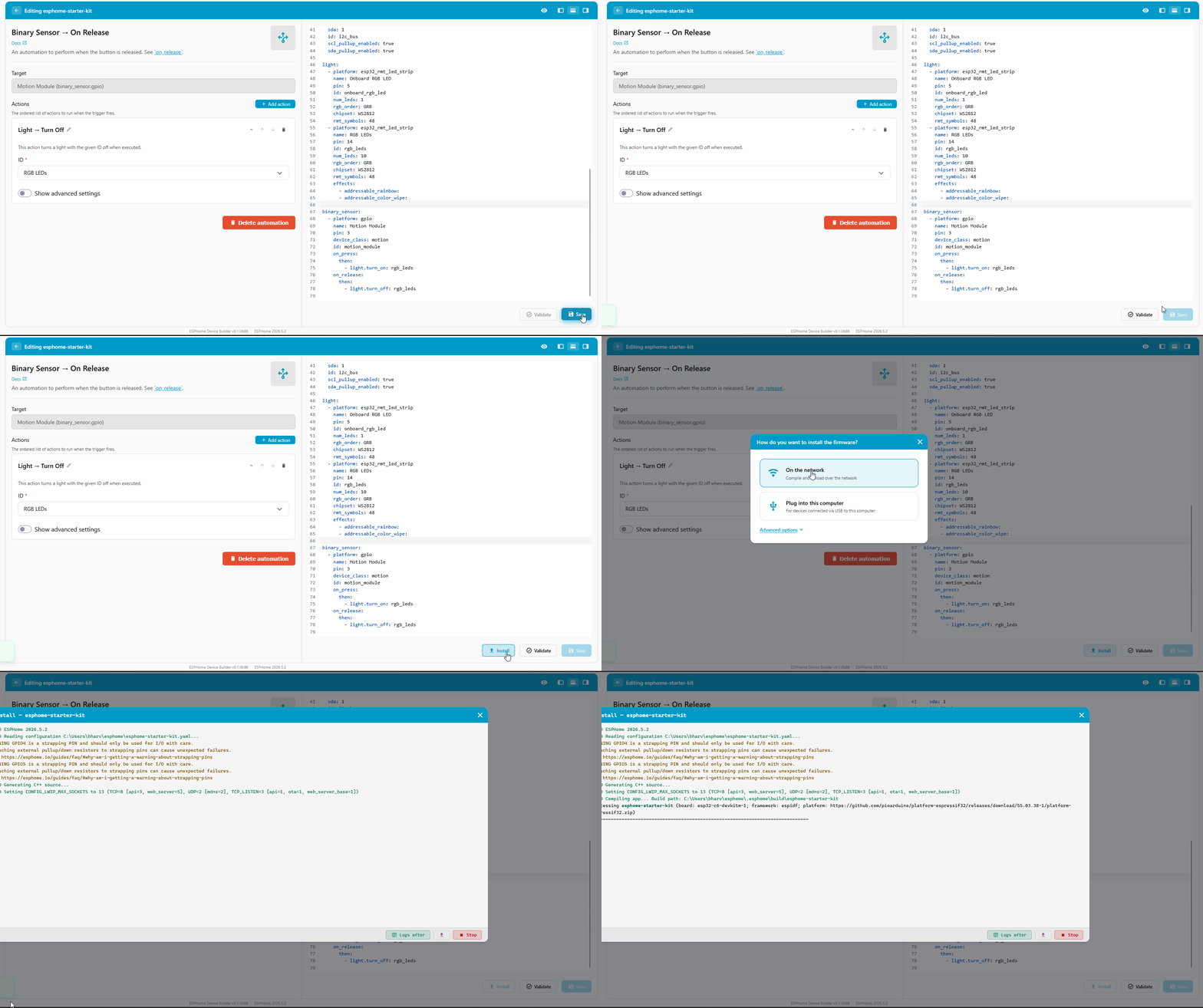
- Click Save in the bottom right of the editor.
-
Click Install, then pick On the Network to push the new software over Wi-Fi. (1)
- We say software because it's the friendlier word. The technically correct term is firmware: code that runs directly on the chip instead of on a computer. That's the word ESPHome's own docs use.
-
Wait for the compile and flash to finish. The device reboots once the install is done.
Test the automations
You've built a motion-activated light!
Same trigger-then-action pattern, new trigger. Swap the action (play a buzzer tune, dim the light, send a notification) or the trigger (a button, a temperature threshold, a schedule) and you have a new automation.
With the device back online, wave your hand in front of the PIR sensor. The RGB light turns on as soon as motion is detected, then turns off shortly after the sensor stops seeing movement. If the light triggers right after boot with nothing moving, give the sensor a moment. PIR sensors need a brief warm-up after powering on, usually 5 to 10 seconds, before their readings stabilize.
 Next - Temp-Reactive LEDs
New to ESPHome? We're here to help.
Stuck on a step or want to show off what you built? Ask questions and share projects with the Apollo community.