Putting the PUMP-1 in boot mode
This will cover how to put the PUMP-1 into boot mode.
This is needed to force the device into boot mode to reflash the firmware.
Method 1: Boot button only
You'll hold the boot button while you plug in the USB-C cable.
Empty the water reservoir and make sure no water is present in the tubes
Make sure that there is no water which is able to damage the device. This is a precautionary measure to be safe!
1. Disconnect your PUMP-1 from power. With the device facing you, locate the boot button. It’s the button on the right.
2. Plug in a USB cable that supports power and data into your computer.
3. Push and hold the boot button (the right button). While still holding the button down, plug in a USB-C cable into the USB-C port of your PUMP-1 then let go of the button.

4. You are now ready to reflash your device!
Click here to go to the reflashing guide!
Method 2: Boot and reset buttons
You'll use the boot and reset buttons together while the device is plugged into your computer.
1. Plug in a USB cable that supports power and data into your computer and connect the other end to your PUMP-1. With the device facing you, locate the reset (left) and boot (right) buttons.
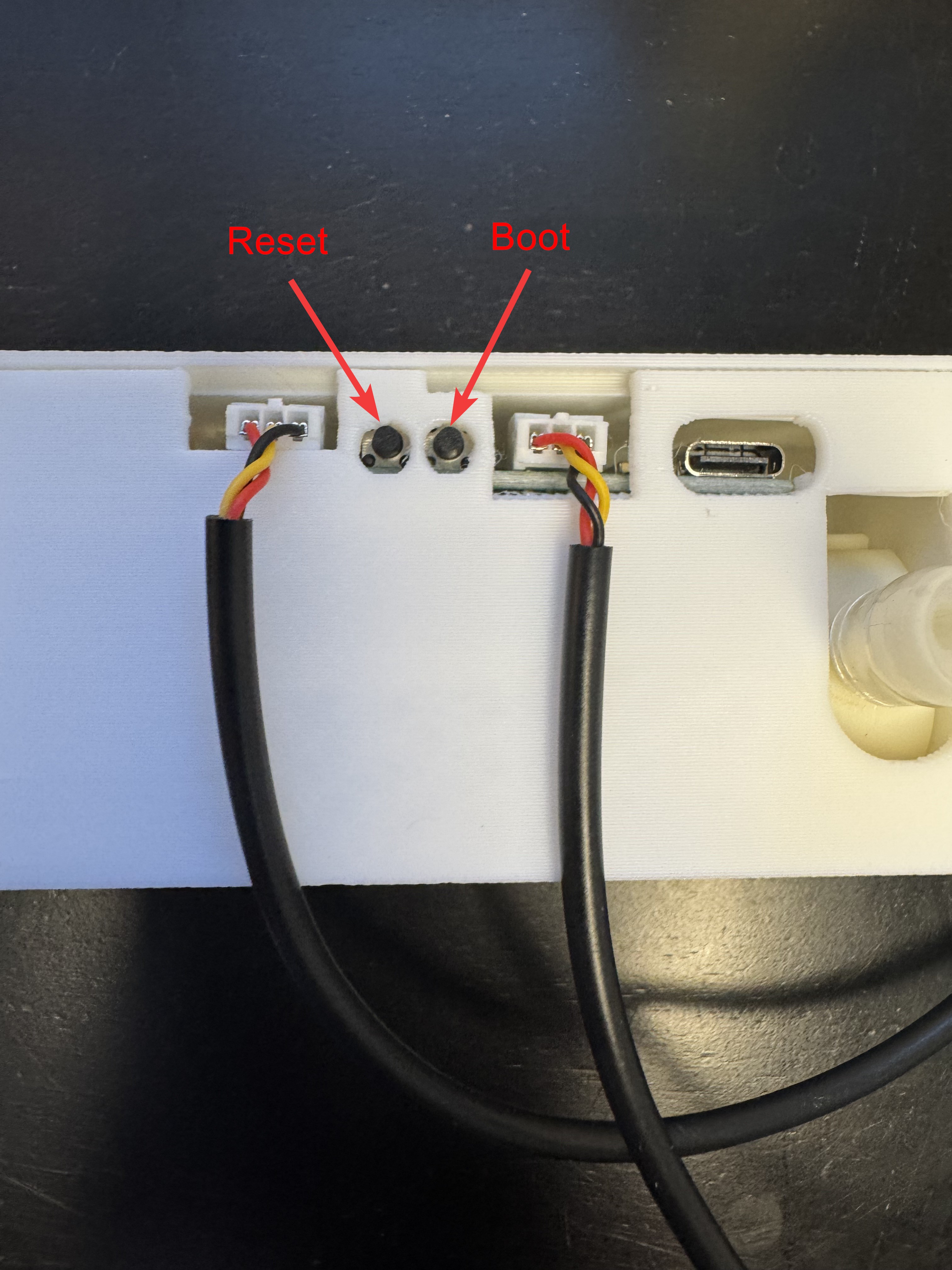
2. Put your PUMP-1 in boot mode. Use both buttons, in this order:
- Press and hold the boot button (the right button). Keep holding it.
- While you're still holding boot, press and release the reset button (the left button).
- Let go of boot.
Keep holding boot the whole time
Pressing reset by itself only restarts the PUMP-1. It goes into boot mode only when boot is held down while you press and release reset.

3. You are now ready to reflash your device!