Boot button status check and factory reset
The boot button on your CAST PRO-1 does two things while the device is running, depending on how long you hold it:
| Hold for | What happens |
|---|---|
| About 3 seconds | Status check. The onboard LEDs show the connection status, then run a component check. |
| 10 seconds | Factory reset. Erases your Wi-Fi details and settings, and the setup hotspot comes back. |
The boot button is the second recessed button from the left, next to reset. Press it with a pin or a small screwdriver.
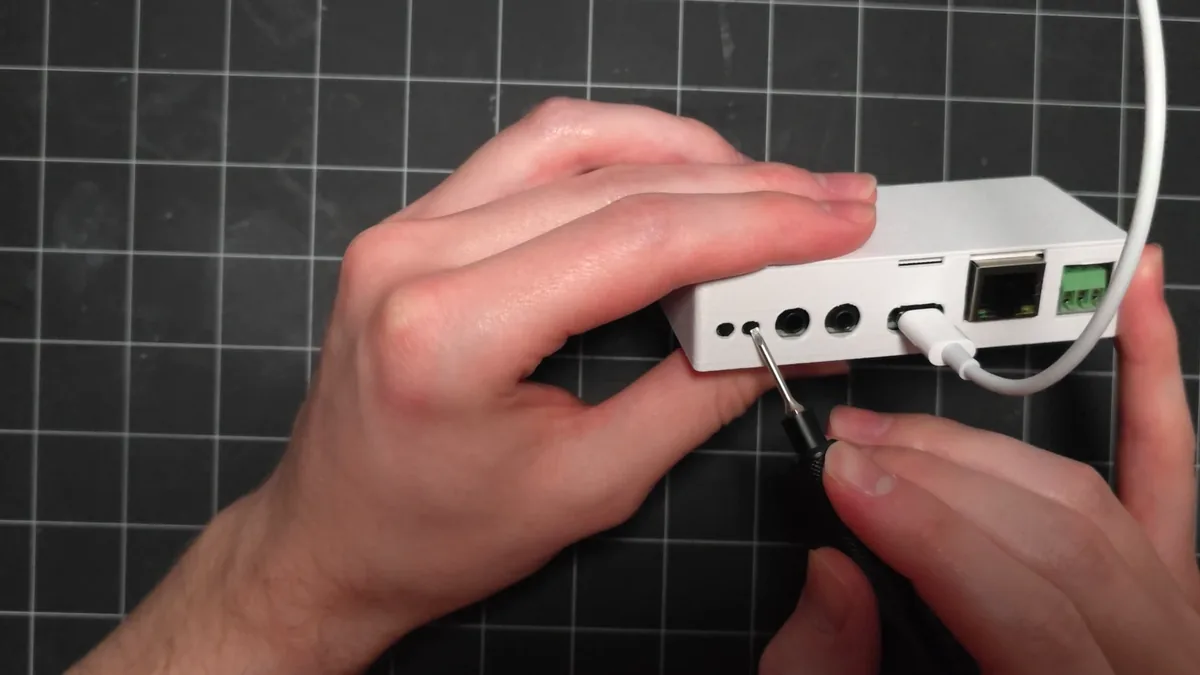
Status check
Use this to see whether your CAST PRO-1 is on your network and talking to Home Assistant, without opening an app.
1. With the CAST PRO-1 plugged in, hold the boot button for about 3 seconds, then let go.
2. Watch the onboard LEDs. They flash one color to show the connection status:
| Color | What it means |
|---|---|
| Yellow | No network connection. Check your Wi-Fi details or Ethernet cable. |
| Green | On your network, but not connected to Home Assistant. |
| Blue | Connected to Home Assistant. |
3. The LEDs then flash green once more. That's the component check passing.
Factory reset
A factory reset erases your Wi-Fi details and settings, so you'll set your CAST PRO-1 up again afterward.
Unplug the Ethernet cable first
Your CAST PRO-1 doesn't broadcast its hotspot while an Ethernet cable is connected, so take the cable out before you start.
1. With the CAST PRO-1 plugged in, hold the boot button for 10 seconds, then let go.
2. The CAST PRO-1 restarts and broadcasts its hotspot again.
3. In Home Assistant, delete the old CAST PRO-1 from the ESPHome integration. Open its device page, select the three dots menu, then Delete.

4. Follow the Getting Started guide to connect your CAST PRO-1 to your network, then add it to Home Assistant again.
Still not broadcasting a hotspot?
If your CAST PRO-1 won't broadcast its hotspot after a factory reset, reflash it to restore the factory firmware.