Connection issues
If your Apollo device keeps dropping offline or won't stay connected to your Wi-Fi, work through these checks in order.
1. Try a few different combinations of power cord and power brick. Power quality matters a lot more than you'd think.
2. On your phone or PC, open your Wi-Fi settings and look for the sensor's hotspot. If the hotspot shows up, the sensor isn't connected to a network. Connect it to your Wi-Fi through the hotspot again.
3. Check your router's list of connected devices. Your device shows up with the Apollo name and a 6-digit hex value taken from the end of its MAC address.
4. Turn off power save mode in ESPHome. The steps are in the next section.
Turn off Wi-Fi power save mode
The Wi-Fi interface of every ESP chip offers three power save modes that cut the power spent on Wi-Fi. Some of them can lower the ESP's power use, but they generally make the Wi-Fi connection less reliable. The highest power saving mode causes frequent disconnections from the router.
NONE(least power saving, default for ESP8266)LIGHT(default for ESP32)HIGH(most power saving)
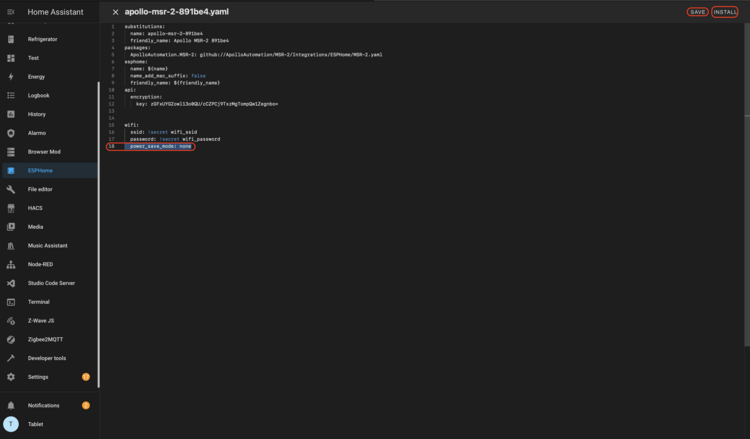
For the most reliable connection, set the mode to none. In your device's YAML file, the setting sits inside the wifi: section, where # ... stands for the lines already in that section:
Your sensor runs warmer
Turning off power save mode makes the sensor's internal temperature increase.
Follow these steps to turn power save mode off from the ESPHome app in Home Assistant.
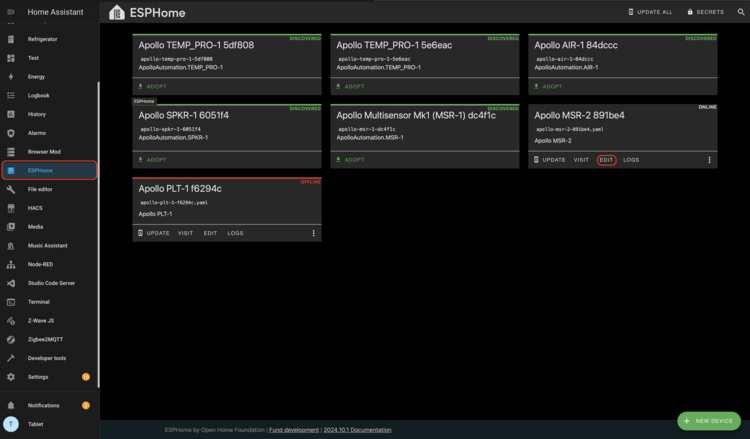
1. Open the ESPHome app from your Home Assistant sidebar and click Edit under the device you want to change. If the app isn't in your sidebar, the button below opens it.

2. Add power_save_mode: none under the wifi: section of your device's YAML file, indented to line up with the other lines in that section. If your file doesn't have a wifi: line, add one. Then click Save and Install.
Your device should now have a stronger connection to your Wi-Fi.