Automation examples using a TEMP-1B
Difficulty: Level 2
🌱 New here? Try these first:
Your Apollo TEMP-1B's probes can drive Home Assistant automations. This page walks you through three of them: a freezer alert, a food probe alert, and a chicken monitor you start and stop from your dashboard.
Freezer temperature probe example
Set up a Home Assistant automation that uses the temperature probe in your freezer. At the end, you'll have an automation that sends your phone a notification when the probe goes above your maximum temperature.
1. Place the temperature probe into your freezer, then wait for its reading to settle around 0°F (-18°C).
Only the probe goes in the freezer
Keep your TEMP-1B itself in a cool, dry place. Only the temp probe and its wire can withstand the temperatures in a fridge, freezer, and similar places.
2. Once the reading settles, look at the graph and pick a good value for both the maximum and the minimum temperature. In this example, the mini freezer seems to max out at 30°F, so the maximum goes slightly above that. However, most freezers should not reach above 0°F, so you'll likely need a lower maximum than this one. The minimums here are around -20°F.
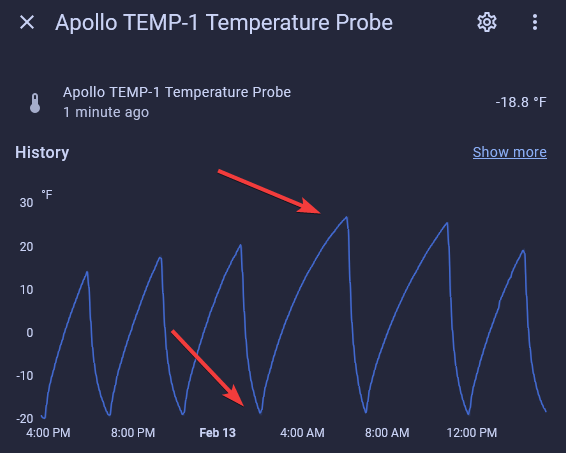
Shown on a TEMP-1; the TEMP-1B graph looks the same.
3. Convert your maximum and minimum from °F to °C, then enter them in Max Probe Temp and Min Probe Temp. Both settings are measured in Celsius. This example uses a max probe temp of 2°C and a min probe temp of -30°C. Your values will likely be different, especially your max probe temp.
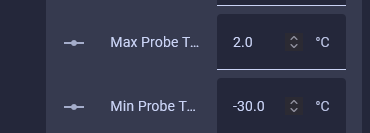
With your thresholds set, the automation is now ready to be created.
4. Go to Settings → Automations & scenes, click + Create automation in the bottom right, then Create new automation.

5. Click Add Trigger, then Entity, then Numeric state, and search for your TEMP-1B temperature probe, such as "temp-1b temperature probe". In the box labeled Above, type the maximum temperature you picked in step 2. Enter the value in the unit your Home Assistant shows (°F in this example). Advanced users can skip to the YAML at the end of this section.
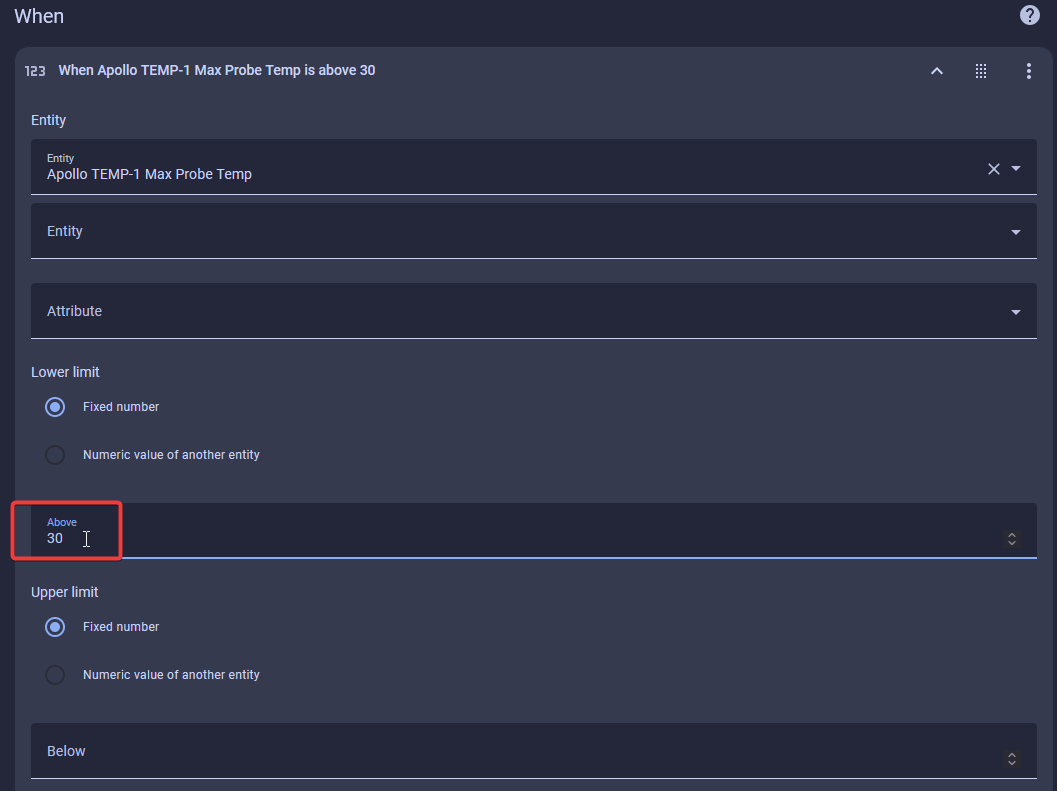
Shown on a TEMP-1; pick your TEMP-1B entity instead.
6. Click Add Action, type "iPhone", and select your phone. If you don't see your phone, or you have an Android phone, type "notify" instead and scroll down until you find your phone in the list.
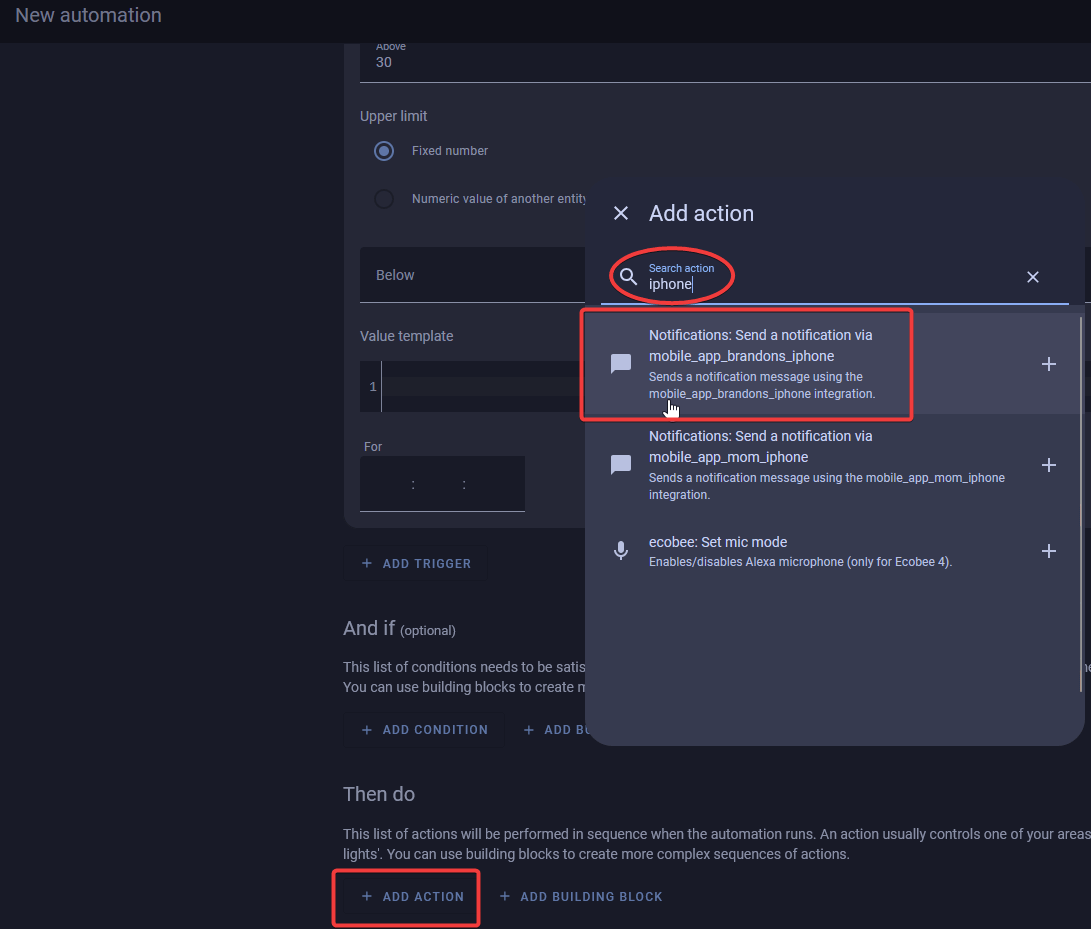
Still don't see your phone?
You need the Home Assistant mobile app installed on your phone for this step to work. If you don't have it, use another kind of notification instead, such as a TTS notification on your speakers. This could be a fun way to announce that dinner is ready!
7. Type in your message. If you want a title too, check the box for title and type it in. This example uses the message "The temperature probe on your TEMP-1B reached its max temperature and your freezer might be having issues." and the title "Check the freezer!".
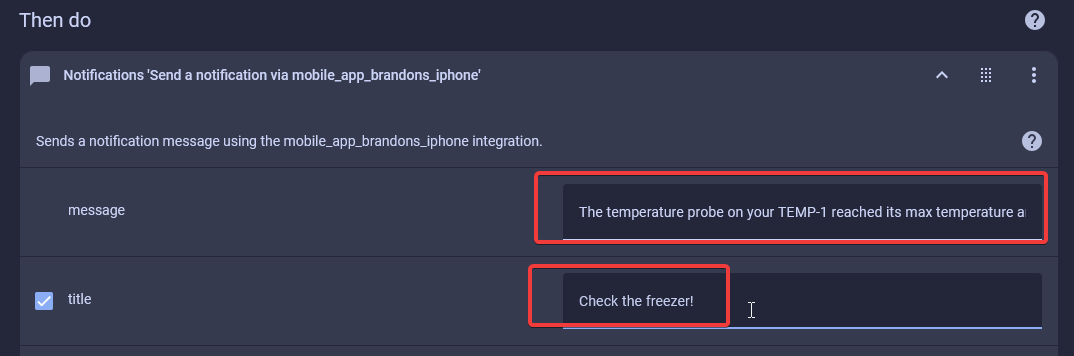
Shown on a TEMP-1; the TEMP-1B steps are the same.
8. Click Save in the bottom right, then give the automation a name and, optionally, a description and a category.
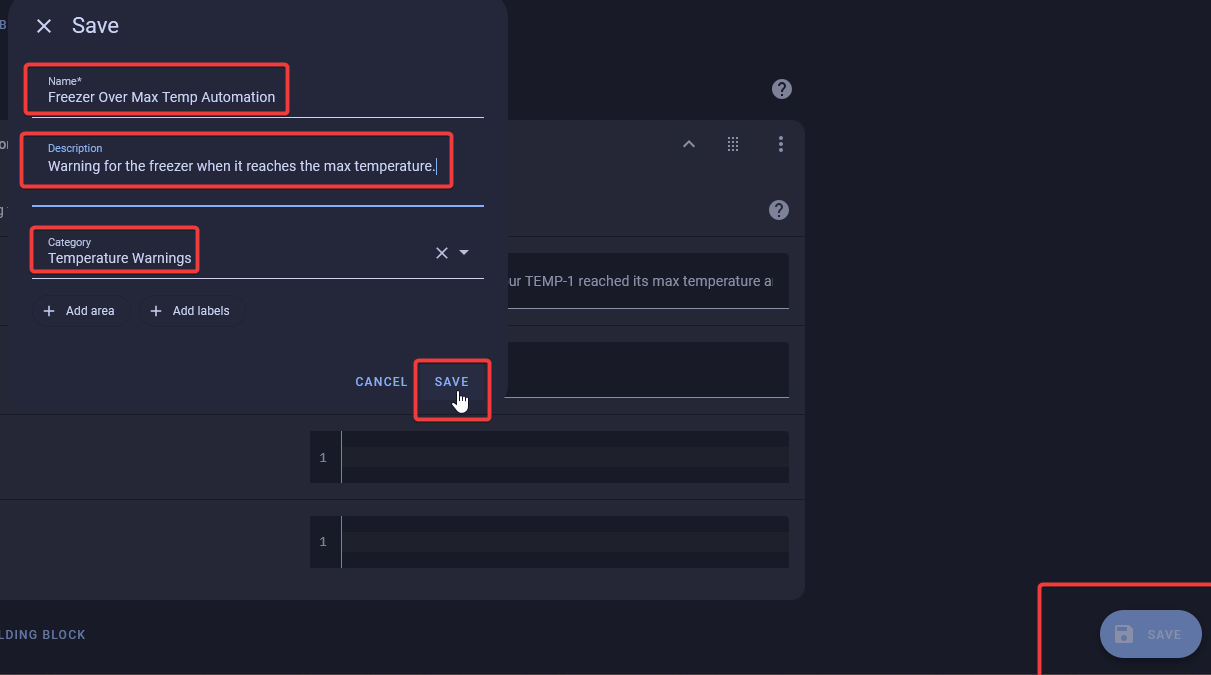
Shown on a TEMP-1; the TEMP-1B steps are the same.
You're done! Your phone now gets a notification whenever the freezer probe goes above your maximum.
YAML for advanced users
alias: Freezer Over Max Temp Automation
description: Warning for the freezer when it reaches the max temperature.
triggers:
  - trigger: numeric_state
    entity_id:
      - sensor.apollo_temp_1b_temperature_probe
    above: 30
conditions: []
actions:
  - action: notify.mobile_app_brandons_iphone
    metadata: {}
    data:
      title: Check the freezer!
      message: >-
        The temperature probe on your TEMP-1B reached its max temperature and
        your freezer might be having issues.
mode: single
Food probe example
Set up a Home Assistant automation that uses the food probe while you cook chicken (or anything else) to 165°F (73.9°C). At the end, you'll have an automation that sends your phone a notification when your food reaches that temperature.
1. Set your Max Probe Temp to 73.9°C. Max Probe Temp must be entered in Celsius, even if you use °F in the automation below.
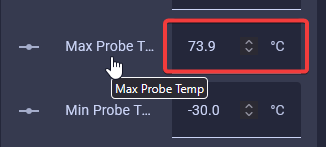
2. Once your food is on the grill, place the food probe inside it.
Only the food probe goes on the grill
Keep your TEMP-1B itself in a cool, dry place. Only the food probe and its wire can withstand temperatures on a grill, in the oven, and similar places.
3. Go to Settings → Automations & scenes, click + Create automation in the bottom right, then Create new automation.
4. Click Add Trigger, then Entity, then Numeric state, and search for your TEMP-1B device, such as "temp-1b food probe". In the box labeled Above, type the temperature you want for your food. This example uses 165°F (73.9°C), the temperature it's safe to cook chicken to. Enter the value in the unit your Home Assistant shows (°F in this example). Advanced users can skip to the YAML at the end of this section.
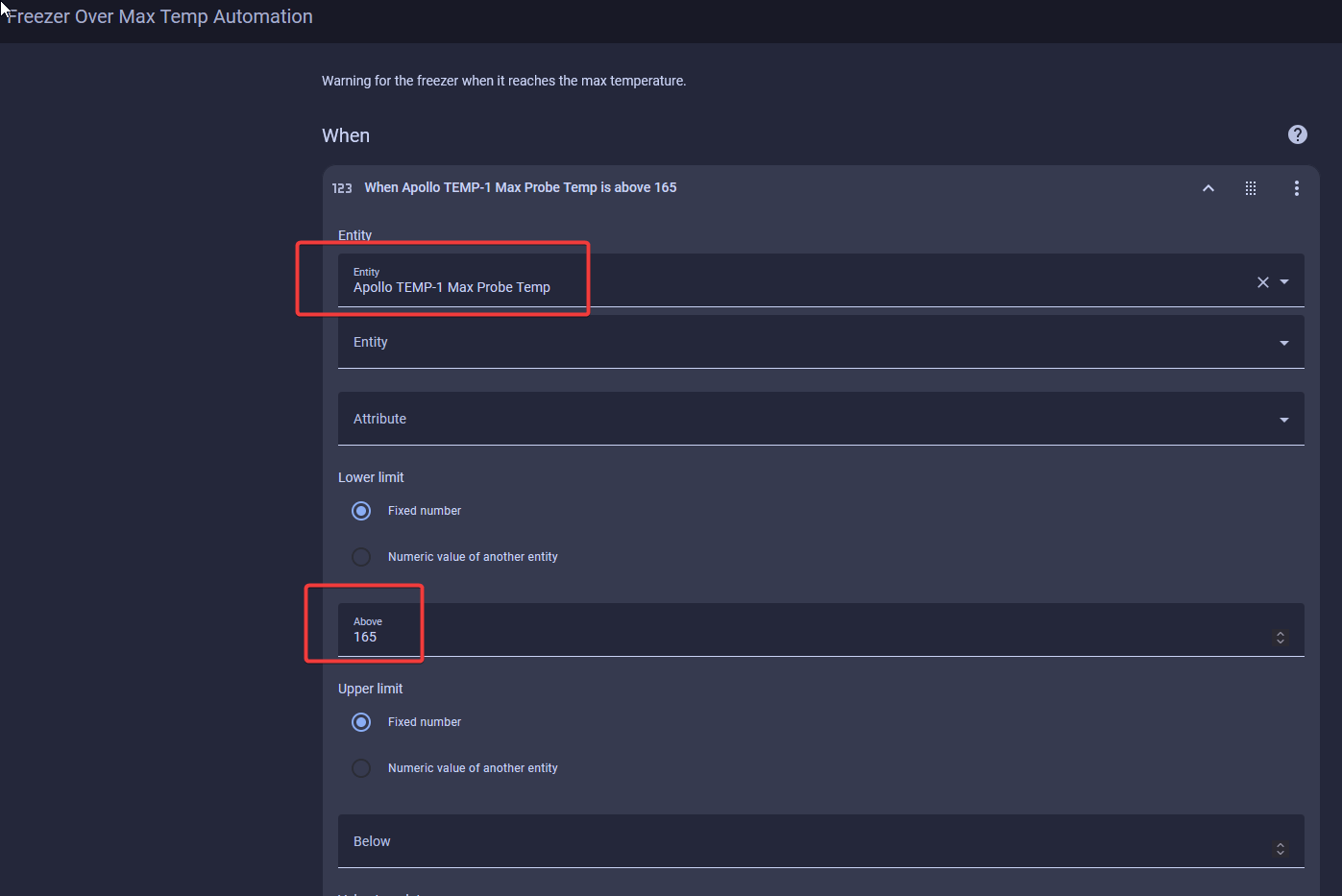
Shown on a TEMP-1; pick your TEMP-1B entity instead.
5. Click Add Action, type "iPhone", and select your phone. If you don't see your phone, or you have an Android phone, type "notify" instead and scroll down until you find your phone in the list.
Still don't see your phone?
You need the Home Assistant mobile app installed on your phone for this step to work. If you don't have it, use another kind of notification instead, such as a TTS notification on your speakers. This could be a fun way to announce that dinner is ready!
6. Type in your message. If you want a title too, check the box for title and type it in. This example uses the message "The temperature probe on your TEMP-1B reached its max temperature and your food is ready." and the title "Check the food!".
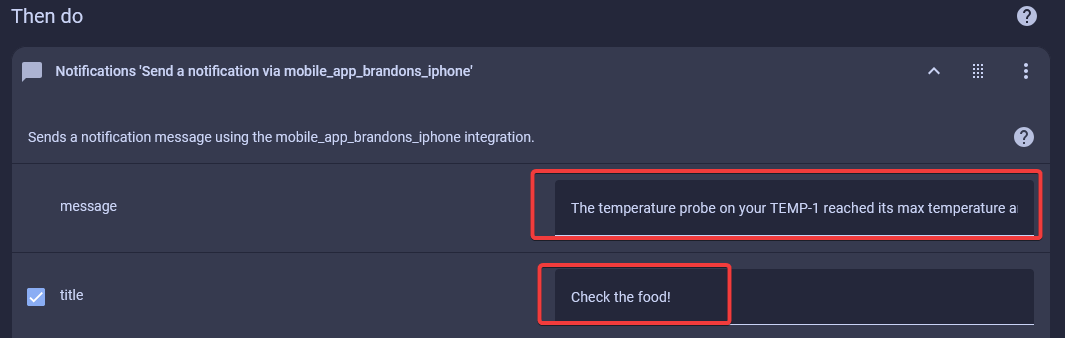
Shown on a TEMP-1; the TEMP-1B steps are the same.
7. Click Save in the bottom right, then give the automation a name and, optionally, a description and a category.
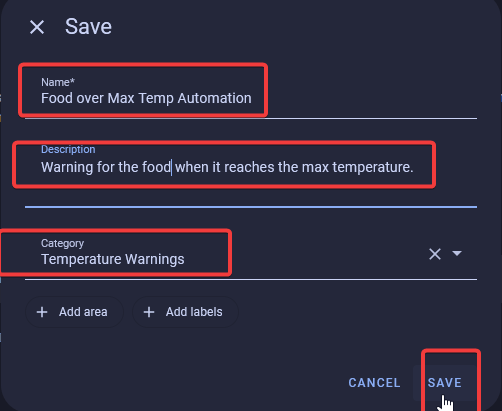
You're done! Your phone now gets a notification when your food reaches its target temperature.
YAML for advanced users
alias: Food Over Max Temp Automation
description: Warning for the food when it reaches the max temperature.
triggers:
  - trigger: numeric_state
    entity_id:
      - sensor.apollo_temp_1b_food_probe
    above: 165
conditions: []
actions:
  - action: notify.mobile_app_brandons_iphone
    metadata: {}
    data:
      title: Check the food!
      message: >-
        The temperature probe on your TEMP-1B reached its max temperature and your food is ready.
mode: single
Cook chicken example
This example adds a button called "Chicken Monitor" to your dashboard, plus an automation that runs when you press it. While it runs, the RGB LED turns green. Your phone gets a message when monitoring starts, when the temperature is reached, and when monitoring finishes, and then the RGB LED turns off. Thanks to Discord user RalphP for this!
The automation has three triggers, each with its own trigger ID, and one Choose action with an option for each trigger ID:
- Option 1 (Chicken Monitor On): turns the RGB LED green and messages your phone.
- Option 2 (Temp Reached): toggles the RGB LED until Chicken Monitor is turned off, messages your phone, and optionally speaks on your smart speakers.
- Option 3 (Chicken Monitor Off): turns the RGB LED off and messages your phone.
First, create the button.
1. Create a new toggle helper called "Chicken Monitor". For step-by-step directions, see creating a toggle helper.
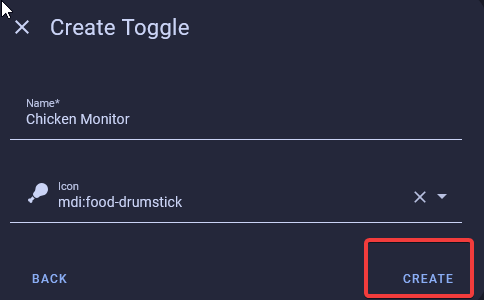
2. Edit your dashboard, add a button card, select Chicken Monitor, and then save.
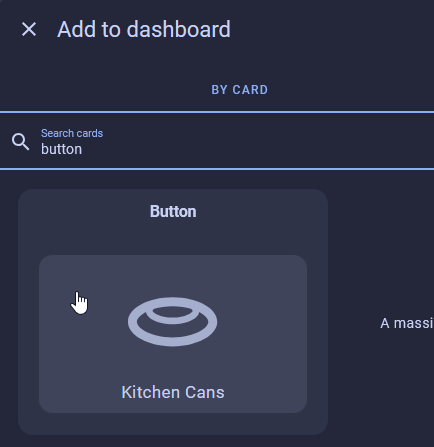
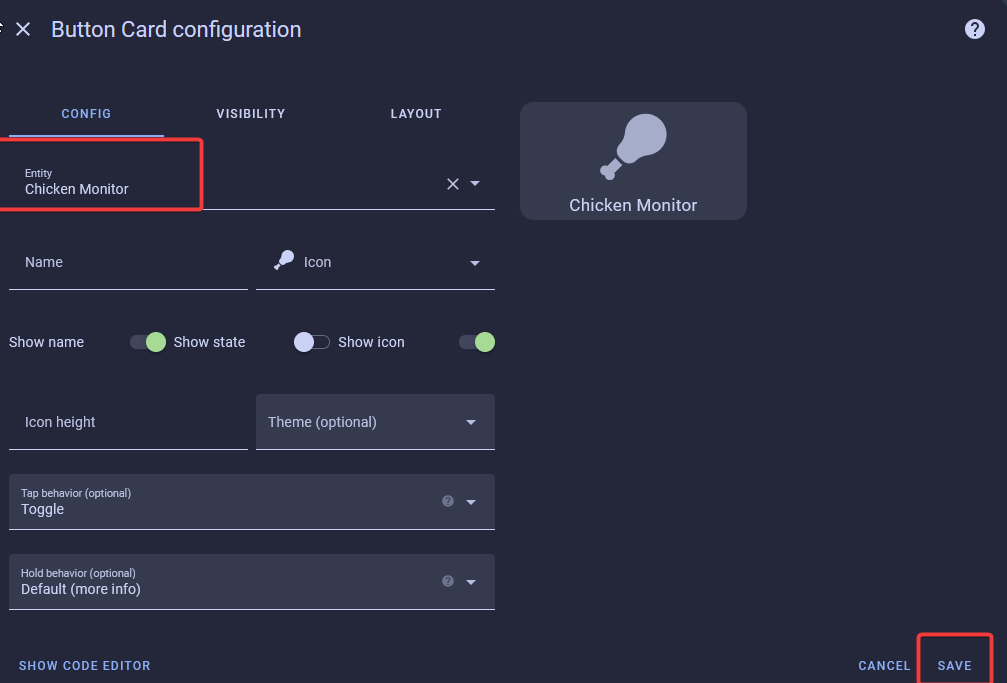
Next, create the automation and its three triggers.
3. Go to Settings → Automations & scenes, click + Create automation in the bottom right, then Create new automation.
4. Click Add Trigger, then Entity, then State, and search for "Chicken Monitor". In the box labeled To, select On.
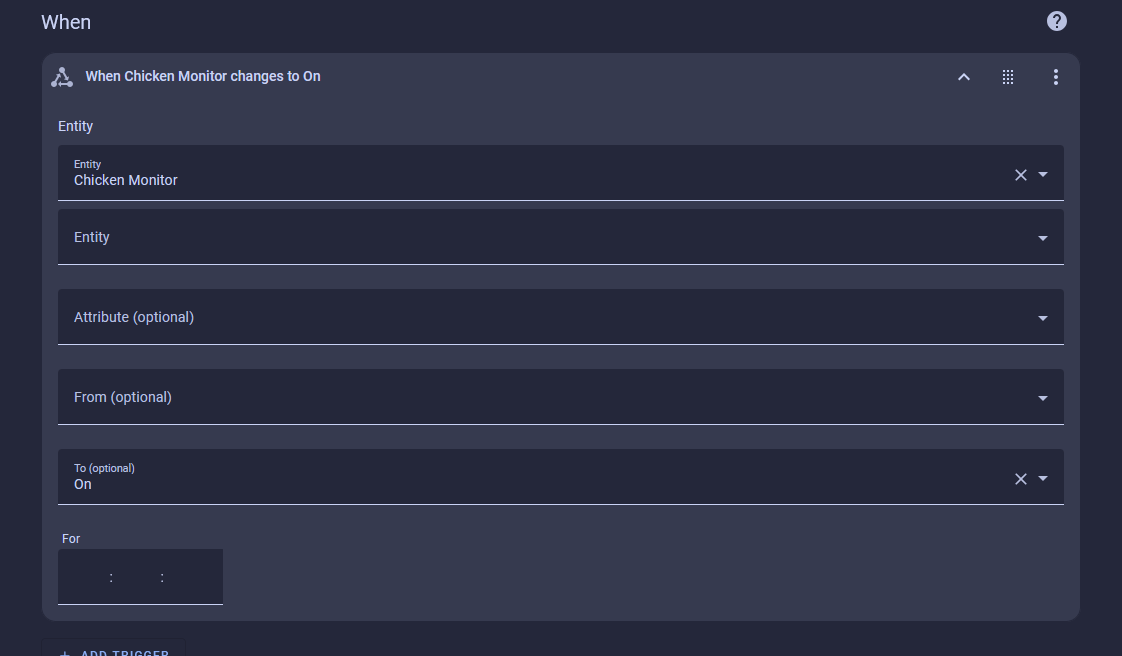
5. Create a Trigger ID for this trigger called "Chicken Monitor On".
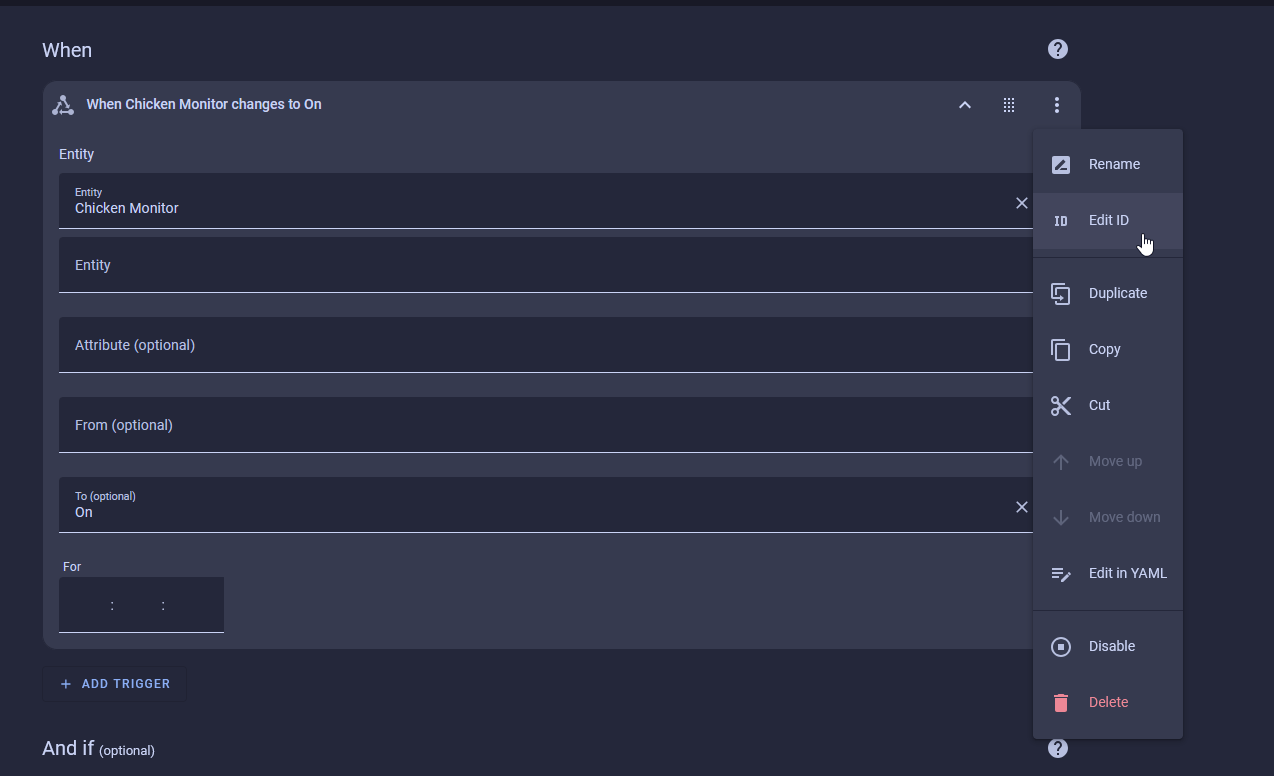
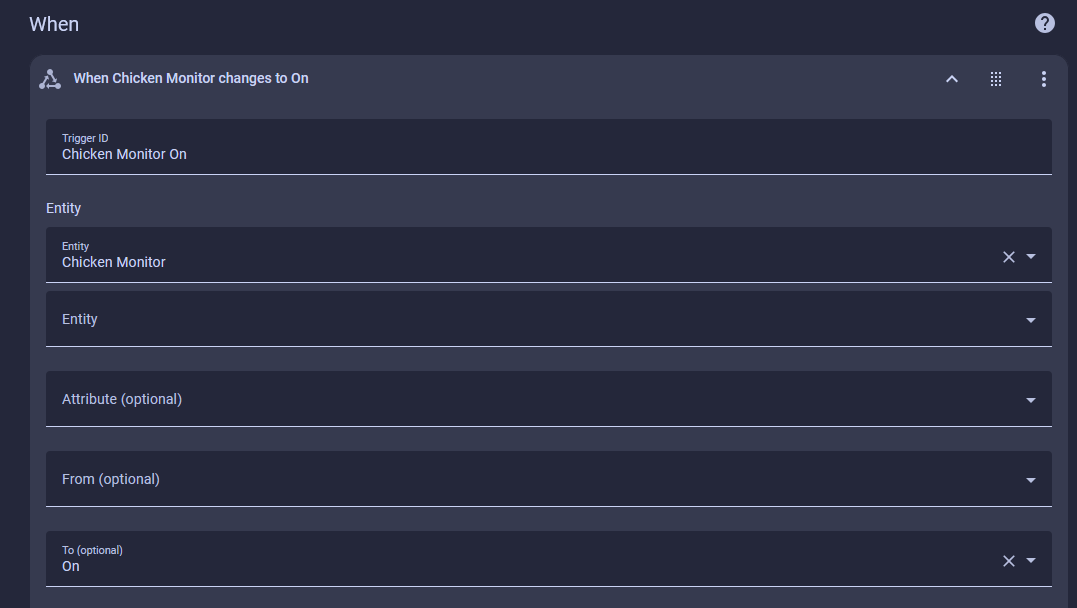
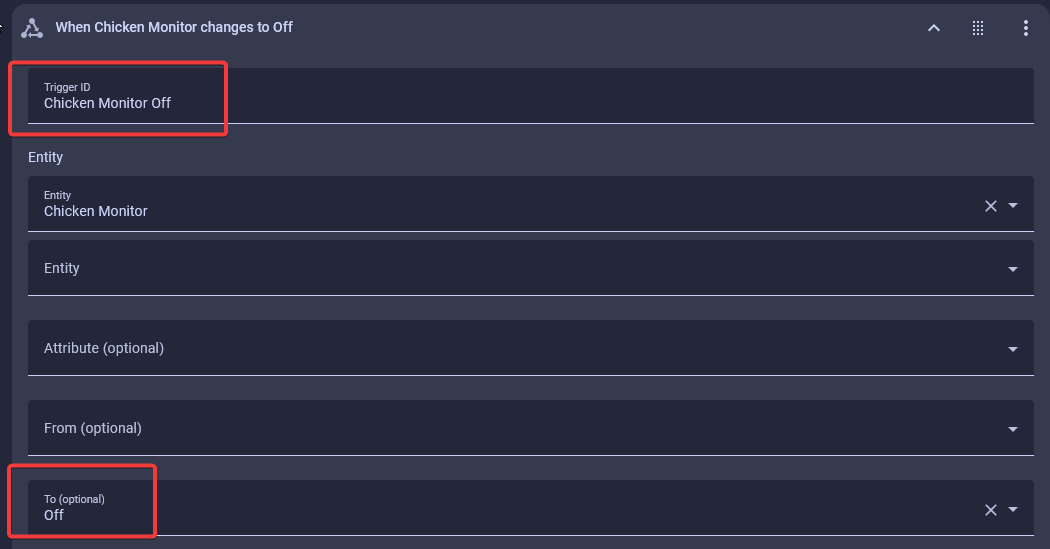
6. Click Add Trigger, then Entity, then State, and search for "Chicken Monitor". In the box labeled To, select Off. Create a Trigger ID for this trigger called "Chicken Monitor Off".
7. Click Add Trigger, then Entity, then Numeric state, and search for your TEMP-1B food probe entity, such as "temp-1b food probe". In the box labeled Above, type the temperature you want for your food. This example uses 160°F (71.1°C), because the chicken will rest and reach 165°F once removed from the oven or grill.
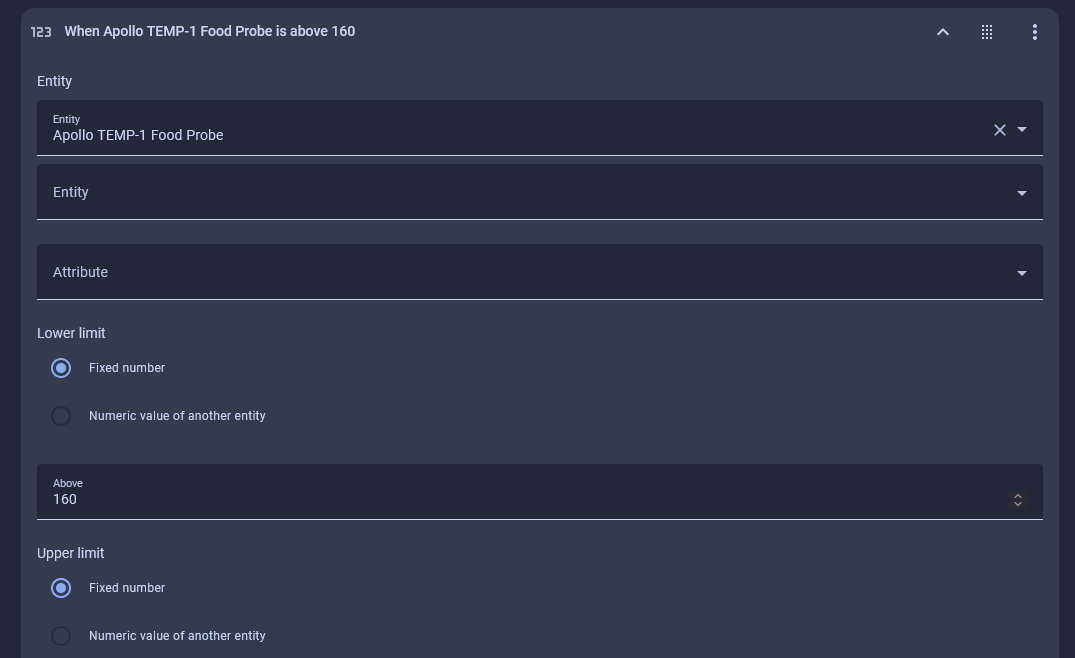
Shown on a TEMP-1; pick your TEMP-1B food probe instead.
8. Create a Trigger ID for this trigger called "Temp Reached".
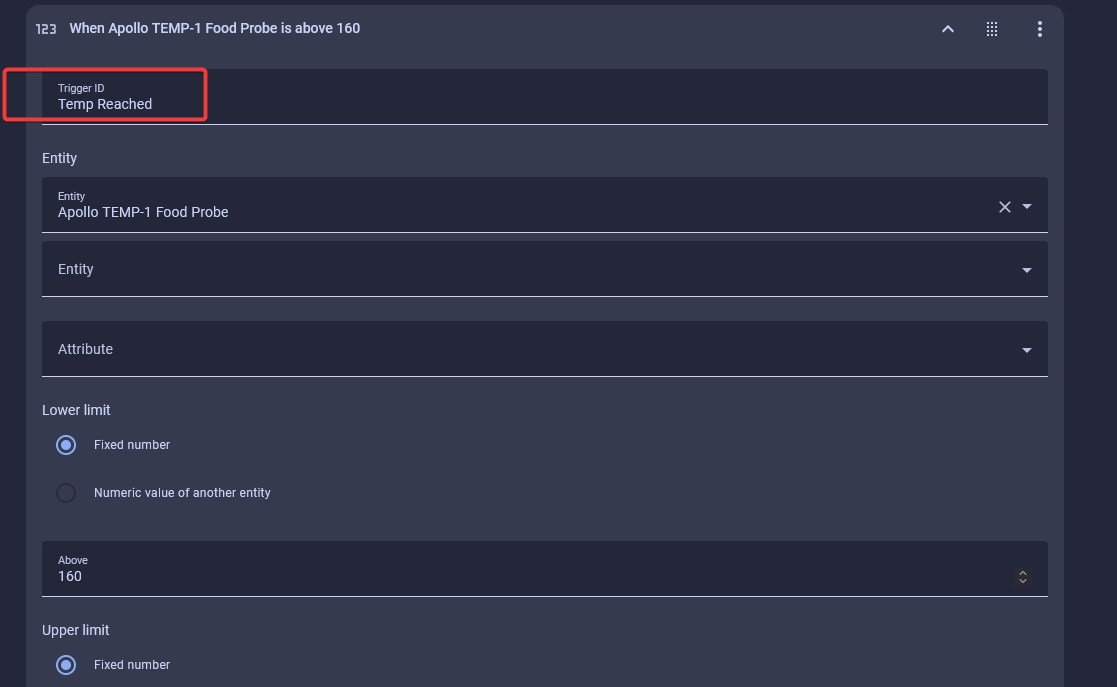
Shown on a TEMP-1; the TEMP-1B steps are the same.
Now add the Choose action. Option 1 runs when you turn Chicken Monitor on.
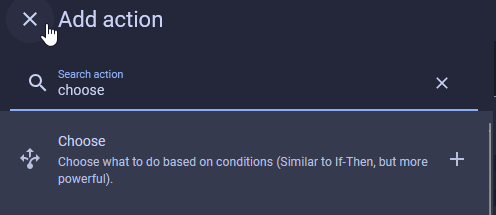
9. Click Add Action, search "choose", and select it.
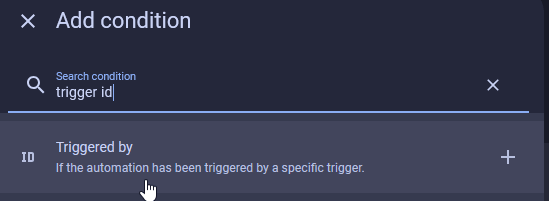
10. Under Option 1, select Add Condition, search "trigger id", and select Triggered by.
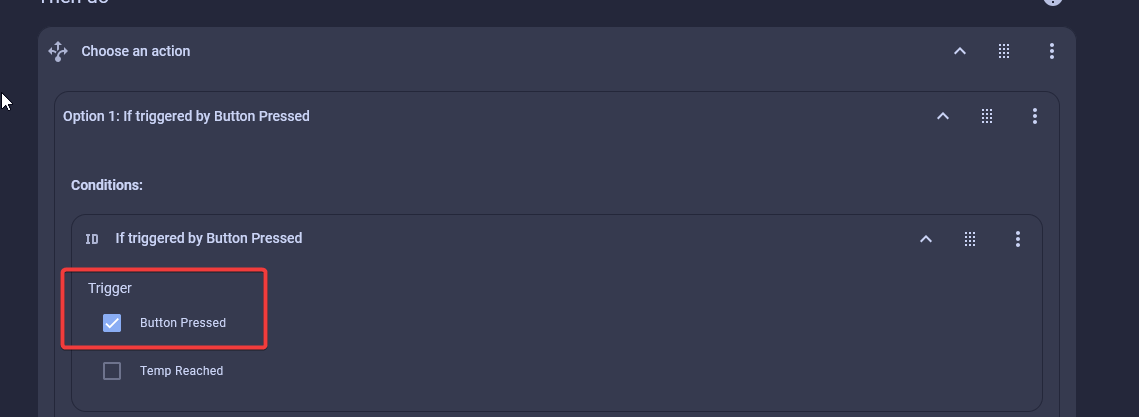
11. Check State changed to on, the first trigger in the list. It's the trigger you gave the Chicken Monitor On ID in step 5.
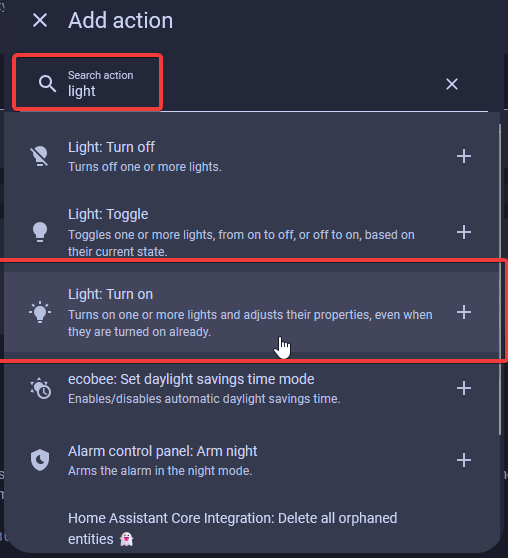
12. While still under Option 1 in the Choose action, click Add Action, search "light", and select Light: Turn on.
13. Click Choose entity and search for your device, such as "TEMP-1B RGB Light".
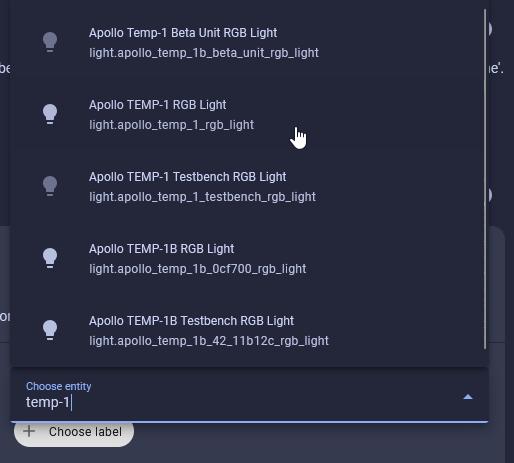
Shown on a TEMP-1; pick your TEMP-1B RGB Light instead.
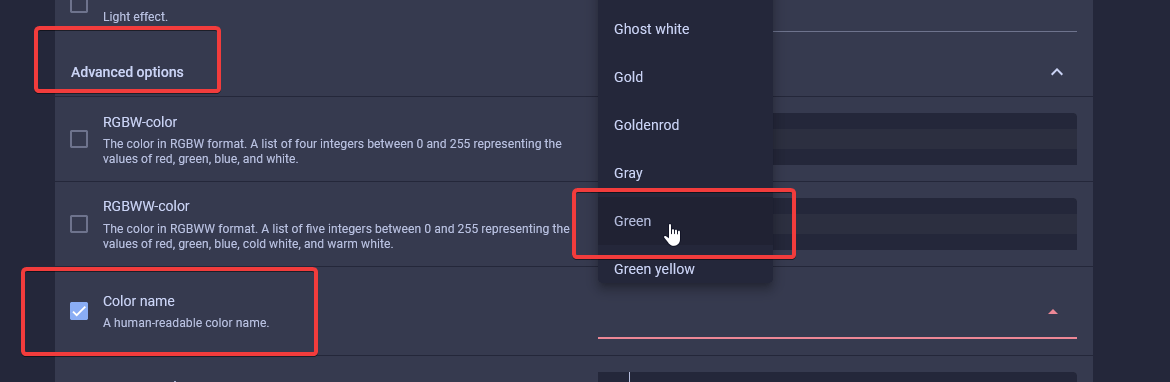
14. Click Advanced Options, check the box for Color name, and select a color from the dropdown, such as Green.
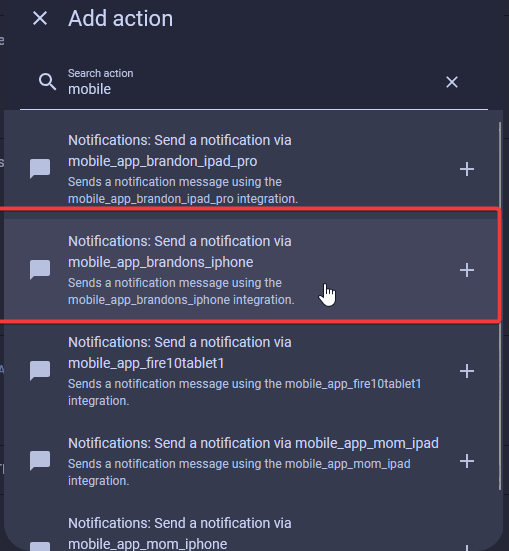
15. While still under Option 1 in the Choose action, click Add Action, search "mobile", and select your phone in the list.
16. Write a custom title and message. The message is required, but the title is not.
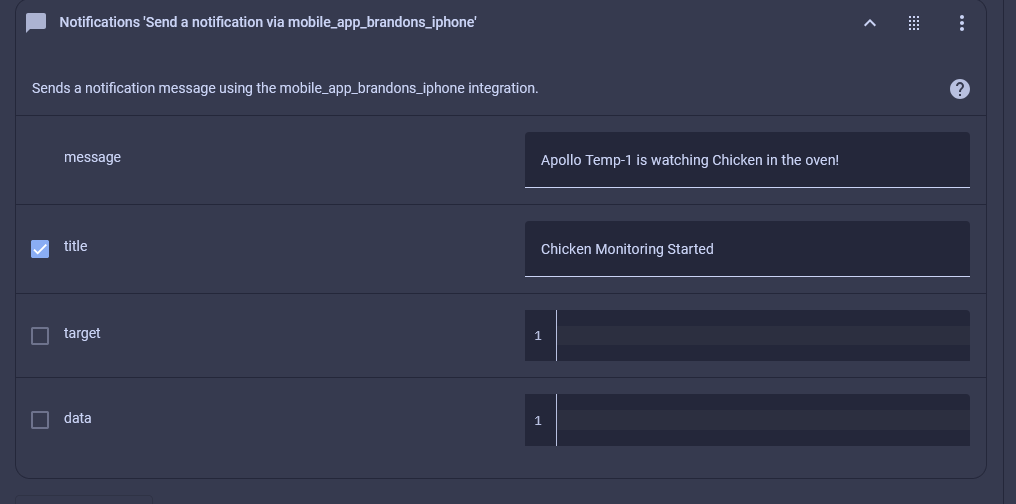
Shown on a TEMP-1; the TEMP-1B steps are the same.
17. Check your work. When you're done with this part, Option 1 looks like this:
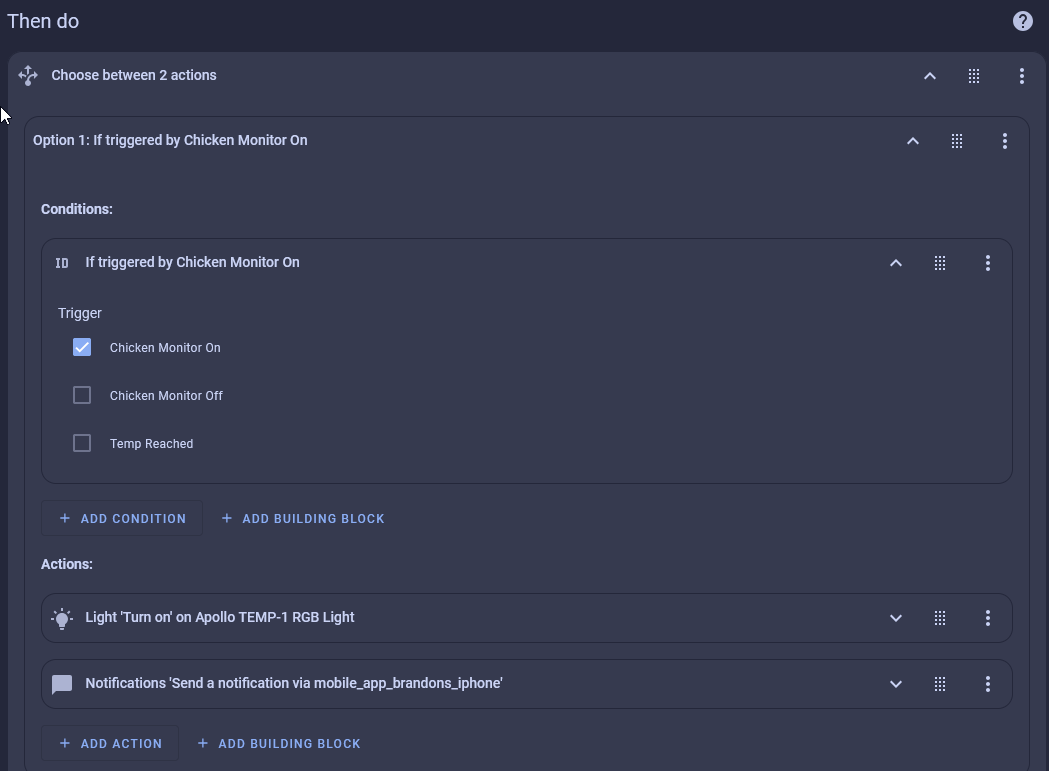
Shown on a TEMP-1; the TEMP-1B steps are the same.
Option 2 runs when the food probe reaches your target temperature.
18. Click Add Option at the bottom. Under Option 2, select Add Condition, search "trigger id", and select Triggered by.
19. Check Temp Reached, the trigger ID you created in step 8.
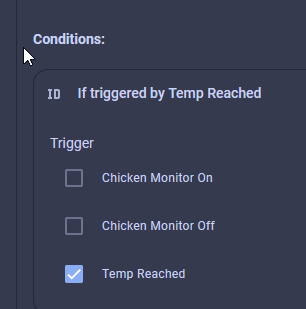
20. While still under Option 2 in the Choose action, click Add Action, search "repeat", and select Until in the dropdown.
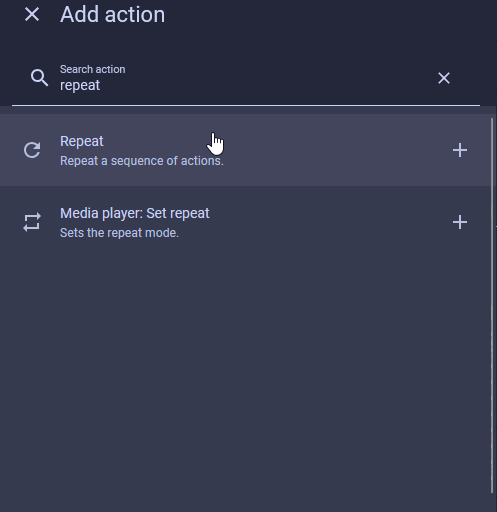
21. Under Until Conditions, select Add condition, then search "state".
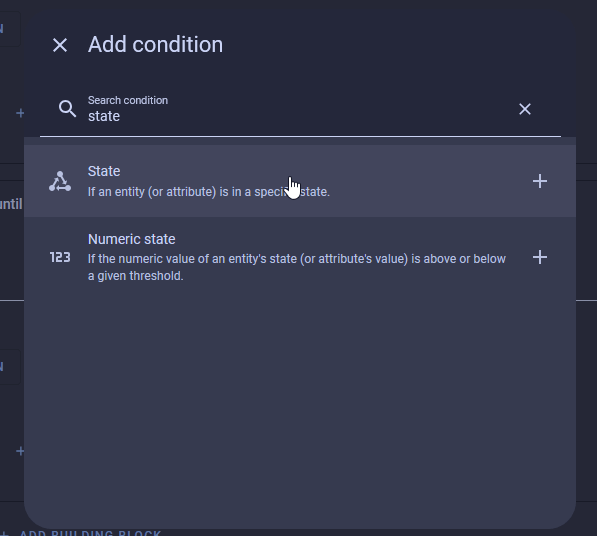
22. Type in "Chicken Monitor" and select it, then select Off in the dropdown for the state of the sensor.
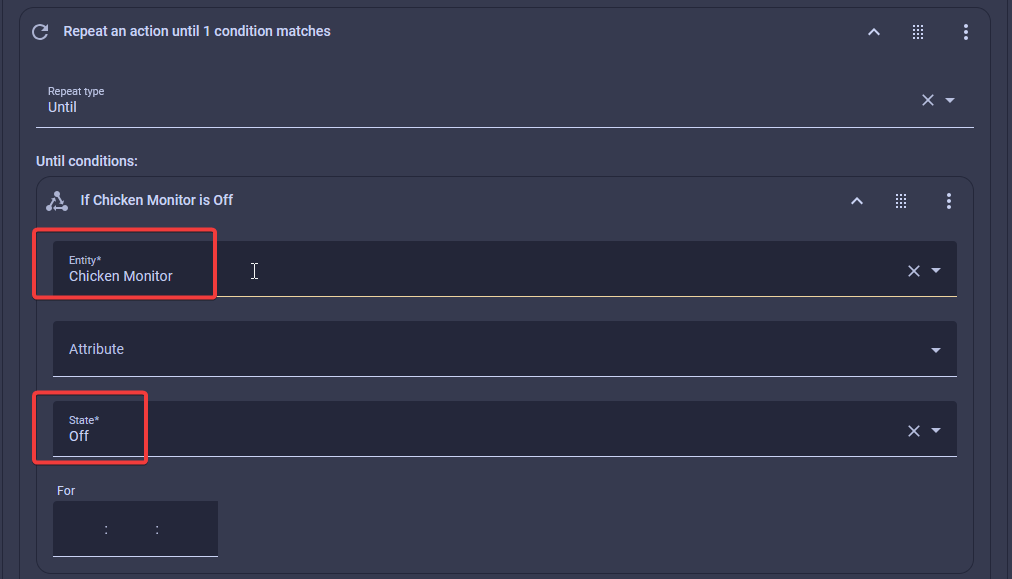
23. Click the Add Action button under the until condition you created. Be very careful to select the correct Add Action button, as shown below.
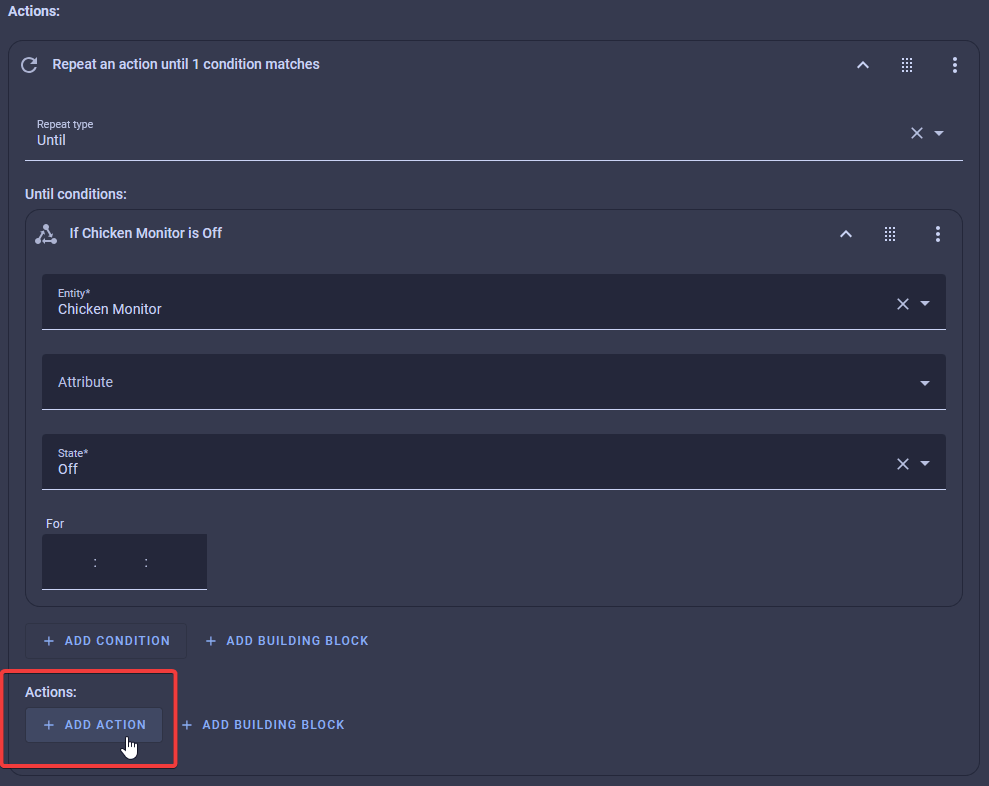
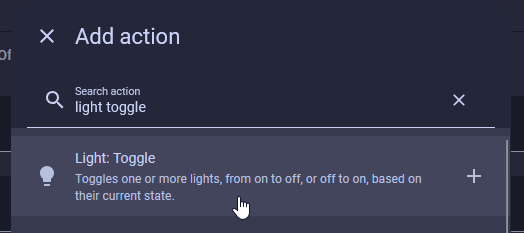
24. Search "light toggle" in the search bar, then select Choose entity and select the RGB LED for your device.
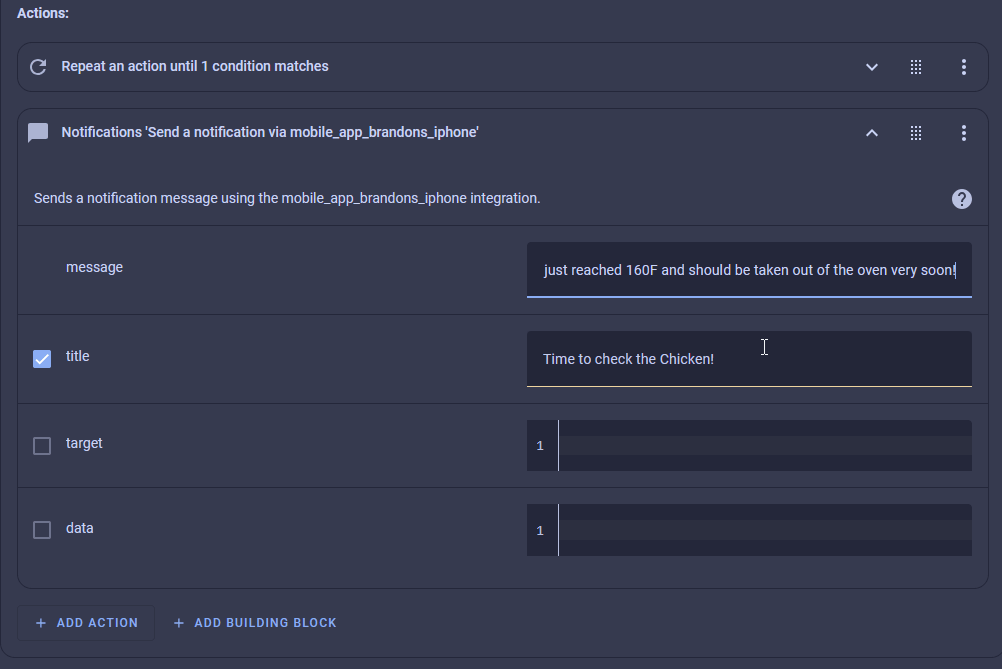
25. Go down to Add Action under Option 2, search "mobile", and select your phone as you did in step 15. Give it a message and a title, as shown below.
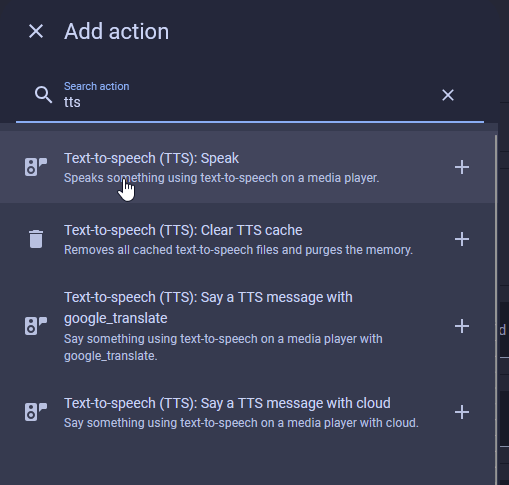
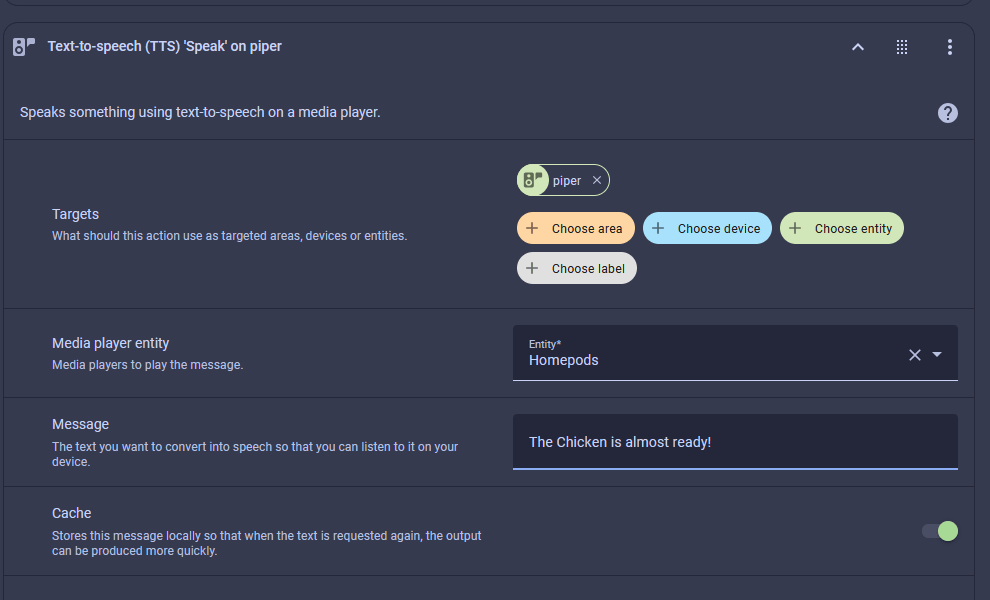
26. Optionally, add another action here that speaks out loud on your smart speakers, such as HomePods. Click Add Action, then search "TTS". This requires you to have Piper and a few other things already set up.
Option 3 runs when you turn Chicken Monitor off.
27. Click Add Option (this is now Option 3). Select Add Condition, search "triggered by", and then choose the "Chicken Monitor Off" trigger ID you created in step 6.
28. While still under Option 3 in the Choose action, click Add Action, search "light", and select Light: Turn off.
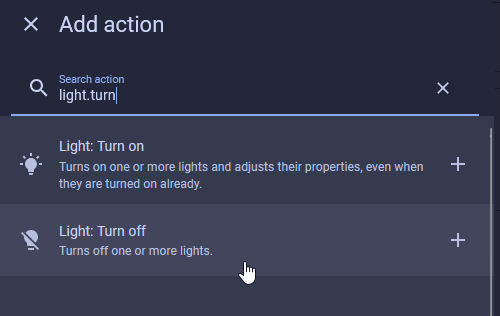
29. Click Choose entity and search for your device, such as "TEMP-1B RGB Light".
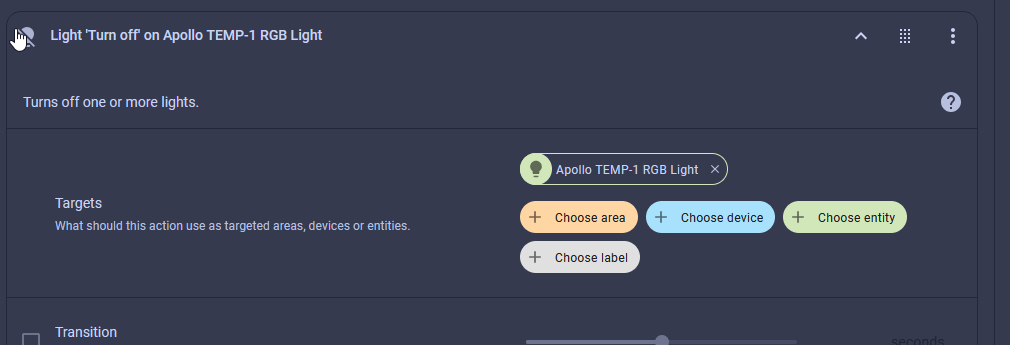
Shown on a TEMP-1; pick your TEMP-1B RGB Light instead.
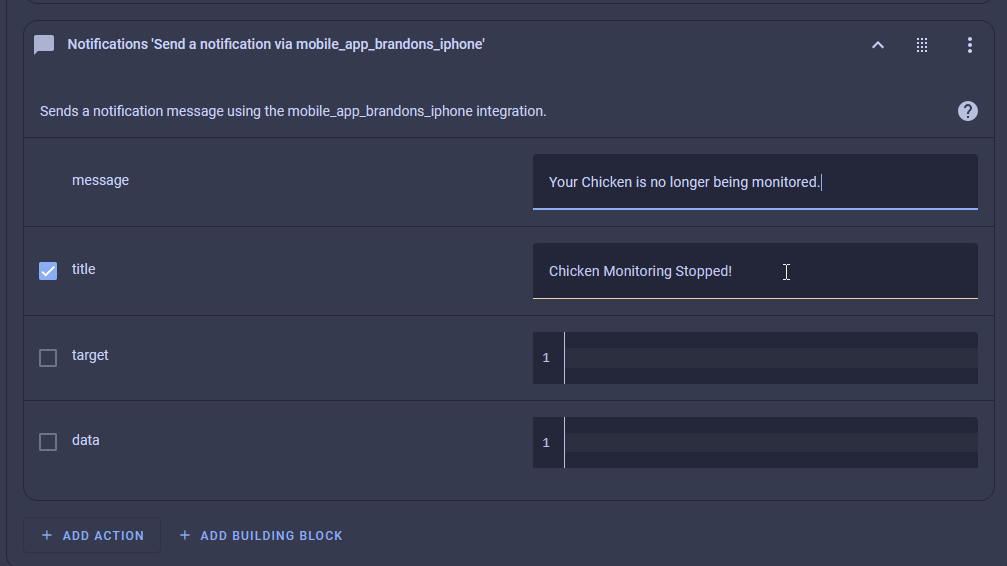
30. Click Add Action, search "mobile" as you did above, and select your phone. Give it a message and, optionally, a title, as shown below.
31. Click Save in the bottom right, then give the automation a name and save.
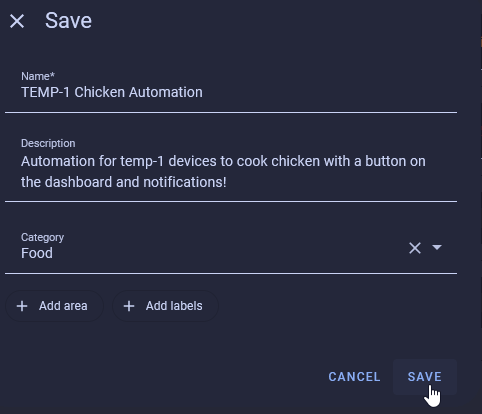
Shown on a TEMP-1; the TEMP-1B steps are the same.
You now have one automation that ties together the button you created on your dashboard and alerts you when your chicken is almost done, with a phone notification, a blinking green LED, and an optional TTS notification on your smart speakers. Thanks again to Discord user RalphP for this example!