Prevent Sleep
Put your sensors to sleep!
All of our battery powered devices are able to go to sleep to save battery life. Our non-battery sensor devices like the AIR-1 and PLT-1 can also sleep to get better temperature and humidity measurements.
The temperature offsets needed will be much lower for your sensors as the microcontroller will not put off as much heat when it is sleeping and then waking for short periods to report the sensor values.
You'll set how long your sensor sleeps, then turn off Prevent Sleep so it can start sleeping.
1. Head to the ESPHome Integrations page and click on the name of your Apollo device.
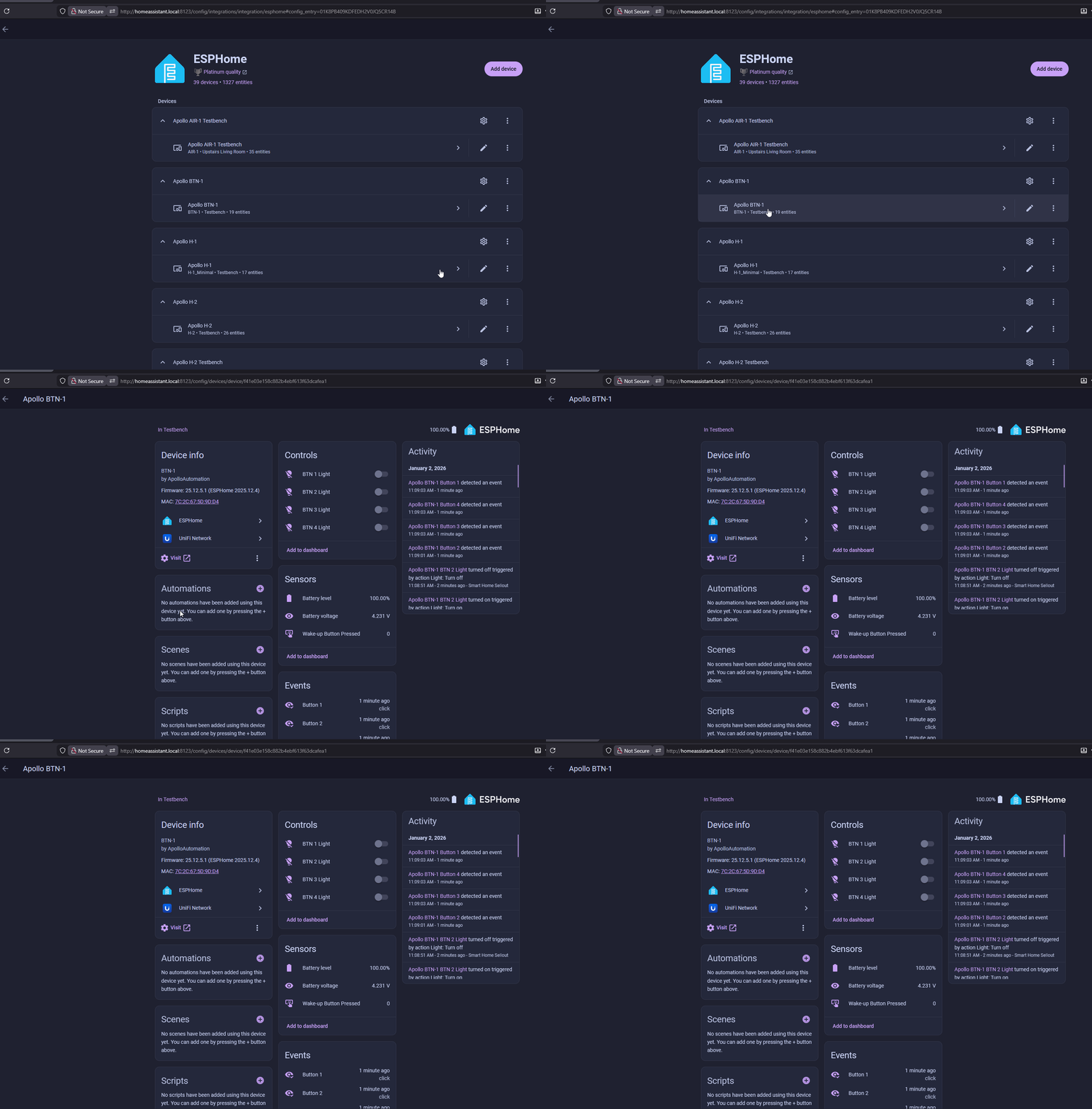
2. Scroll down until you see Prevent Sleep and Sleep Duration.
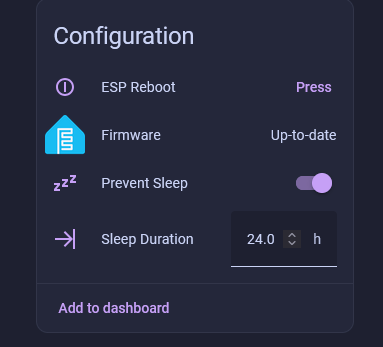
3. Type in how long you want your sensor to sleep in the Sleep Duration box. Check the unit next to the box: it is minutes on the AIR-1 (default 5), PLT-1 (default 5), and TEMP-1 (default 8), and hours on the BTN-1 (default 24), PLT-1B (default 12), and TEMP-1B (default 12). We recommend leaving the default values.
Read this before turning off Prevent Sleep!
When "Prevent Sleep" is toggled off, your sensor will immediately begin sleeping. Please make sure you are ready to make this sensor sleep before toggling off prevent sleep.
4. When you are ready, toggle off Prevent Sleep and your sensor will go to sleep. It will wake up on the Sleep Duration interval from step 3. If you need to keep your sensor awake, head to our OTA Awake helper tutorial!
5. You can wake your sensor by following this guide or you can power cycle your device. If there is a battery in it, the battery will need to be removed or the reset button pressed.
Do not leave your sensor outside or let it get wet!
The AIR-1 should not be left outside for long periods of time or allowed to get wet. You will need to use another case around your AIR-1 if there will be high moisture content in the air or if it is expected to rain.