Blueprint setup
Automatic import
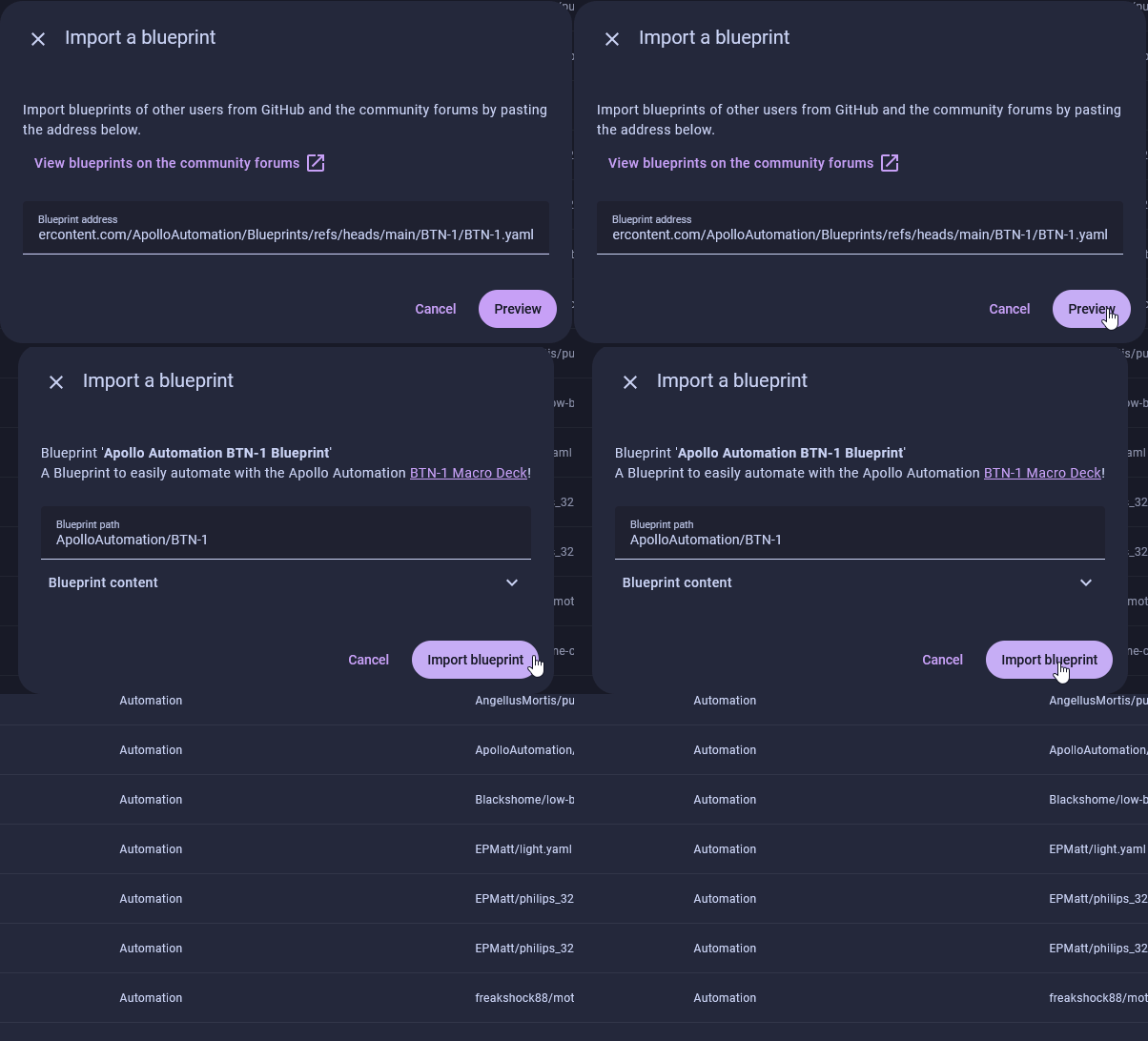
You'll import the blueprint with the button below, then choose an action for each button event.
1. Click the Import Blueprint button below and then click Open link.

2. Click Preview then click Import blueprint.
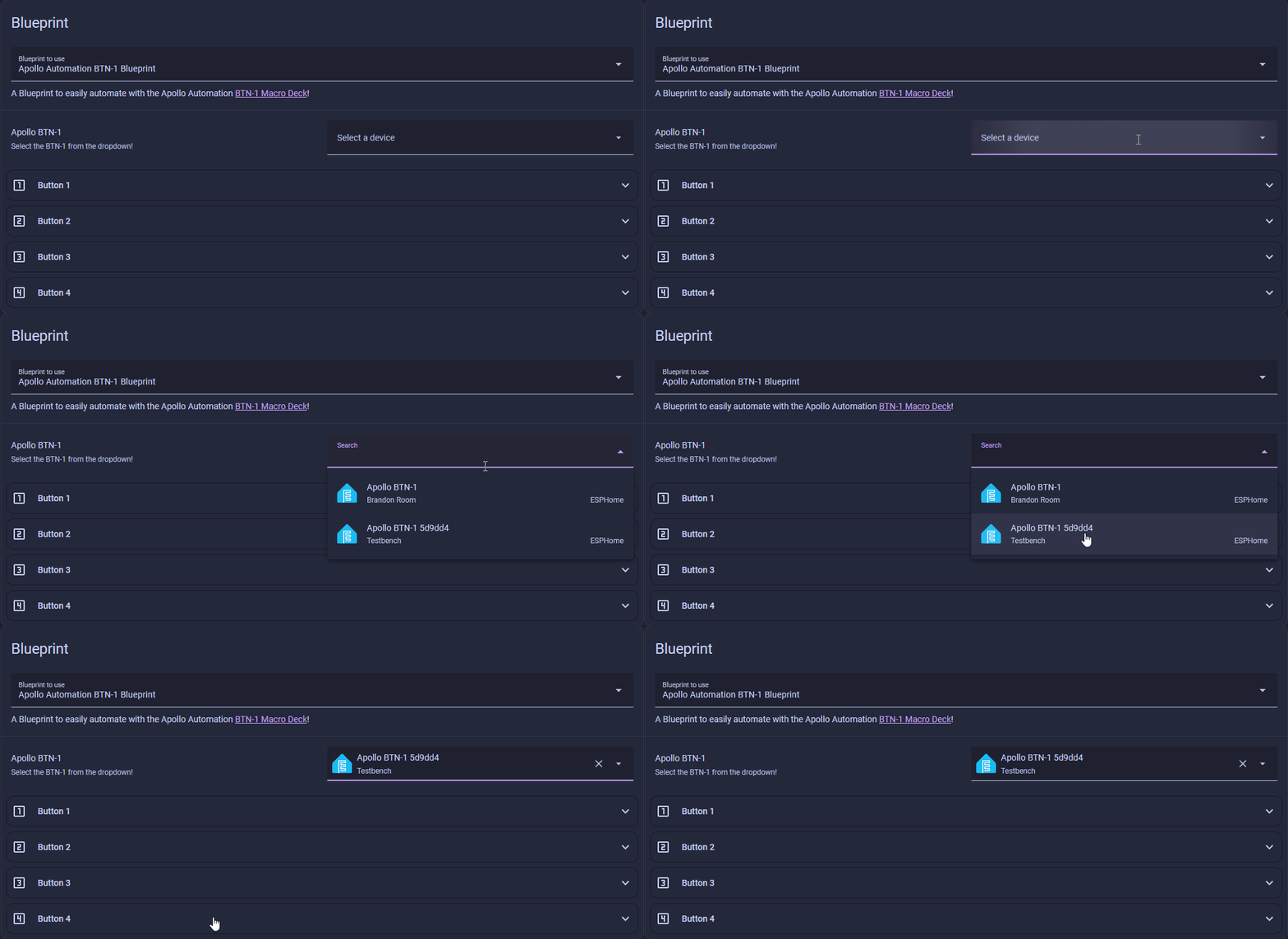
3. Click on Apollo Automation BTN-1 Blueprint and click on Select a device then choose your Apollo BTN-1 from the dropdown menu.
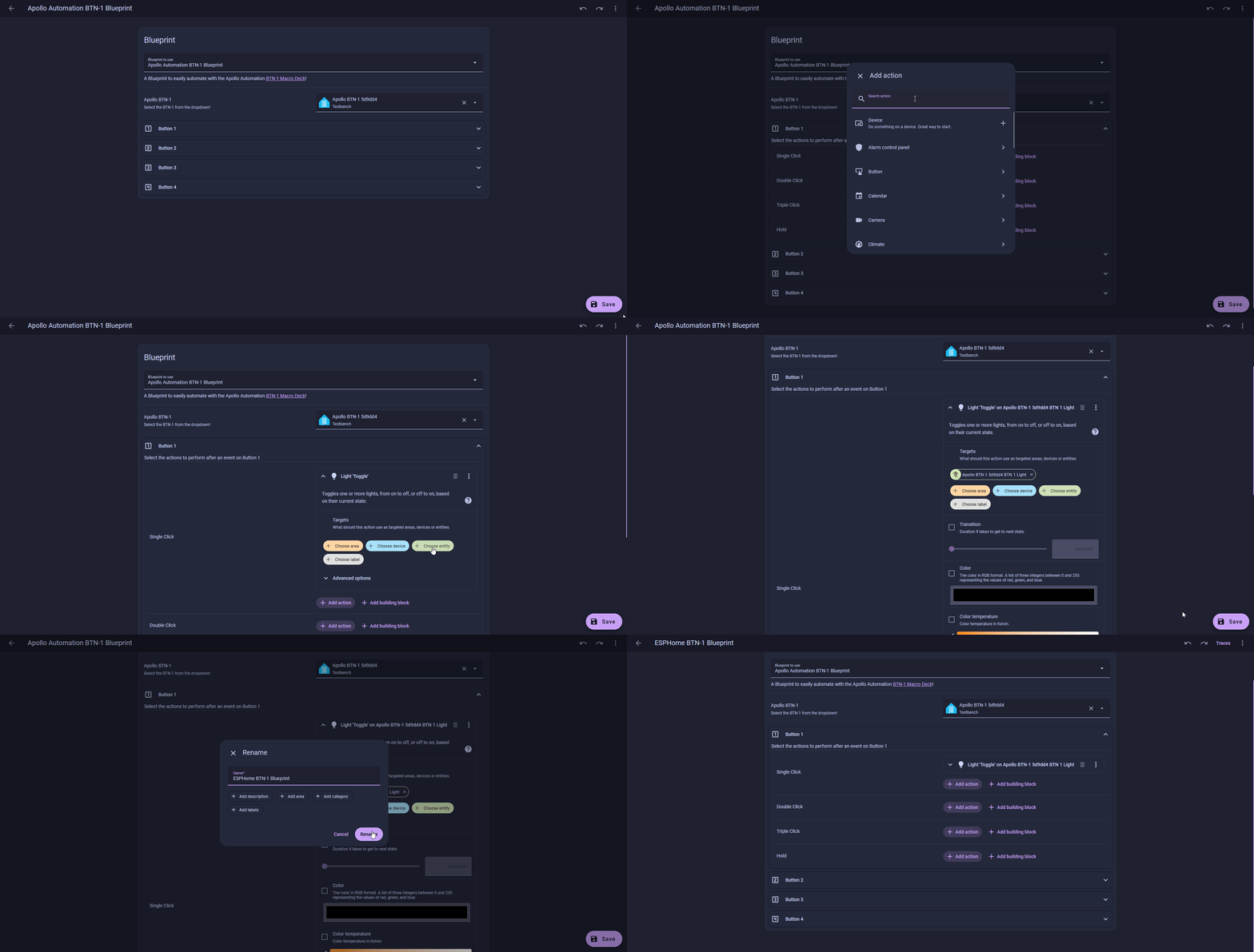
4. For the Single Click event, click Add Action, then search for Light: Toggle and select it. Next, choose the entity you want to control, such as BTN-1 Light, and click Save. Name your automation something like Apollo BTN-1 Blueprint. You can repeat this process for Double Click, Triple Click, and Hold events.
You can do this for all four buttons all in one blueprint!
This blueprint is packed with features: you can do a Single Click, a Double Click, Three Clicks, or a Hold on each of the four buttons. Click Add action and set them all up!
5. Your blueprint is now live. Click the button 1 button and it should toggle whatever light you selected in the blueprint. This can be anything in Home Assistant such as your light, fan, scene, etc!
Manual import
You can also import the blueprint by pasting its address into Home Assistant yourself.
1. Go to Settings → Automations & scenes, click Blueprints at the top, then click Import blueprint.
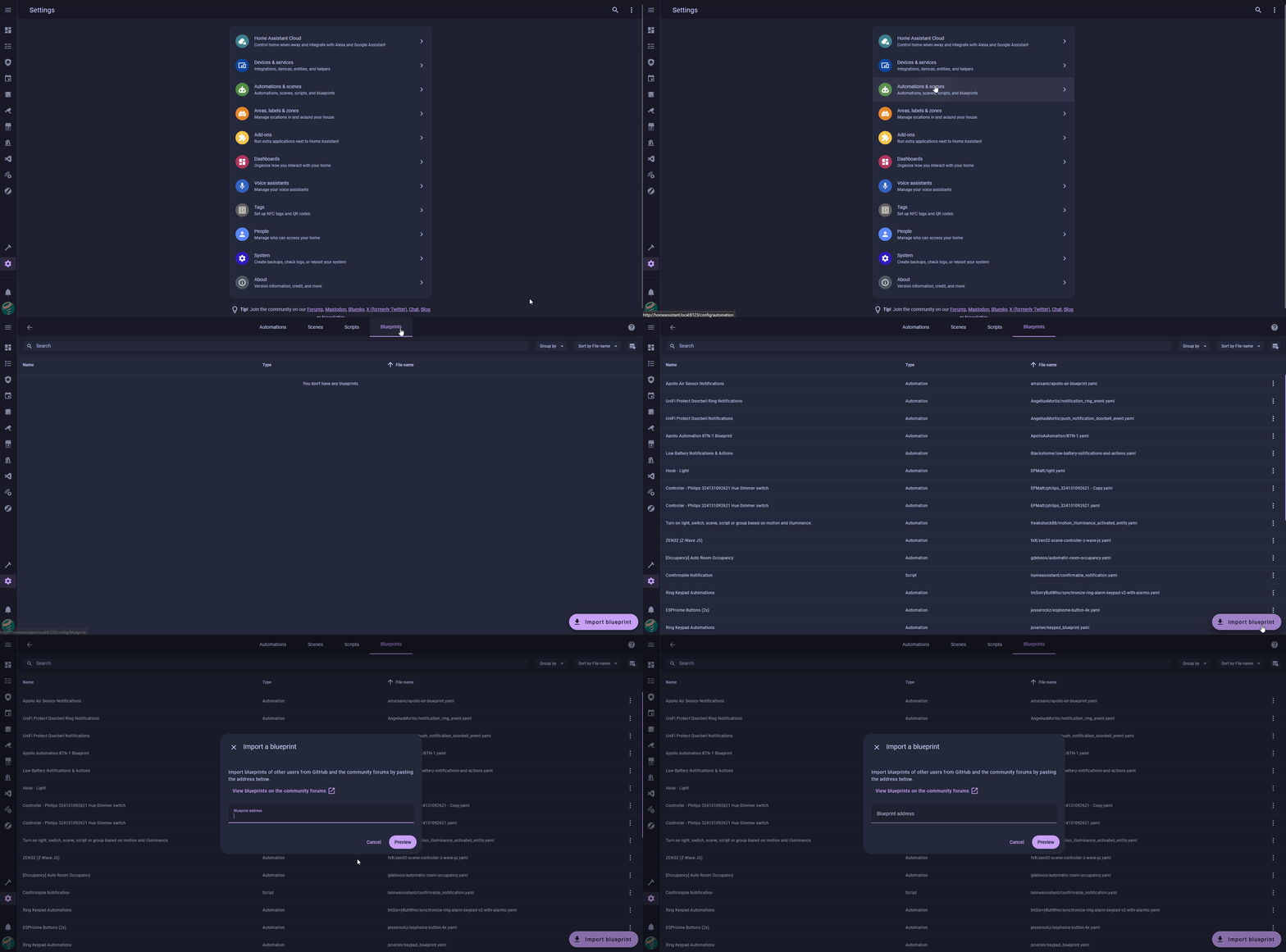
2. Copy the address below, paste it into the Blueprint address box, and click Preview then click Import blueprint.
3. Click on Apollo Automation BTN-1 Blueprint and click on Select a device then choose your Apollo BTN-1 from the dropdown menu.
3. For the Single Click event, click Add Action, then search for Light: Toggle and select it. Next, choose the entity you want to control, such as BTN-1 Light, and click Save. Name your automation something like Apollo BTN-1 Blueprint. You can repeat this process for Double Click, Triple Click, and Hold events.
You can do this for all four buttons all in one blueprint!
This blueprint is packed with features: you can do a Single Click, a Double Click, Three Clicks, or a Hold on each of the four buttons. Click Add action and set them all up!
4. Your blueprint is now live. Click the button 1 button and it should toggle whatever light you selected in the blueprint. This can be anything in Home Assistant such as your light, fan, scene, etc.