Add a WizMote remote to the M-1
The M-1 has no IR receiver, but it does take a WizMote over ESP-NOW. The remote talks straight to the M-1, so it keeps working with Home Assistant down, and it is the easiest way to give someone control of the matrix without handing them a phone.
Needs WLED 16.0 or newer
WizMote support on a HUB75 matrix only exists in WLED 16.0 and above. WLED-MM does not support it at all, so if your M-1 is on 14.5.1 you need to migrate to WLED before a remote will work. Tap Info on your M-1 to check which version you are running.
Turn on ESP-NOW
Before you pair the remote, turn on ESP-NOW on your matrix.
1. Open your M-1 in a browser and click Config, then WiFi Setup.
2. Tick Enable ESP-NOW. A Remote List appears on the same page once it is on.
3. Click Save, then reboot the M-1. Tap Info, scroll down, and select Reboot WLED.
Pair the remote
Now you can add the WizMote to the trusted list.
1. Go back to Config, then WiFi Setup.
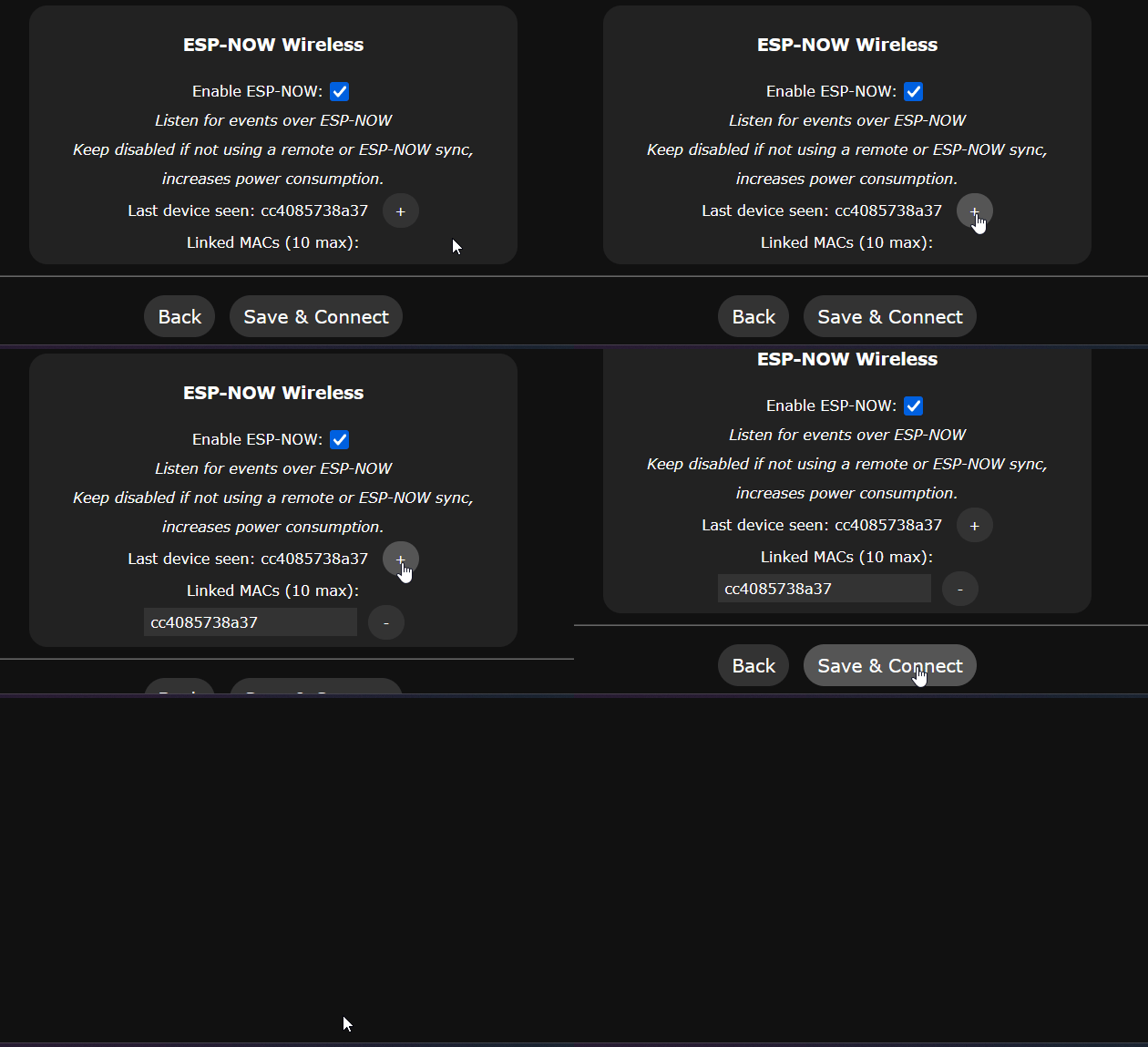
2. Press any button on the WizMote. The M-1 picks up the broadcast and shows the remote's MAC address in the Last device seen field. Press a couple of buttons if nothing appears the first time.
3. Click the + next to that address to add the remote to the trusted list.
4. Click Save.
Using the remote
The four numbered buttons run presets 1 through 4, so whatever you save as preset 1 is what button 1 does. Set those up first on the main page and the remote becomes genuinely useful rather than a novelty. Power and brightness work as labeled, and the moon button triggers the night light. (1)
- Button behavior can be remapped with a custom
remote.jsonon the device filesystem. The WLED ESP-NOW documentation covers the button codes if you want something other than the defaults.
Troubleshooting
If nothing shows up in Last device seen, start with a fresh battery in the WizMote and confirm you saved the page after ticking Enable ESP-NOW. When the field stays blank after that, reboot the M-1 and press a button on the remote again.
If the buttons control the wrong things, check what you have saved in presets 1 through 4. That is what the numbered buttons run.