Share data from Home Assistant on your M-1
Turn your matrix into a live status board. Outside temperature on one line, the dryer's remaining time on the next, tomorrow's forecast under that, each line refreshing on its own without you touching anything.
The WLED integration for Home Assistant cannot push sensor values onto the matrix on its own, but the WLED JSON API can. This is an advanced tutorial. Follow each step closely and it works.
Set up your segments first
This one expects four segments already on the display. Single panel? Follow Segments. Multiple panels? Use Multiple Panels instead, then come back.
Each line is capped at 64 characters on WLED and 32 on WLED-MM, which is worth knowing before you pick entities. A long sensor name plus its value runs out of room fast, so shorten the text you send rather than the entity itself.
1. Install Studio Code Server from the App Store in Home Assistant. Click Open Web UI and navigate to your configuration.yaml.
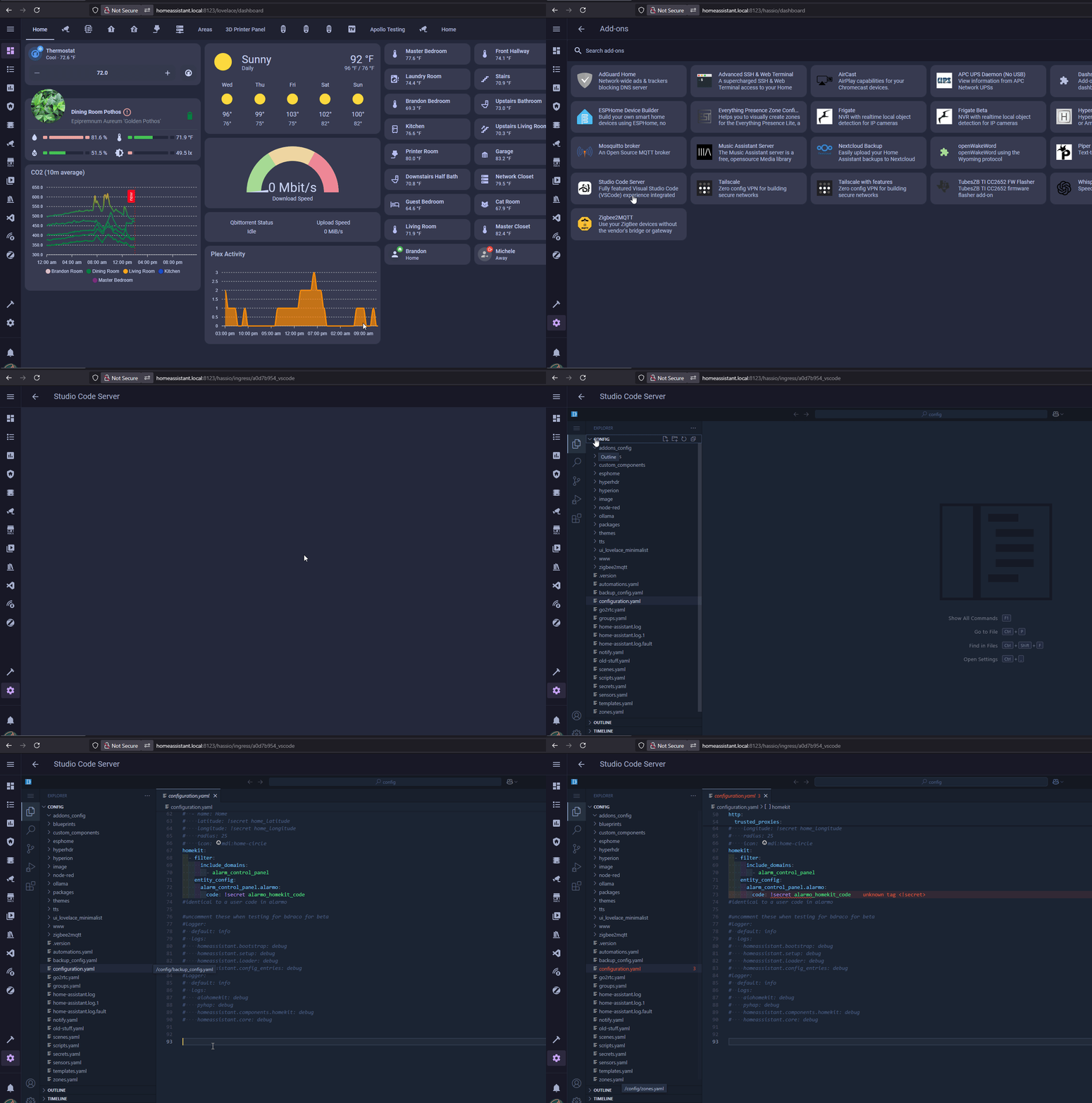
This file is used by Home Assistant and must be carefully edited.
Home Assistant depends on this file to function correctly. Only make the changes exactly as outlined below. Do not add extra spaces or modify anything beyond what is specified in the instructions.
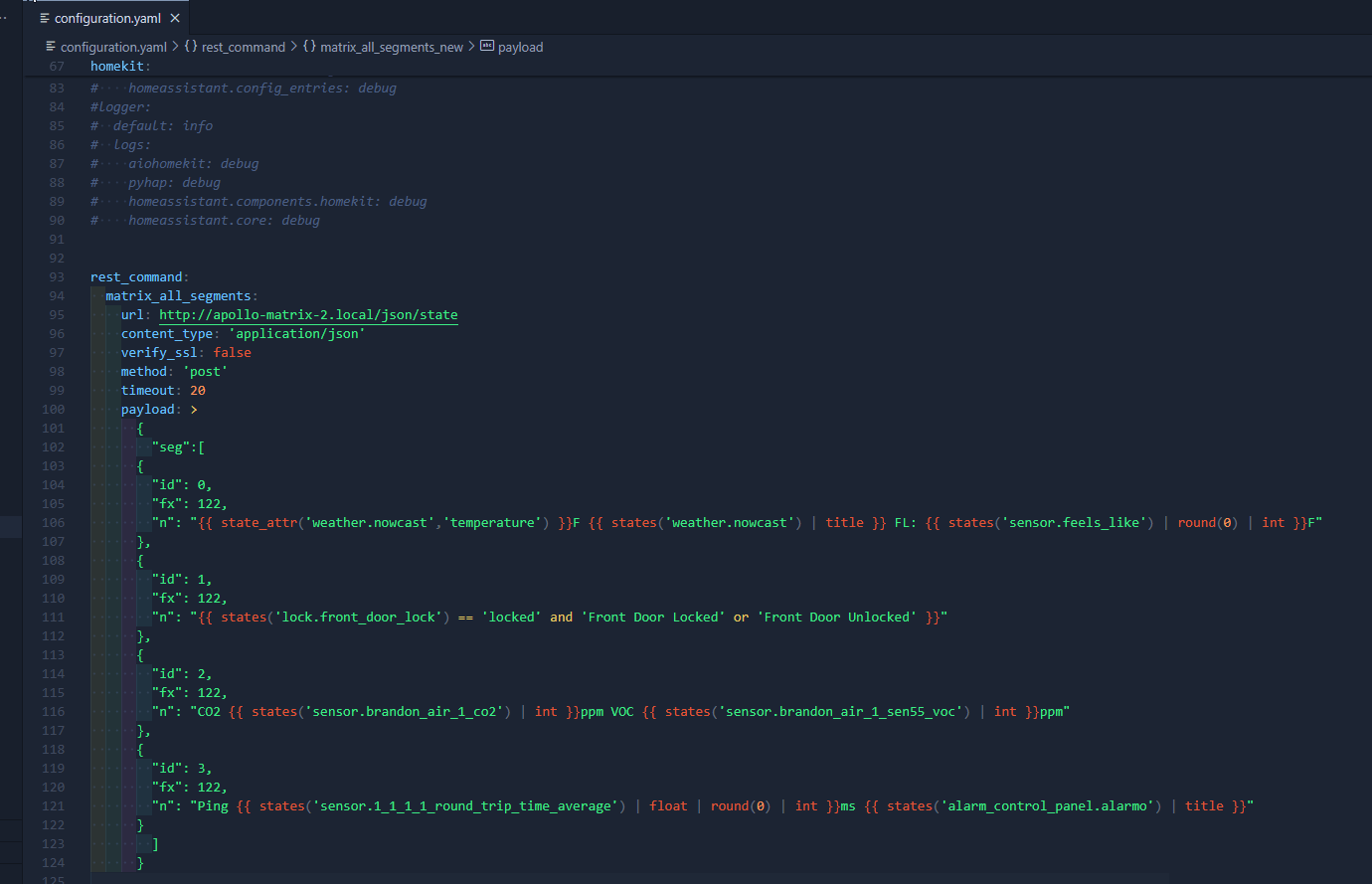
2. Fill in the YAML generator below with your own entity IDs, then click Copy to Clipboard at the bottom.
3. Back in configuration.yaml, paste the generated YAML on a new line at the bottom of the file and save.
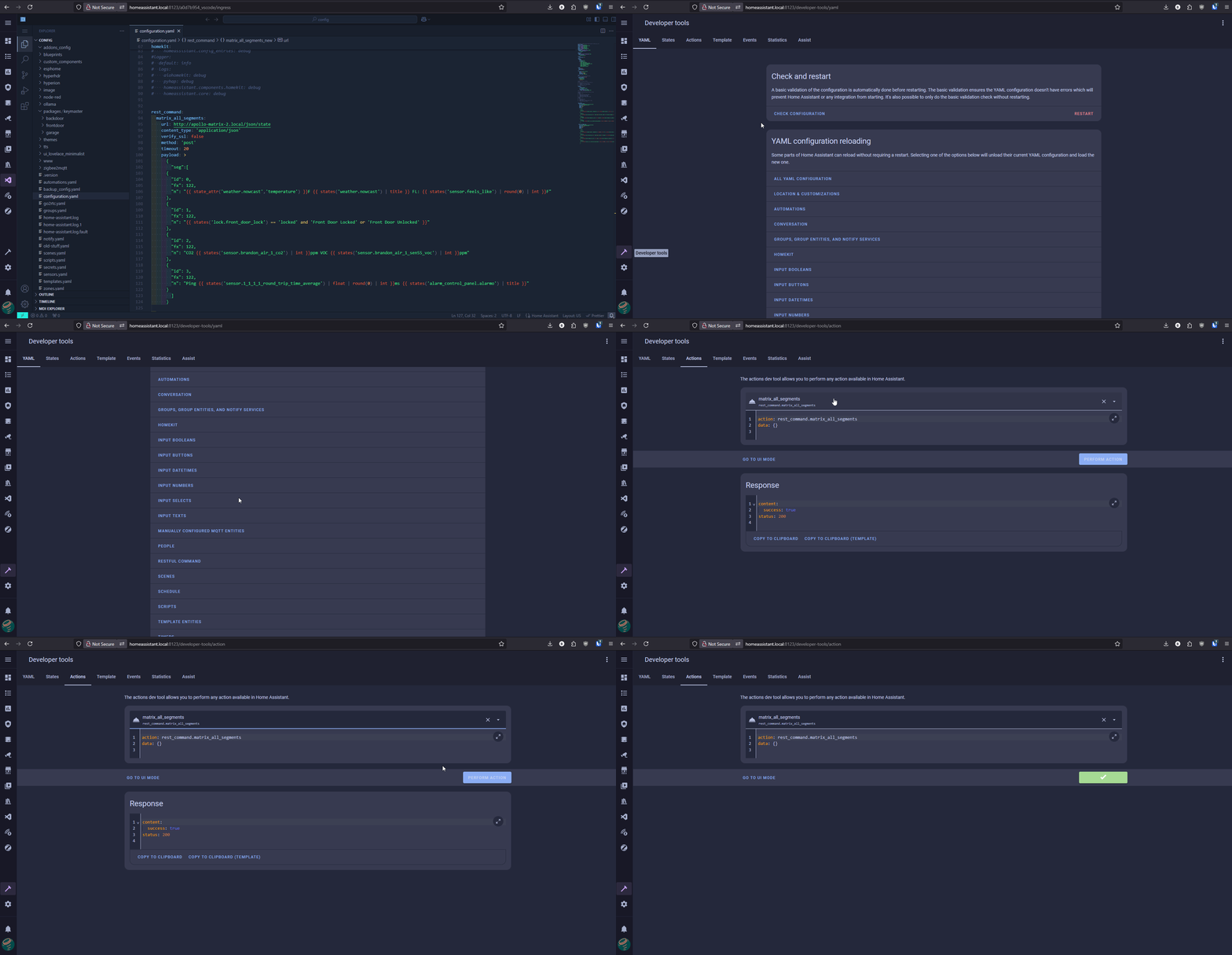
4. Open Developer Tools and run Check Configuration. A green response means you are clear to continue. Then reload your new command from the YAML tab by clicking RESTful Commands, or restart Home Assistant. Until you do, the command will not show up in the next step.
5. Still in Developer Tools, scroll down to Restful Command, click Actions at the top, type "matrix", select the command you just created, and click Perform Action. Your text should appear on the matrix straight away.
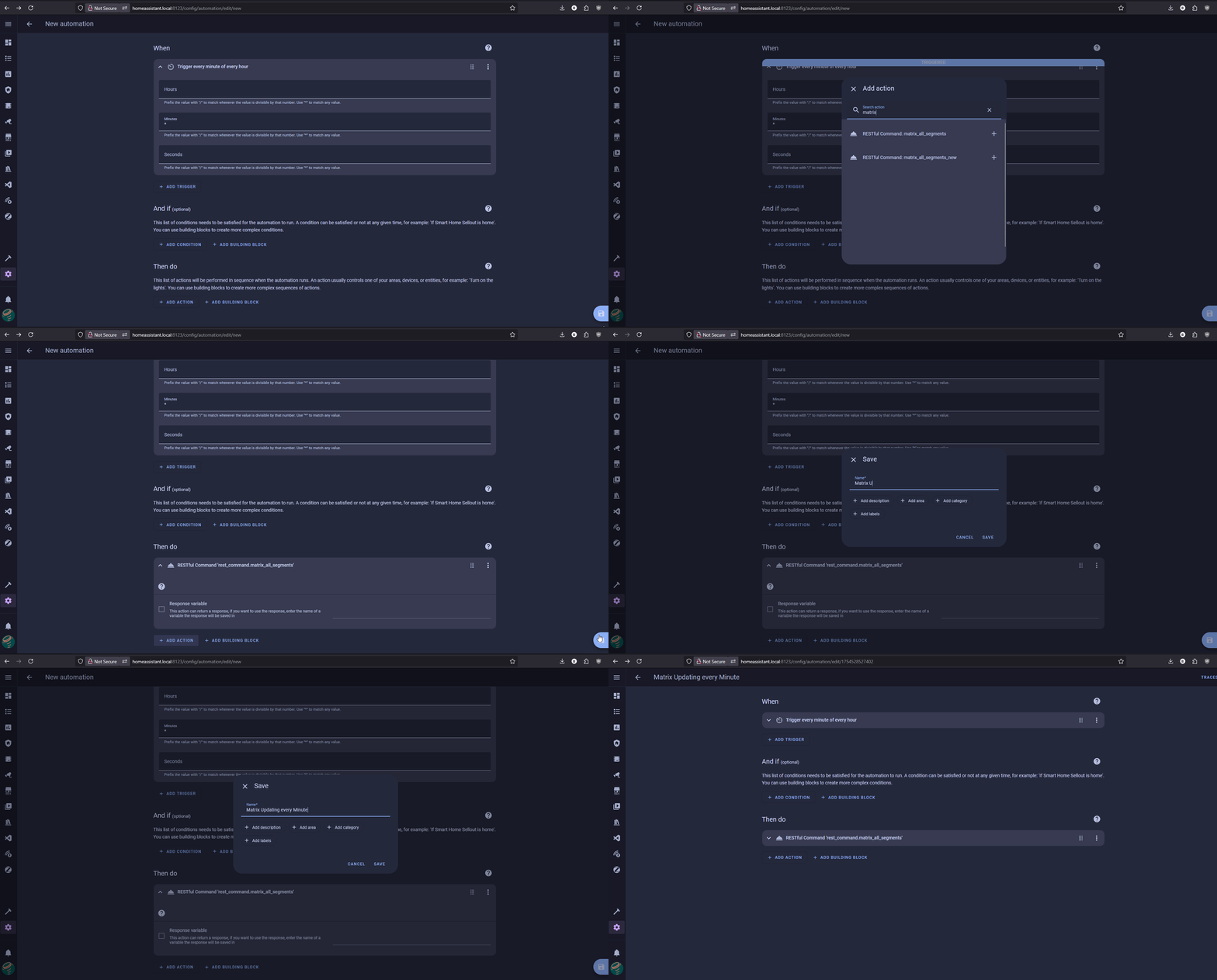
6. Create an Automation with a time pattern trigger that fires every minute.
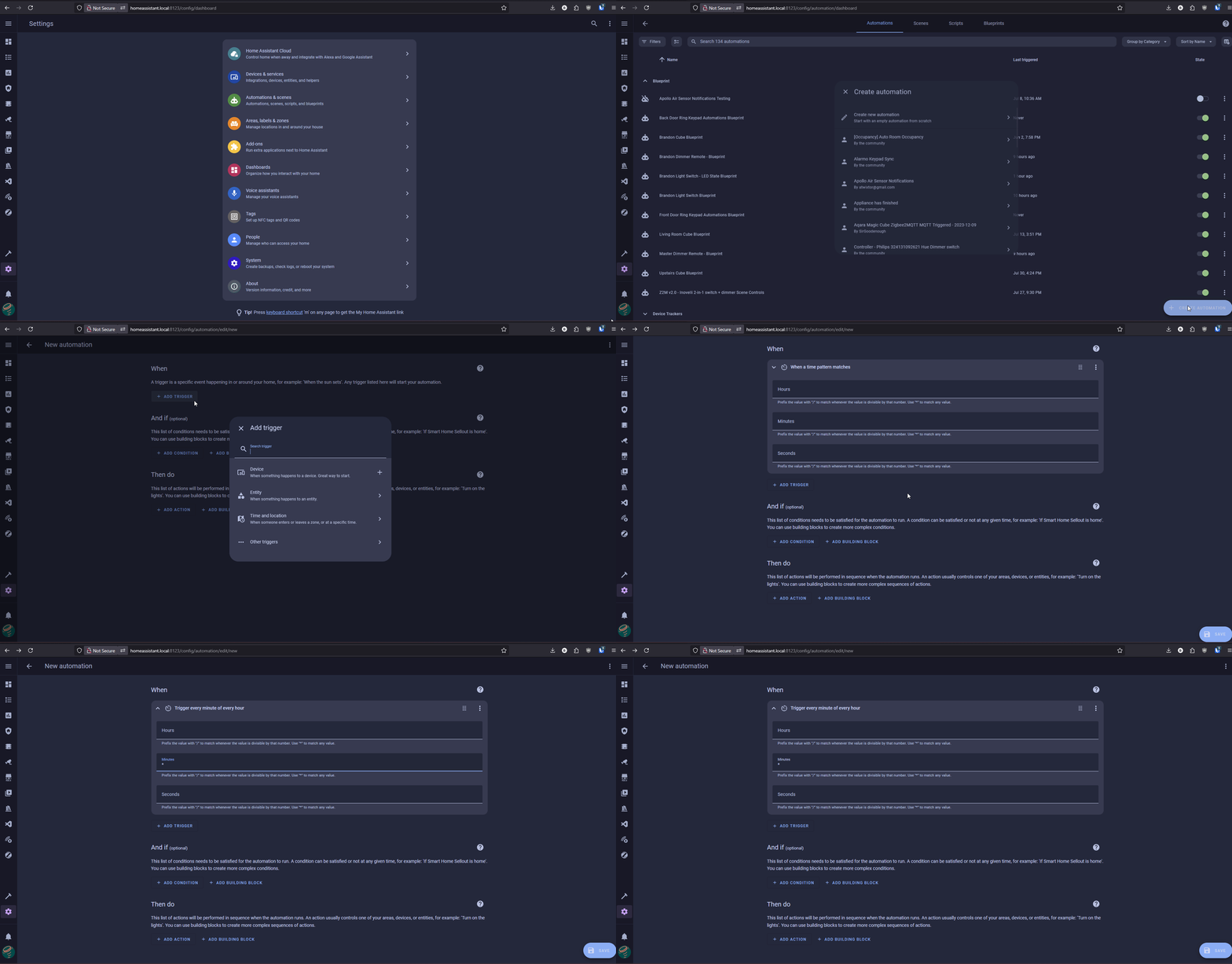
7. Add an action, type matrix, and pick RESTful command: matrix_all_segments. Save and name the automation. The matrix now refreshes every minute.
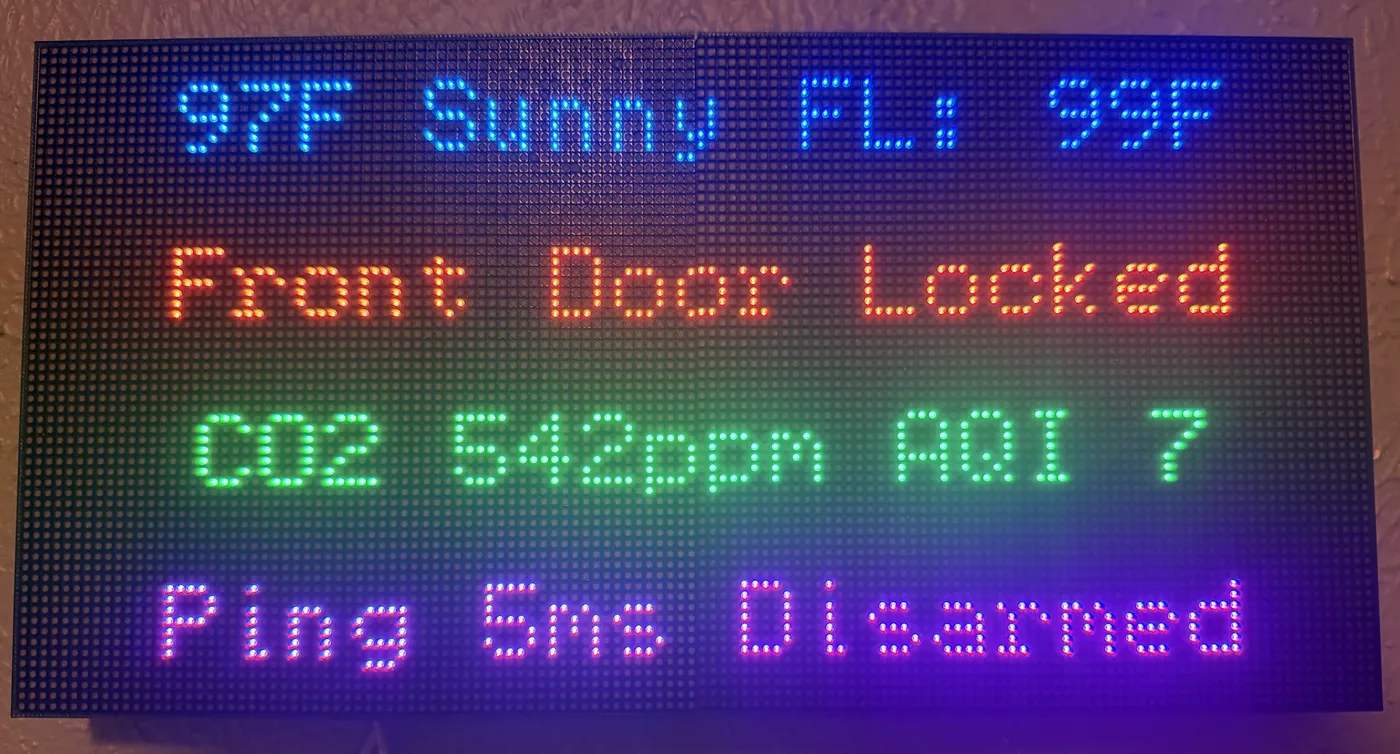
Here is the finished board on a two panel setup, four segments each pulling a different entity.
Tuning it
A minute suits temperatures and forecasts. For something that changes faster, like a countdown timer, drop the time pattern to every ten or thirty seconds. Going much below that gains you little, since the text has to finish scrolling before anyone can read it anyway.
If a line goes blank, the entity behind it is probably unavailable or unknown rather than anything being wrong with the matrix. Check it in Developer Tools, then States.
To change what a line says later, edit the RESTful command in configuration.yaml and reload it the same way as step 4. The automation keeps working untouched.