How to tune mmWave using HLKRadarTool
Finding your R PRO-1's web server address
Some steps below require opening your device's web server in a browser. To find your address:
- In Homey, open your R PRO-1 device and note the last 6 characters of its name. For example, Apollo R_PRO-1 353fd4 gives you
353fd4. - Check whether you set it up over WiFi or Ethernet.
- Build your URL:
- WiFi:
http://apollo-r-pro-1-w-353fd4.local/ - Ethernet:
http://apollo-r-pro-1-eth-353fd4.local/
- WiFi:
If the .local address doesn't load, use your router to find the device's IP address and use that instead.
LD2450 configuration
Ensure that the LD2450 firmware version is V2.02.23090617 or later for proper integration functionality.
The newer version of the firmware includes an "auto calibrate" function so you might want to test it out!
The HLK-LD2450 mmWave sensor is used in the R PRO-1. Click Here for the datasheet.
Follow these steps to turn on the LD2450's Bluetooth and set up its zones in the HLKRadarTool app.
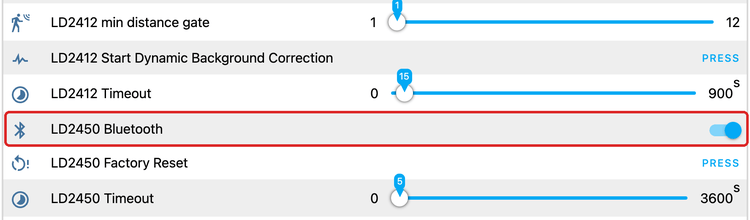
1. Open your R PRO-1's web server (see address tip above), scroll down until you see LD2450 Bluetooth, and toggle it on.
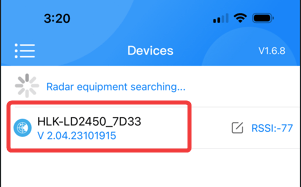
2. Open the HLKRadarTool App and select your device.
You need to be close to your device!
The LD2450 mmWave sensor is a very tiny sensor with no external antenna, which means it cannot connect to Bluetooth devices unless they are very close. Sometimes this means you need to be within a few feet of the sensor to connect directly to it!
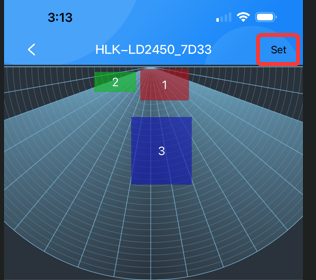
3. Select Set in the top right.
4. Enable Area Detection, then toggle Area 1, 2, and 3 to display a colored box with the matching number. You can press and hold the box to move or resize it as needed. Once your zones are configured, click Submit. You should see a confirmation message: "Setup successfully."
There are three ways to use your R PRO-1!
You can use any of these three choices to control your R PRO-1 differently. The most common option is "Detection" which lets you set up three areas and track three targets within them.
Disabled: Disables multi-zone area detection and tracks one big area.
Detection: Only detects targets within each of the three zones.
Filter: Excludes a zone from detection and detects presence everywhere else.
Disabled allows you to use the sensor as a "basic" presence sensor and "Filter" lets you filter out an area and detect everything else, which is useful to avoid a fan!
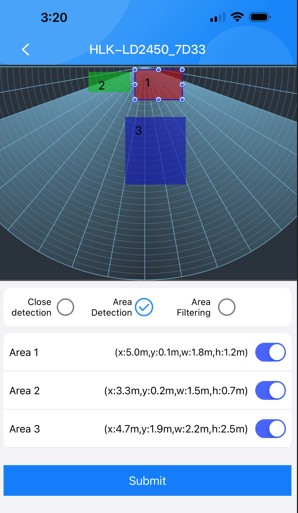
Helpful Hints to understand zones better!
-
X1 must always be less than X2, and Y1 must always be less than Y2.
-
The Y axis is easier since it's never negative.
- The X axis is where you can get tripped up, especially when both values are negative: -3456 is less than -2345.
- The zones cannot overlap.
LD2412 configuration
The LD2412 works differently than the LD2450. Instead of drawing rectangular zones on a 2D map, you work with distance gates. Each gate covers 0.75m of radial distance from the sensor, so Gate 1 is 0-0.75m away, Gate 2 is 0.75-1.5m, and so on out to Gate 12 at 8.25-9m (see the gate table on the General Tips page). You define what the sensor reacts to by setting a sensitivity threshold at each gate distance.
The same HLKRadarTool app is used for both sensors.
1. Open your R PRO-1's web server (see address tip above), scroll down until you see LD2412 Bluetooth, and toggle it on.
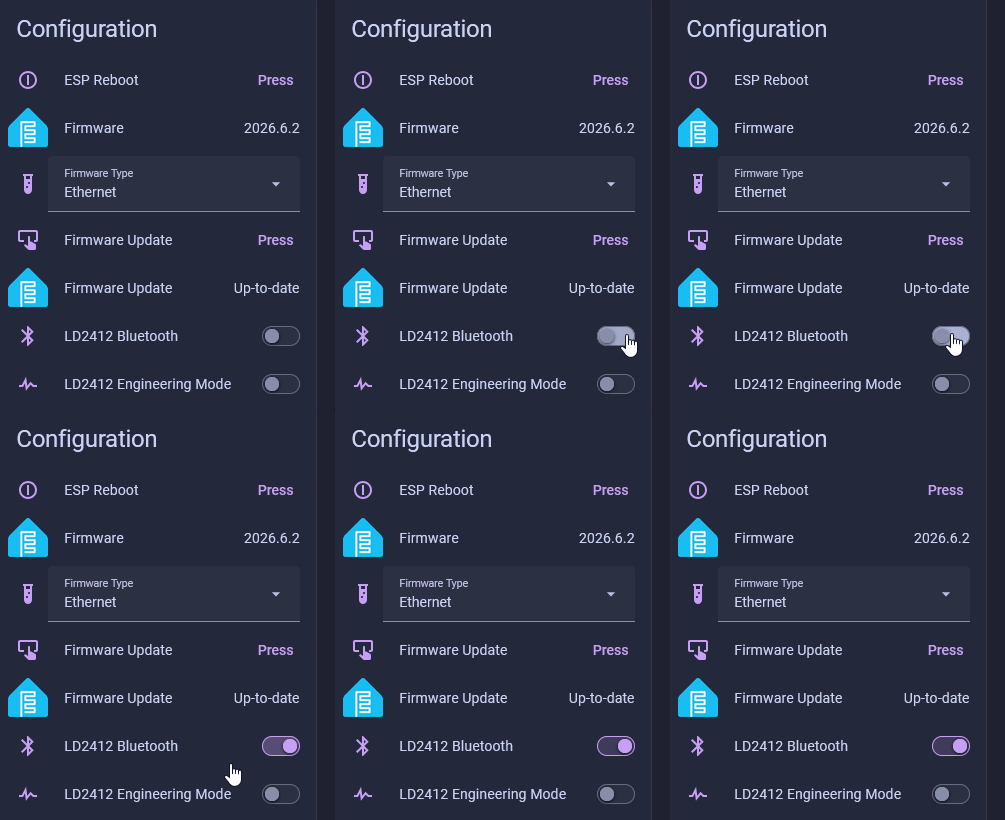
2. Open the HLKRadarTool app. Your R PRO-1 should appear in the device list. Tap it to connect.
You need to be close to your device!
The LD2412 connects over Bluetooth, which means you need to be within a few feet of the sensor for it to appear in the app. If it doesn't show up, move closer and pull down to refresh the list.
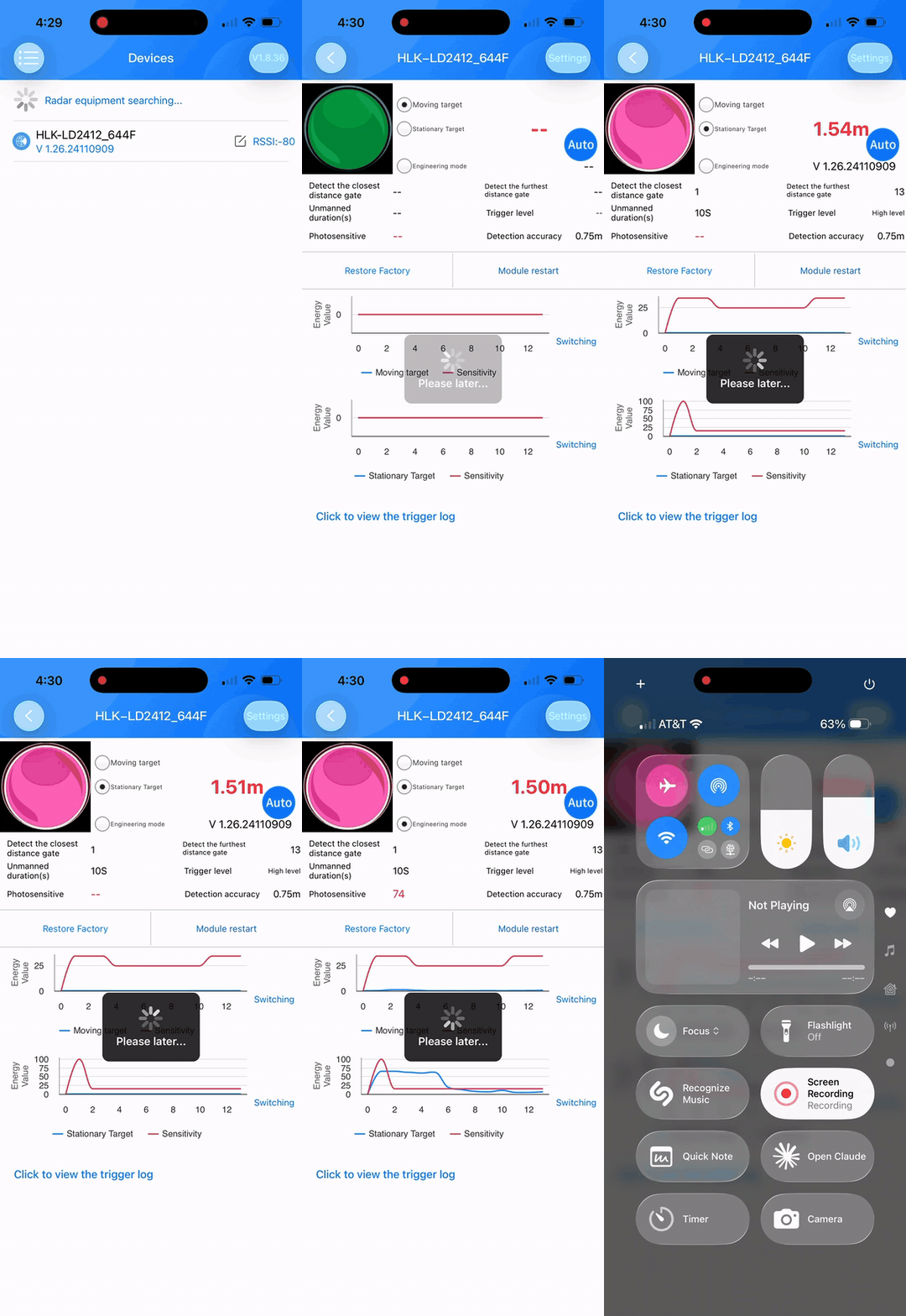
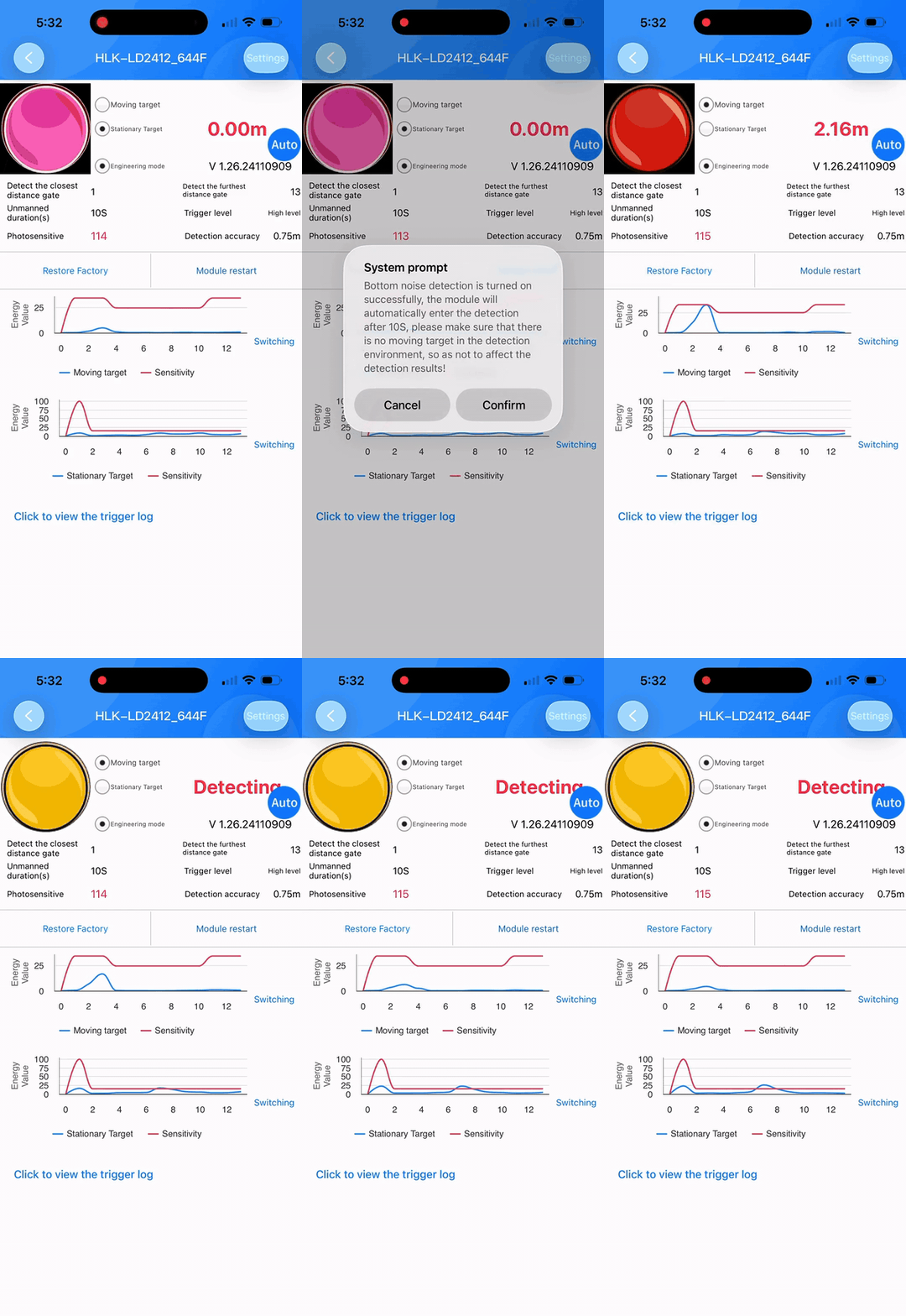
3. Once connected, enable Engineering Mode as shown above. This turns on the live energy graph, which shows you what the sensor is actually seeing at each distance gate in real time.
Reading the engineering mode graph
The horizontal axis represents distance gates (each gate = 0.75m from the sensor). Two sets of bars are shown: one for moving targets and one for still targets. The colored threshold line is the sensitivity setting you've configured for each gate. When the live energy bar at a gate exceeds that threshold, the sensor reports detection at that distance.
Think of it like a ruler pointing away from the sensor, where each column is one step further out (0.75m per step). The taller a bar rises, the stronger the signal at that distance. When a bar crosses the threshold line, the sensor reports detection there. Walk around in front of it to see your movement show up in real time.
4. Leave the room empty and make sure nothing is moving, then tap Auto in the app. The sensor scans the environment for about 10 seconds and automatically sets thresholds to filter out static interference from electronics, HVAC, and other background sources. When it's done you'll see Completed and the app will return to showing the detection distance. This gives you a clean baseline before any manual tuning.
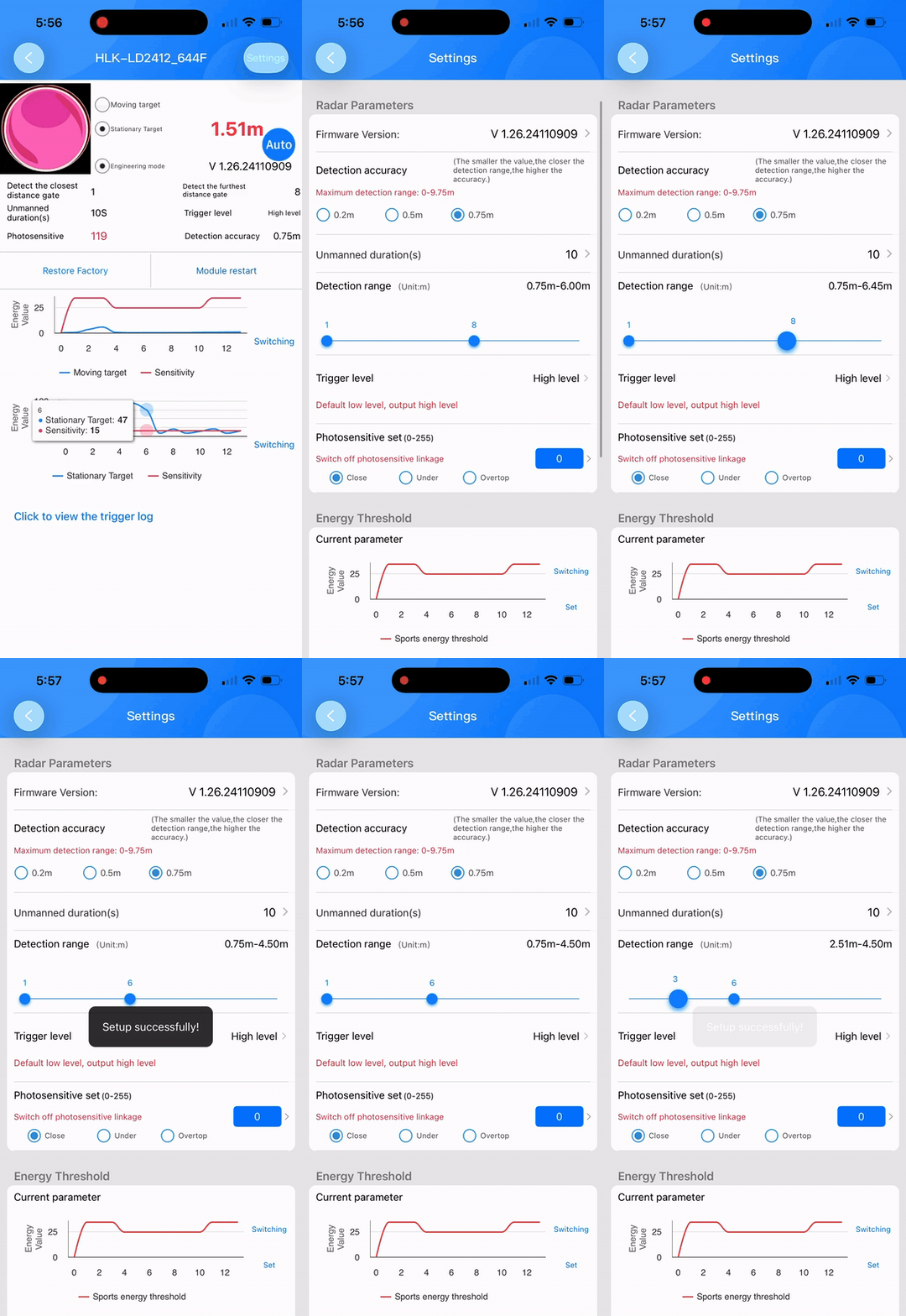
5. Tap Settings in the top right and use the Detection Range slider to set which gates the sensor monitors. You can set both a start and end gate. For example, Gate 3 to Gate 6 means the sensor only looks between 1.5m and 4.5m from the device. Limiting the range prevents the sensor from picking up movement through walls or in adjacent rooms.
Gate to distance reference
Each gate covers 0.75m. Gate 1 = 0-0.75m, Gate 2 = 0.75-1.5m, Gate 3 = 1.5-2.25m, Gate 4 = 2.25-3m, Gate 5 = 3-3.75m, Gate 6 = 3.75-4.5m, Gate 7 = 4.5-5.25m, Gate 8 = 5.25-6m.
6. To fine-tune which distances trigger detection, open your R PRO-1's web server and use the gate threshold sliders (LD2412 gNN move threshold and still threshold) there.
- Raise a gate's threshold to make it harder to trigger at that distance (useful for ignoring a fan, HVAC vent, or a window where cars pass).
- Lower a gate's threshold to make it easier to trigger at that distance (useful for reliably detecting someone sitting still in a chair).
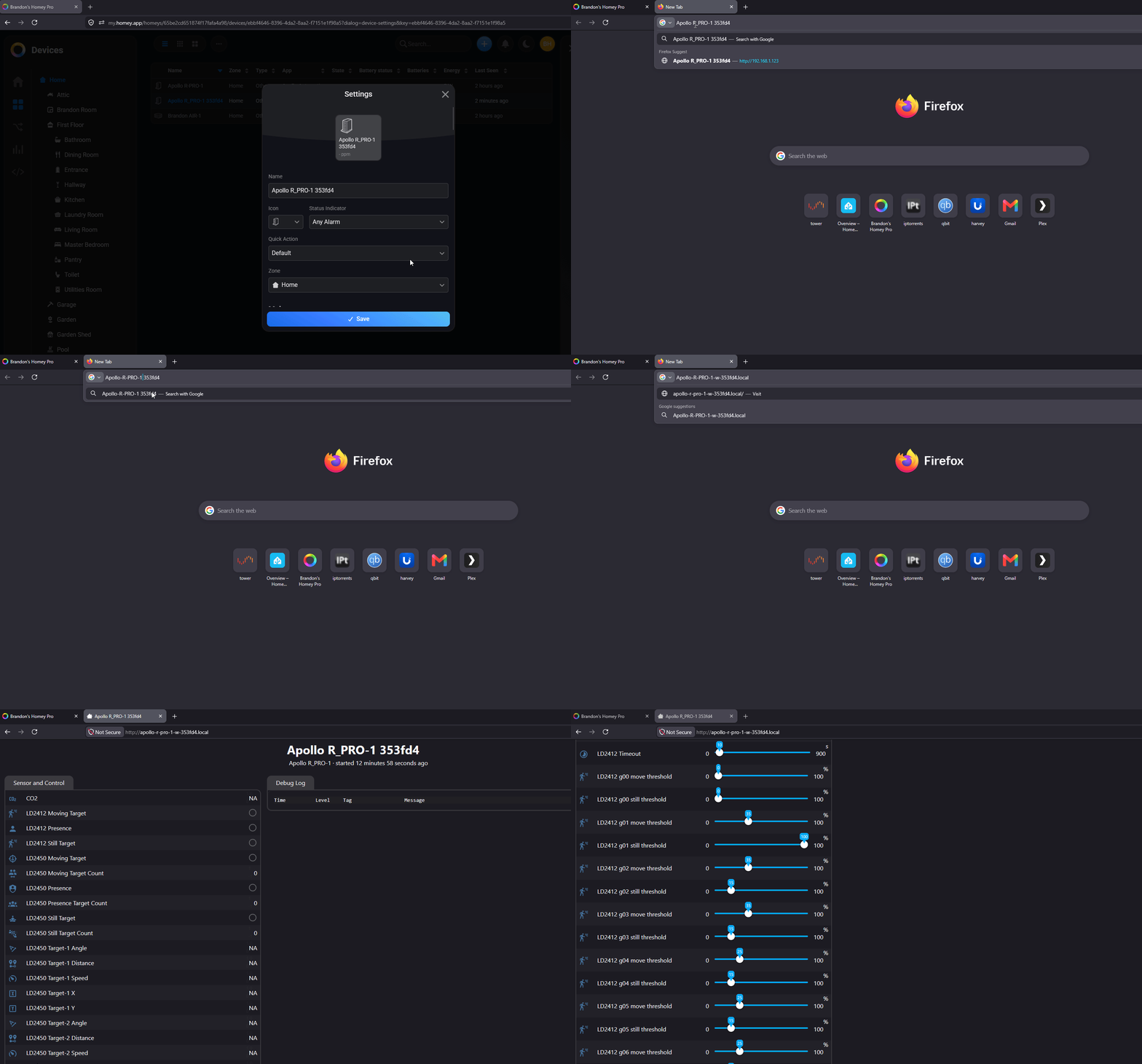
7. Tap Settings at the top of the app and set the Unmanned Duration. This controls how many seconds the sensor waits after it stops detecting before it reports "no one present." The default is 10 seconds. Increase it if you're getting false "nobody home" readings in your space. In the Apollo web server, this same setting is called LD2412 Timeout.
8. Head back to your R PRO-1's web server and toggle LD2412 Bluetooth back off. Leaving Bluetooth on increases power consumption and can interfere with nearby Bluetooth devices.