Adding GPIO header to MSR-2
You'll seat the GPIO Header addon on the mezzanine connector on the back of your sensor, then fit the new back that came with it.
1. Unplug your MSR-2 from power and remove the back.
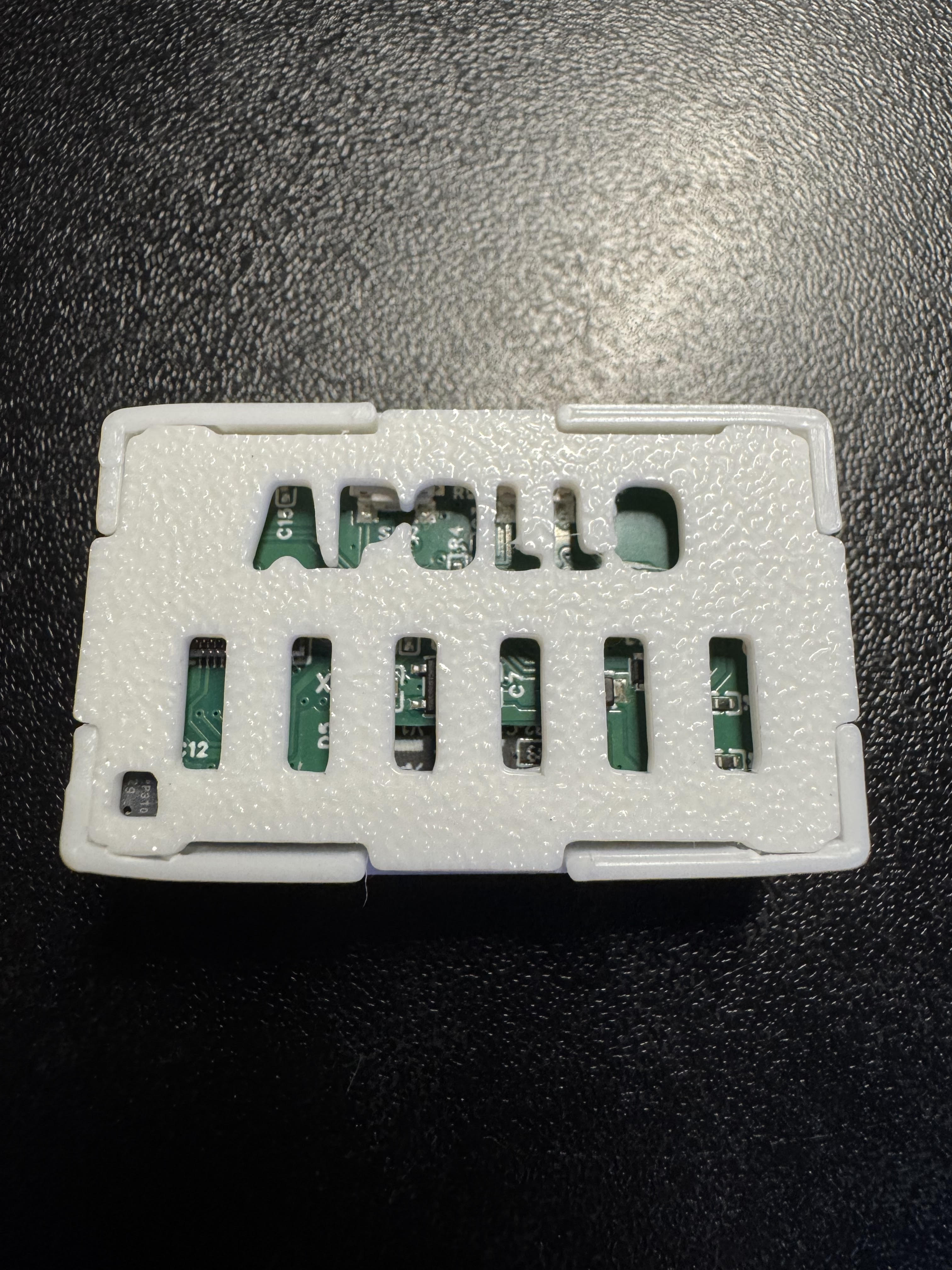
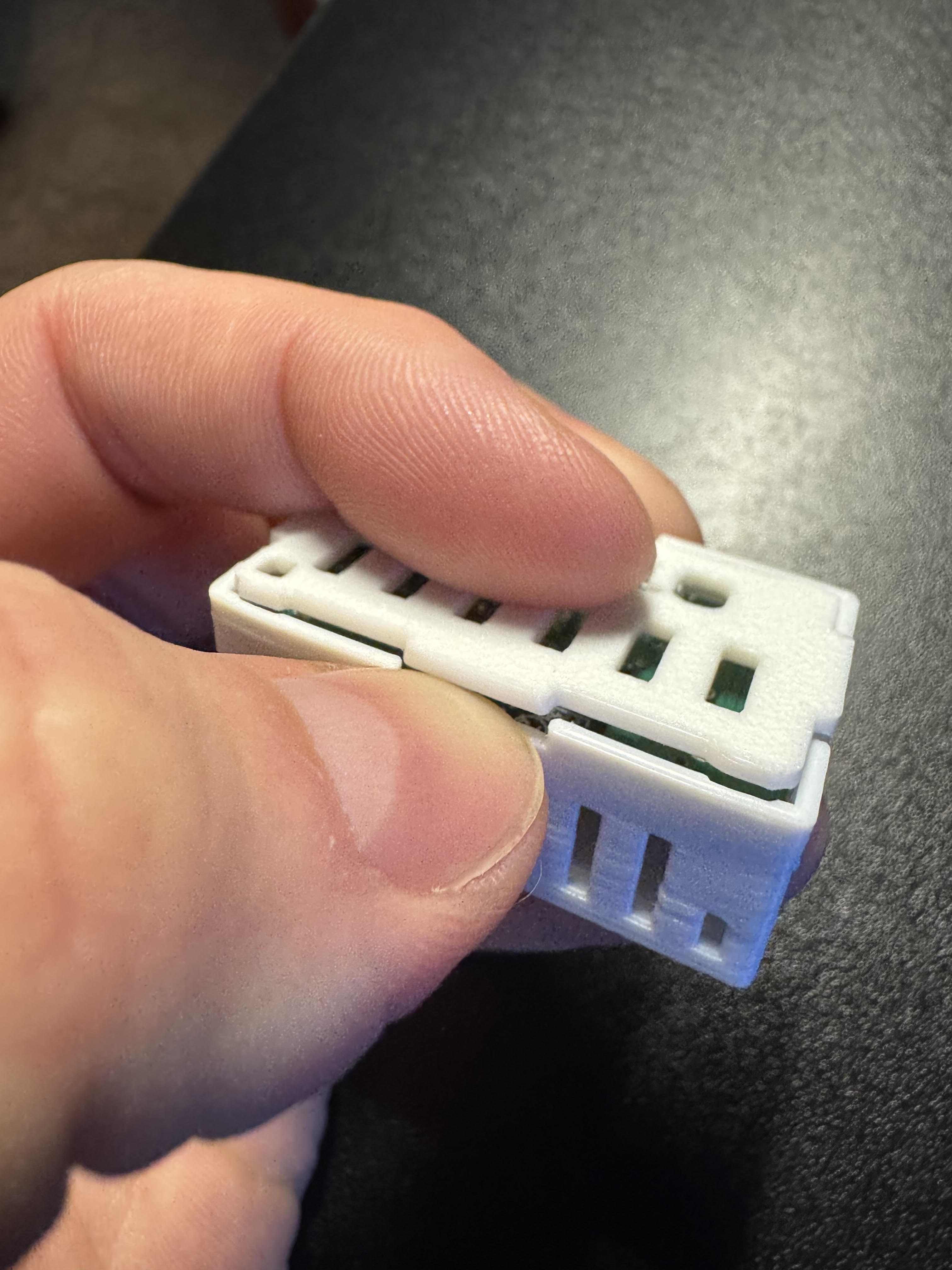
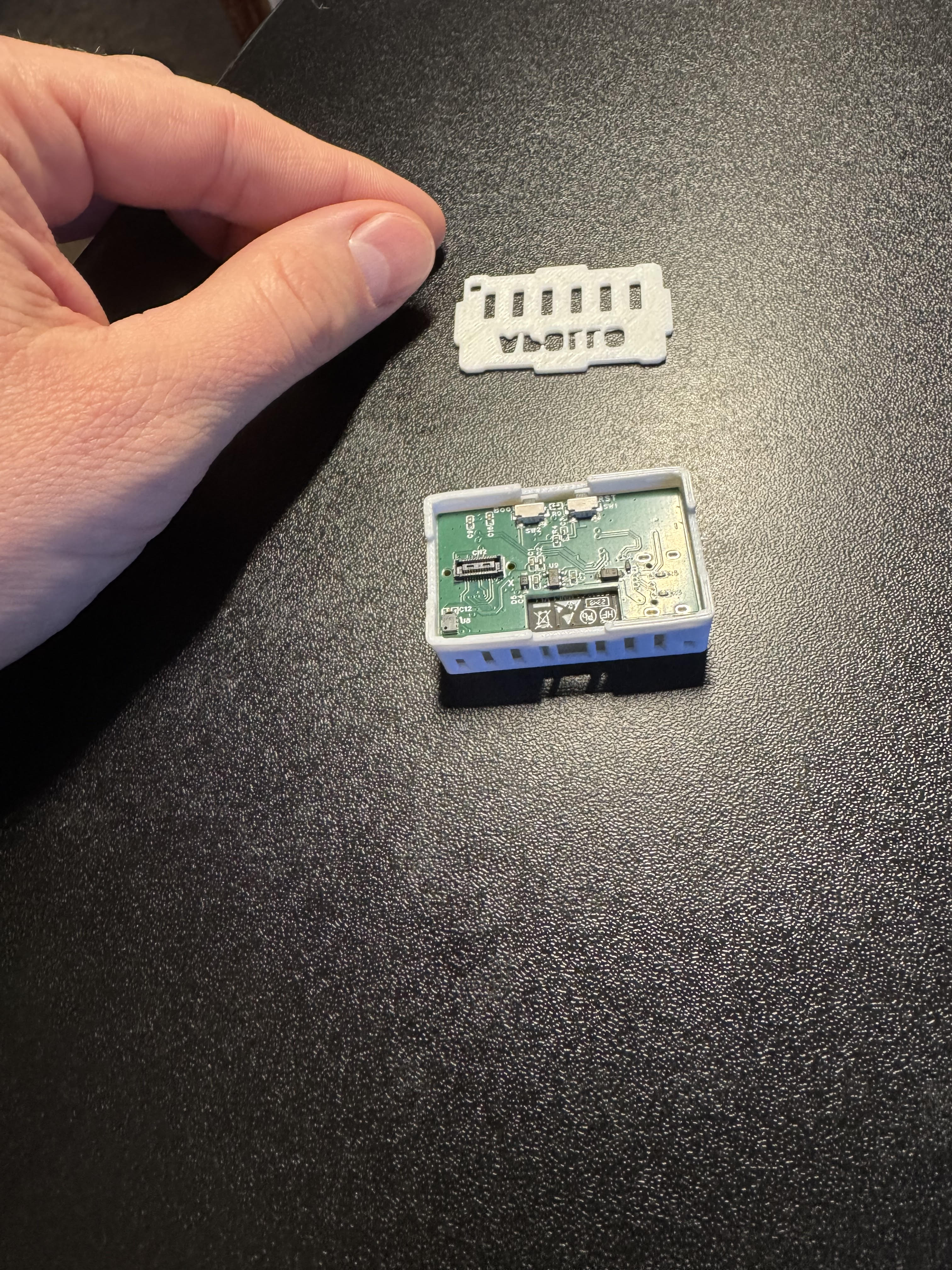
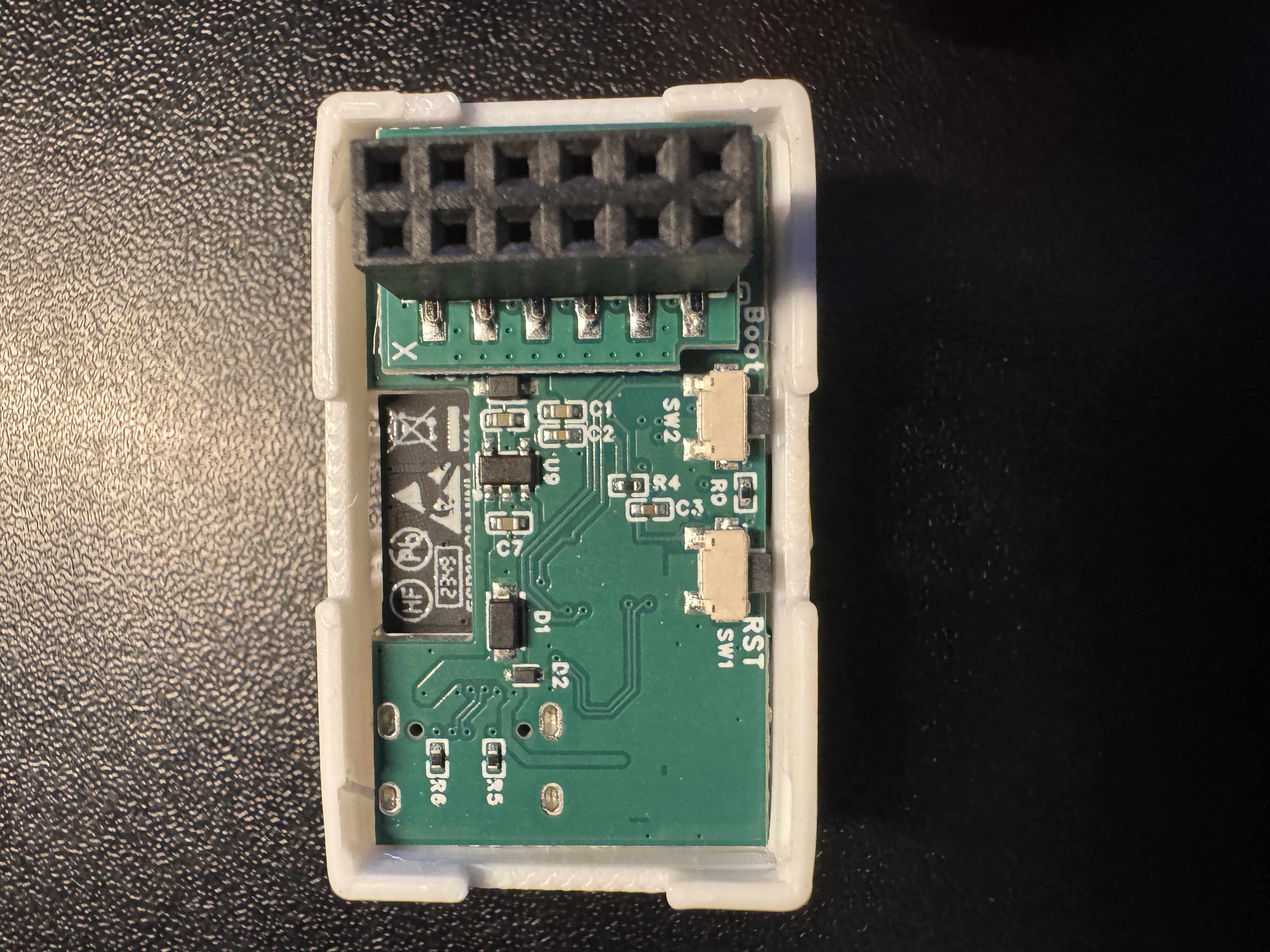
2. Identify the "X" on the PCB on the back of your MSR-2 and the "X" on the top left corner of the GPIO Header addon.
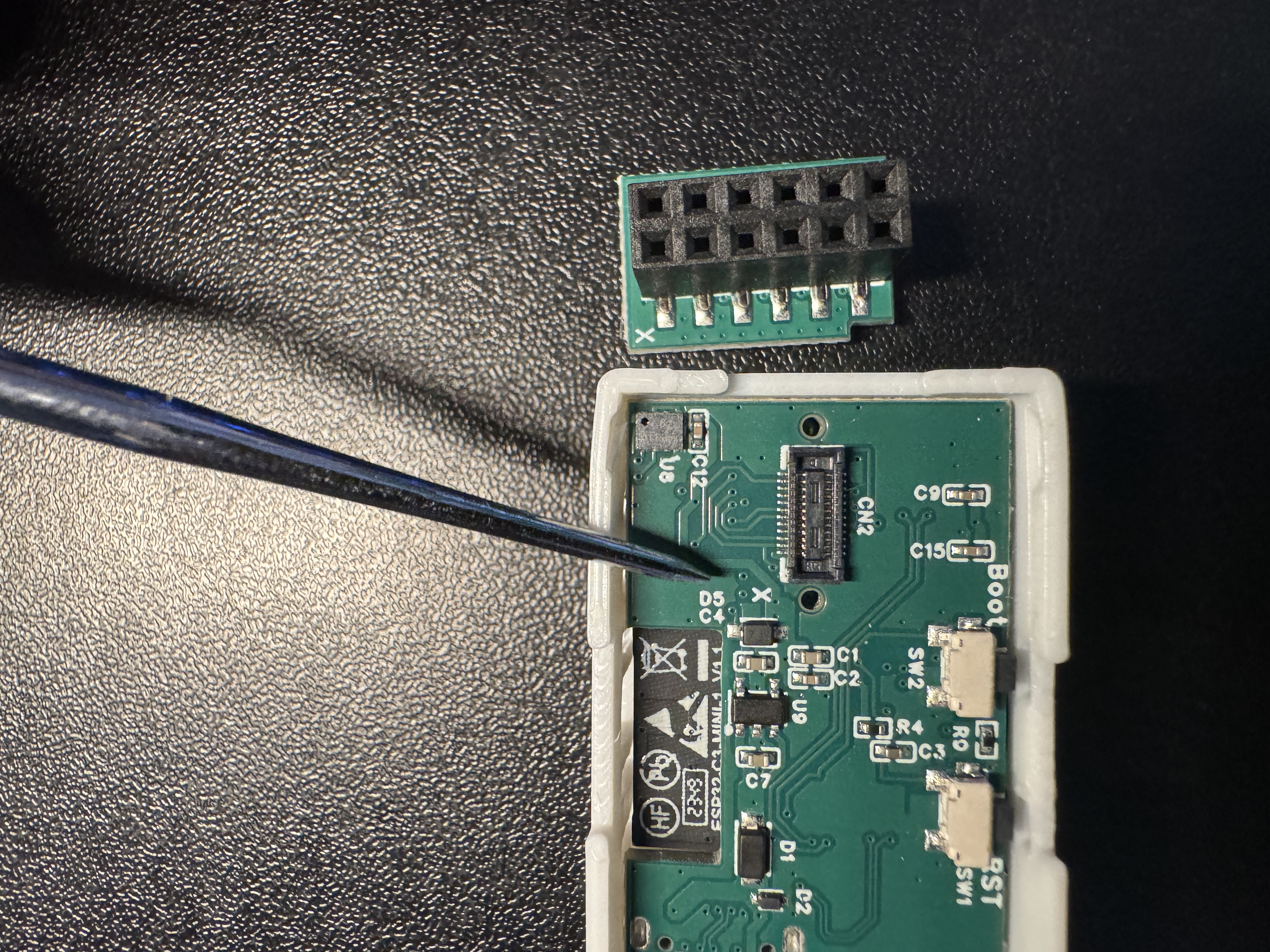
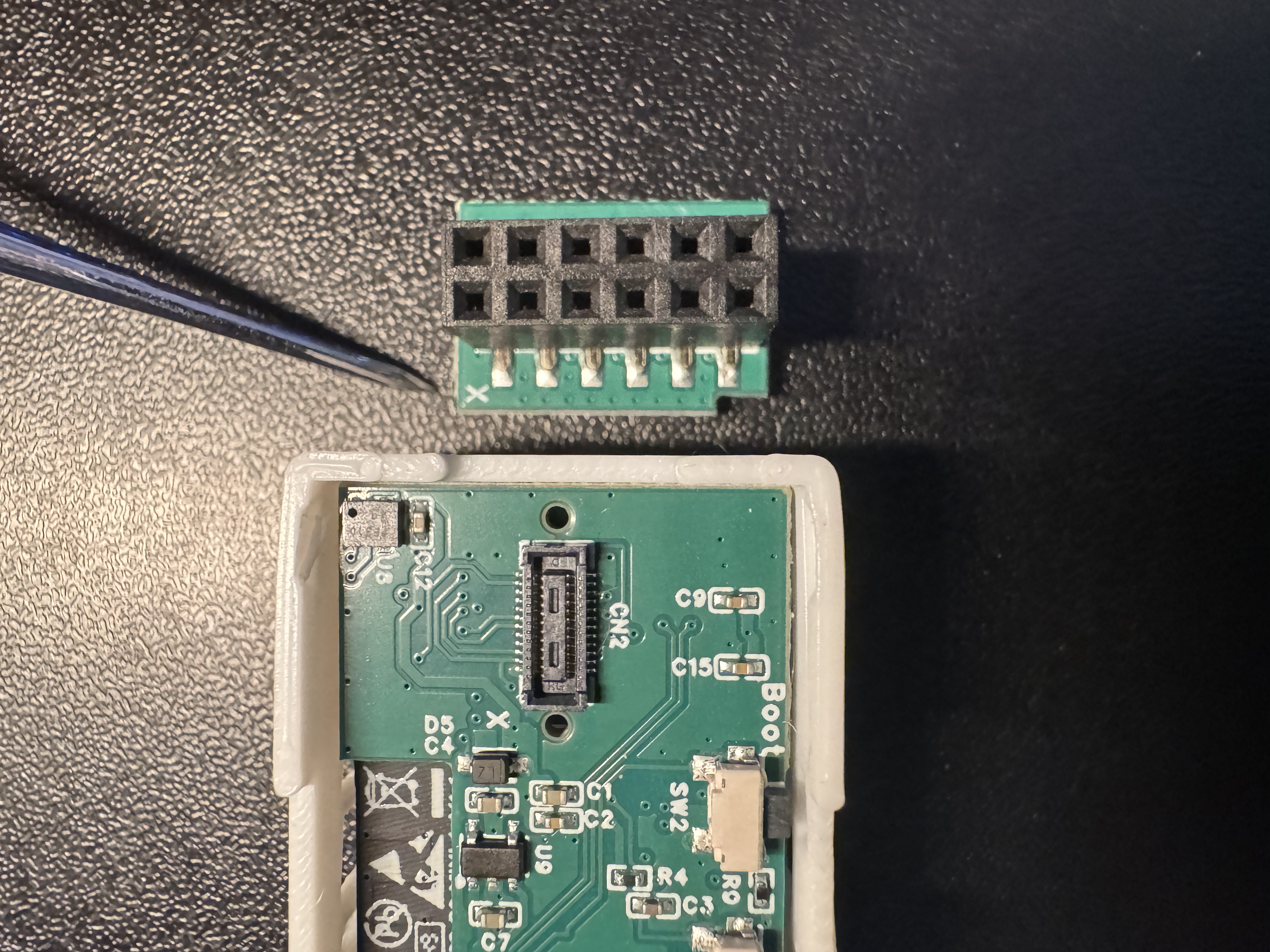
3. Keep the "X" aligned on both sides and gently push down until it securely seats in the small mezzanine connector.
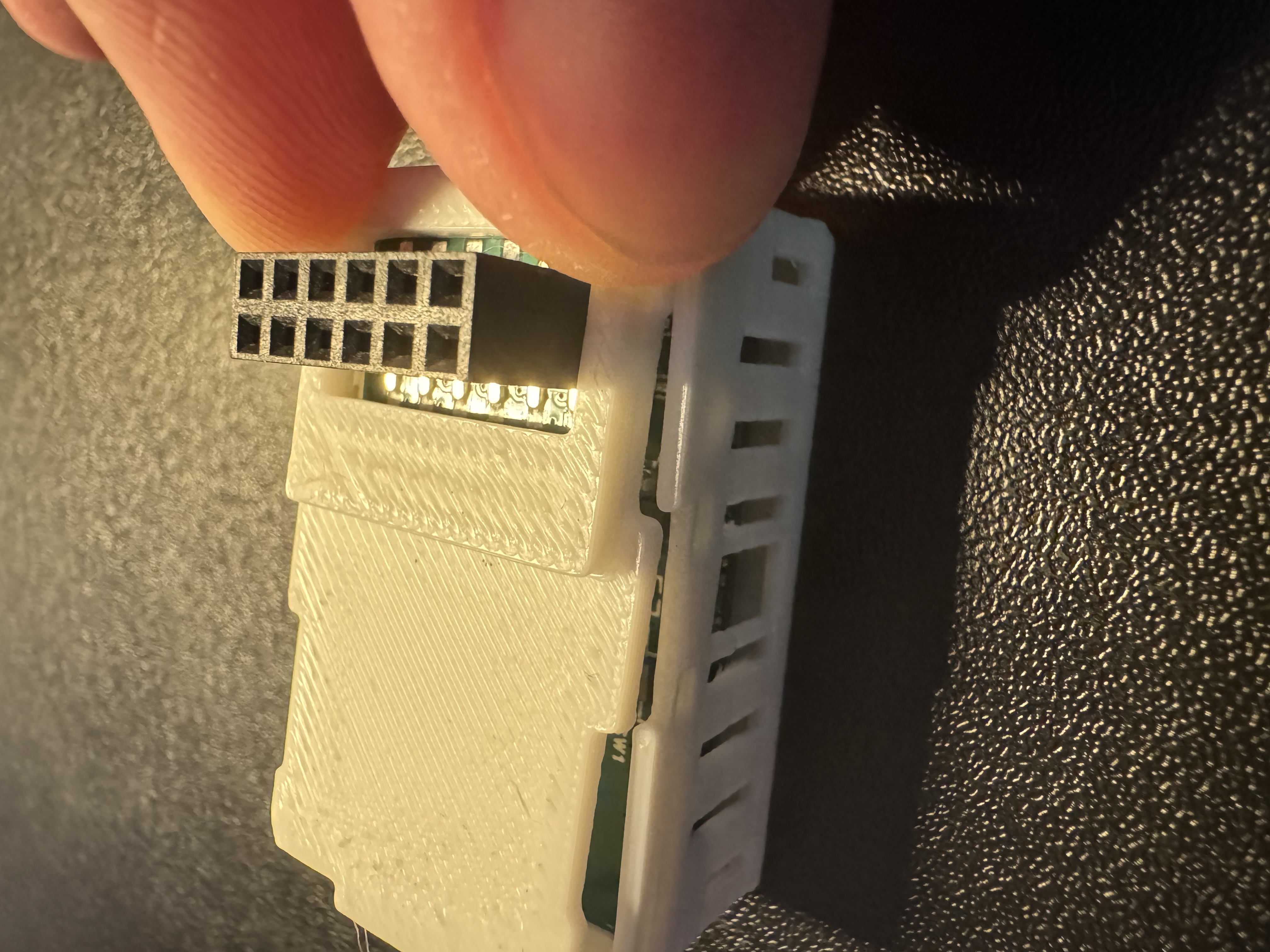
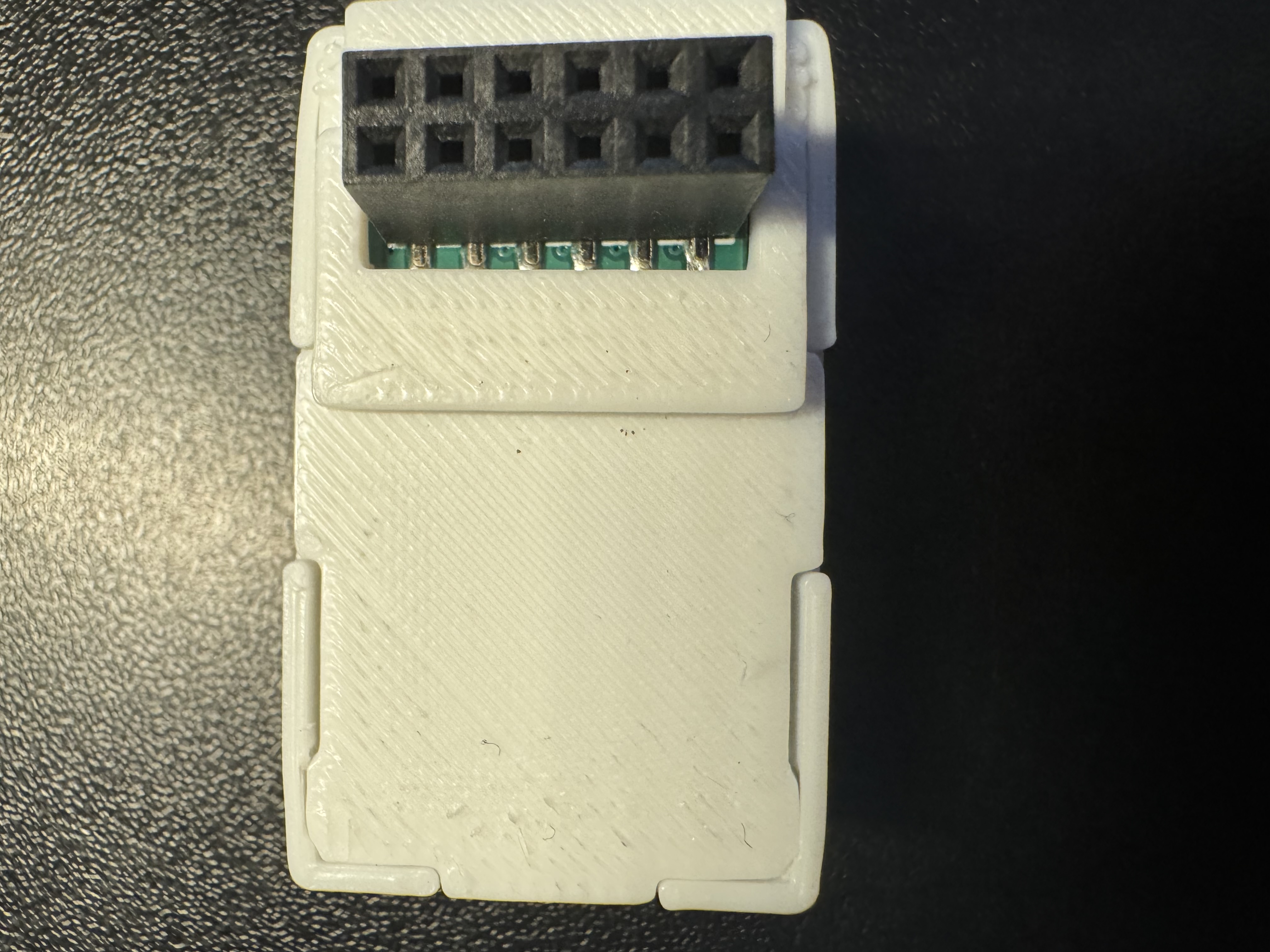
4. Align the new back for your MSR-2 that came with the GPIO Header addon. Push down on the corners closest to the GPIO Header addon first, and then push the back on securely on the other two corners.
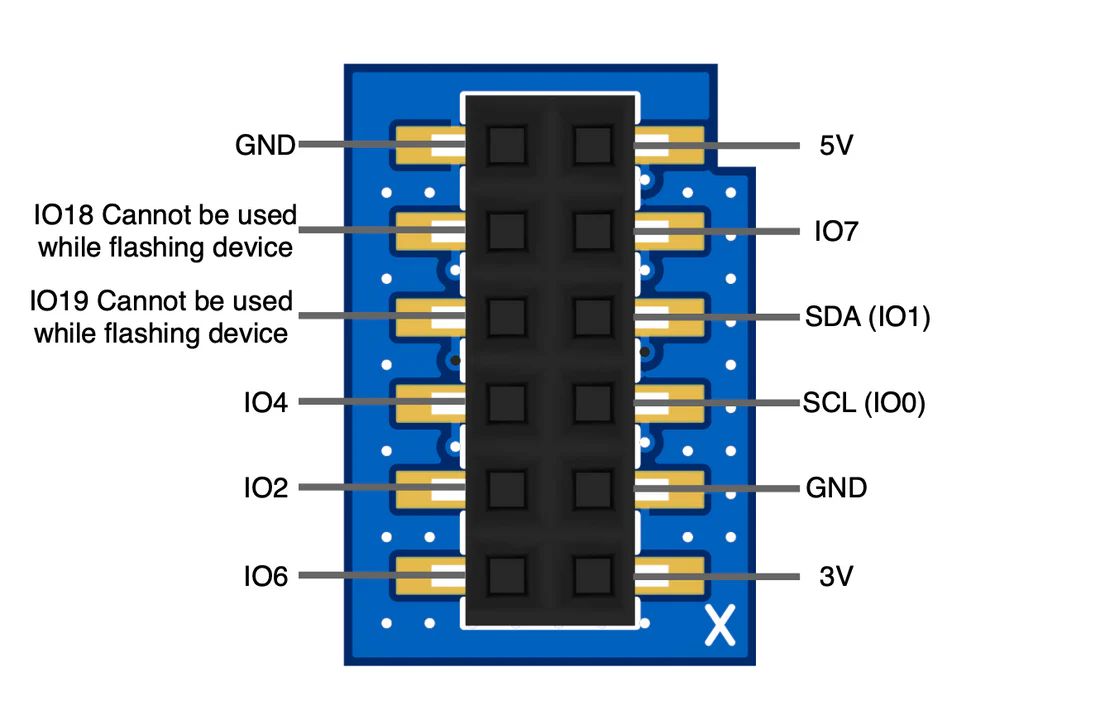
GPIO header pinout
With the header installed, these are the pins you can wire to. IO18 and IO19 can't be used while you flash the MSR-2, and IO0 and IO1 carry the I2C bus (SDA and SCL).
Make sure to check out our MSR-2 GPIO Header LED Strip Tutorial!
Brandon AKA SmartHomeSellout made this neat tutorial for how to connect a short LED strip to your MSR-2