Prevent sleep
Your Apollo BTN-1 can sleep between presses to make its battery last. While it sleeps, Homey can't reach it. Press Button 1, 2, 3, or 4 and the BTN-1 wakes up, reconnects, reports that press to Homey, and goes back to sleep.
The BTN-1 ships with Prevent sleep turned on, so it stays connected and Homey receives every press type right away. That's what most flows need, but it drains the battery far faster. Turn Prevent sleep off when your flows only use clicks and a few seconds' delay is fine.
Before you start
- Add your BTN-1 to Homey with the Apollo Automation app. See Getting started.
- Homey can only change these settings while the BTN-1 is awake and connected. If it's asleep, Homey shows The device is asleep. Settings can be changed when it next wakes up. In that case, wake it first.
The sleep settings in Homey
Both settings sit in your BTN-1's Settings in the Homey app, under Battery settings (if battery is present). They're device settings only, so there's no flow card that turns sleep on or off.
| Setting | What it does on the BTN-1 |
|---|---|
| Prevent sleep | Checked, the BTN-1 stays awake and reports every press right away. Unchecked, it sleeps between presses. A new BTN-1 has it checked. |
| Sleep duration | How many hours the BTN-1 sleeps before it wakes on its own and checks in with Homey, from 0 to 800. The default is 24. A button press wakes it sooner. |
Prevent sleep also decides which presses reach Homey:
| Prevent sleep checked | Prevent sleep unchecked | |
|---|---|---|
| Press types Homey receives | Click, Double click, Triple click, and Hold | Only the press that wakes the BTN-1, always as a Click |
| When a press arrives | Up to half a second after you let go | At least 5 seconds after the press, once the BTN-1 has reconnected |
| In the Homey app | Connected | Device disconnected between presses |
Wake your BTN-1 first
A sleeping BTN-1 can't receive a change from Homey, so wake it before you open its settings. Press and release the reset button on the back of the BTN-1, on the left in the photo below. Button 1, 2, 3, or 4 wakes it too, but Homey receives that press as a Click of that button and runs any flow you've tied to a click of it. The boot button can't wake a sleeping BTN-1.
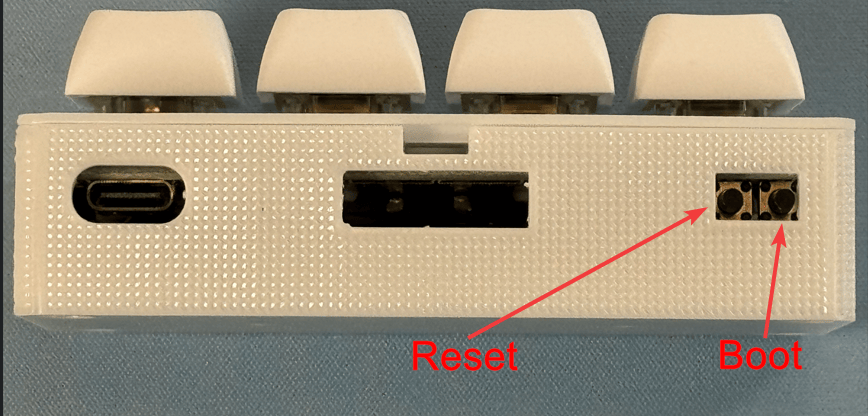
Homey reconnects to the BTN-1 on its own, and the Homey app no longer shows it as Device disconnected. Unless Prevent sleep is on, the BTN-1 goes back to sleep about 10 seconds after Homey connects, or after about 90 seconds if Homey doesn't connect at all, so have the Homey app open and ready. How to wake up your sensor has more on waking it.
Let your BTN-1 sleep
Set how long the BTN-1 sleeps first, then let it go to sleep. Make the two changes one at a time: the BTN-1 falls asleep the moment Prevent sleep turns off, so a change sent along with it may never arrive.
Read this before you uncheck Prevent sleep
The BTN-1 goes to sleep as soon as Prevent sleep is off. From then on, Homey receives only clicks, a few seconds late, and can't change any setting until you wake the BTN-1 again. Finish any other settings first.
- In the Homey app, open your BTN-1's Settings.
- Under Battery settings (if battery is present), set Sleep duration to the hours you want between check-ins, and save the change. Leave it at 24 unless you want the BTN-1 to check in with Homey more often; every check-in uses some battery.
- Uncheck Prevent sleep and save.
Your BTN-1 is now asleep. Press any of its four buttons and it wakes, sends that press to Homey as a Click, and goes back to sleep about 10 seconds after Homey connects. It also wakes on its own after each Sleep duration.
Device disconnected is normal between presses
While the BTN-1 sleeps, Homey shows it as Device disconnected. That's expected: Homey reconnects on its own each time the BTN-1 wakes up.
Keep your BTN-1 awake
To get every press type back, change a setting, update the firmware, or troubleshoot, turn Prevent sleep back on. The boot button on the back of the BTN-1 is the most reliable way, because it works even when Homey can't reach the BTN-1. What the BTN-1 does depends on how long you hold it:
| How long you hold the boot button | What the BTN-1 does |
|---|---|
| Under 1 second | Lights up its buttons for a quick status check. Prevent sleep doesn't change. |
| 1 to 3 seconds | Nothing. |
| 3 to 10 seconds | Turns Prevent sleep on once you let go. Aim for 4 to 5 seconds. |
| 10 seconds or more | Resets the BTN-1 to factory settings and erases its Wi-Fi. |
Watch how long you hold the boot button
Hold the boot button for 4 to 5 seconds, no longer. Holding it for 10 seconds or more resets your BTN-1 to factory settings, and you'd have to connect it to Wi-Fi again.
Press the reset and boot buttons one after the other, never together: holding the boot button while you press reset puts the BTN-1 in boot mode for flashing firmware instead.
- Press and release the reset button to wake the BTN-1.
- Wait a few seconds, then press and hold the boot button for 4 to 5 seconds and let go.
Your BTN-1 turns Prevent sleep on and stays awake. In Homey, Prevent sleep shows as checked once the BTN-1 is connected, and every press type reaches Homey again. If Homey loses the connection again a few seconds later, the BTN-1 was already on its way back to sleep. It still remembers Prevent sleep, so press the reset button once more and it stays awake this time.
Rather use the Homey app? Wake the BTN-1, then right away check Prevent sleep in its Settings, under Battery settings (if battery is present), and save. You only have about 10 seconds after Homey connects, which is why the boot button is more reliable. How to wake up your sensor walks you through it.
Next step: put your buttons to work
With Prevent sleep on, each press type on your BTN-1 can start its own flow in Homey. Build your first one: a light that turns on with a click and off with a hold.