How to tune mmWave using HLKRadarTool
The HLKRadarTool phone app connects to your mmWave radar over Bluetooth, so you can tune it to your room. You have two options: let the app set the gate sensitivity for you from a background-noise reading (auto-calibration), or set the sensitivity values yourself (manual calibration).
Auto-calibration (Average, Maximum, and Intelligent)
In auto-calibration, the app first measures your room's background noise, then uses that reading to set the gate sensitivity in one click. Follow these steps to connect to the radar, take the reading, and pick a calibration mode.
1. Download the HLKRadarTool app for Android or Apple.
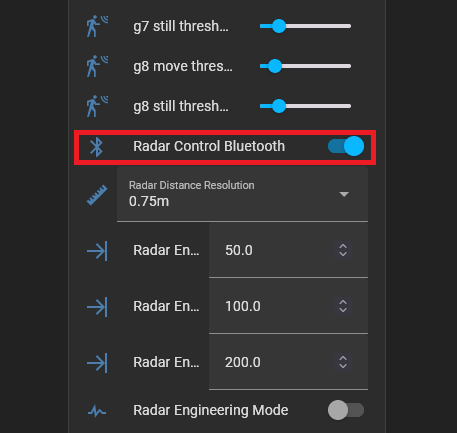
2. Turn on Bluetooth for the mmWave radar you want to tune. In Home Assistant, go to Settings → Devices & services → ESPHome Devices, select your device, scroll down, and turn on Radar Control Bluetooth.

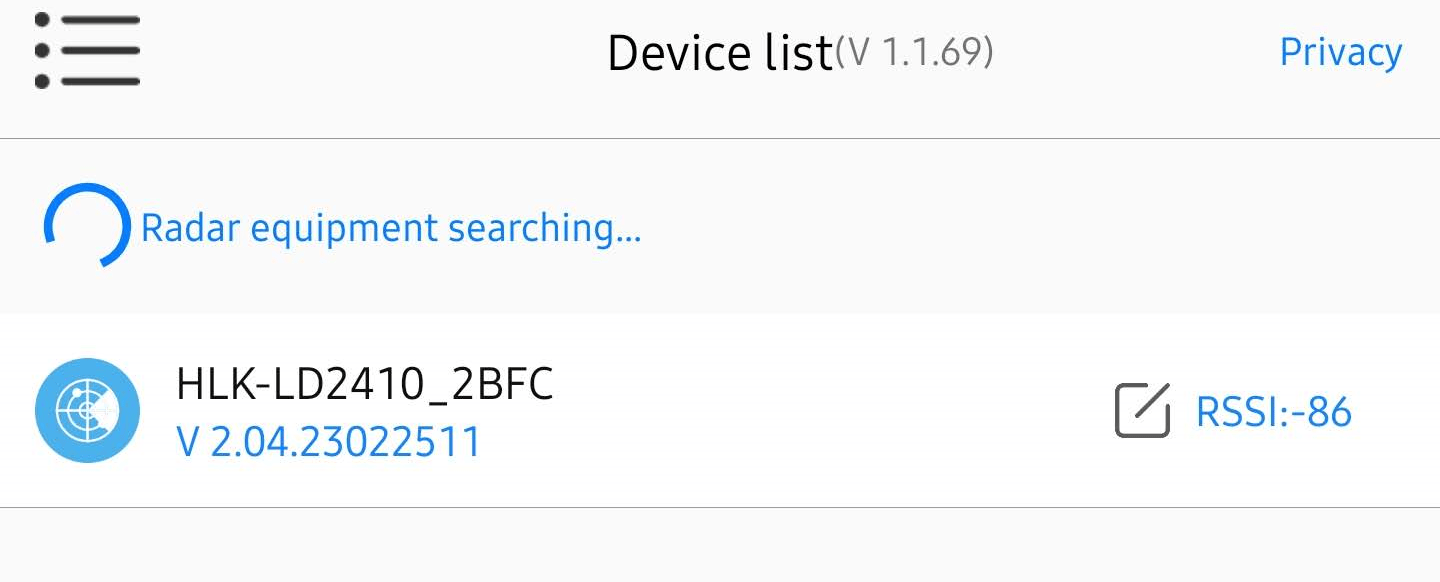
3. Open the HLKRadarTool app and select your device.
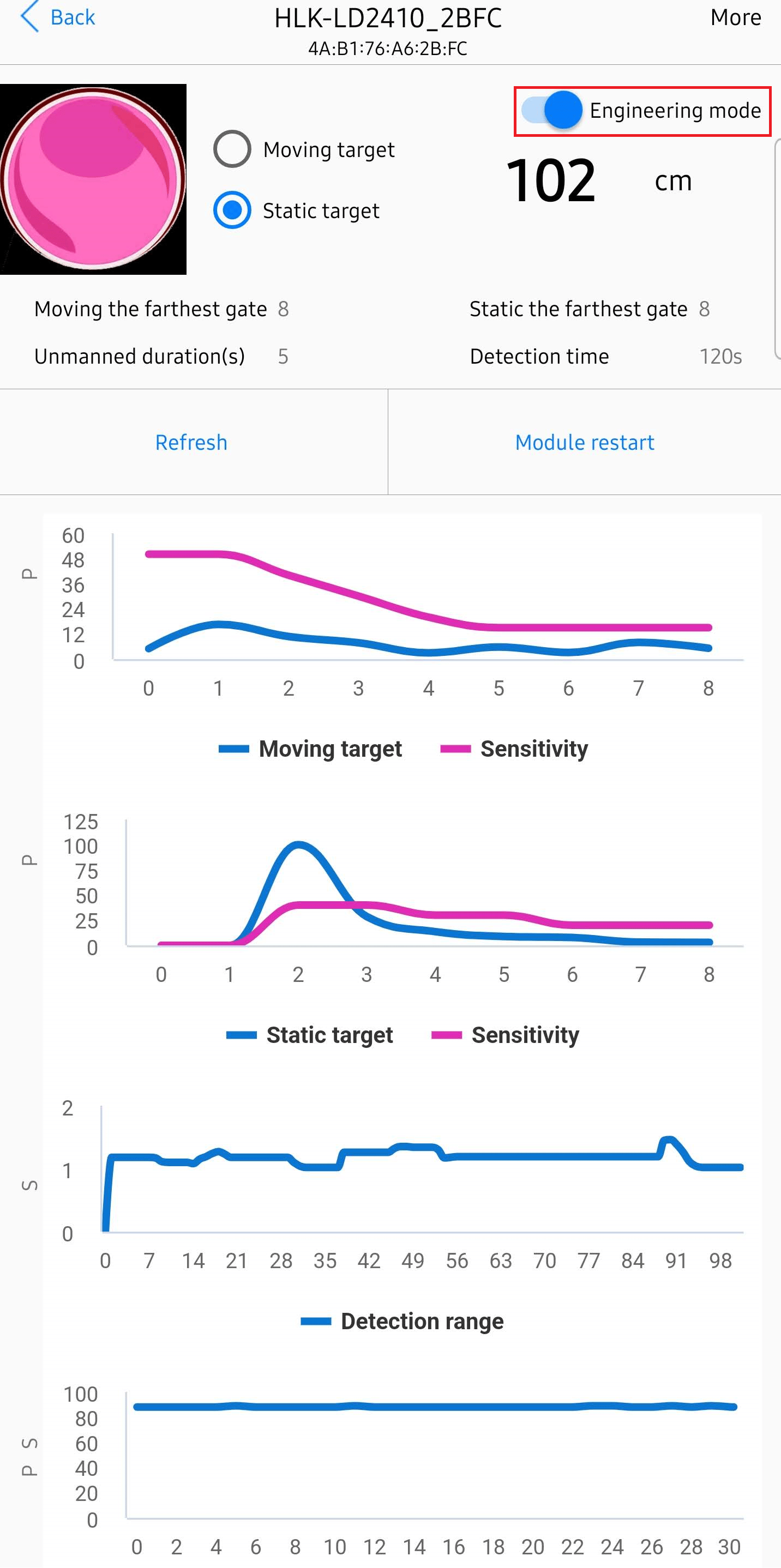
4. Turn on Engineering Mode.
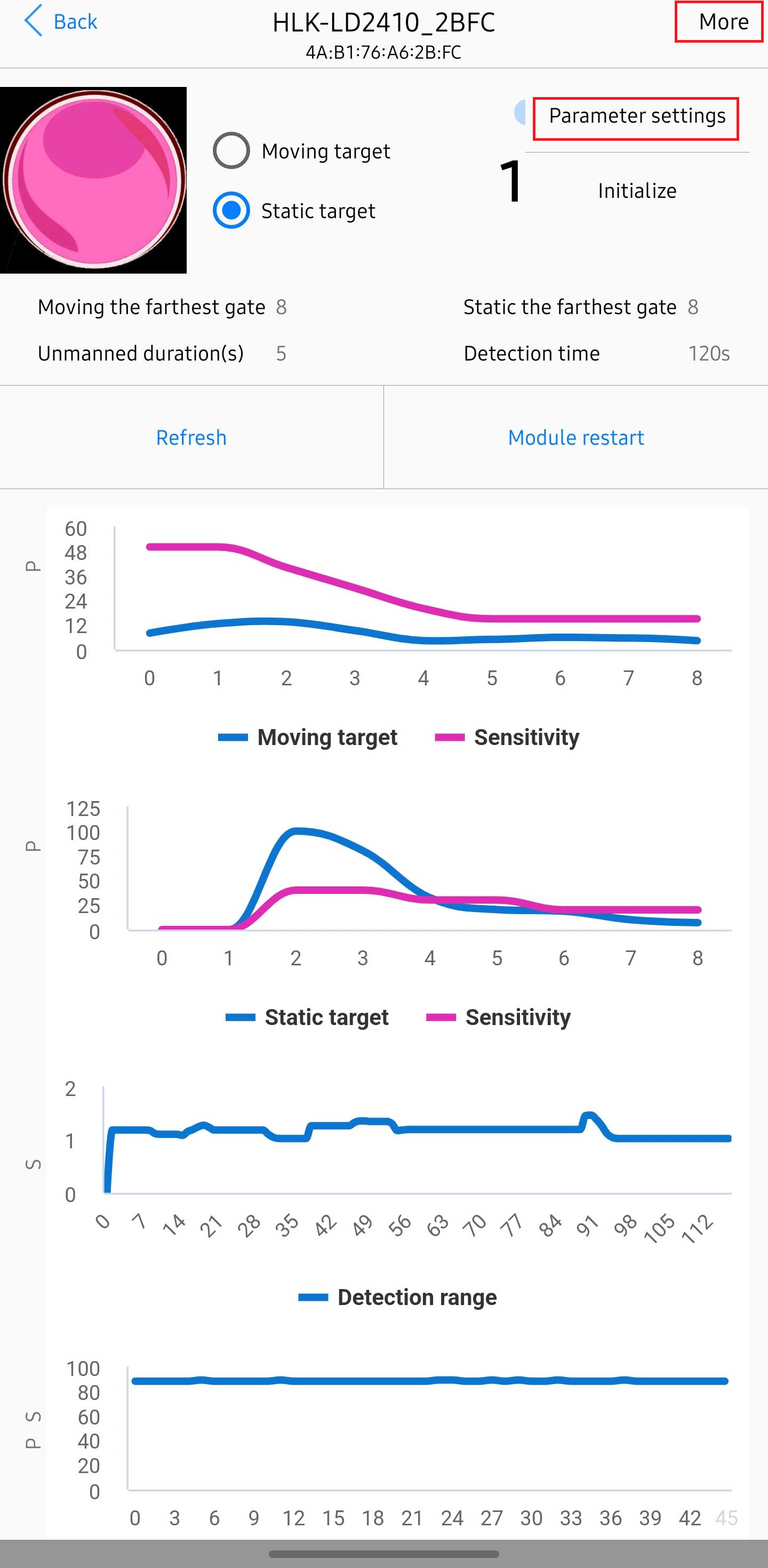
5. Select More, then select Parameter settings.
6. Select Detect background noise.
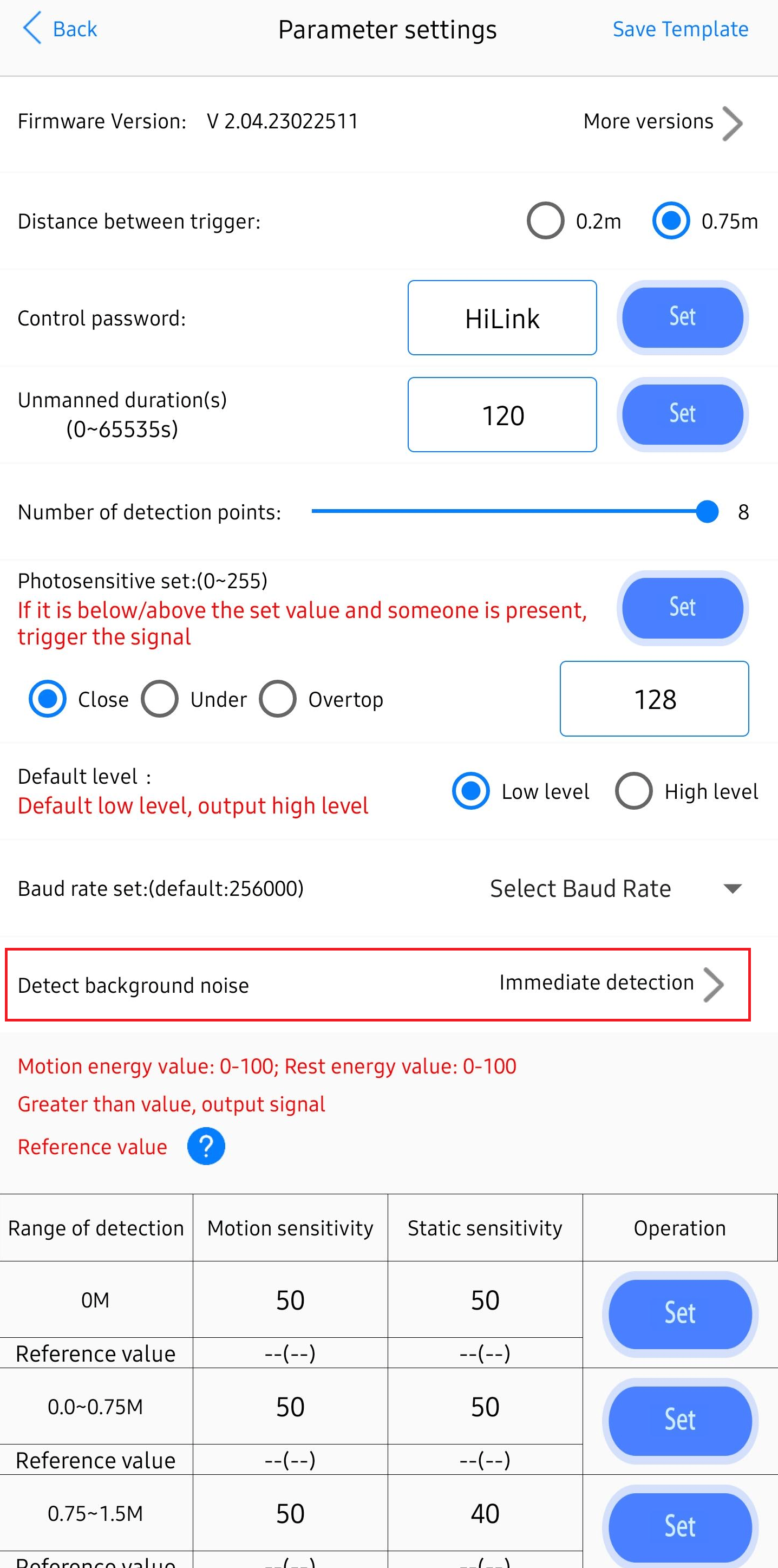
7. Enter the Delay detection and Detection time values, then select Start. On iPhone, Delay detection can't be 0. The app measures your room's background noise, which gives it the reference values it needs to auto-calibrate the mmWave sensor.
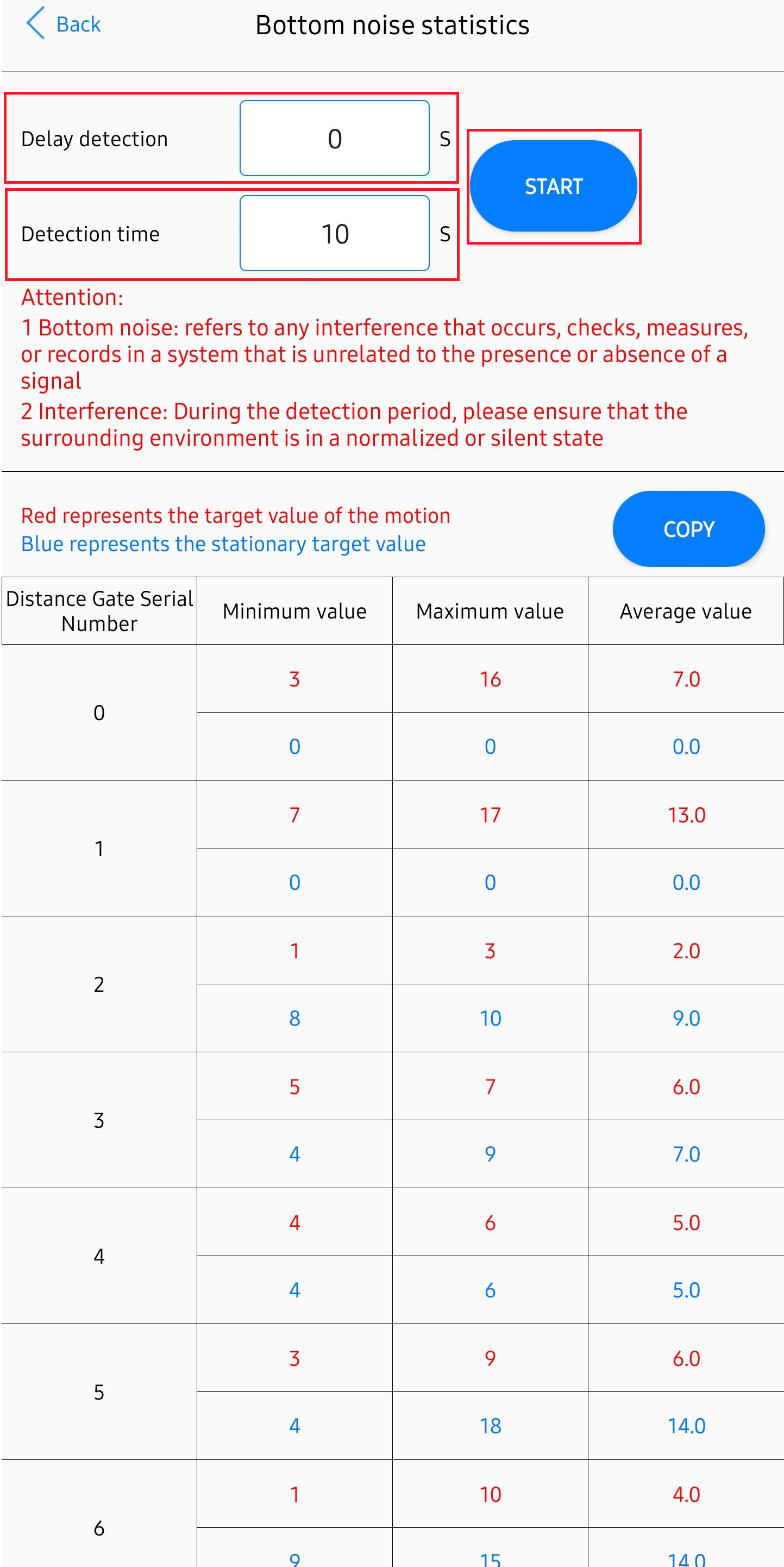
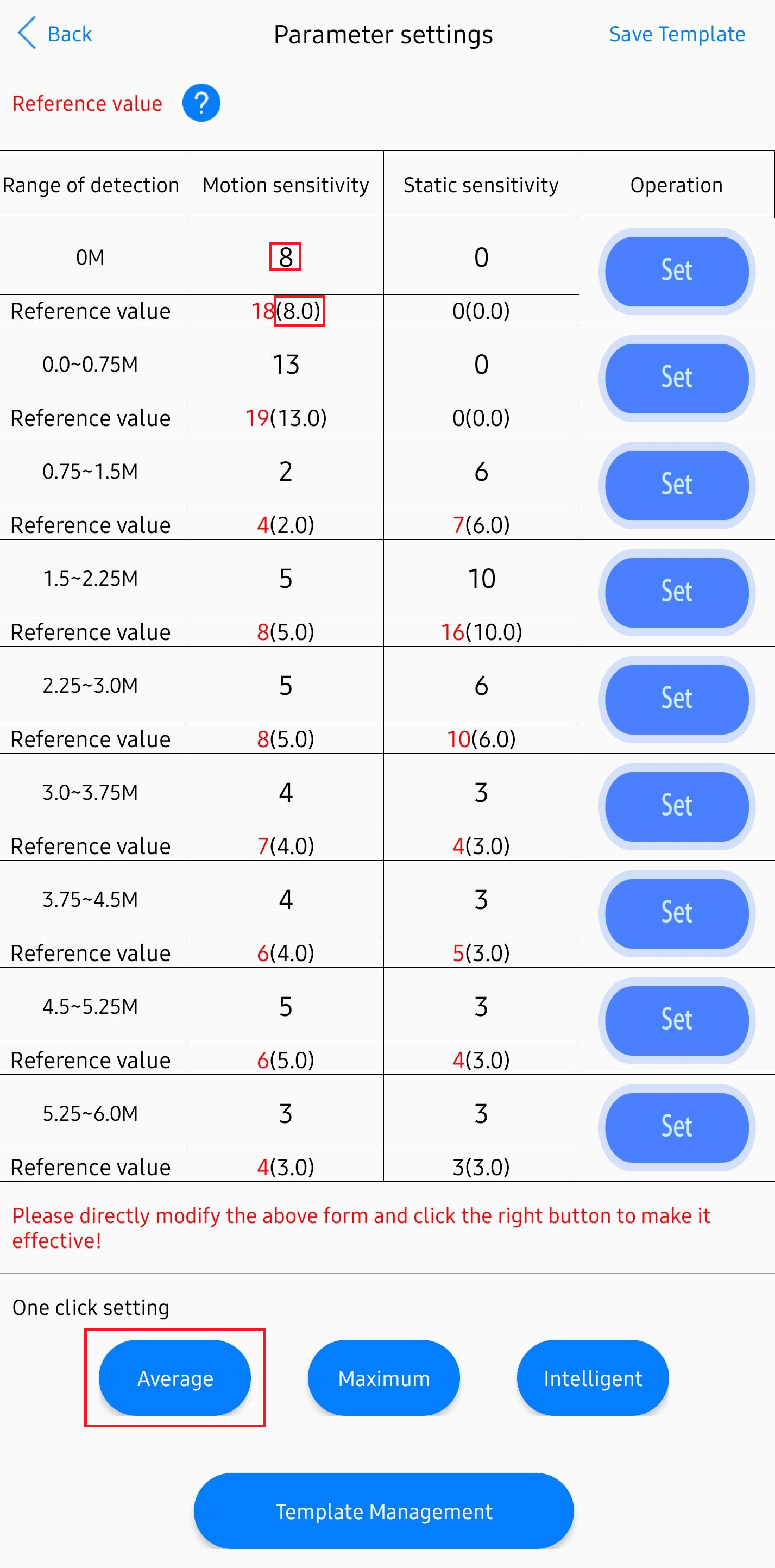
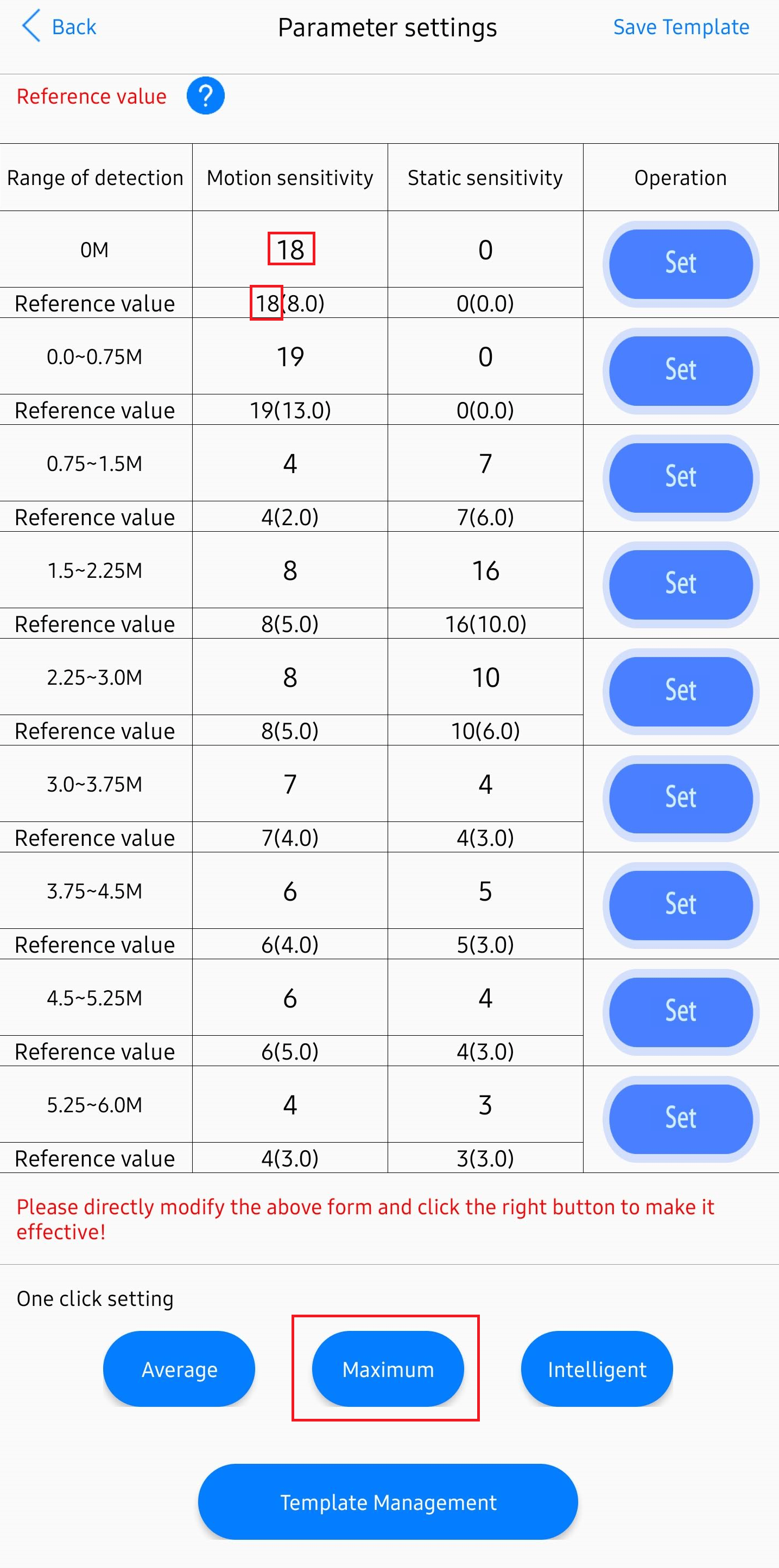
8. Select Back to return to Parameter settings, then select one of the auto-calibration buttons:
-
Average sets the gate sensitivity to the average move and still energy.
-
Maximum sets the gate sensitivity to the maximum move and still energy.
-
Intelligent sets the gate sensitivity equal to or just above the maximum move and still energy.
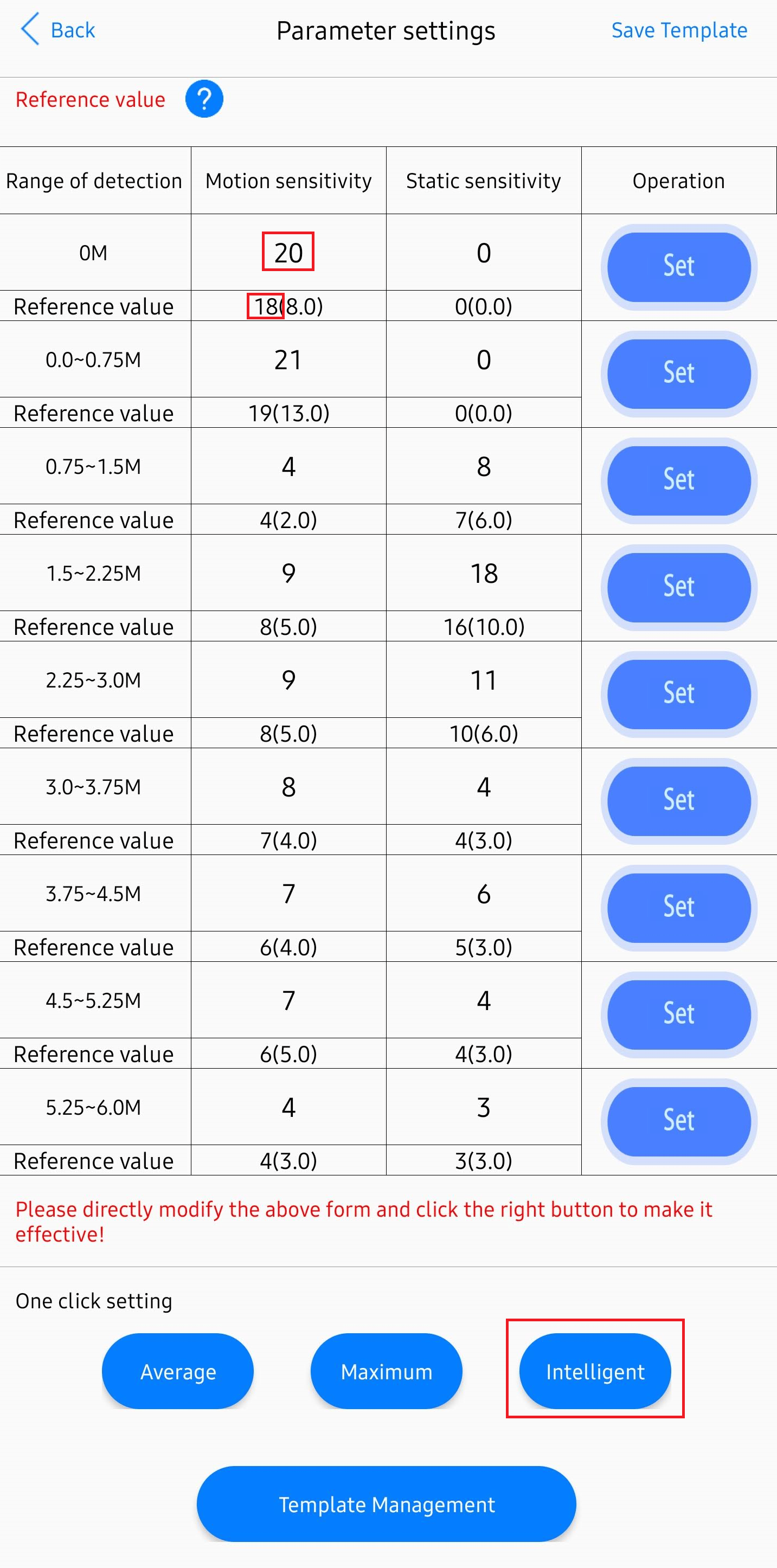
Your mmWave sensor is now tuned to your environment.
Manual calibration
To choose the sensitivity values yourself, set them directly in the app's Parameter settings.
1. Follow steps 1 to 5 in the auto-calibration section above.
2. Select Motion or Static sensitivity, change it to the value you want, and select Set.
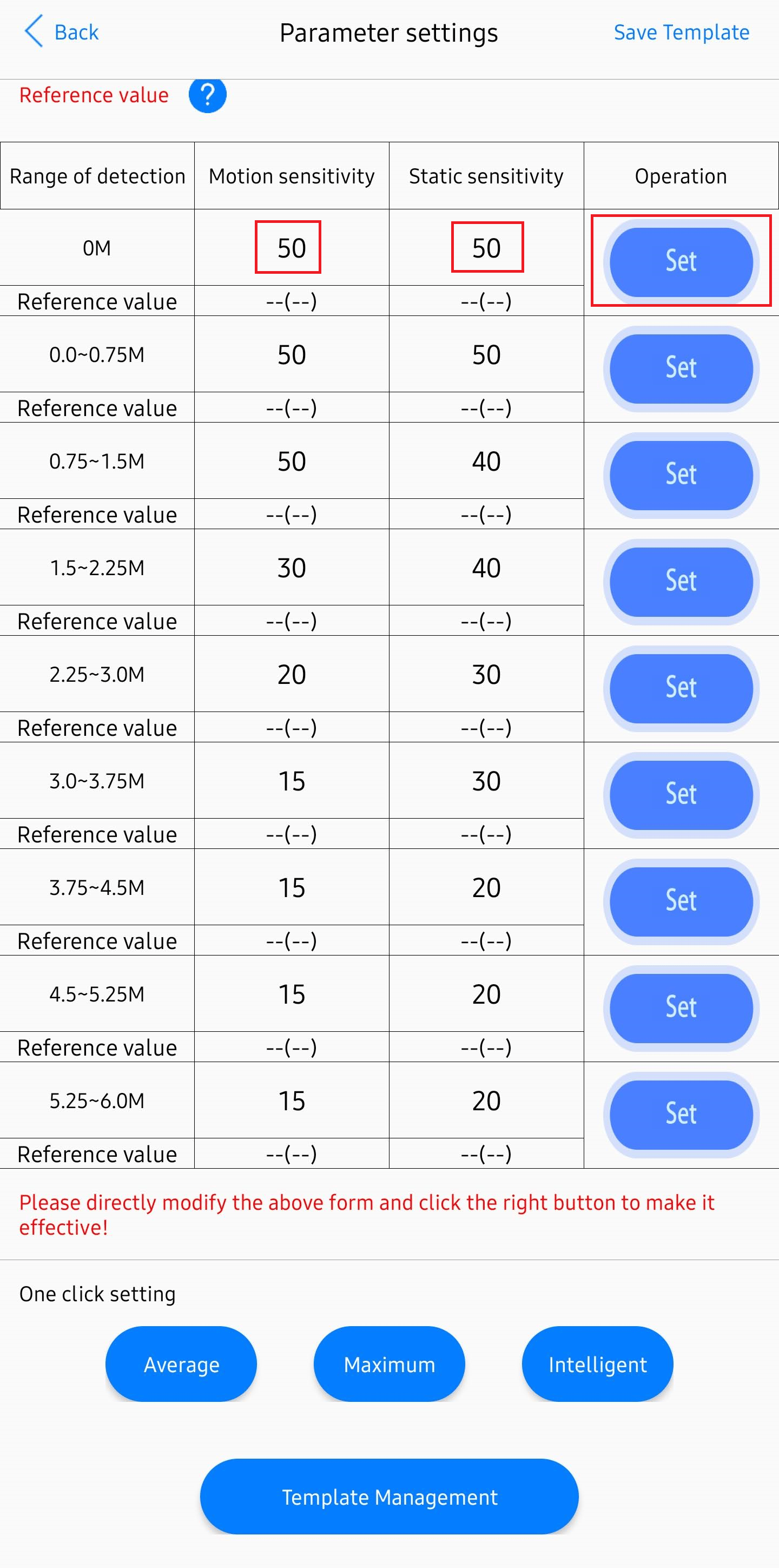
Your mmWave sensor is now tuned to your environment.