Switch to beta firmware
Beta firmware gets new features and fixes before they reach Stable. It's a great way to help us test, and you can switch back at any time.
With the Firmware Channel setting
This is the simpler way. Use it if your device has a Firmware Channel setting on its device page, like the CAST-1.
1. Open your device in Home Assistant: go to Settings > Devices & services > ESPHome and select it.

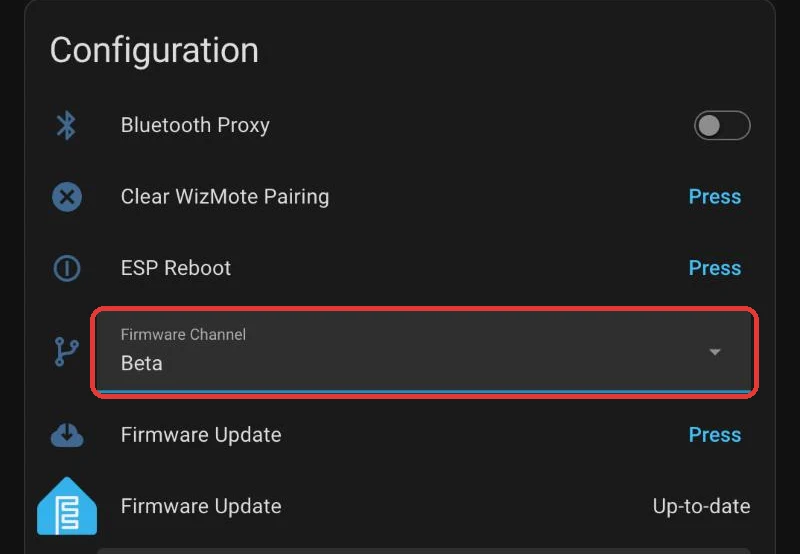
2. Under Configuration, set Firmware Channel to Beta.
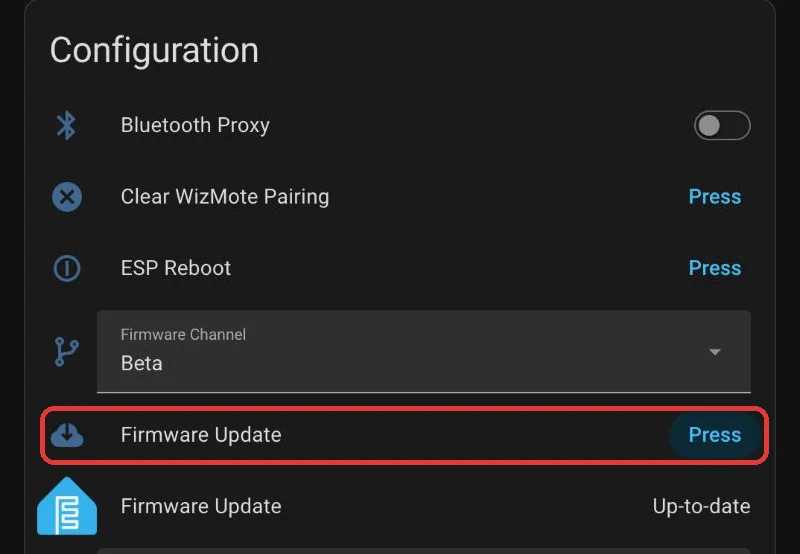
3. Select Press next to Firmware Update.
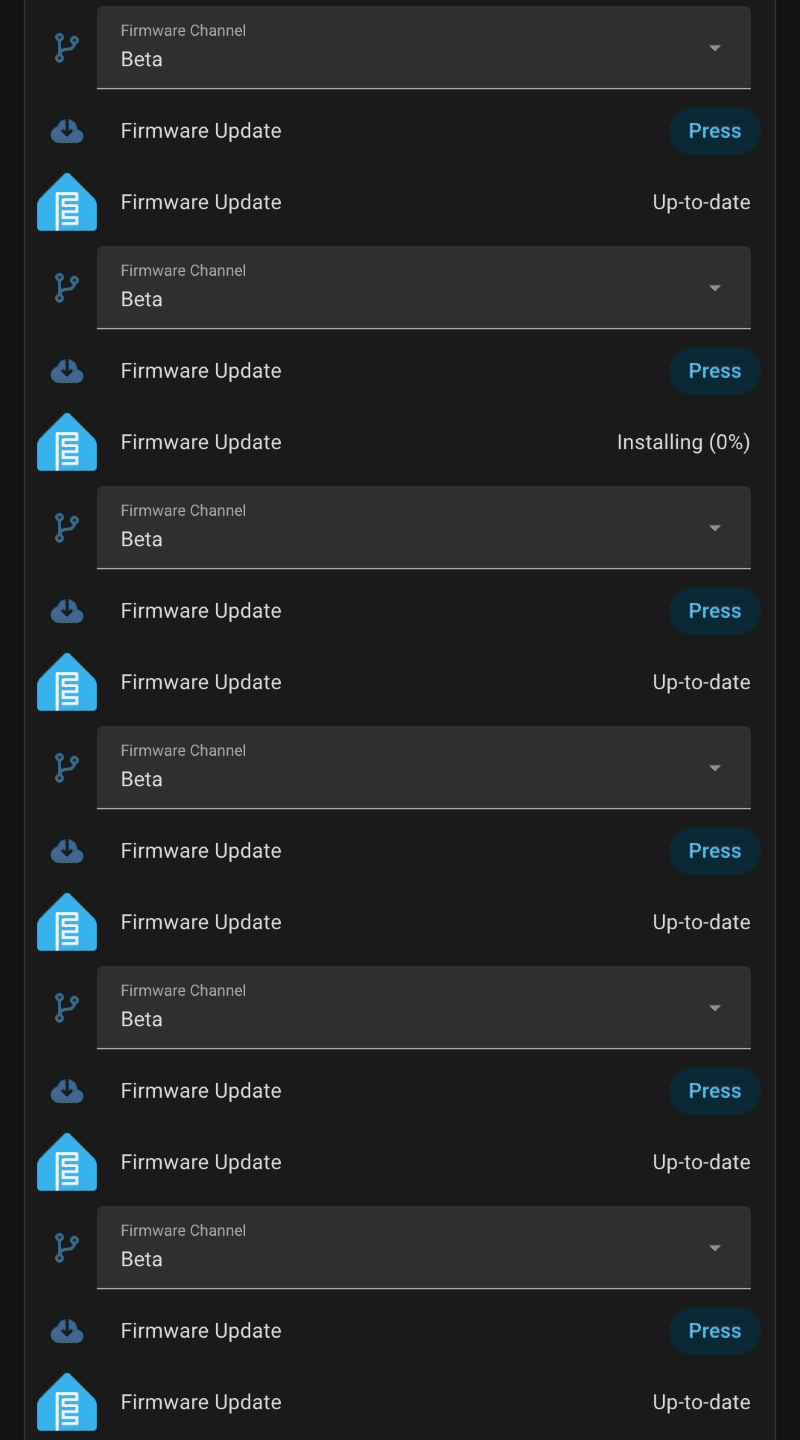
4. Wait about a minute while it installs and restarts. It's done when Firmware Update shows Up-to-date.
Switching back to Stable
Set Firmware Channel to Stable and select Press next to Firmware Update again. Your device installs the current stable release, even if it's older than the beta.
No Press button?
Some devices only have the Firmware Update entity. Select it and choose Install once the beta version shows up.
With ESPHome Device Builder
Use this if your device doesn't have a Firmware Channel setting, or if you build its firmware yourself.
1. In Home Assistant open the ESPHome Device Builder app.

Make sure you are running the latest version of ESPHome
You should be fully up to date with the ESPHome Device Builder before updating our sensors for ideal performance and ease of troubleshooting!
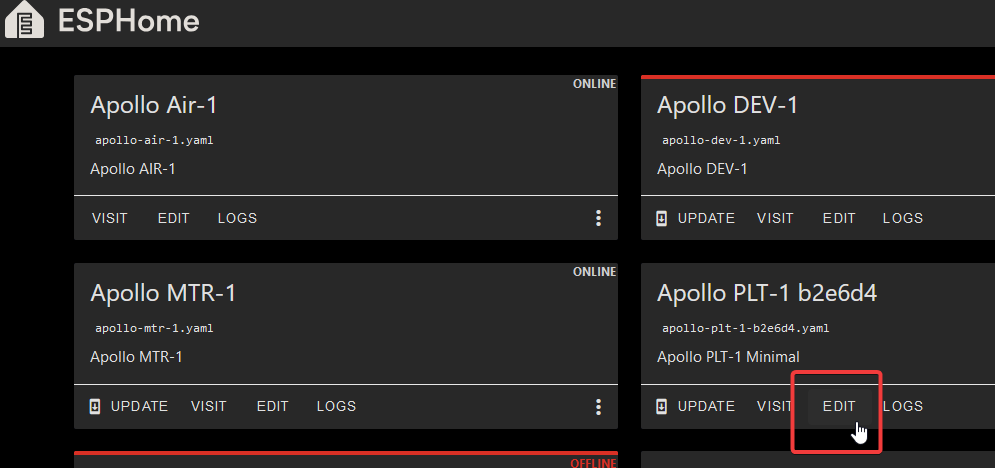
2. Find the sensor you want to edit and click the "EDIT".
This is code and requires you to follow the directions carefully.
Editing the YAML here means even a space matters. Follow the guide exactly as shown and ask questions if you need help!
3. Look for the line that starts with packages and the line below it and put a # in front of each line as shown in the second image below.
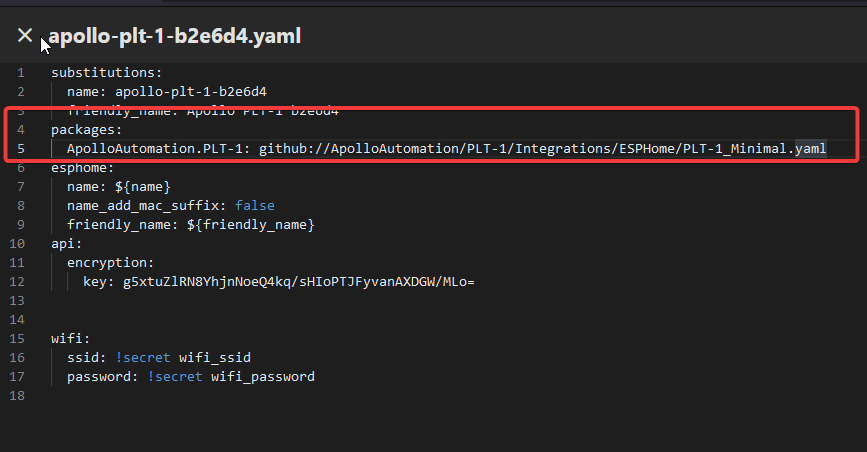
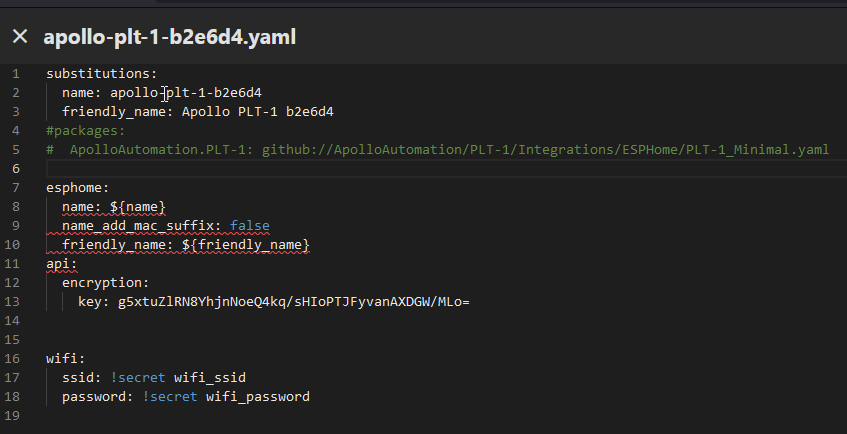
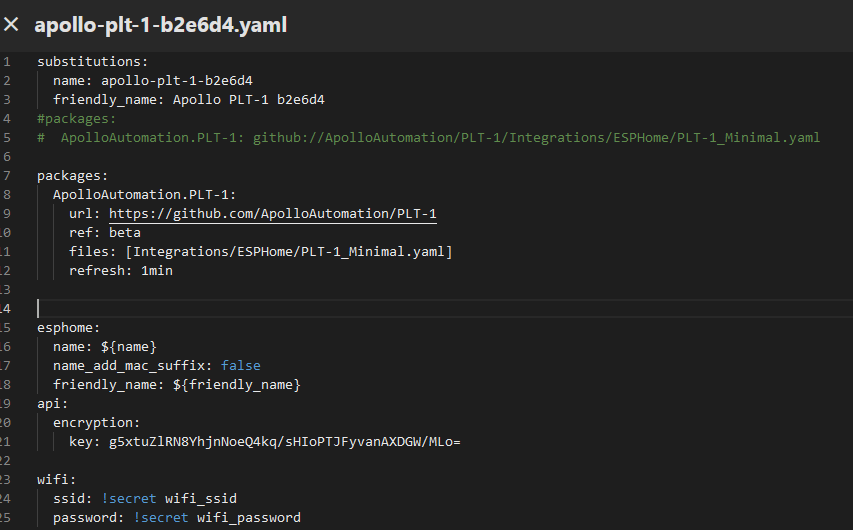
4. Select your product below, copy the code, and paste it below the two lines you just commented out.
PLT-1:
packages:
  ApolloAutomation.PLT-1:
    url: https://github.com/ApolloAutomation/PLT-1
    ref: beta
    files: [Integrations/ESPHome/PLT-1_Minimal.yaml]
    refresh: 1min
PLT-1B:
Ethernet:
packages:
  ApolloAutomation.R_PRO-1:
    url: https://github.com/ApolloAutomation/R_PRO-1
    ref: beta
    files: [Integrations/ESPHome/R_PRO-1_ETH.yaml]
    refresh: 1min
Wi-Fi:
Do not change the name or friendly_name!
Changing the name can cause the install to fail due to mDNS issues. If you want to rename your device, follow this guide instead.
5. Click save then install in the top right and click Wirelessly when prompted.
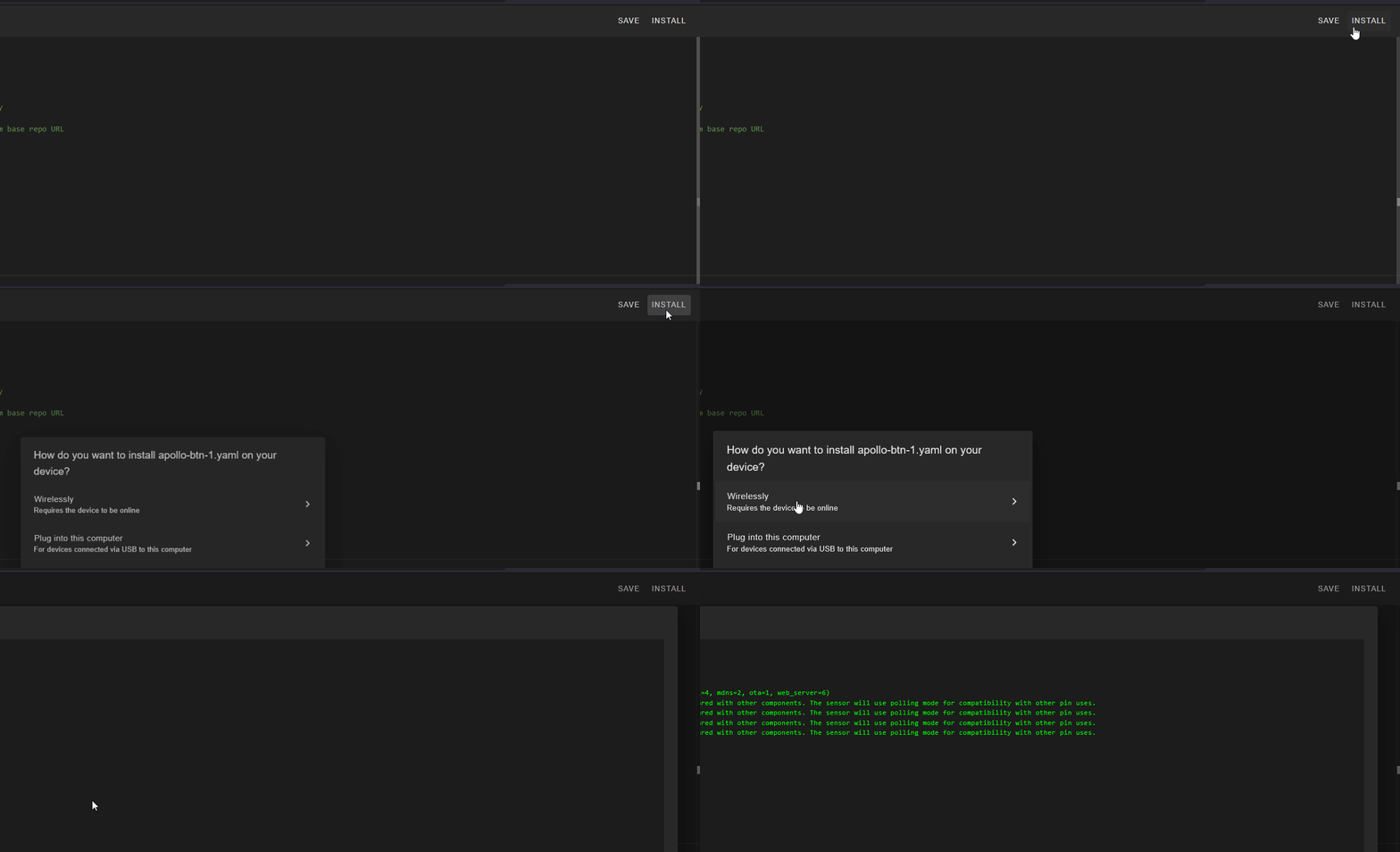
6. Once you see "INFO OTA successful" you are done. Click "STOP" in the bottom right to exit.
