Set up the Apollo mmWave dashboard
A new Apollo radar sensor detects presence out of the box, but every room is different: a ceiling fan or a moving curtain can make it trigger with nobody there, and someone sitting still can be missed. The Apollo mmWave dashboard is where you fix that. On an Apollo MSR-1, MSR-2, or R PRO-1 with the LD2412 addon, one button, Calibrate with empty room, sets the radar's thresholds for your room in about a minute and a half. On an Apollo MTR-1 or R PRO-1, the same dashboard is where you draw zones over the radar's live targets.
The Apollo mmWave integration gives every Apollo radar sensor in your home its own workspace in Home Assistant. When you add it, it offers to add an Apollo mmWave dashboard to your sidebar with one tab per radar, built from the devices Home Assistant already knows about. Add a sensor later and its tab appears on its own; remove one and its tab goes away.
What each tab holds depends on the radar inside the sensor:
| Sensor | Radar chip | What its tab shows |
|---|---|---|
| Apollo MSR-1, Apollo MSR-2 | LD2410 | Radar tuning: setup checks, auto-calibration, distance and gate energy charts, thresholds, detection range, and occupancy |
| Apollo R PRO-1 | LD2450, plus the optional LD2412 addon | The same radar tuning cards for the LD2412, plus a zone map for drawing occupancy zones over the LD2450's live targets, with the LD2450's setup check, live status, and controls beside it |
| Apollo MTR-1 | LD2450 | A zone map, with the radar's setup check, live status, and controls beside it |
Every tab starts with a Start here card that lists your sensor's first steps, and ends with a Device card that shows its firmware versions and restarts it. LD2410, LD2412, and LD2450 are the model numbers of the radar chips, and the card titles use them.
If you built the MSR-2 tuning dashboard by hand, this replaces it. The integration ships its own cards and updates them along with itself, so Streamline Card, Plotly Graph Card, and the YAML generator are no longer needed.
Before you start
-
You're running Home Assistant 2026.8.1 or newer. Settings → About shows your version.

-
HACS 2.0.5 or newer is installed and set up. HACS is a community store for Home Assistant that installs and updates custom integrations like this one. If you don't have it yet, follow the HACS download guide and then the initial configuration guide. Setup asks you to sign in with a free GitHub account. On Home Assistant OS, the button below opens the Get HACS app that the download guide uses.

-
Your Apollo sensor is already in Home Assistant through the ESPHome integration. If it isn't, work through getting started first.
Install Apollo mmWave through HACS
Apollo mmWave installs from its GitHub repository, so you add that repository to HACS once as a custom repository. From then on HACS tracks updates for it like any other integration. The button under step 1 covers steps 1 to 5: it adds the repository, after HACS asks you to confirm, and opens Apollo mmWave so you can go on at step 6.
If you installed Apollo mmWave from the original repository, bharvey88/apollo-mmwave, which is no longer on GitHub, follow From the original Apollo mmWave repository instead. It switches HACS over without setting anything up again.
-
Open HACS from your Home Assistant sidebar.

-
Click the three-dot menu in the upper right corner and choose Custom repositories.
- Paste
https://github.com/ApolloAutomation/apollo-mmwave-maininto the Repository field. - Set Type to Integration and click Add. The repository shows up in the list; close the dialog.
- Search HACS for Apollo mmWave and open it.
- Click Download, then confirm with Download in the dialog that opens.
-
Restart Home Assistant: go to Settings → System, click the power icon in the upper right corner, choose Restart Home Assistant, then click Restart. Wait for it to come back.

Home Assistant only loads a new integration when it starts, so the restart is what makes Apollo mmWave available to add in the next step.
Add the integration
This is the step that builds your dashboard. You add Apollo mmWave once and it covers every Apollo radar you own, so there's no need to repeat it per sensor. Adding it a second time stops with This entry is already configured.
-
Go to Settings → Devices & services and click Add integration. Or use the button below, which opens the Apollo mmWave setup dialog directly, and skip to step 3.

-
Search for Apollo mmWave and select it. If it isn't in the list, refresh the browser page (your browser may still hold the list from before the restart) and search again.
- The dialog notes that the integration serves its own cards and dashboard, with nothing else to download, and offers to add the dashboard for you. Leave both boxes ticked (they're on by default) to get the dashboard this guide describes:
- Add the Apollo mmWave dashboard to the sidebar creates the dashboard once, when you click Submit. Untick it only if you'd rather place the cards on your own dashboards; you can still add the dashboard later from the integration options.
- Only administrators can see it keeps the dashboard out of other users' sidebars. Untick it to show the dashboard to everyone in your home. You can change this later in the dashboard's settings under Settings → Dashboards.
- Click Submit, then Finish on the success message.
Apollo mmWave now appears under Settings → Devices & services. With the first box ticked, a new Apollo mmWave entry with a radar icon also sits in your sidebar, at the apollo-mmwave address. The integration registers its cards with Home Assistant itself, so they load in browser tabs that were already open without a refresh. If the dashboard couldn't be created, setup still finishes without it, and The Apollo mmWave dashboard isn't in the sidebar shows how to add it.
Created once, then it's yours
From Apollo mmWave 2.2.6, the dashboard is created once, when you click Submit. Apollo mmWave never recreates, rewrites, or deletes it on its own: not when Home Assistant restarts, and not when the integration reloads or updates. It's an ordinary dashboard, so you can rename it, change its icon, hide it, or delete it under Settings → Dashboards like any other. To add it again later, remove it, or add a second one, see Manage the dashboard.
Open the dashboard
Click Apollo mmWave in the sidebar. With two or more radars you'll see one tab per radar along the top, each named after the device the way it appears in Home Assistant. With one radar, Home Assistant shows the dashboard title instead of a tab bar, and that radar's cards fill the page. The tabs keep themselves current: add a sensor and its tab appears, no page reload needed.
The cards on each tab are laid out in columns that stack into one on a phone. Here's what a working first load looks like for each sensor. A row only appears when its entity is enabled in Home Assistant, so some cards can be shorter than described.
MSR-2 and MSR-1 tabs
Both sensors use the LD2410 radar chip, so their tabs look the same, and the tuning card titles start with LD2410.
-
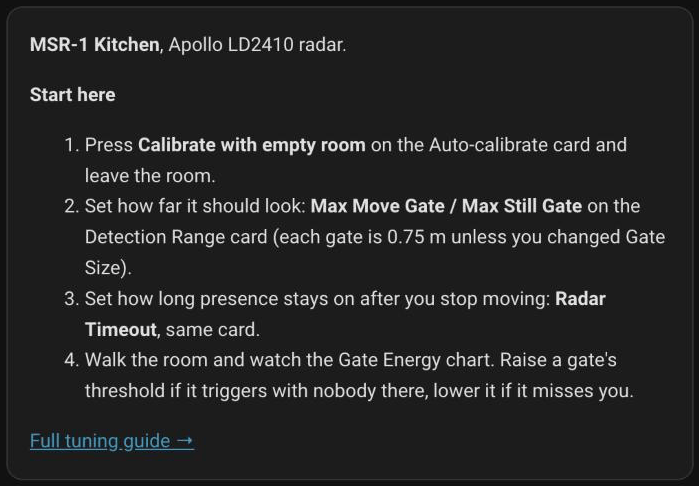
Start here sits at the top. It names your sensor and lists five steps, from Fix anything the Radar setup card flags. to walking the room while you watch the Gate Energy chart. Its links open the tuning guide on this wiki and your sensor's own page in Home Assistant.
-
Under it, the Radar setup card checks the radar's settings and offers a fix when one is off. On a sensor that's ready to go it reads Radar settings look good.
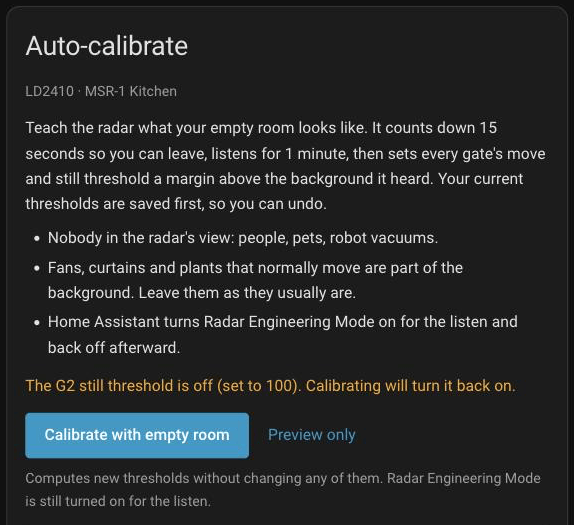
- Auto-calibrate comes next, with the Calibrate with empty room and Preview only buttons. If your sensor still has its factory thresholds and has never been calibrated, the card adds These look like factory thresholds. Calibrating sets them for your room.
-
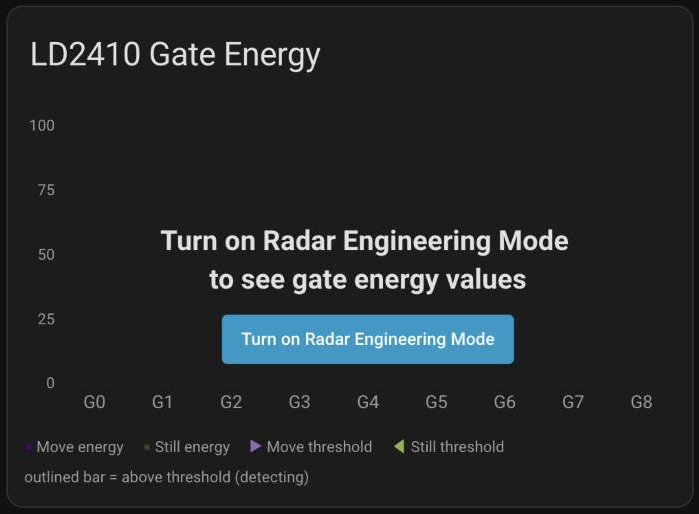
The LD2410 Gate Energy chart is dimmed behind Turn on Radar Engineering Mode to see gate energy values, with a Turn on Radar Engineering Mode button below. That's expected: the radar only reports gate energy while Radar Engineering Mode, a diagnostic setting, is on. You don't need to press the button before calibrating; the calibration turns the mode on for its listen and puts it back the way it was afterward.
-
The other cards hold the radar's settings and live readings: controls, distances, detection range, occupancy, a threshold for each gate (from G0 (at the sensor) to G8, each named for how far out it reaches), and a day of occupancy history. The sliders on the range and threshold cards start locked, so a scroll can't move them: press Unlock above them to change one. The Device card at the bottom shows the firmware versions and restarts the sensor. The tour of the radar tab explains each one.
R PRO-1 tabs
The R PRO-1 tab starts with the same tuning cards, titled LD2412 instead of LD2410, for the optional LD2412 radar addon, and adds a zone map for its LD2450 radar. Without the addon, the LD2412 cards still appear but have no radar behind them, so skip to the zone map, and Start here gives the zone map steps instead. The differences from an MSR-2 tab:
- Start here says what each radar is for: the LD2412 senses people anywhere in range, even sitting still, and the LD2450 tracks where people are and drives the zone map.
- LD2412 Controls adds Start Dynamic Background Correction and Background Correction Running. The Auto-calibrate card reminds you to run background correction first, with the room empty, and wait for its status to turn off before you calibrate.
- LD2412 Detection Range holds Radar Timeout, Max Gate, and Min Gate, plus Distance Resolution if you've enabled that entity (it's hidden on a new sensor).
- The thresholds cards and the Gate Energy chart cover 14 gates, G0 to G13.
- There's no Zone Config card, and the LD2412 Distances chart shows the gates and your Max Gate and Min Gate limits without distance bars.
- After the first column (Start here, the LD2412's Radar setup card, Auto-calibrate, LD2412 Controls, and LD2412 Target / Occupancy), a Zone Map heading introduces the LD2450's cards: its own Radar setup card, the zone map, Zone presence, LD2450 Live, and LD2450 Controls, described below. The rest of the LD2412 cards follow, so on a phone you reach the zone map before the 28 threshold rows.
MTR-1 tabs
An MTR-1 tab is built around the zone map, with everything for its LD2450 radar beside it:
- Start here lists three steps (fix anything the Radar setup card flags, set Cone rotation, then draw a zone and walk into it), says which presence sensor to use in automations, and links to your sensor's own page.
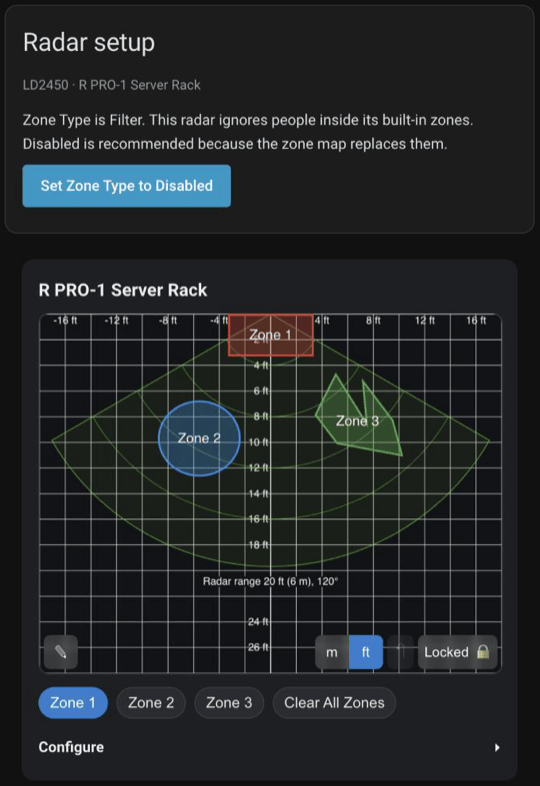
- Radar setup checks Zone Type and Multi Target Tracking, the two radar settings that decide whether the map can show people, and fixes them when you press its button. Zone Type should be Disabled, because the zone map replaces the radar's own built-in zones.
- The zone map, titled with your sensor's name, shows the radar's view, a cone 120 degrees wide and about 6 m (20 ft) out, with a dot for each target the LD2450 is tracking. It's in feet or meters to match Home Assistant, and the m / ft switch on the map changes it. A pencil button in the lower left opens the drawing tools, the lower right holds the unit switch and the undo and lock buttons, and a collapsed Configure section under the grid holds the cone rotation slider and the zone list.
- Zone presence, LD2450 Live, and Occupancy History show each zone's presence sensor, what the radar reports right now, and the last 24 hours.
- LD2450 Controls, the radar's built-in zones (only while Zone Type isn't Disabled), and the Device card end the tab.
The integration finds the sensor's target entities itself, so there's nothing to pick before you start drawing. The R PRO-1's zone map and the cards beside it work the same way.
What to do first
Your dashboard is working. Follow the Start here card on each tab, from the top:
- Look at the Radar setup card near the top of the tab. If it flags a setting, follow what it says: most problems have a button that fixes them, and the card changes nothing until you press one. An R PRO-1 tab has a second one above the zone map, for the LD2450.
-
On an MSR-1 or MSR-2 tab, or an R PRO-1 tab with the LD2412 addon, calibrate the radar. Skip this step on an R PRO-1 without the LD2412. On an R PRO-1, first clear the room, press Start Dynamic Background Correction on the LD2412 Controls card, and wait for Background Correction Running to turn off. Then press Calibrate with empty room on the Auto-calibrate card and leave the room for about a minute and a half. You don't need to turn on Radar Engineering Mode: the calibration does that for you. The tuning guide walks you through it.
-
On an MTR-1 or R PRO-1 tab, draw your zones.
The rest of this page covers managing the dashboard, upgrading from an older setup, and troubleshooting, so come back to it when you need it.
Manage the dashboard
After setup, Apollo mmWave changes its dashboard only when you ask it to, from the integration options: add the dashboard, remove it, or choose which sensors get a tab. Open Settings → Devices & services → Apollo mmWave → Configure to reach the Apollo mmWave options menu. It reads These actions change only the Apollo mmWave dashboard this integration created. Dashboards you made yourself are never changed. and lists the actions that fit:

- Add the Apollo mmWave dashboard is listed while the integration has no dashboard of its own: you unticked the box during setup, setup couldn't create it, or you deleted it. It describes the dashboard it creates and asks Only administrators can see it again. Click Submit to create it, once, with the sensors you chose under Choose the dashboard's devices.
- Remove the Apollo mmWave dashboard is listed while the integration has one. Click Submit to delete the Apollo mmWave dashboard at
/apollo-mmwavethat the integration created, along with any title, icon, or strategy options you changed on it. Your sensors, zones, and calibration values stay, and the cards still work on your own dashboards. You can add the dashboard again from the same menu. - Choose the dashboard's devices opens Dashboard devices, which is empty by default and shows every Apollo mmWave device Home Assistant knows about, online or not. Select one or more devices to show exactly those and hide the rest; a selected device keeps its tab even while it's offline. Clear the selection to go back to automatic detection. The picker only lists Apollo MSR-1, MSR-2, MTR-1, and R PRO-1 sensors added through ESPHome.
Each action takes effect as soon as you click Submit, with no restart, and an open dashboard picks up a new device selection without a reload. The device selection is written only into the dashboard the integration created. Without one, the selection is kept and used when you add the dashboard from the options.
You can also delete the dashboard under Settings → Dashboards, like any other. It stays deleted until you add it again from the options.
Add another Apollo mmWave dashboard
Want a second dashboard, say one with only the bedroom sensors, or one at another address because something else already uses apollo-mmwave? Home Assistant's dashboard picker adds one that builds its tabs the same way as the integration's own:
-
Go to Settings → Dashboards and click Add dashboard.

-
Pick Apollo Radar Tuning under Community dashboards.
- Give it a title and a URL other than
apollo-mmwave, then click Create.
A dashboard you add this way is yours from the start, and the integration options never change it. It shows every detected Apollo mmWave device; to limit it, set devices in its raw configuration, as the Apollo mmWave configuration guide shows. The URL matters: if you delete the integration's dashboard and add one of these at apollo-mmwave, Apollo mmWave can mistake it for the dashboard it created, and its options and removal would then act on yours.
Use your own layout
Want to rearrange the cards? Click the pencil icon in the upper right corner of the dashboard and choose Take control in the dialog that opens. From then on the layout is yours: the integration stops offering to remove the dashboard, writes no device selection into it, and leaves it in place when you remove the integration. The dashboard also stops adding and removing tabs as sensors come and go. Changed your mind? Delete the dashboard under Settings → Dashboards, then choose Add the Apollo mmWave dashboard in the integration options to get a fresh one. If you add the Apollo tabs to a dashboard of your own, take control of that dashboard before you edit them; editing an auto-built tab directly discards its cards.
A dashboard you took control of keeps the cards it had, so it doesn't pick up new cards from later releases, such as the updated Start here steps, the Radar setup cards, the Device card, and the slider lock that came with 2.3.0. To get them, delete it and add a fresh one from the options as described above.
The cards also work on their own: in the card picker they're listed as Apollo Radar Auto-Calibrate, Apollo Radar Distance Chart, Apollo Radar Gate Energy Chart, Apollo Radar Setup, and Apollo Zone Map. The Apollo mmWave configuration guide has the YAML for placing them.
Upgrade from an older setup
If this is your first Apollo dashboard, skip this section and calibrate your radar or draw your zones. Troubleshooting is at the end of this page if something didn't load.
Before any upgrade, make a full Home Assistant backup under Settings → System → Backups, so you can go back if something goes wrong. After you update Apollo mmWave in HACS, restart Home Assistant, then refresh the dashboard in your browser so it loads the new cards.

Updating to Apollo mmWave 2.3.0
In most setups 2.3.0 needs nothing from you. After the restart and a refresh, each tab gets the new layout: Start here and Radar setup at the top, locked sliders, the zone map in your units with the LD2450's cards beside it, and the Device card at the bottom. Check these if they apply to you:
- Zones drawn before 2.2.7 with Home Assistant in US customary units. Before 2.2.7, the zone map read the radar's positions in inches as if they were millimeters, so the dots sat at or near the sensor. A zone drawn around those dots may not cover where people show up now. Walk through the room, watch the dots, and redraw any zone that's off.
- A dashboard you took control of keeps the cards it had. To get the new ones, see Use your own layout.
- A zone map card you added from the card picker before 2.3.0 keeps the fixed grid saved in its YAML, with no distance labels or range caption. If you didn't choose that grid yourself (the card picker saved
x_min: -6000,x_max: 6000,y_min: 0,y_max: 12000withgrid_units: mm), open the card's code editor, deletegridandgrid_units, and setunit_display: trueto get the map fitted to the radar's view, in your units. A grid you set on purpose can stay. - Dashboard resources managed in YAML. Replace both
?v=addresses with the ones the log warning lists (see An Apollo card shows an error after an update).
From Apollo mmWave 2.2.5 or earlier
Up to 2.2.5, Apollo mmWave rebuilt its dashboard every time it loaded, and the Auto-create the Apollo mmWave dashboard option decided whether the dashboard existed. From 2.2.6 that option is gone: the dashboard is created once, and Apollo mmWave adds or removes it only when you ask in its options (see Manage the dashboard). The update needs nothing from you:
- The dashboard you already have stays as it is, including who can see it. Dashboards made before 2.2.6 are visible to every user; to limit yours to administrators, turn on Admin-only in its settings under Settings → Dashboards.
- If it still builds itself (you never took control of it), the integration records it as the dashboard it created. The options can then remove it or write a device selection into it, and deleting the integration deletes it too. A dashboard you took control of is yours, and the integration leaves it alone.
- If you had turned the auto-create option off, the integration records no dashboard, and setup no longer deletes a dashboard you made yourself at
apollo-mmwave. Add the integration's dashboard from the options whenever you want it.
Going back to 2.2.5 or earlier from HACS turns the old behavior back on, as if the auto-create option were on: the dashboard is recreated or rewritten at every start, even if you had turned the option off. To go back, restore the backup you made before updating.
From the MSR-2 tuning dashboard
Your thresholds, detection range, and every other setting live on the sensor itself, and the new dashboard reads the same entities. There's nothing to migrate: once your MSR-2 tab works in the Apollo mmWave dashboard, you can delete the old view.
Back up before you edit raw YAML
The raw configuration editor holds your whole dashboard. Copy its contents somewhere safe before you delete anything, so you can paste it back if a cut goes wrong.
- Open the dashboard you pasted the old YAML into, click Edit dashboard, open the three-dot menu, and choose Raw configuration editor.
-
Find the old view. It starts like this:
-
Delete that view, from its
- type: sectionsline down to the line before the next view (or beforestreamline_templates:). If you ran the generator for more than one MSR-2, repeat for each MSR-2 Configuration view. - At the bottom, delete the
ld2410_templates understreamline_templates:. If nothing else on your dashboards uses Streamline Card, delete the wholestreamline_templates:block. - Click Save.
If no other cards use them, you can also remove Streamline Card and Plotly Graph Card from HACS. Apollo mmWave doesn't need either.
From the original Apollo mmWave repository
Apollo mmWave used to install from the original repository, bharvey88/apollo-mmwave, which is no longer on GitHub. If HACS installed your copy from there, point HACS at the new repository, ApolloAutomation/apollo-mmwave-main, so you keep getting updates. It's the same integration in the same folder, so nothing needs to be set up again: what you already have carries over, such as your Apollo mmWave entry, its dashboard, your zones, the saved calibration values that Undo uses, and your entity IDs. The switch takes one Home Assistant restart.
If the old copy is version 1.x or 2.0, not everything carries over on its own. Read the upgrade notes in the changelog first. Some cards and automations need a change by hand, and From Apollo mmWave 1.x zone mapping below sums them up.
Keep your Apollo mmWave entry in Home Assistant
The switch happens in HACS only. If you choose Delete from the three-dot menu on the entry under Settings → Devices & services → Apollo mmWave, Home Assistant asks Delete Apollo mmWave? and warns that its devices and entities will be permanently deleted. Deleting it also deletes the Apollo mmWave dashboard it created, every zone, and the saved calibration values that Undo uses. Setting it up again starts from nothing.
Leave Remove and Redownload alone in HACS
Both Apollo mmWave entries in HACS use the same custom_components/apollo_mmwave folder. Remove, on either entry, first shows Integration is configured and tells you to delete the configuration. Don't: Navigate leads to the integrations page, where Delete wipes your zones. Ignore, or closing the box, opens a Remove box whose Remove button deletes the folder, new download included, so Apollo mmWave won't load after the next restart. Redownload on the old entry fails because its repository is gone, and the folder can end up missing. Step 3 takes the old entry off the list without touching any files.
- Check two versions first. Home Assistant needs to be 2026.8.1 or newer (Settings → About). In HACS, click the three-dot menu in the upper right corner, choose About HACS, and check that Integration version is 2.0.5 or newer. The new repository won't download on older versions. Then make a full Home Assistant backup under Settings → System → Backups (see Upgrade from an older setup).
- In HACS, click the three-dot menu in the upper right corner and choose Custom repositories.
- Find the row whose second line reads bharvey88/apollo-mmwave (integration) and click the trash can icon on that row. There's no confirmation, so read the second line before you click: removing the wrong row deletes no files, but you have to add that repository again. This only takes the old entry off the HACS list. The files in
custom_components/apollo_mmwavestay where they are, and Apollo mmWave keeps running.- If you already added the new repository, there are two rows. Remove only the bharvey88/apollo-mmwave one.
- If there's no bharvey88/apollo-mmwave row, there's nothing to remove. Go on to step 4.
-
If the dialog closed after step 3, open Custom repositories again. Paste
https://github.com/ApolloAutomation/apollo-mmwave-maininto the Repository field, set Type to Integration, click Add, and close the dialog. Or use the button below instead: it shows an Add custom repository box, and clicking Add there opens the repository page in HACS for you. -
Search HACS for Apollo mmWave and open it. Only one entry is left, and if you used the button in step 4, it's already open. Click Download in the lower right corner, then click Download again in the dialog. The dialog says the files go to
/config/custom_components/apollo_mmwave, the same folder as before. Wait for it to finish.- If it shows an error, don't restart. Fix the cause and click Download again until it finishes with no error. On a first download HACS saves no backup copy of the folder, so a download that stops partway can leave old and new files mixed together.
- Look at the HACS list. Apollo mmWave now shows Pending restart, and the old entry is gone.
-
Restart Home Assistant: go to Settings → System, click the power icon in the upper right corner, choose Restart Home Assistant, then click Restart. The Restart required repair that HACS adds does the same when you click Submit.
After the restart, HACS shows one Apollo mmWave entry with the status Downloaded. Everything else is where you left it: your same entry under Settings → Devices & services → Apollo mmWave, the Apollo mmWave dashboard in the sidebar, your zones on the zone map, your previous calibration values behind Undo, and the same entity IDs. If a card looks old or doesn't load, do a hard refresh with Ctrl+Shift+R (Cmd+Shift+R on a Mac). From here on, HACS tracks updates from the new repository.
HACS may leave its own update entity for the old repository behind, showing as unavailable. It belongs to HACS, not Apollo mmWave, so deleting it is optional and doesn't touch your zones.
From Apollo mmWave 1.x zone mapping
Most of the move to 2.x happens on its own the first time the integration starts. If you wrote cards or automations by hand, change these yourself:
- Card name. A hand-written zone card set to
custom:zone-mapper-cardnow shows as a missing card. Change it tocustom:apollo-radar-zone-map-cardand give it the radar'sdevice_id(plus an optionaltitle) in place oflocation. - The
apollo_mmwave.update_zoneaction. Passdevice_id.locationstill works as a deprecated alias, logs a warning once per restart, and will be removed in a later release. - Zone change triggers. The
apollo_mmwave_zone_updatedevent now carriesdevice_idwhere it used to carrylocation, so a trigger readingtrigger.event.data.locationstops matching. - Empty
entitieslists. In anupdate_zonecall, an emptyentitieslist now leaves the tracked targets alone instead of erasing them. To empty the list on purpose, passclear_entities: true. dark_mode. The zone map follows your Home Assistant theme now, anddark_modein the card config is an override. Remove it if you want the card to track your theme.
And here's what changes without you doing anything:
- Target sensors are found automatically. The old Device and Targets picker is gone; the integration locates each radar's LD2450 target sensors itself.
- Zone entities move onto the radar's device page. Your entity IDs, custom names, and area assignments are kept, and you can rename the entities freely.
- Renaming a radar no longer loses its zones, because zones are stored per device rather than per display name. If you renamed a radar before upgrading, its zones are kept but not shown: the card comes up empty and the zone entities read as unavailable. Rename the radar back to its old name and reload the integration to bring them back, or keep the new name and redraw the zones.
- Zones from the standalone Zone Mapper integration are imported when Apollo mmWave has no zone data of its own yet: on a fresh install, or when upgrading from a version before 1.2.0. The import only reads; nothing belonging to Zone Mapper is renamed or removed. Upgrading from 1.2.0 or later, the import is skipped and your existing Apollo mmWave zones are kept. Redraw any Zone Mapper zones you want on the zone map, then remove the old integration once you're happy with them.
Keep Zone Mapper until your zones have moved over
Don't uninstall the standalone Zone Mapper integration until you've confirmed your zones moved over. Its restore data is the only copy, and it goes away with its entities.
If a zone you expected is missing, search your Home Assistant log for apollo_mmwave. When the same zone number exists both on a device and in leftover pre-2.0 data, the copy already on the device wins, and the dropped copy is written to the log.
Troubleshooting
If none of these match, send Apollo a support file with your question.
The Apollo mmWave dashboard isn't in the sidebar
Work through these in order:
- Sign in as an administrator. The dashboard is for administrators only unless you unticked Only administrators can see it. To show it to everyone, turn off Admin-only in its settings under Settings → Dashboards.
-
Look under Settings → Dashboards. Apollo mmWave is listed there even when it's hidden. If you find it, check that its Add to sidebar setting is on and that you haven't hidden it from your own sidebar in your profile.
-
If it isn't listed, the integration has no dashboard: you unticked Add the Apollo mmWave dashboard to the sidebar during setup, setup couldn't create it, or it was deleted. Apollo mmWave never recreates it on its own, so add it from the integration options with Add the Apollo mmWave dashboard (see Manage the dashboard).
- If another dashboard already uses the
apollo-mmwaveaddress, such as one you made yourself, the integration leaves that one as it is and doesn't create its own. Adding it from the options then shows The dashboard could not be created. Another dashboard may already use /apollo-mmwave; the Home Assistant log says why. You can add one from Settings > Dashboards > Add dashboard > Apollo Radar Tuning instead. -
Open Settings → System → Logs and look for a warning that starts with Apollo mmWave:. If setup or the options couldn't create the dashboard, the warning says why and points you to the dashboard picker: Add one from Settings > Dashboards > Add dashboard > Apollo Radar Tuning (strategy type 'custom:apollo-radar-tuning'). You'll also see a warning that
apollo_mmwaveis a custom integration Home Assistant hasn't tested. Every custom integration installed through HACS logs that one, so you can ignore it.
-
If the integration can't create the dashboard, add one yourself from the dashboard picker, as described in Add another Apollo mmWave dashboard.
The integration options show an error
When an action in the integration options fails, it changes nothing, and its form stays open with the reason:
- The dashboard could not be created. Another dashboard may already use /apollo-mmwave; the Home Assistant log says why. You can add one from Settings > Dashboards > Add dashboard > Apollo Radar Tuning instead. Check Settings → Dashboards for a dashboard at
apollo-mmwaveand the log for a warning that starts with Apollo mmWave:. Delete that other dashboard and try again, or add another Apollo mmWave dashboard at a different URL. - The dashboard could not be removed. The Home Assistant log says why. You can delete it in Settings > Dashboards. Delete it there instead. The next time you open the options, they offer to add it again.
- The dashboard could not be updated. The Home Assistant log says why. The new device selection wasn't saved, and the dashboard keeps the one it had. Check the log for a warning that starts with Apollo mmWave:, then try again.
If the options open straight on Dashboard devices, with no menu, Apollo mmWave couldn't read Home Assistant's dashboards, so it offers only the device selection. A selection you save there is kept but not written into the dashboard. Check the log, then open the options again and save the selection once the menu is back.
The dashboard shows no devices
The dashboard starts with No Apollo mmWave devices found. It found no radar to build a tab for. Confirm your sensor shows up under Settings → Devices & services → ESPHome, and check that Dashboard devices, under Choose the dashboard's devices in the integration options, is empty or lists your current devices. On a dashboard you added from Community dashboards, check the devices list in its raw configuration instead.
One sensor has no tab
Work through these in order:
- If Dashboard devices has any devices selected, the dashboard shows only those. Add the missing sensor under Choose the dashboard's devices in the integration options, or clear the selection to go back to automatic detection.
- A dashboard you took control of no longer adds tabs on its own. Add the sensor's cards yourself, or delete the dashboard and add a fresh one from the integration options.
- The dashboard only picks up radars added through the ESPHome integration. A copy of the same sensor that another integration created (a network integration tracking it by its MAC address, for example) doesn't get a tab.
- A sensor you added a moment ago gets its tab once Home Assistant has registered its entities. It appears on its own, without a page reload.
- DIY builds that don't report an Apollo model only get a tab while one of their radar entities is live.
A tab says the sensor is offline
The Start here card adds Offline right now., and the Radar setup card reads Radar is offline. Its settings are checked once it reconnects. On an MSR-1, MSR-2, or R PRO-1 tab, the Auto-calibrate card reads Radar is offline. Calibration needs the radar online and its gate entities enabled. with its buttons disabled. On an MTR-1 or R PRO-1 tab, the zone map shows no targets until the sensor reconnects. The tab stays so the sensor isn't silently missing, and the cards fill in once it reconnects. Check its power and Wi-Fi, and that it shows as online on the ESPHome integration page. If you replaced or reflashed the sensor under a new name, the old device entry is what's showing as offline: delete the old device under Settings → Devices & services and its tab goes away.
An Apollo card shows an error after an update
After you update Apollo mmWave through HACS and restart, a browser that still holds the previous version's files can show the Apollo cards as error boxes that read Custom element doesn't exist. Refresh the page. Each release loads its cards under a new versioned address, so a fresh page load picks up the current version. If the error is still there, do a hard refresh with Ctrl+Shift+R (Cmd+Shift+R on a Mac). If that doesn't clear it either, check Settings → System → Logs for a warning that starts with Apollo mmWave: about Lovelace resources. On a system that manages its dashboard resources in YAML, the warning lists the two resource addresses to add by hand.
If the element named in the error is zone-mapper-card, a refresh won't help: that's the old card name, so update the card as described in From Apollo mmWave 1.x zone mapping.
The Auto-calibrate card is still loading
The card reads Apollo mmWave is still loading... right after a restart while the integration starts, and clears on its own. If it changes to Apollo mmWave is not loaded, so calibration is unavailable., check that Apollo mmWave is enabled under Settings → Devices & services, then click Retry on the card.
Next step: calibrate your radar or draw zones
Your dashboard is up and every sensor has its tab. Now put it to work: the usage guide walks you through calibrating with an empty room, reading the charts, adjusting thresholds by hand, and drawing zones on the zone map.