H-2 Boot Mode
This will cover how to put the H-2 into boot mode.
This is needed to force the device into boot mode to reflash the firmware.
Boot button only
You can enter boot mode using only the boot button.
Make sure that the battery is removed prior to putting it in boot mode
Make sure that there is no battery in the device. The battery will prevent it from entering boot mode.
1. Disconnect your H-2 from power. With the device facing you, locate the boot button. It’s the small black button on the right.
2. Plug in a USB cable that supports power and data into your computer.
3. Push and hold the boot button (the right button). While still holding the button down, plug in a USB-C cable into the USB-C port of your H-2 then let go of the button.

4. You are now ready to reflash your device!
Click here to go to the reflashing guide!
Boot and reset buttons
You can also enter boot mode with the boot and reset buttons while the device is plugged in.
1. Plug in a USB cable that supports power and data into your computer and connect the other end to your H-2. With the device facing you, locate the reset (left) and boot (right) buttons.
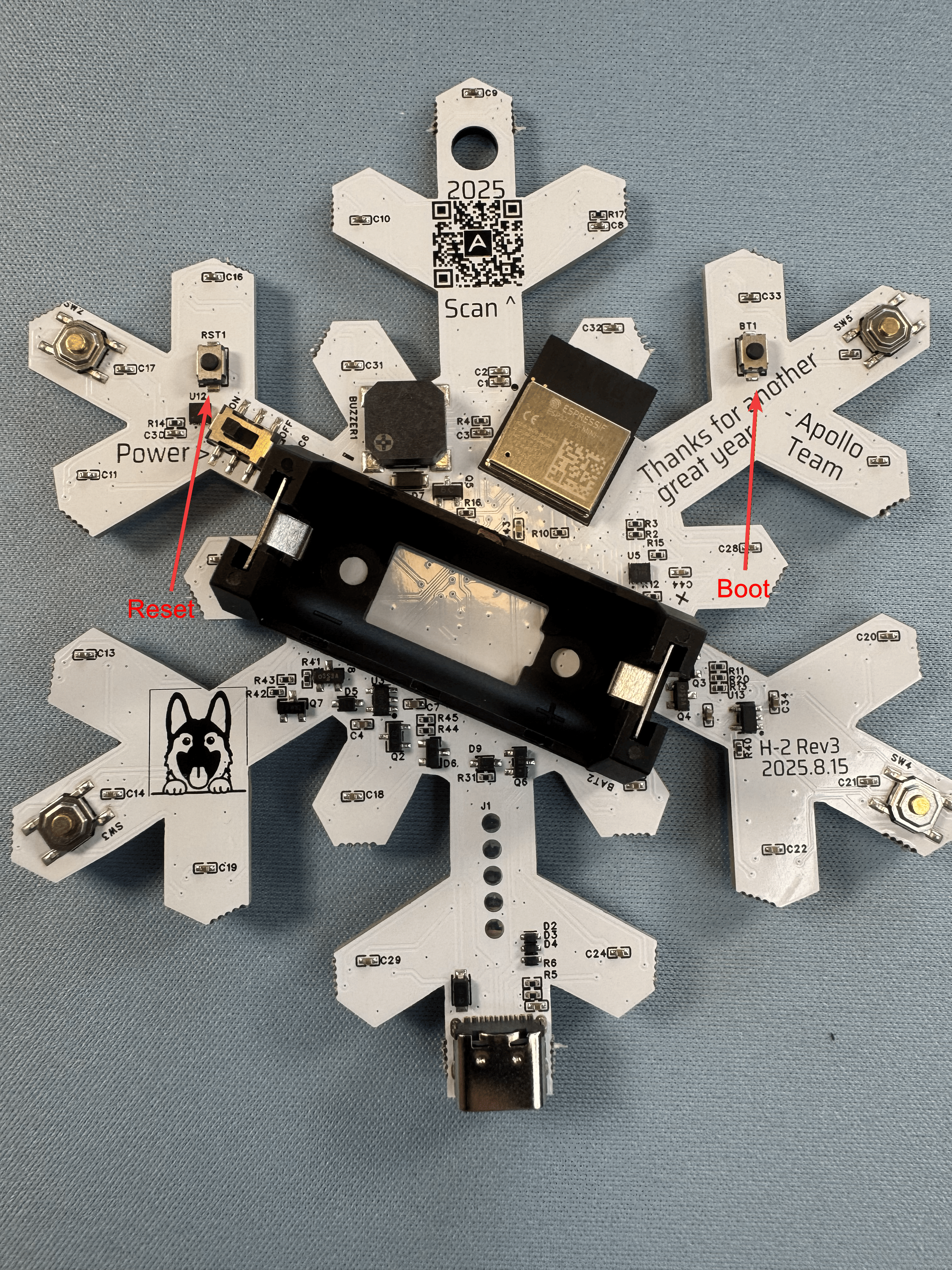
2. Hold down the boot button (the right button), then press and release the reset button (the left button) while keeping the boot button pressed. Finally, release the boot button.

3. You are now ready to reflash your device!