Trash night reminder
Difficulty: Level 2
🌱 New here? Try these first:
Never miss bin night again. Two Home Assistant Local Calendars (one for trash, one for recycle) drive a single automation that lights up the Starter Kit's RGB LEDs in a different color for each pickup. When the event starts the LEDs come on; when the event ends they go off.
Before you start
Work through these pages first. This tutorial assumes your device is flashed, the LED & Buzzer module is wired up, and the kit is connected to Home Assistant:
- First Steps to create your starter kit device in ESPHome Device Builder.
- Adding the LED & Buzzer Module to wire up the RGB output.
- Connect to Home Assistant to bring the device's entities into HA.
Create the calendars
Home Assistant's Local Calendar integration stores events entirely inside Home Assistant: no Google account or external service required.
Add the Trash calendar
-
Click the button below to start adding the Local Calendar integration:

-
Name it
Trashand click Submit. Home Assistant creates a calendar entity calledcalendar.trash.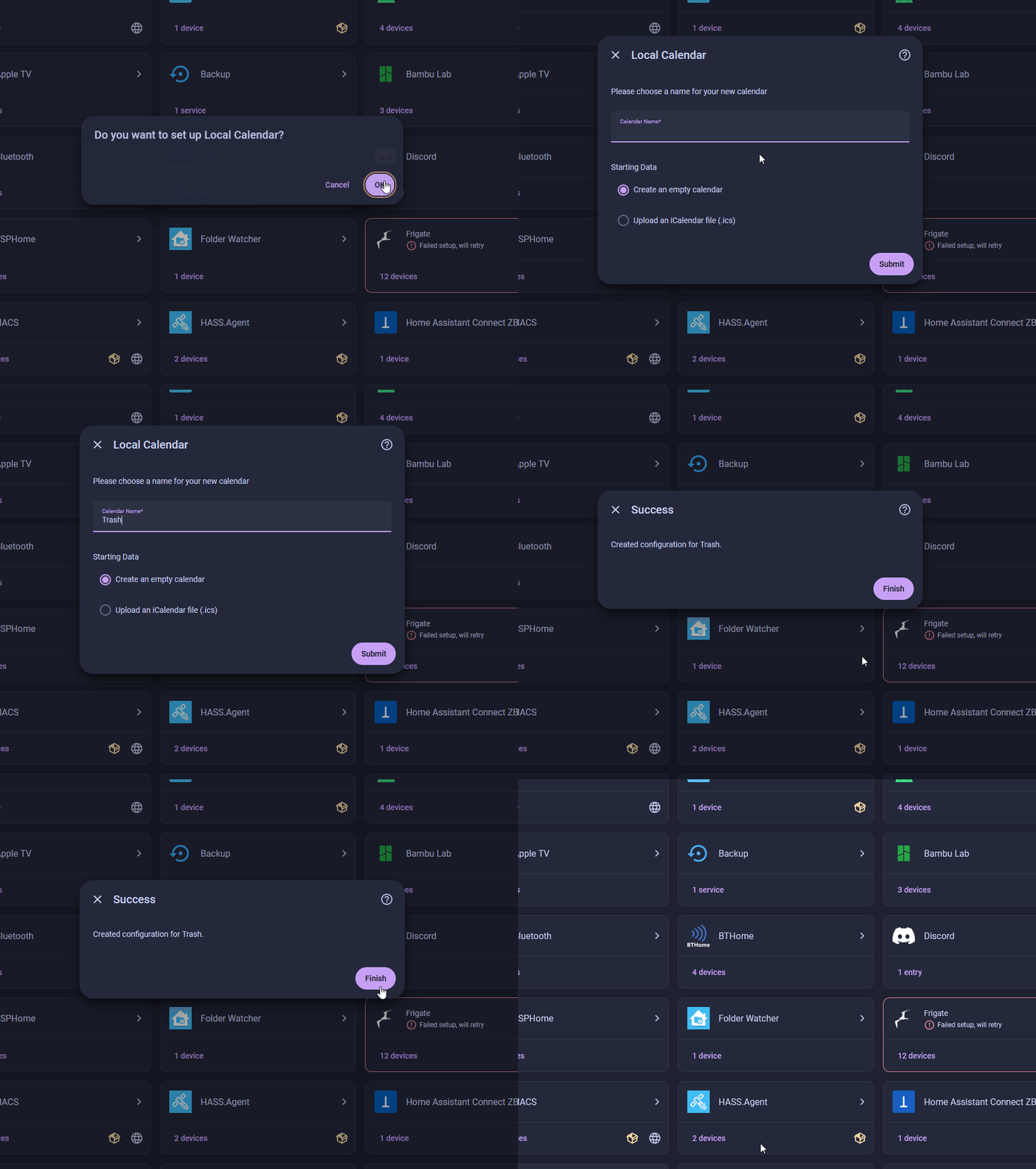
Add the Recycle calendar
-
Click the Add integration button below, name this one
Recycle, and click Submit. This createscalendar.recycle.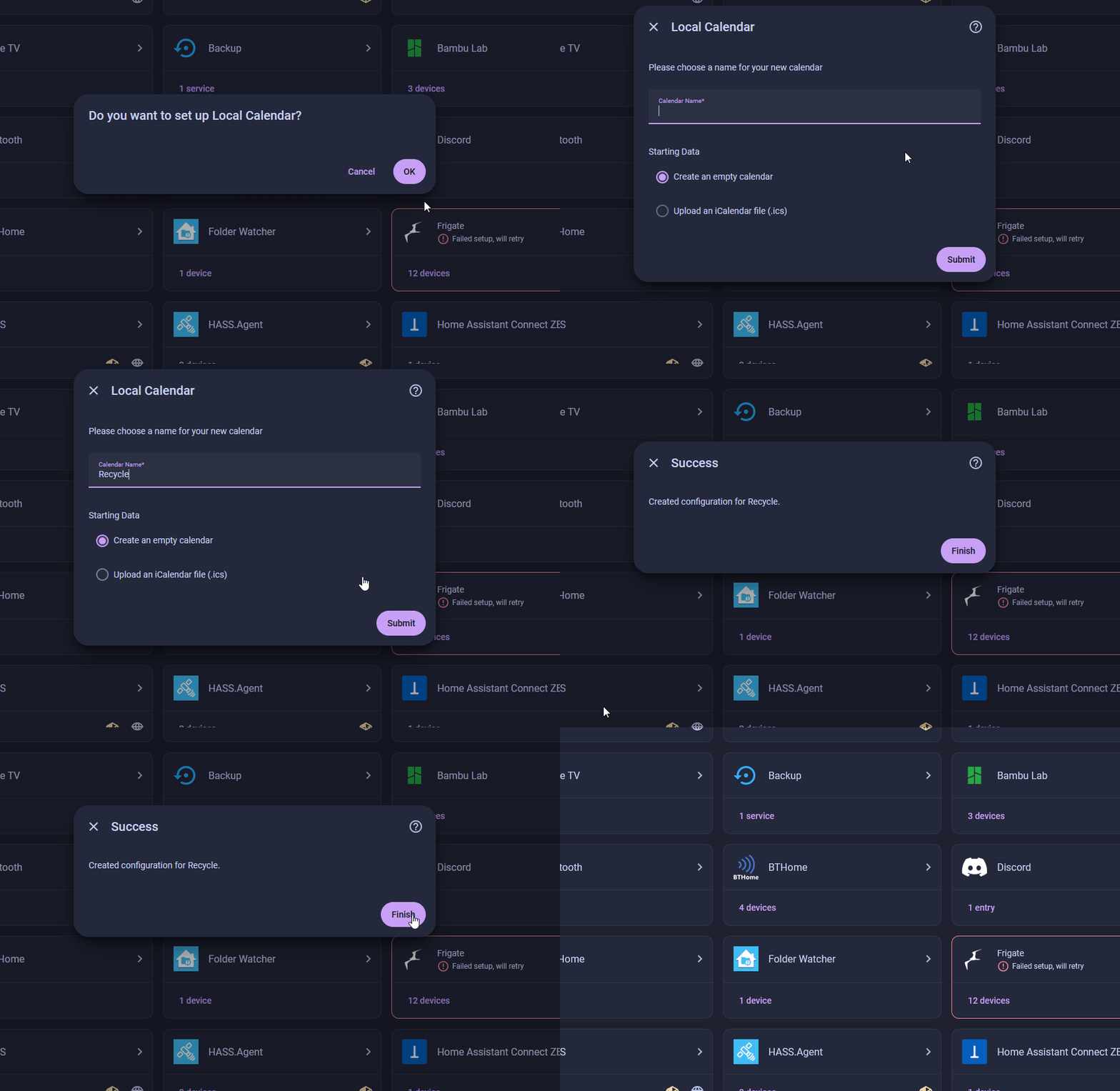
Add recurring events
Add a repeating event to each calendar to match your actual pickup schedule.
-
Click the button below to open the Calendar view:

-
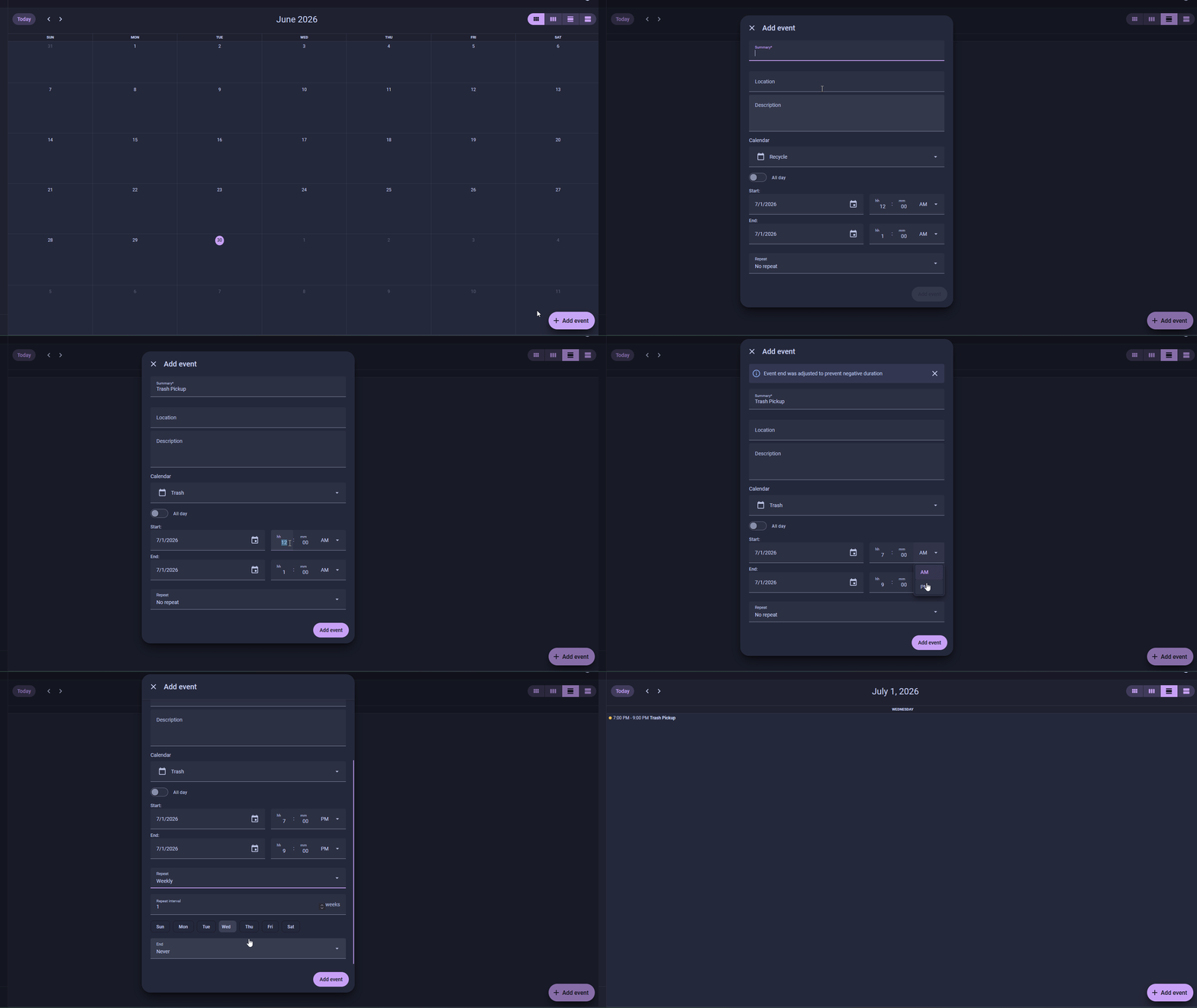
Select the day before your pickup and click Add event.
- Calendar → Trash
- Title →
Trash Pickup - Set the start time and end time to a window that evening, for example 7 PM to 9 PM. (1)
- Enable Repeat and set it to Weekly on that day. If your trash goes out more than once a week, scroll down and select the other day too.
- The LEDs turn on at the start time and off at the end time, so this is your reminder window. Keep it to one evening rather than running it into the next day.
-
Click Add event at the bottom of the dialog.
Do the same for the Recycle calendar
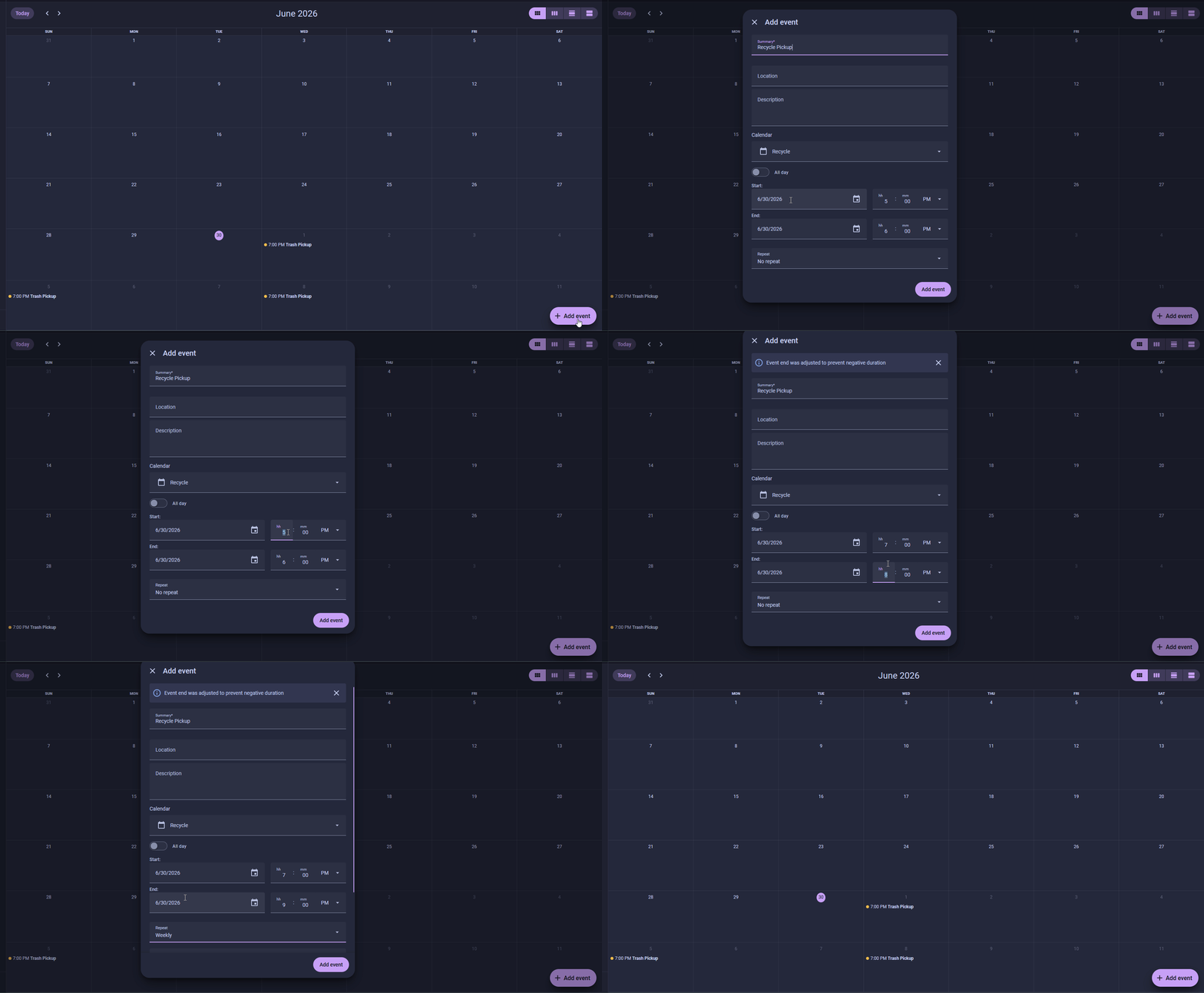
Select the day before recycle pickup, click Add event, and fill it in:
- Calendar → Recycle
- Title →
Recycle Pickup - Set the start time and end time to a window that evening, for example 7 PM to 9 PM.
- Enable Repeat and set it to Weekly on that day. If recycle goes out more than once a week, scroll down and select the other day too.
- Click Add event at the bottom of the dialog.
Build the automation
One automation handles both calendars. Four triggers (event start and event end for each calendar) feed into a Choose action that picks the right color or turns the LEDs off depending on which trigger fired.
Create the automation
-
Click the button below to open Settings → Automations & scenes, then click + Create automation → Create new automation:

Add the triggers
Add four triggers, one at a time. Each one is a Calendar trigger, and each gets a Trigger ID so the action block can tell them apart. You set the ID from the trigger's three-dot menu, the same way the Motion-Activated Room Lights automation does.
-
Click + Add trigger, search Calendar, and pick the Calendar trigger.
- Calendar →
Trash - Event → Start
- Open the trigger's three-dot menu, choose Edit ID, and set the Trigger ID to
trash_start.
- Calendar →
-
Click + Add trigger and add another Calendar trigger.
- Calendar →
Trash - Event → End
- Three-dot menu, Edit ID, Trigger ID →
trash_end.
- Calendar →
-
Click + Add trigger and add another Calendar trigger.
- Calendar →
Recycle - Event → Start
- Three-dot menu, Edit ID, Trigger ID →
recycle_start.
- Calendar →
-
Click + Add trigger and add another Calendar trigger.
- Calendar →
Recycle - Event → End
- Three-dot menu, Edit ID, Trigger ID →
recycle_end.
- Calendar →
Add the choose action
Now you'll add the Choose action that sets the LED color for each pickup and turns the LEDs off when an event ends.
-
Under Then do, click + Add action and search for Choose.
The Choose block works like a branching decision: it checks each option's condition in order and runs the first one that matches.
-
On the first Option, click + Add condition and choose Triggered by. Set the Trigger ID to
trash_start. Under the option's Sequence, click + Add action → Perform action →light.turn_on:- Target → your RGB LED entity
- RGB color → Red
255, Green140, Blue0(amber) (1) - Brightness →
100%
- Amber is a warm, high-visibility "take out the trash" color that's easy to tell apart from the blue recycle night across a room. See Tune the colors below to match your local bin colors.
-
Click + Add option. Condition: Triggered by →
recycle_start. Sequence:light.turn_ontargeting the same RGB LED entity:- RGB color → Red
0, Green128, Blue255(blue) - Brightness →
100%
- RGB color → Red
-
Click + Add option. Condition: Triggered by → set both
trash_endandrecycle_end. Sequence:light.turn_offtargeting the RGB LED entity. -
Name the automation
Trash night reminderand click Save.
What the automation looks like in YAML
Select Edit in YAML from the three-dot menu on the automation to see or paste the raw config. Your entity IDs will differ from the example below.
alias: Trash night reminder
description: Light up the RGB LEDs when a trash or recycle calendar event starts
triggers:
  - trigger: calendar
    event: start
    entity_id: calendar.trash
    id: trash_start
  - trigger: calendar
    event: end
    entity_id: calendar.trash
    id: trash_end
  - trigger: calendar
    event: start
    entity_id: calendar.recycle
    id: recycle_start
  - trigger: calendar
    event: end
    entity_id: calendar.recycle
    id: recycle_end
conditions: []
actions:
  - choose:
      - conditions:
          - condition: trigger
            id: trash_start
        sequence:
          - action: light.turn_on
            target:
              entity_id: light.esphome_starter_kit_rgb_leds
            data:
              rgb_color: [255, 140, 0]
              brightness_pct: 100
      - conditions:
          - condition: trigger
            id: recycle_start
        sequence:
          - action: light.turn_on
            target:
              entity_id: light.esphome_starter_kit_rgb_leds
            data:
              rgb_color: [0, 128, 255]
              brightness_pct: 100
      - conditions:
          - condition: trigger
            id:
              - trash_end
              - recycle_end
        sequence:
          - action: light.turn_off
            target:
              entity_id: light.esphome_starter_kit_rgb_leds
mode: single
Your kit is now a physical reminder for Home Assistant events!
The same pattern works for any calendar-driven reminder: medication schedules, bin days for a second home, watering days for the garden. Swap the colors, the calendar name, or the action and you have a new reminder with no extra hardware.
Tune the colors
Change the rgb_color values in the automation to match your local bin colors or whatever stands out best in your home.
| Color | RGB values | Suggested use |
|---|---|---|
| Amber | 255, 140, 0 |
General trash |
| Blue | 0, 128, 255 |
Recycling |
| Green | 0, 200, 0 |
Compost or yard waste |
| White | 255, 255, 255 |
Bulk pickup or a second reminder |
New to ESPHome? We're here to help.
Stuck on a step or want to show off what you built? Ask questions and share projects with the Apollo community.