Blueprint setup
Automatic import
You'll import the blueprint with the button below, then set it up to send push notifications when your plant needs attention.
1. Click the Import Blueprint button below and then click Open link.

2. Click Preview then click Import blueprint.
3. In your blueprints list, click Apollo Automation PLT-1 Blueprint to start a new automation from it. Click Select a device, then choose your Apollo PLT-1 or PLT-1B from the dropdown menu.
4. Enter your plant's name (this appears in notification messages), then select your mobile device for push notifications.
5. Enable the sensor groups you want to monitor (e.g. Soil Moisture, Air Temperature, Light Intensity) and adjust the thresholds to suit your plant.
Each sensor group is disabled by default. Enable only what matters!
Soil Moisture alerts are enabled out of the box. Expand any sensor group, toggle it on, and set your preferred min/max thresholds. Expand Repeat Alerts to control how often you are reminded while a condition lasts.
6. (Optional) Expand RGB LED Indicator and set LED Mode so the sensor's own LED lights up when the soil gets too dry. (1)
- Both the PLT-1 and the PLT-1B ship with Prevent Sleep turned on, so Stay On Until Watered works out of the box and holds the LED until you water the plant. If you turn Prevent Sleep off to save battery, the LED goes dark every time the sensor sleeps, so choose Flash On Alert instead.
7. Click Save. Your blueprint is now live and will send push notifications whenever your plant needs attention!
Manual import
You can also import the blueprint by pasting its address into Home Assistant yourself.
1. Head to the automations page (Settings → Automations & scenes) and click on Blueprints in the top right then select Import Blueprint.

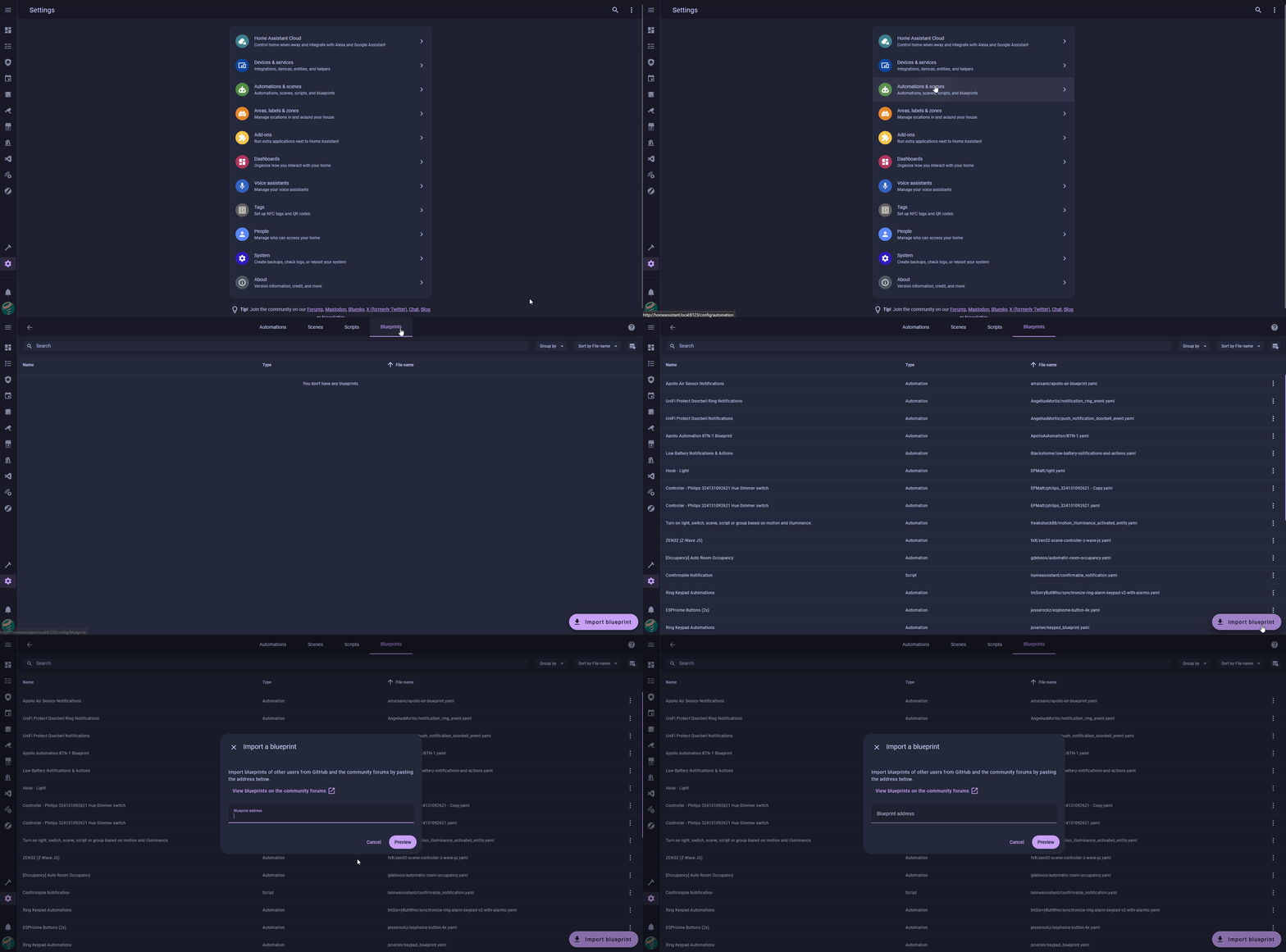
2. Copy the address below, paste it into the Blueprint address box, and click Preview then click Import blueprint.
3. In your blueprints list, click Apollo Automation PLT-1 Blueprint to start a new automation from it. Click Select a device, then choose your Apollo PLT-1 or PLT-1B from the dropdown menu.
4. Enter your plant's name, select your mobile device, enable the sensor groups you want, and set your thresholds.
Each sensor group is disabled by default. Enable only what matters!
Soil Moisture alerts are enabled out of the box. Expand any sensor group, toggle it on, and set your preferred min/max thresholds. Expand Repeat Alerts to control how often you are reminded while a condition lasts.
5. (Optional) Expand RGB LED Indicator and set LED Mode so the sensor's own LED lights up when the soil gets too dry. (1)
- Both the PLT-1 and the PLT-1B ship with Prevent Sleep turned on, so Stay On Until Watered works out of the box and holds the LED until you water the plant. If you turn Prevent Sleep off to save battery, the LED goes dark every time the sensor sleeps, so choose Flash On Alert instead.
6. Click Save. Your blueprint is now live and will send push notifications whenever your plant needs attention!