Add GIFs to your M-1
Find a GIF you like first. Giphy is a good place to start, and the dancing cat below works as a test.
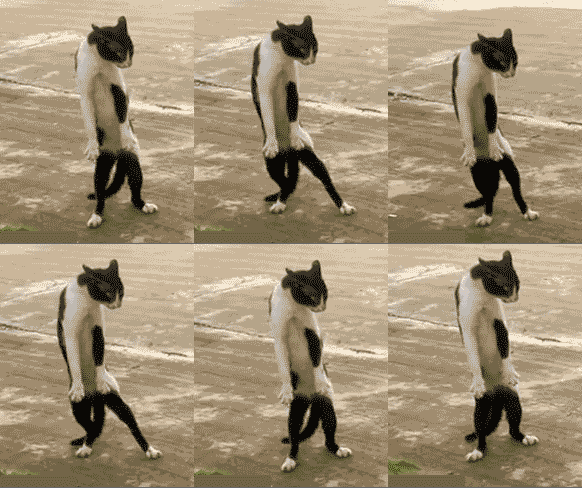
Getting it onto the matrix depends on your firmware. WLED converts and resizes on the device, WLED-MM needs an external tool first.
Pixel Forge handles the whole job on the device. Upload your GIF, frame it, set the size, and it lands in the effects list ready to run. No external resizing and no manual file upload.
On WLED-MM, you resize the GIF with ezgif.com, upload it to the matrix, and save it as a preset.
Make sure you are on version 14.5.1 or newer!
WLED-MM (WLED MoonModules) firmware version 14.5.1 or higher is required for this! If you need to re-flash your device follow our step by step guide here!
1. Download your gif. If it is already using a 64x64 width and height then you can skip to step 5. Click on the gif you want and then click Download.
2. Head to ezgif.com and click Resize then click Browse and choose your gif then click Upload!
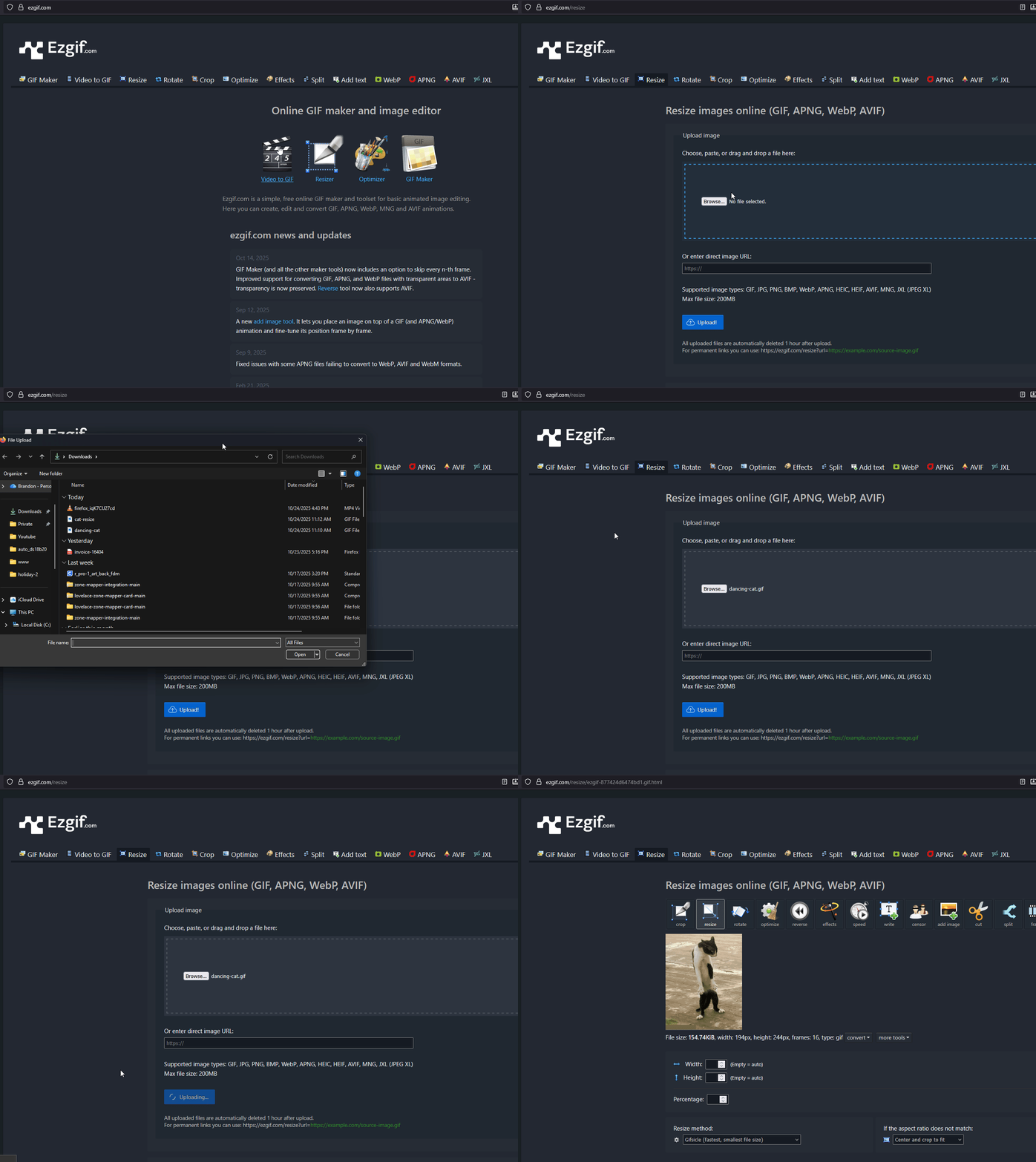
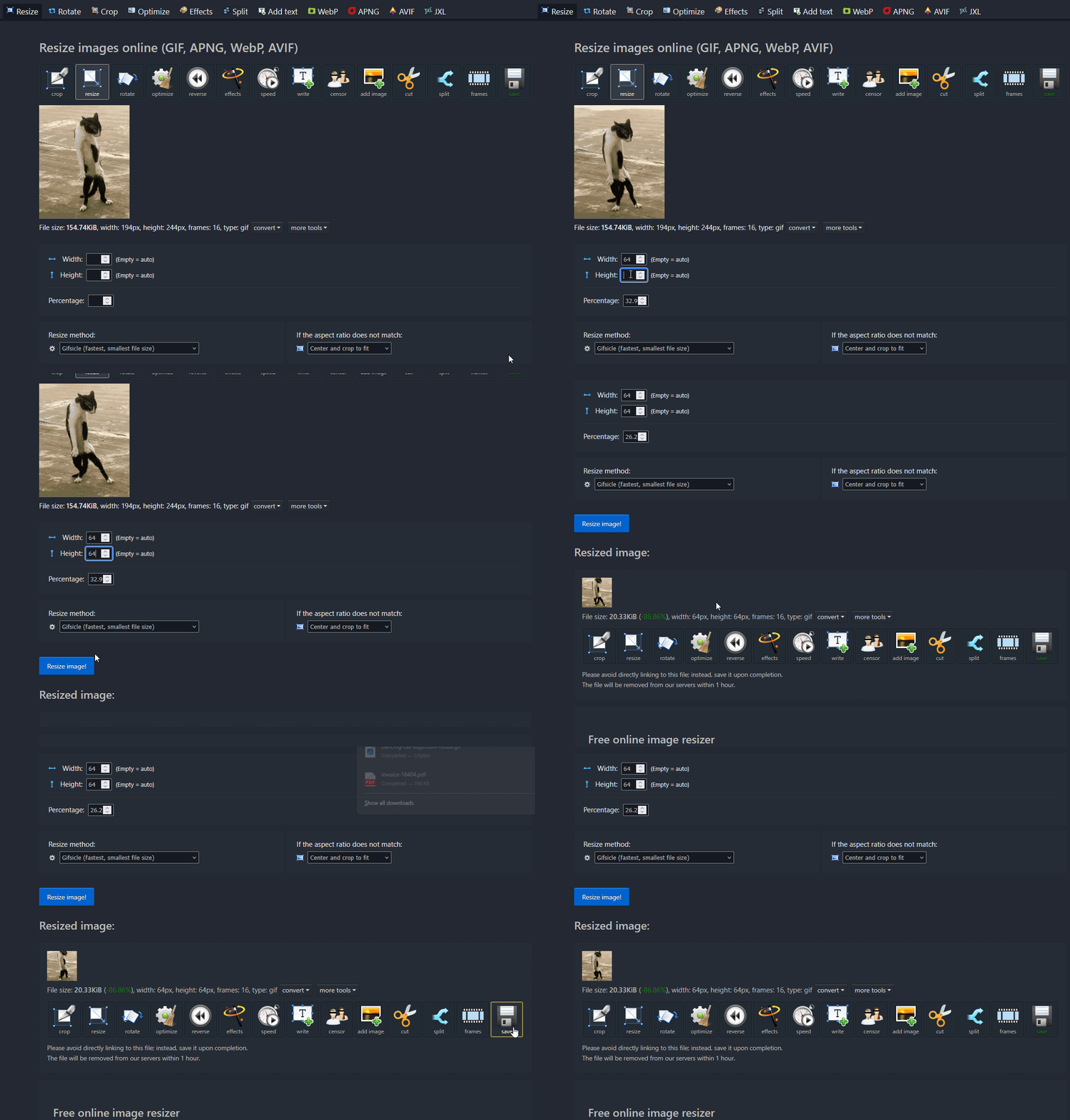
3. Set the Width to 64 and the Height to 64 then click Resize image then scroll down to the Resized Image: section and click the Save icon.
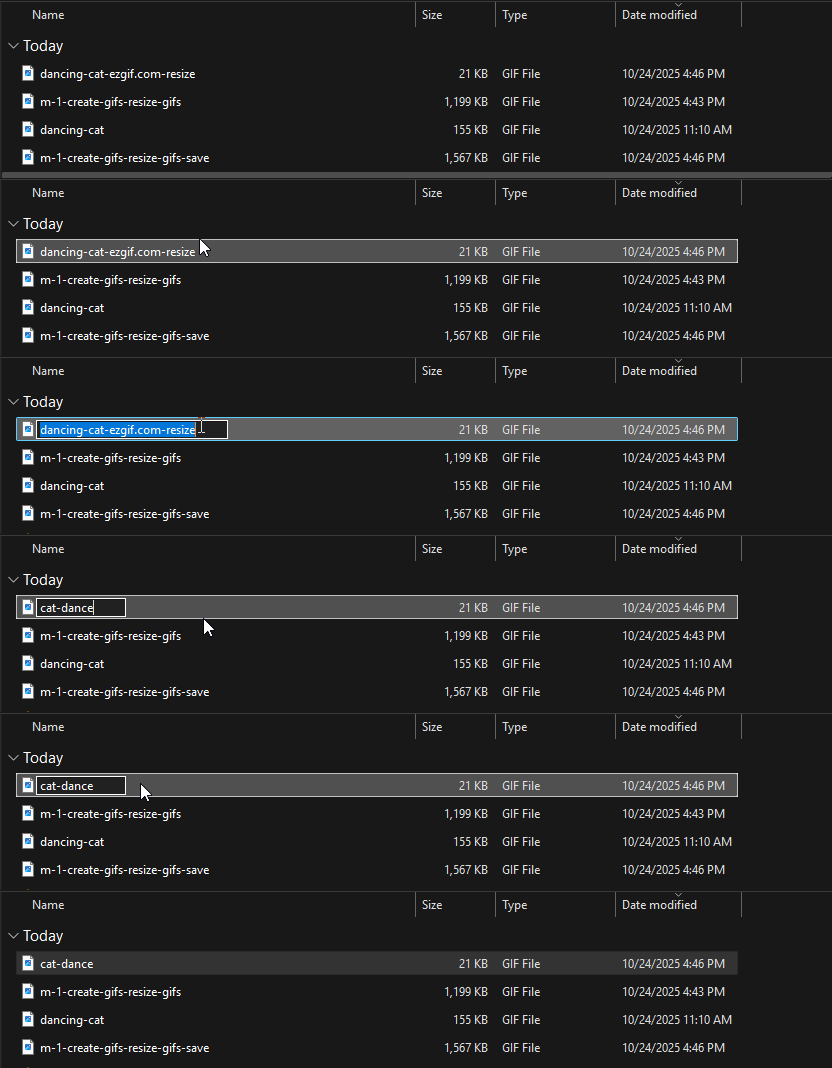
4. Rename the gif to something simple such as cat-dance. We will need to input the name as-is in a future step so renaming it to a simple name is best!
5. Open a web browser and navigate to http://<your-m1-ip-address> or http://<your-device-name>.local.
If you need help figuring out your hostname you can edit it from the WLED Wi-Fi settings
You can use an app like "wled-native" on iOS to auto-discover your WLED devices and then go into Wi-Fi settings to see your IP and hostname! Here's a step-by-step guide.
6. Click Config, then scroll down and click File System then click Browse and select the resized and renamed gif we just created then click Save.
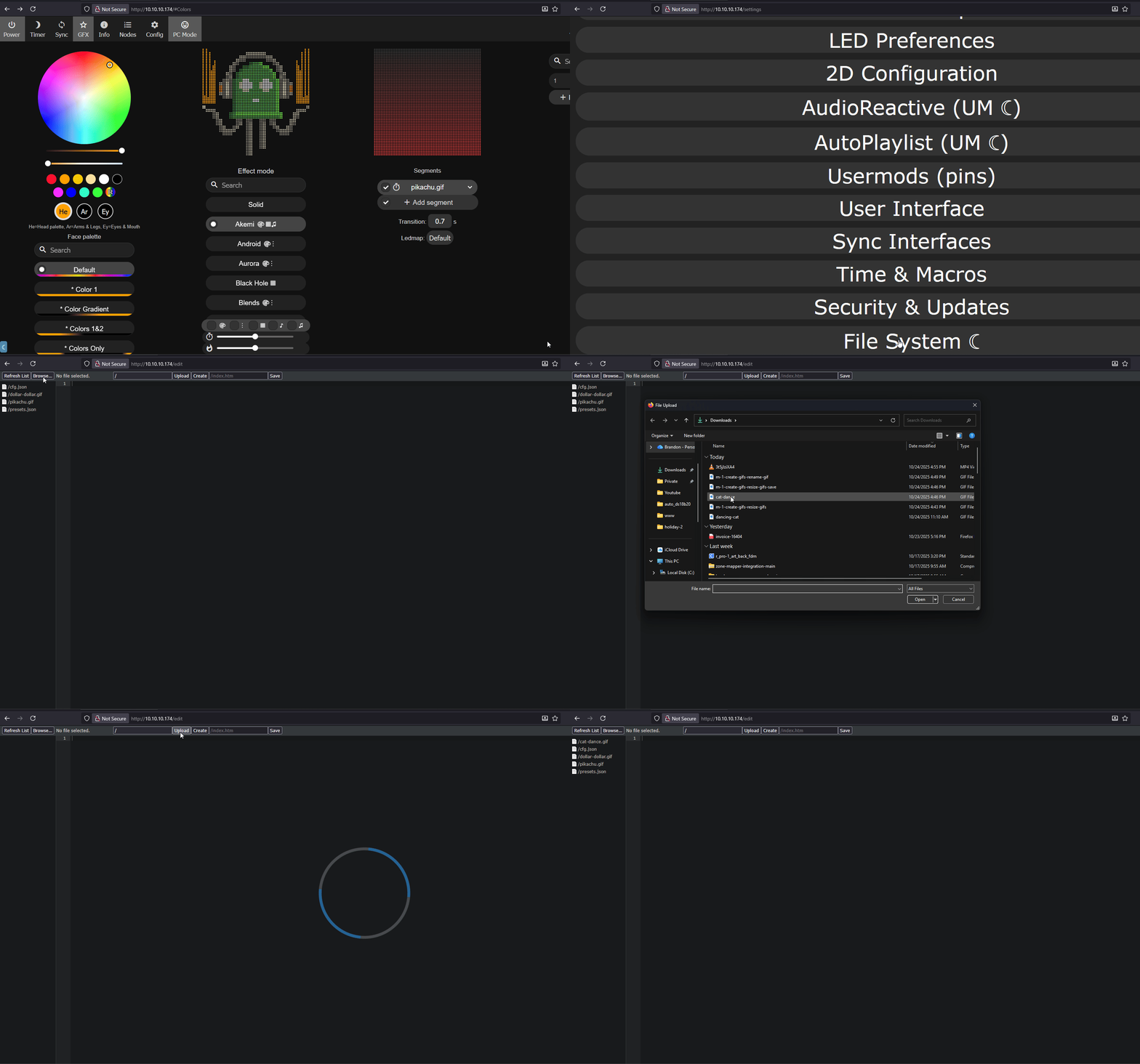
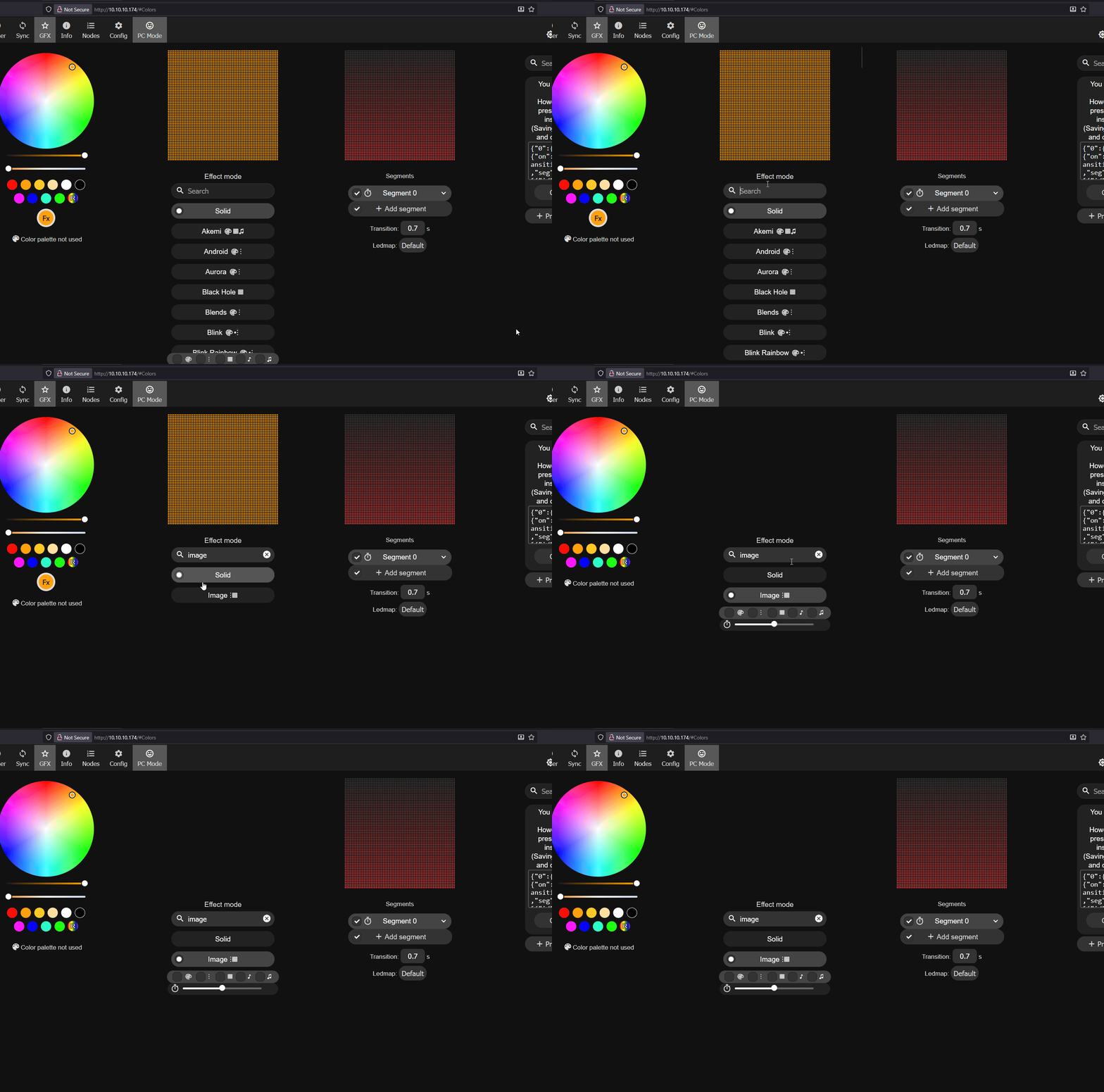
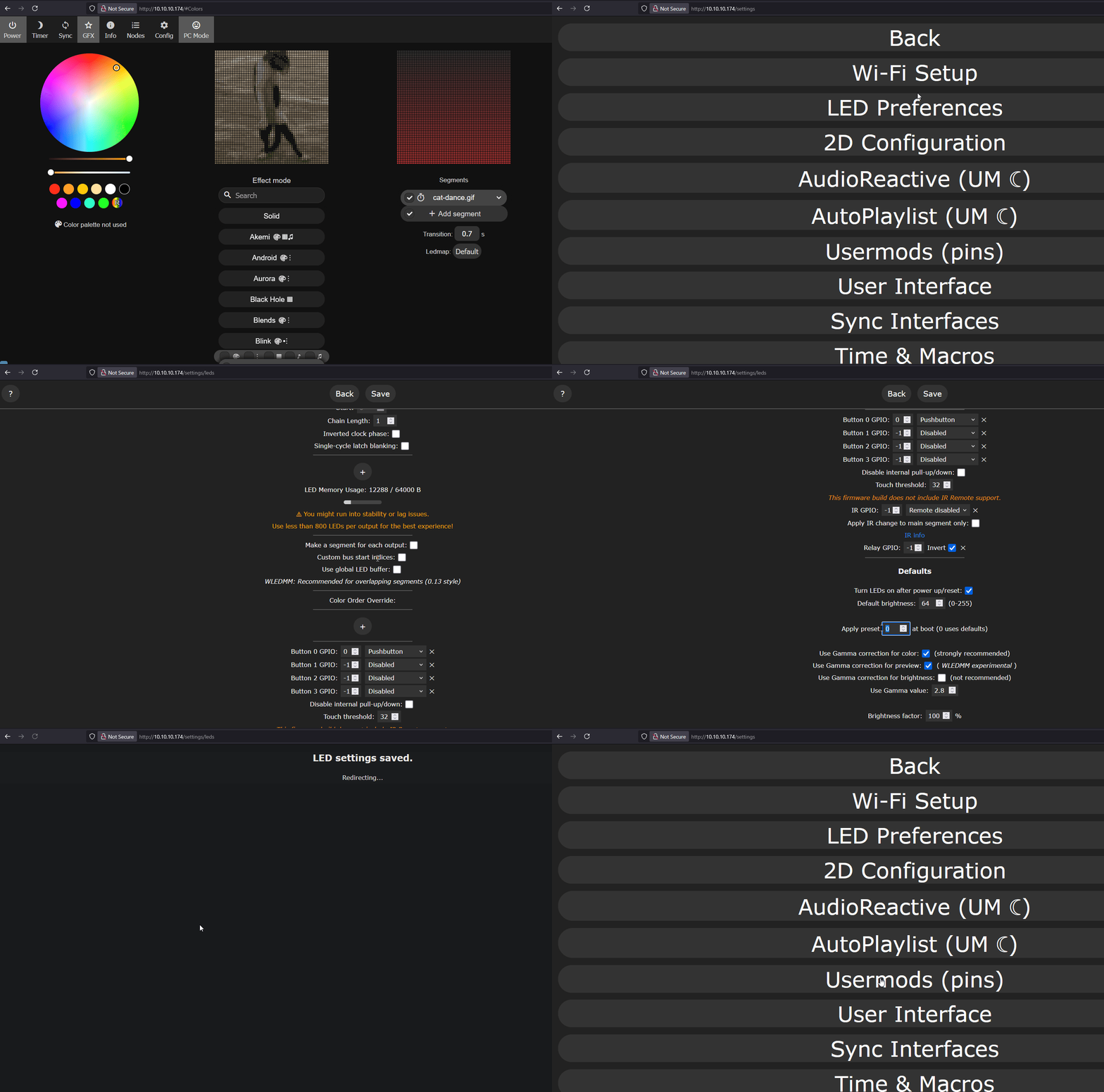
7. Click the back button on your browser and navigate back to the main page of the M-1 WLED interface. Click in the search bar and type in image and select it.
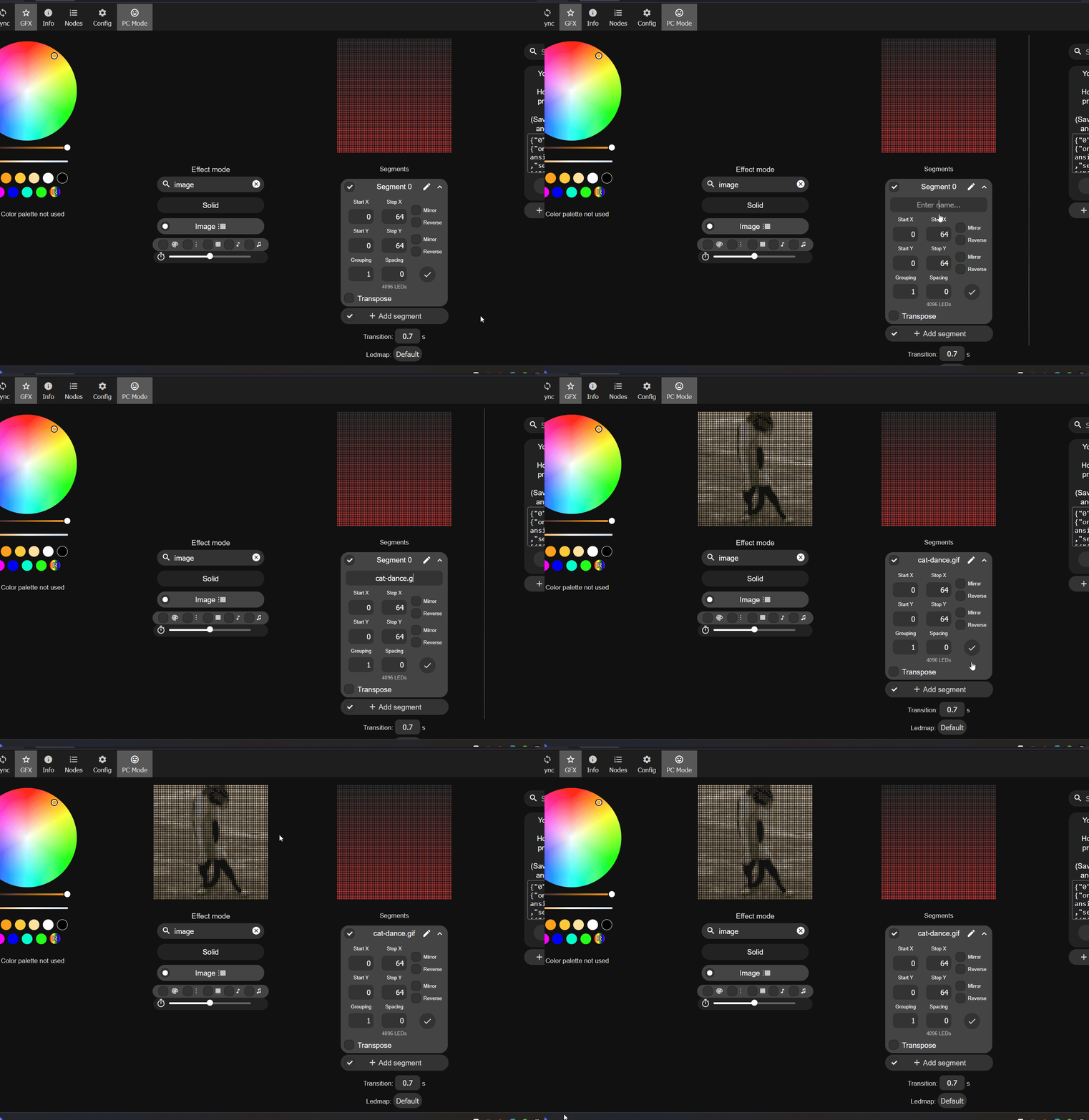
8. Click the arrow next to Segment 0 and then click the pencil icon to edit the name. Type in the name exactly as you did in step 4 above such as cat-dance.gif
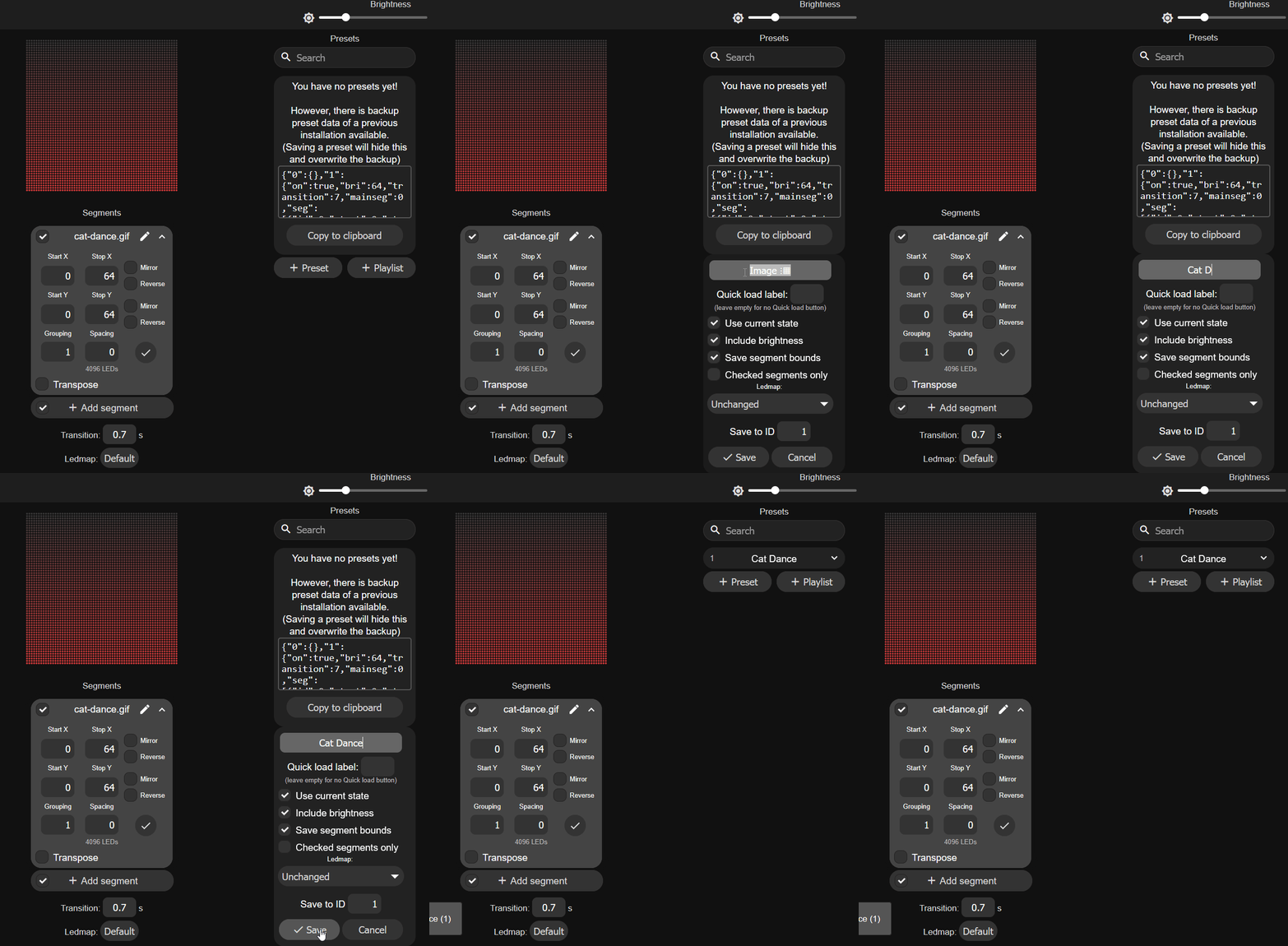
9. Click on + Preset and write in any name you want such as Cat Dance then click Save.
10. To have the M-1 boot straight into this gif, head to Config then LED Preferences and scroll down until you see Apply Preset and put in your preset number for the effect you just made. If this is your first one then put in 1 and then click Save.
Use a browser, not the WLED phone app
The app's file picker grays out image files, so uploading a GIF from it does not work. That is a bug in the app rather than anything on the M-1. Open the device in any browser instead.
GIFs live on the M-1 itself and the space is limited. Delete images you are not using from Config, then File System.