How To Wake Up Your Sensor
To wake a sleeping Apollo battery sensor, press the reset button. A BTN-1 also wakes when you press Button 1, 2, 3, or 4, and an H-1 or H-2 wakes when you press a gold song button. The boot button can't wake a sleeping device. Select your device below for the button locations.
Reset button. Press and release the reset button to restart the device.
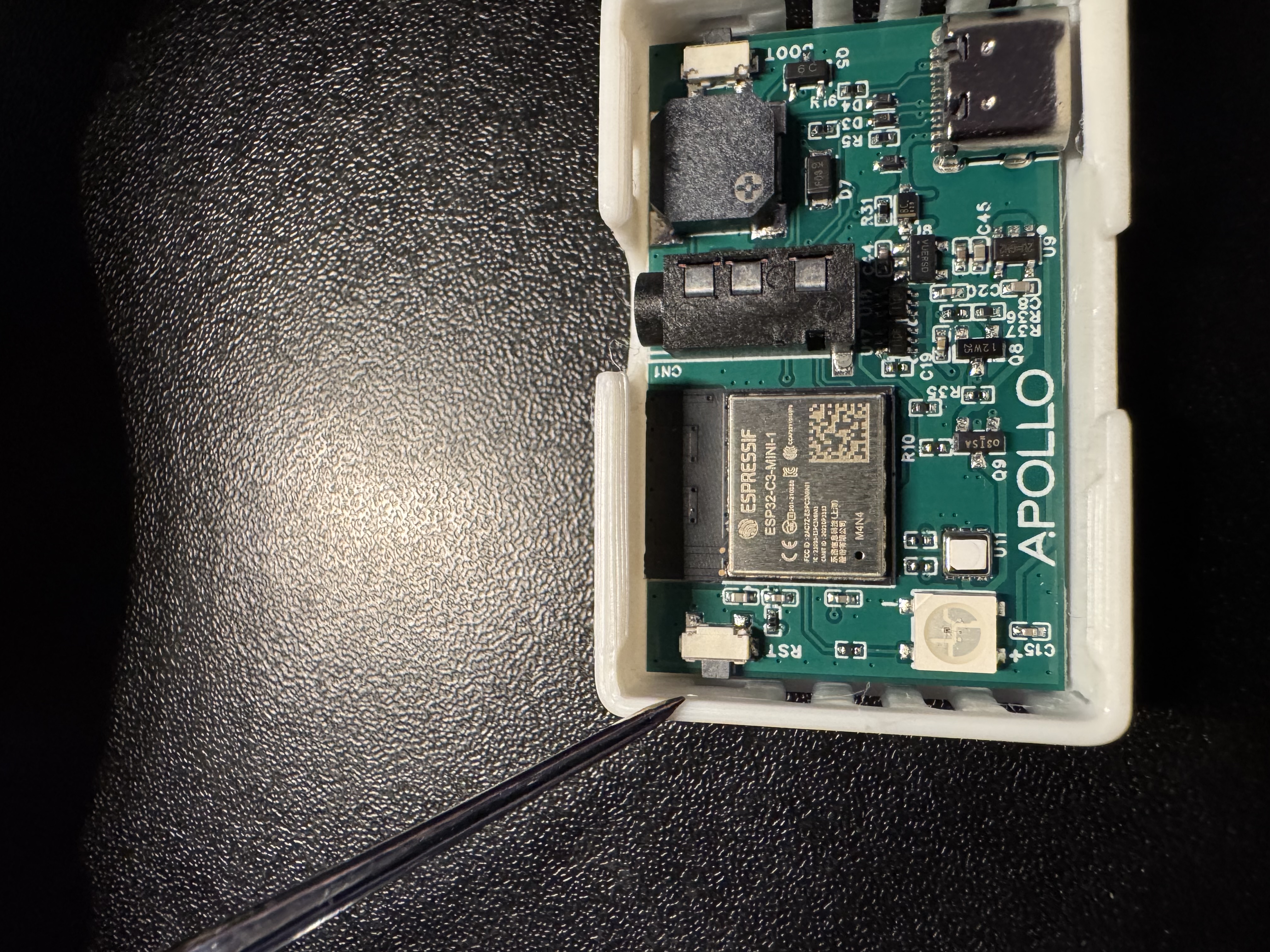
Boot button. The boot button can't wake a sleeping TEMP-1B. Once the TEMP-1B is awake, you can use the boot button to keep it awake, as described below.
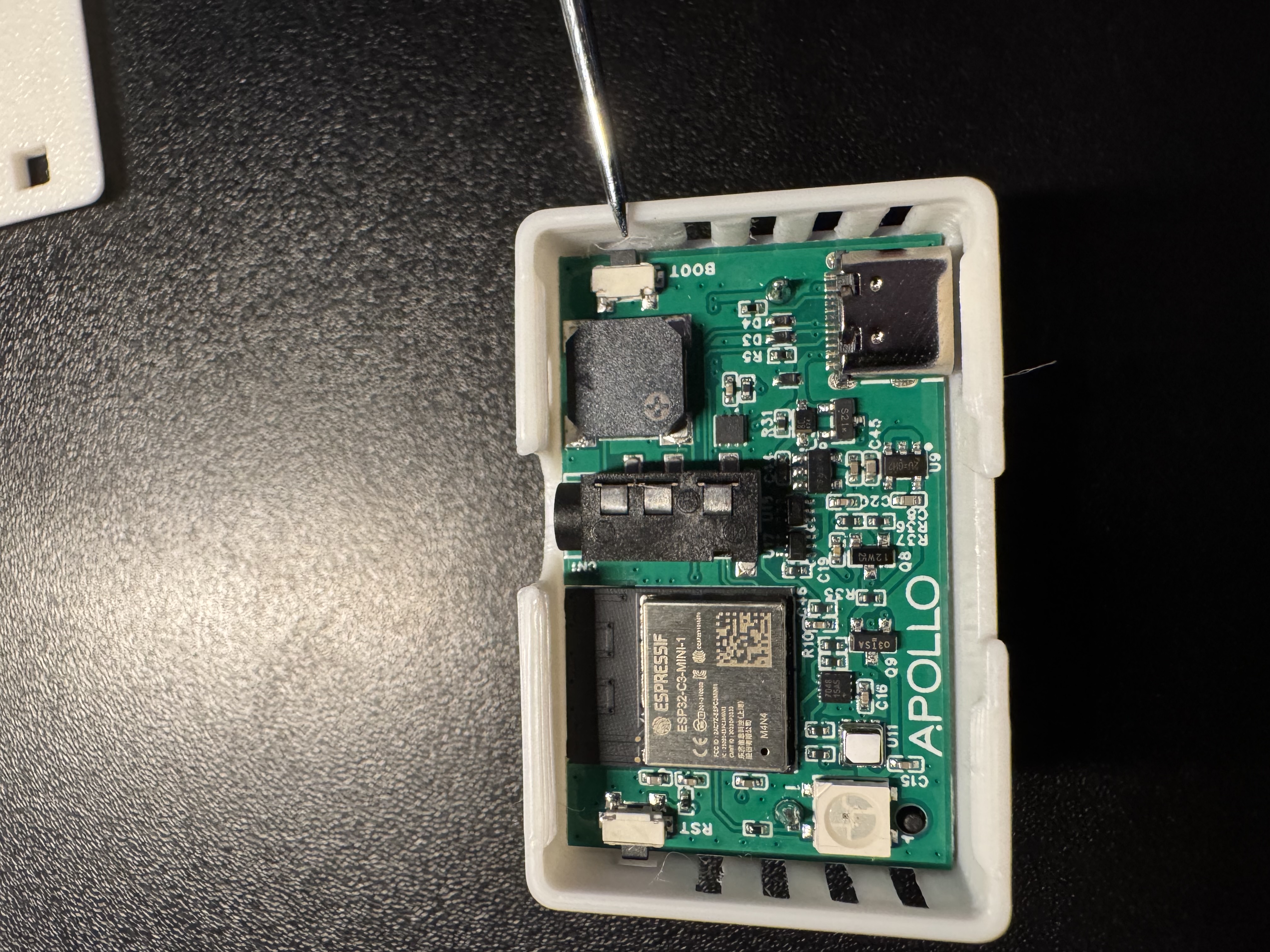
Button locations: TEMP-1B boot mode.
Reset button. Press and release the reset button to restart the device.
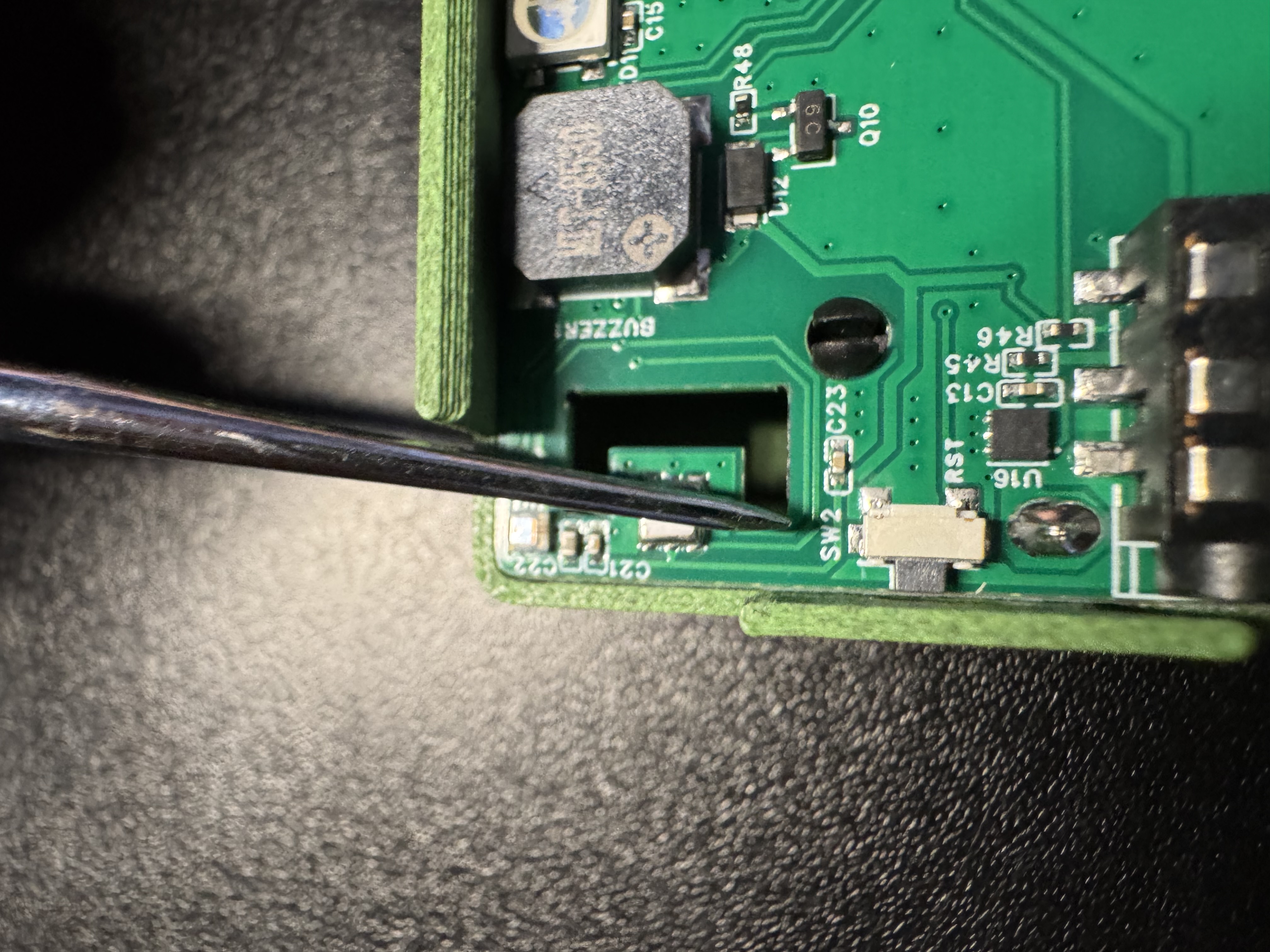
Boot button. The boot button can't wake a sleeping PLT-1B. Once the PLT-1B is awake, you can use the boot button to keep it awake, as described below.
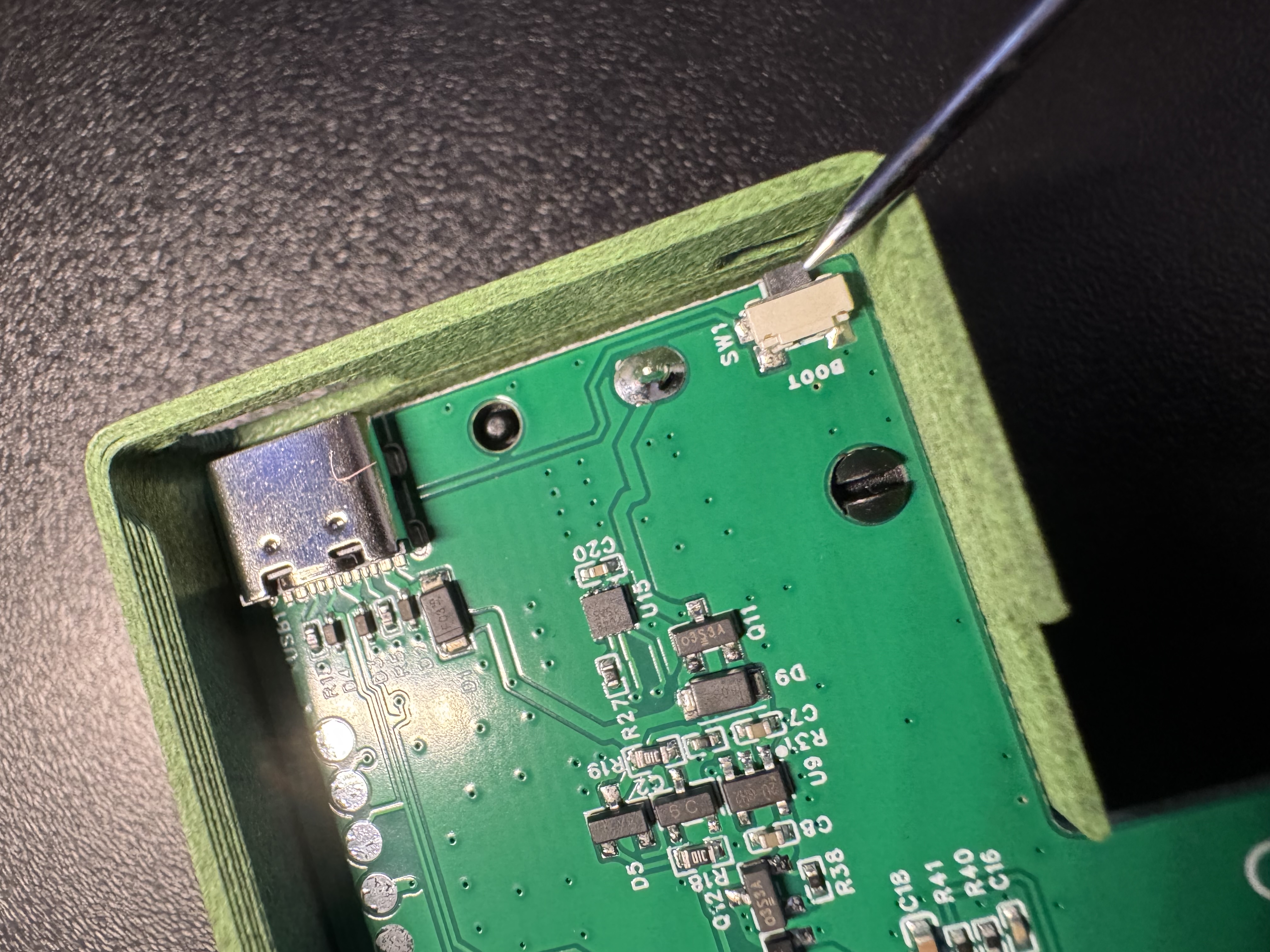
Button locations: PLT-1B boot mode.
Method 1: Reset button. Press and release the reset (left) button to restart the device.
Method 2: Buttons 1 to 4. Press and release Button 1, 2, 3, or 4. Home Assistant receives that press as a click of that button once the BTN-1 reconnects, so any automation you've tied to a click of that button runs. Use the reset button when you only want to wake it.
The boot (right) button can't wake a sleeping BTN-1. Once the BTN-1 is awake, you can use the boot button to keep it awake, as described below.
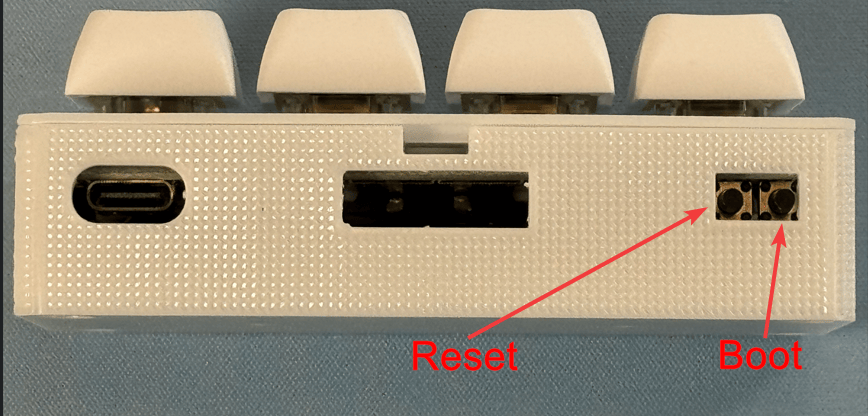
Button locations: BTN-1 boot mode.
Smart firmware only
The H-1 only sleeps when running the smart firmware. These steps apply when it is running that firmware.
Method 1: Reset button. Press and release the reset button to restart the device.
Method 2: Gold button. Press and release the gold button (SW1).
The boot button can't wake a sleeping H-1. Once the H-1 is awake, you can use the boot button to keep it awake, as described below.
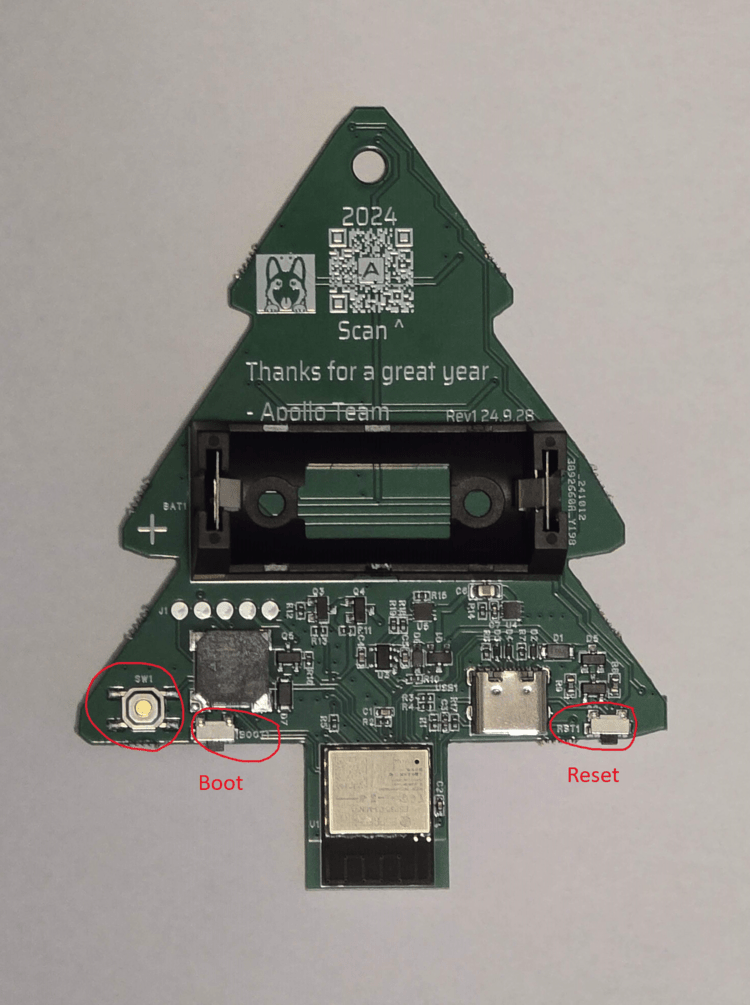
The unlabeled circled button at the lower left is the gold button (SW1), which plays the built-in songs.
Button locations: H-1 boot mode.
Smart firmware only
The H-2 only sleeps when running the smart firmware. These steps apply when it is running that firmware.
Method 1: Reset button. Press and release the reset (left) button to restart the device.
Method 2: Song buttons. Press and release any of the four gold song buttons on the back of the H-2. The H-2 wakes and plays that button's song.
The boot (right) button can't wake a sleeping H-2. Once the H-2 is awake, you can use the boot button to keep it awake, as described below.
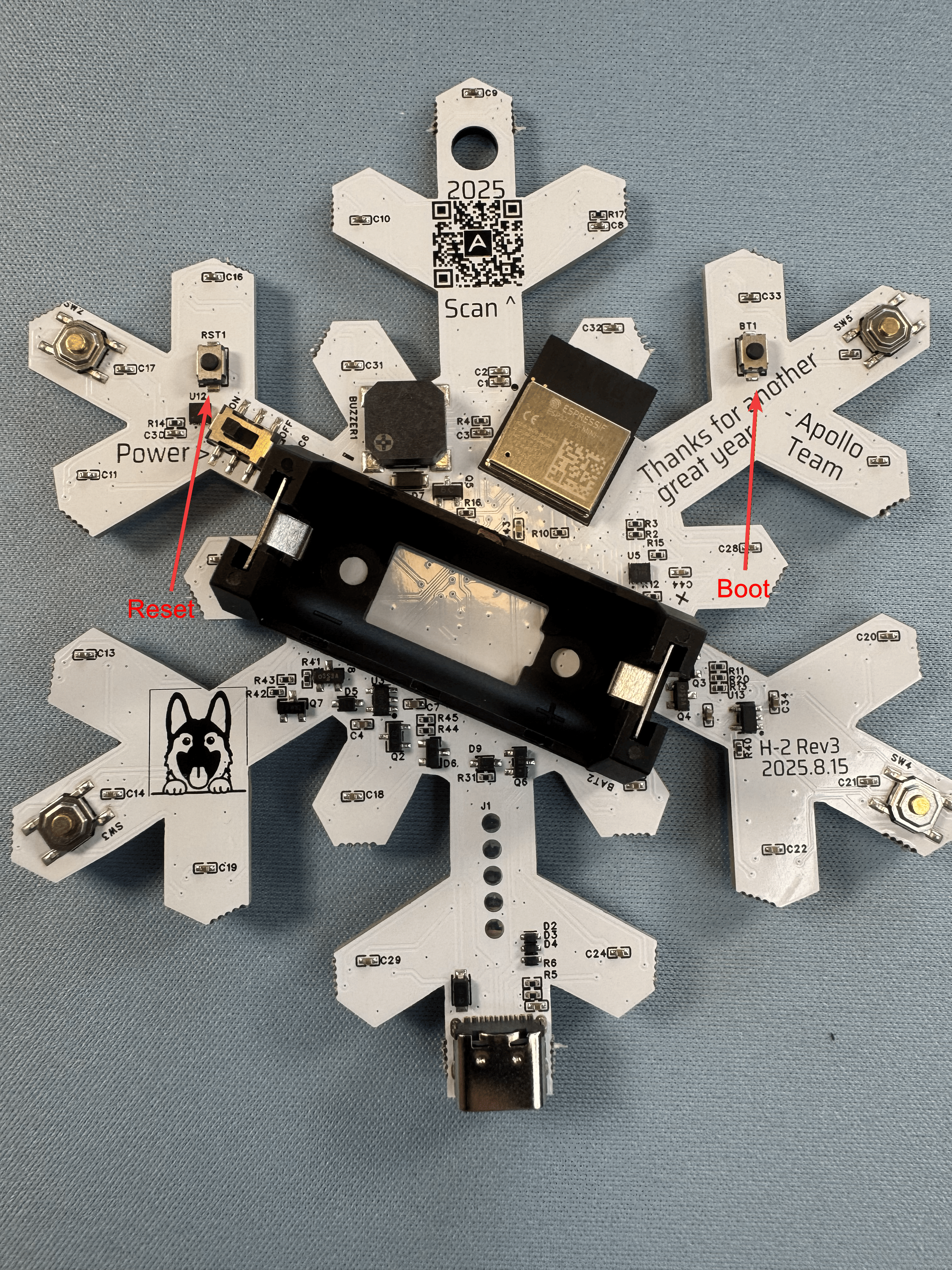
Button locations: H-2 boot mode.
Your device is now awake, but it will not stay awake on its own yet. Click the Prevent Sleep button on your device page in Home Assistant, or directly on the device web server such as plt-1.local or its IP address.
You can also turn on Prevent Sleep from the device itself. Once it's awake, press and hold the boot button for 4-5 seconds, then let go.
Watch how you use the boot button
Press the boot button only after the device has restarted. Holding it while you press reset puts the device in boot mode for flashing firmware instead. Holding it for 10 seconds or more resets the device to factory settings and erases its Wi-Fi.
Head to the awake helper wiki article
If you need to keep your sensor awake for extended periods of time we suggest using our OTA awake helper.