Factory re-flash AIR-1
If your Apollo AIR-1 becomes unresponsive and you've exhausted the other troubleshooting methods, you can re-flash the factory firmware. This guide walks you through it in your browser, step by step.
Before you start
- Use Chrome, Edge, or another Chromium-based browser. The factory re-flash needs one.
- If your AIR-1 has already been added to Homey, remove it from Homey before you continue.
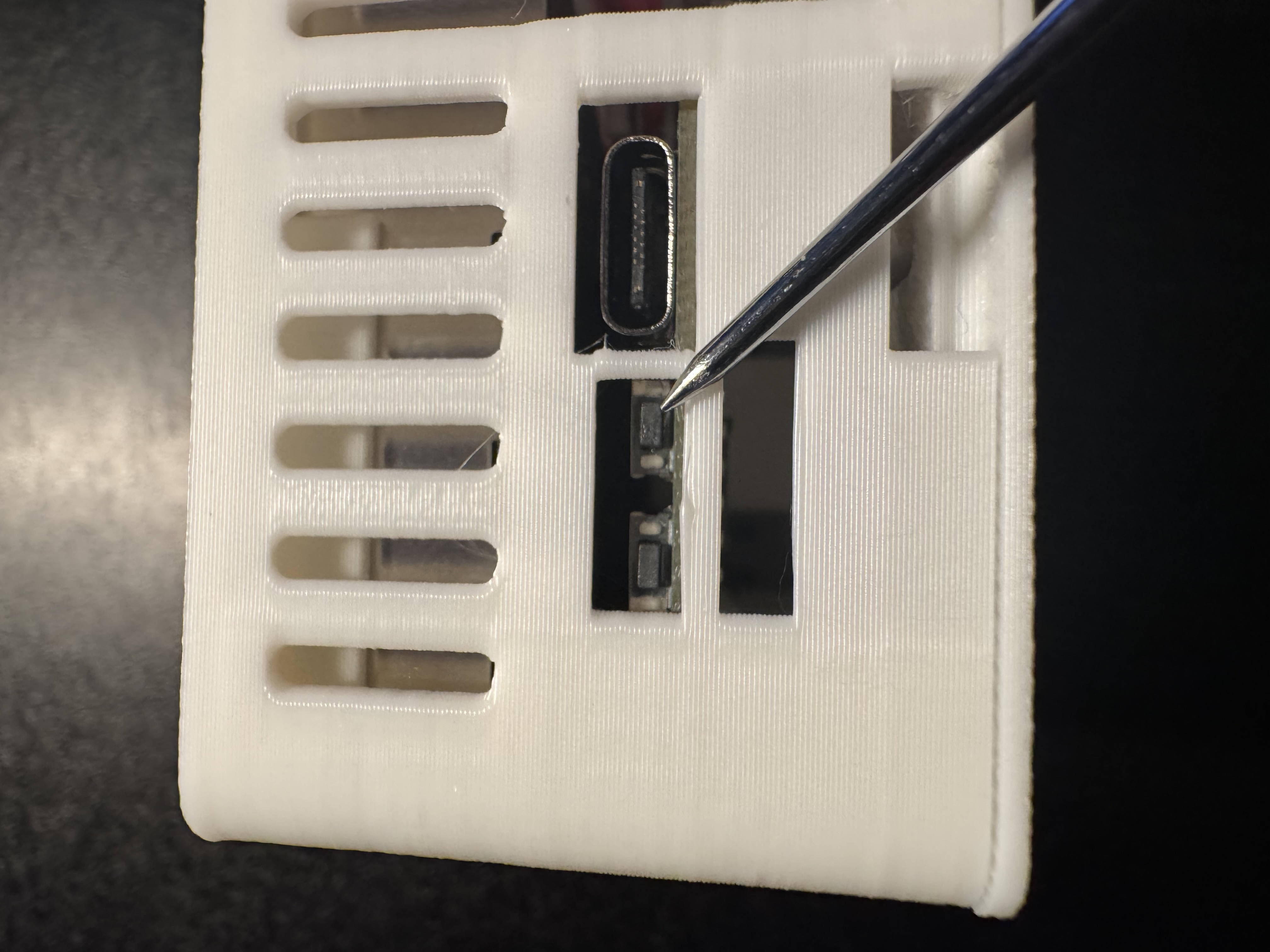
1. Put your AIR-1 in boot mode: hold down the boot button, then plug in the USB cable.
2. Go to the Apollo AIR-1 installer page.
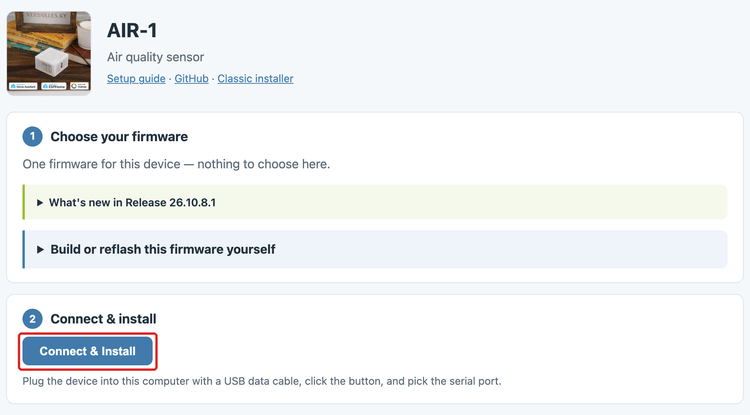
3. Click Connect & Install.
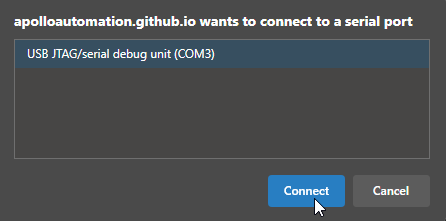
4. Select the open COM port, then click Connect.
5. Click Install ApolloAutomation.AIR-1.
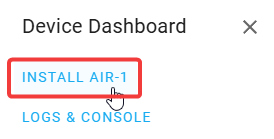
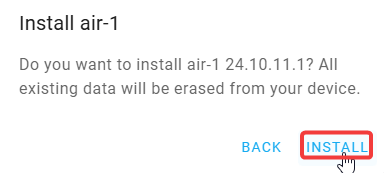
6. Click INSTALL.
7. When you see Installation complete!, the install is finished. Click Next, then close the browser window.
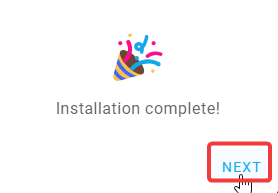
Your AIR-1 is back on its factory firmware.
Power cycle your AIR-1 before you do anything else
Your AIR-1 is still in boot mode. Remove its power, then power it back on so it boots in normal mode.
Next step: set up your AIR-1 as a new device
With the factory firmware on and the AIR-1 power cycled, follow the getting started guide to connect it to Wi-Fi and add it to Homey as a new device.