Factory re-flash TEMP Pro-1
If your Apollo TEMP Pro-1 becomes unresponsive and you've exhausted the other troubleshooting methods, you can reflash the factory firmware by following this guide.
Before you start
- Use Chrome, Edge, or another Chromium-based browser. The installer needs one of them.
- If your TEMP Pro-1 has already been connected to Home Assistant, remove it from the ESPHome integration and the ESPHome Device Builder before continuing.
Follow these steps to put your TEMP Pro-1 in boot mode, flash the factory firmware from the installer page, and set it up again.
1. Put your TEMP Pro-1 in boot mode: hold down the boot button, then plug in the USB cable.
2. Open the Apollo TEMP Pro-1 installer page.
3. Choose WiFi if your TEMP Pro-1 connects over Wi-Fi, or Ethernet if it connects over PoE or Ethernet. Then click Connect & Install.
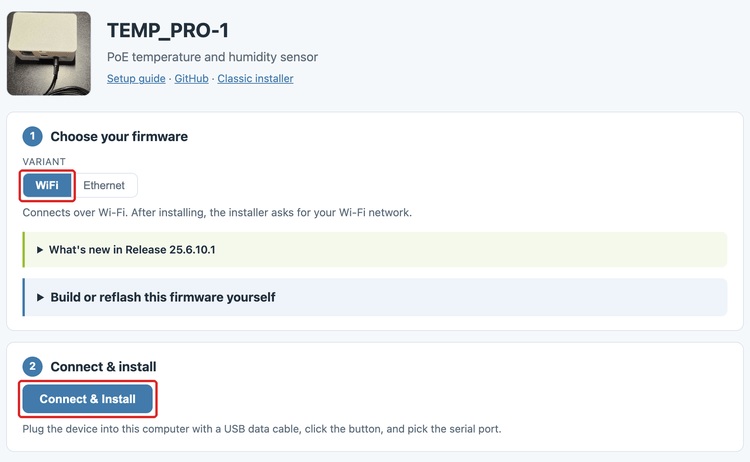
4. In the browser's serial port pop-up, select the open COM port (USB JTAG/serial debug unit in the screenshot below), then click Connect.
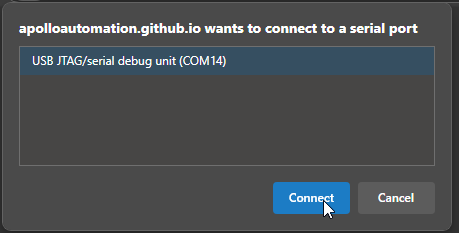
5. Click Install ApolloAutomation.TEMP_PRO-1-W. If you chose Ethernet, click Install ApolloAutomation.TEMP_PRO-1-ETH instead.
6. Click INSTALL.
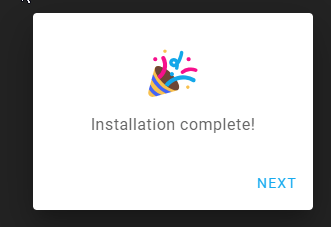
7. When the installer shows Installation complete!, the flash is finished. Click Next, then close the browser window.
Power cycle your TEMP Pro-1 before doing anything else
Your TEMP Pro-1 is still in boot mode. Remove all power from it, then reconnect the power so it starts in normal mode.
8. Go to the getting started guide and set up your TEMP Pro-1 as a new device.
Once it's set up, your TEMP Pro-1 is back on its factory firmware and ready to use.