Putting the TEMP Pro-1 in boot mode
This will cover how to put the TEMP Pro-1 into boot mode.
This is needed to force the device into boot mode to reflash the firmware.
Method 1: Boot button only
You'll remove the lid, then hold the boot button while you plug in the USB-C cable.
1. Position the TEMP Pro-1 so that the USB-C port is facing you. Remove the lid by gently prying up on the small slit by the top of the case.
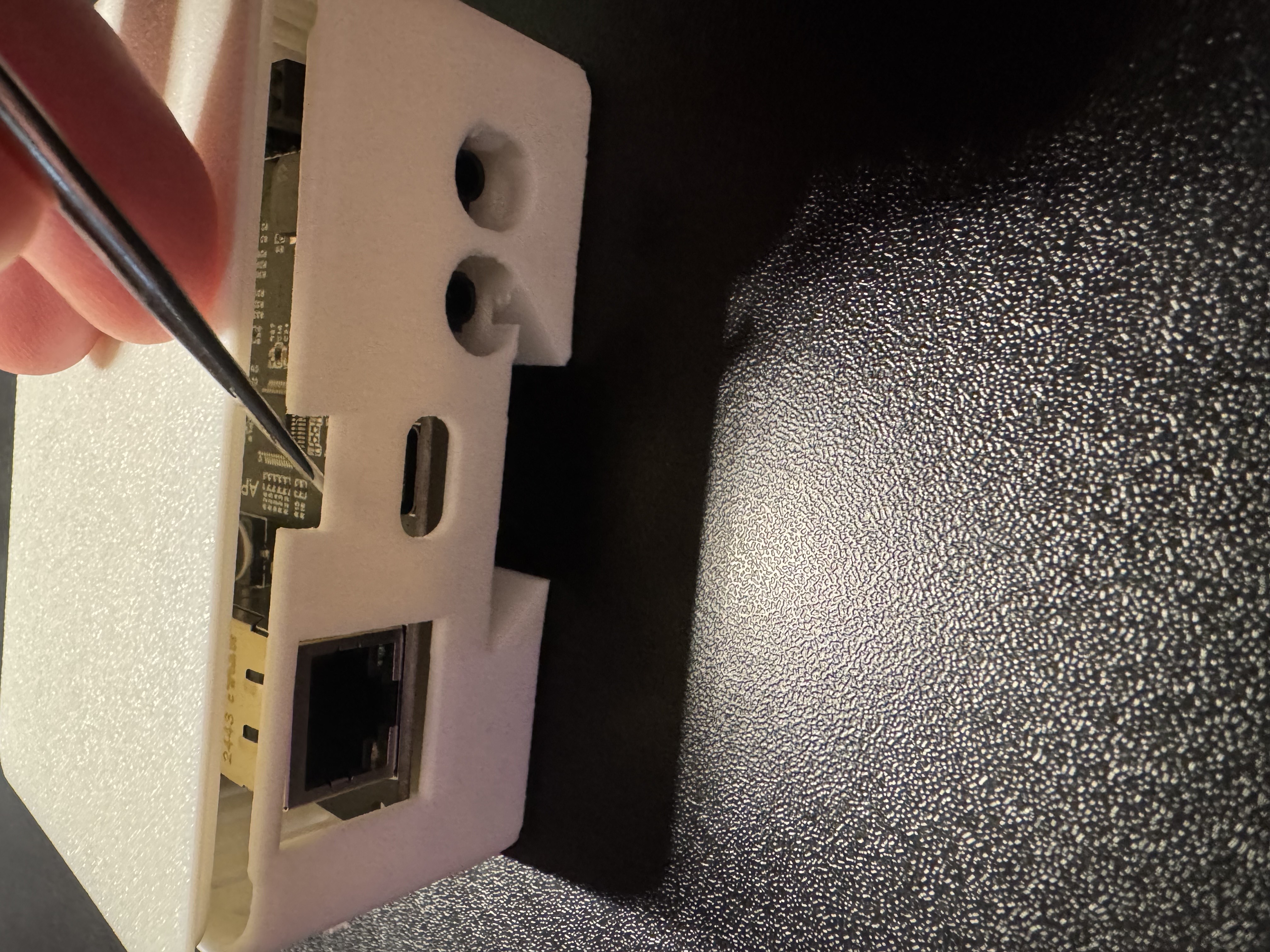
2. Locate the boot button as shown in the image below.
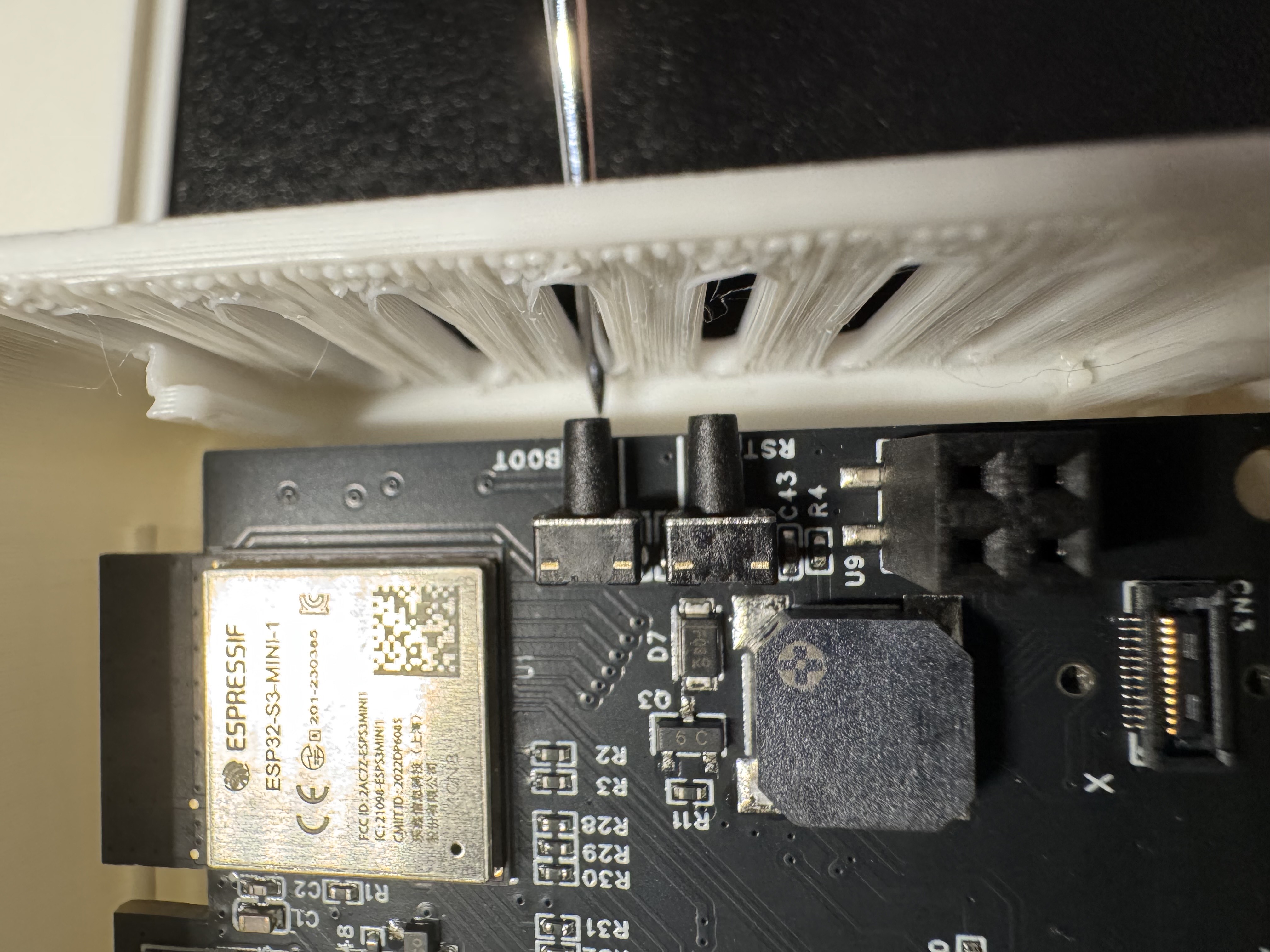
3. Push and hold the boot button. While still holding the button down, plug in a USB-C cable into the USB-C port of your TEMP Pro-1 then let go of the button.
4. Continue with uploading the firmware document.
Method 2: Boot and reset buttons
You'll open the case, plug the device into your computer, then hold the boot button down while you press and release the reset button.
1. Unplug the device and remove the case as shown in the images above
2. Plug it into your computer.
3. Put your TEMP Pro-1 in boot mode. Use both buttons, in this order:
- Press and hold the boot button (labeled BOOT, shown above). Keep holding it.
- While you're still holding boot, press and release the reset button (labeled RST, shown below).
- Let go of boot.
Keep holding boot the whole time
Pressing reset by itself only restarts the TEMP Pro-1. It goes into boot mode only when boot is held down while you press and release reset.
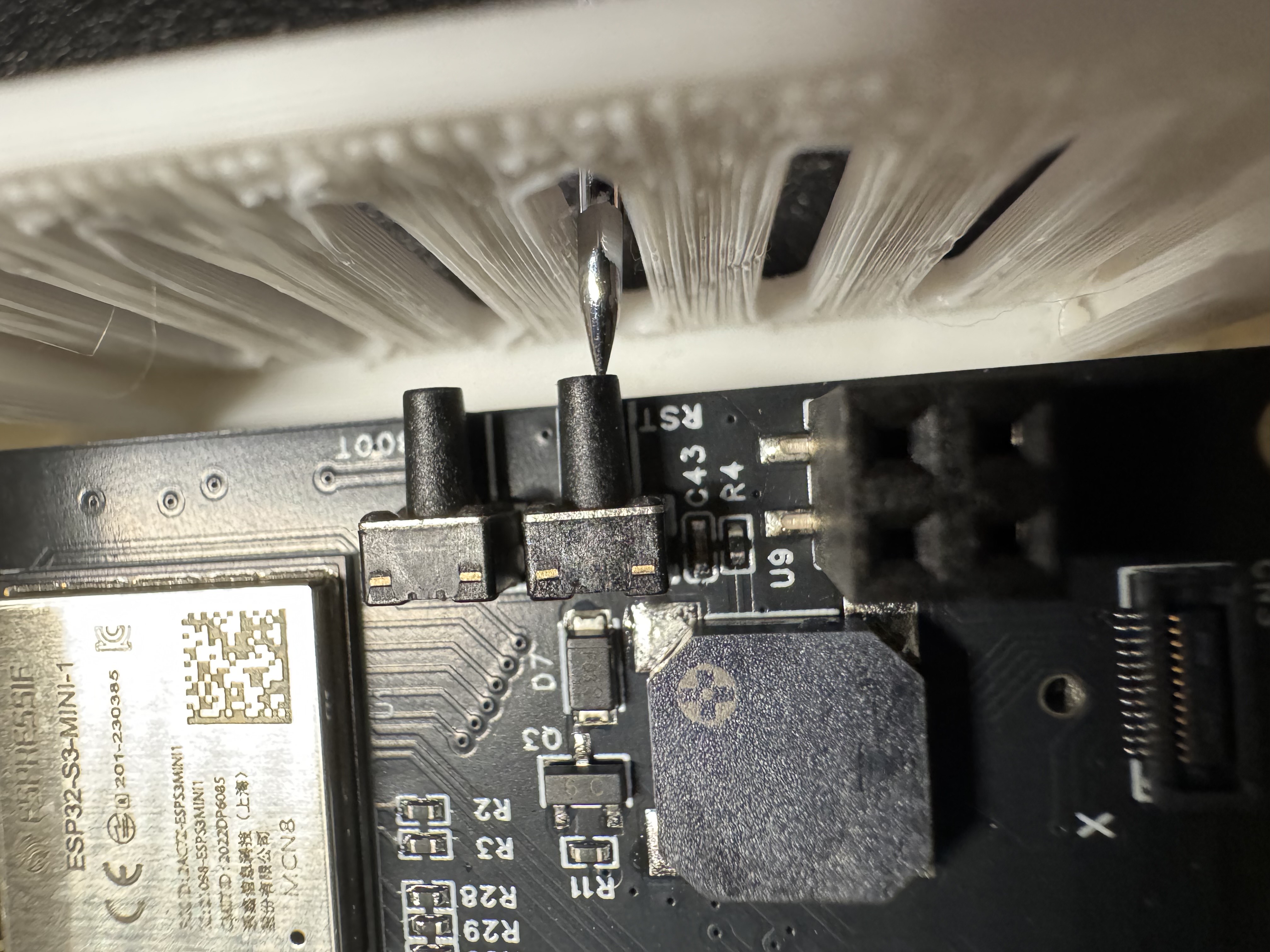
4. Continue with uploading the firmware document.