Getting started
Congrats on your new Apollo LED-1! This guide walks you through powering it, wiring up your LEDs, and connecting it to Wi-Fi.
Choose how to power it
You can power the LED-1 in three ways:
- USB Power: 5V, up to 3 amps
- USB Power Delivery: 5V or 12V, up to 3 amps
- External Power Supply: a dedicated power supply using either 5V, 12V, or 24V
Pick the tab that matches your setup.
1. Connect a USB-C cable to a 5V 3A or larger power supply, and plug the other end into your LED-1.
Use a cable rated for 3 amps
We suggest a quality USB-C cable that can handle 3 amps or more. If you're not sure whether yours supports 3 amps, buy a new cable from our store or a reputable seller such as Amazon or Monoprice.
1. Decide whether you're using 5V or 12V with USB-C PD. If you're using 12V, first flip the switch on the LED-1 board (the board render on the LED-1 introduction page shows where it is). If you're using 5V, skip to the next step.
2. Connect your USB-C PD wall charger to the USB-C cable, then plug the other end into the USB-C port of the LED-1.
Your LED-1 now outputs either 5V or 12V to the + and - terminals of Output 1 and Output 2.
An external power supply is the best way to get the longest distance and the most power out of your device. You can get up to 10 amps of power at 5V, 12V, or 24V.
1. Connect your power supply's output wires to the input terminals of your LED-1. Be very careful to connect the positive red wire to the + sign and the negative black wire to the - sign.
If you still need a power supply, check out our power supply suggestions.
Cut off the barrel connector
Most power supplies have a barrel connector that's only rated for 3 amps. We suggest cutting the barrel connector off and splitting out the red and black wires to put directly into the LED-1.
Unplug the power!
Before you move on to wiring up your LEDs, make sure to unplug your LED-1.
Wire up LEDs
Use LEDs that match your power supply's voltage
The LED-1 outputs the same voltage that is input to the device. It protects itself, but not the LED strips connected to it. Connect 5V LED strips if you're using a 5V power supply, and do the same with 12V and 24V.
Next, connect your LED strip to the first output of the LED-1.
1. Grab a male JST-SM 3-pin connector, such as the extra one included with your LED strips. Carefully note which wire is which: red is positive, green is data, and white is ground.
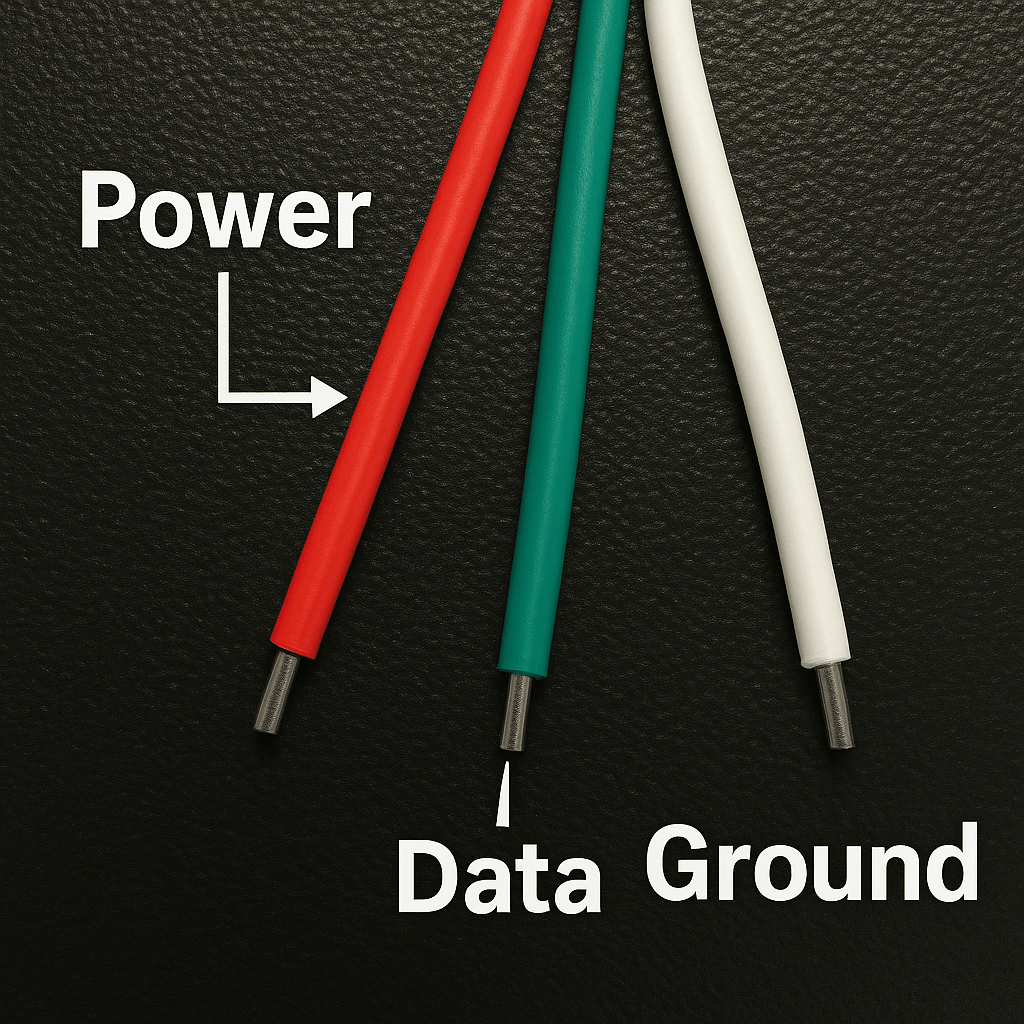
2. Find the two WAGO connectors on the LED-1 labeled "Output 1" and "Output 2". Insert the wires into Output 1:
- Red power wire: far left terminal of Output 1
- Green data wire: middle terminal of Output 1
- White ground wire: third terminal of Output 1
3. If you have a second LED strip, repeat step 2 for it using Output 2.
Your LEDs are wired up and ready for power.
Connect to Wi-Fi
Your device is now ready to connect to your Wi-Fi. Once it's connected, you can control it from Home Assistant, the WLED app for iPhone and Android, or a web browser.
1. Plug in your power supply or USB-C power. The LED-1 boots within a couple of seconds.
2. On your phone, open the list of available Wi-Fi networks and select WLED-AP.
3. Wait for the "Welcome to WLED!" page to pop up. If it doesn't, open a web browser and go to http://4.3.2.1/. You should see the same page shown below.

When the "Welcome to WLED!" page opens, you're connected to your LED-1.
Add the LED-1 to Home Assistant
Home Assistant should discover your LED-1 automatically using the WLED integration.