Blueprint Setup
Automatic Import
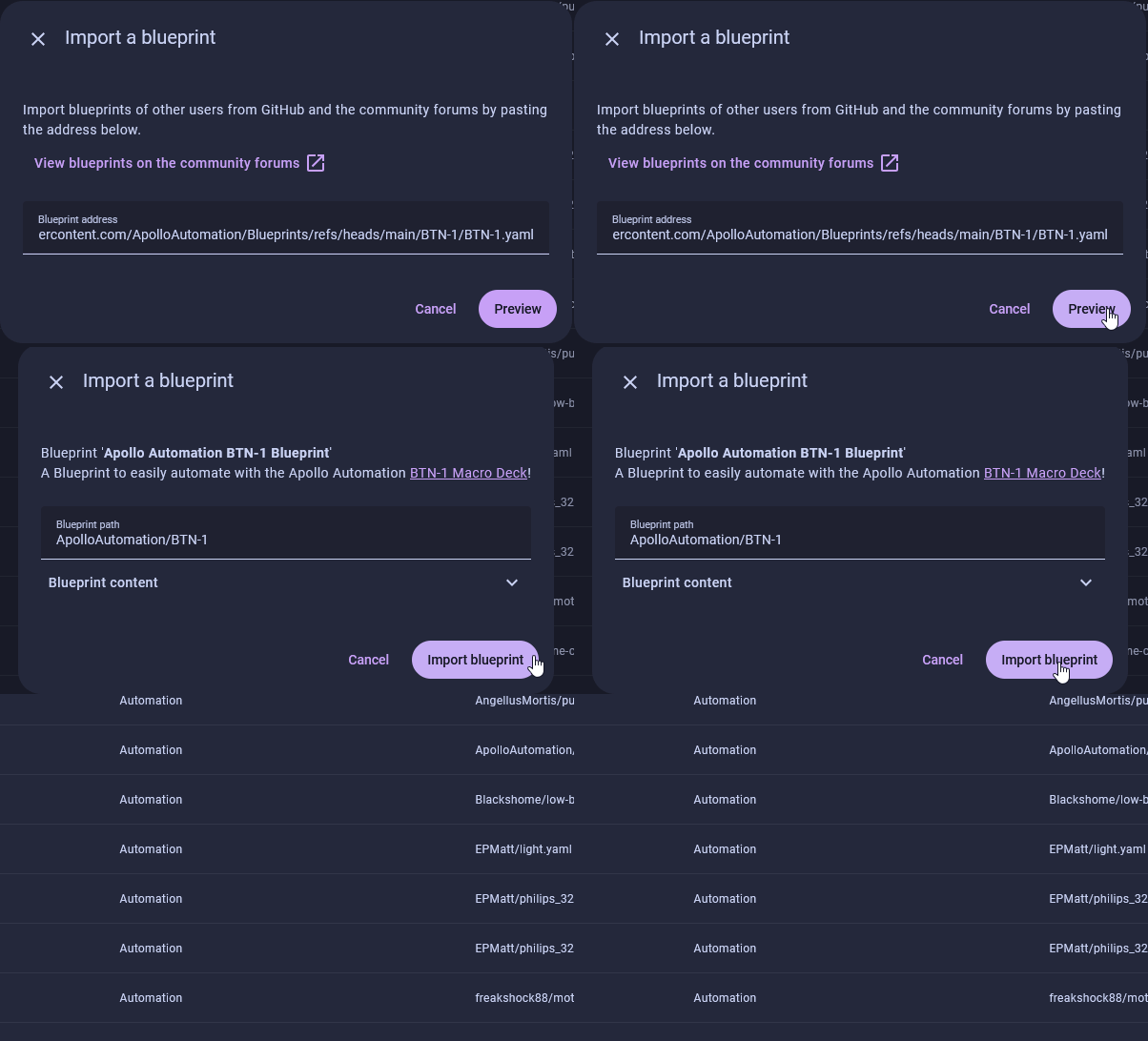
1. Click the Import Blueprint button below and then click Open link.

2. Click Preview then click Import blueprint.
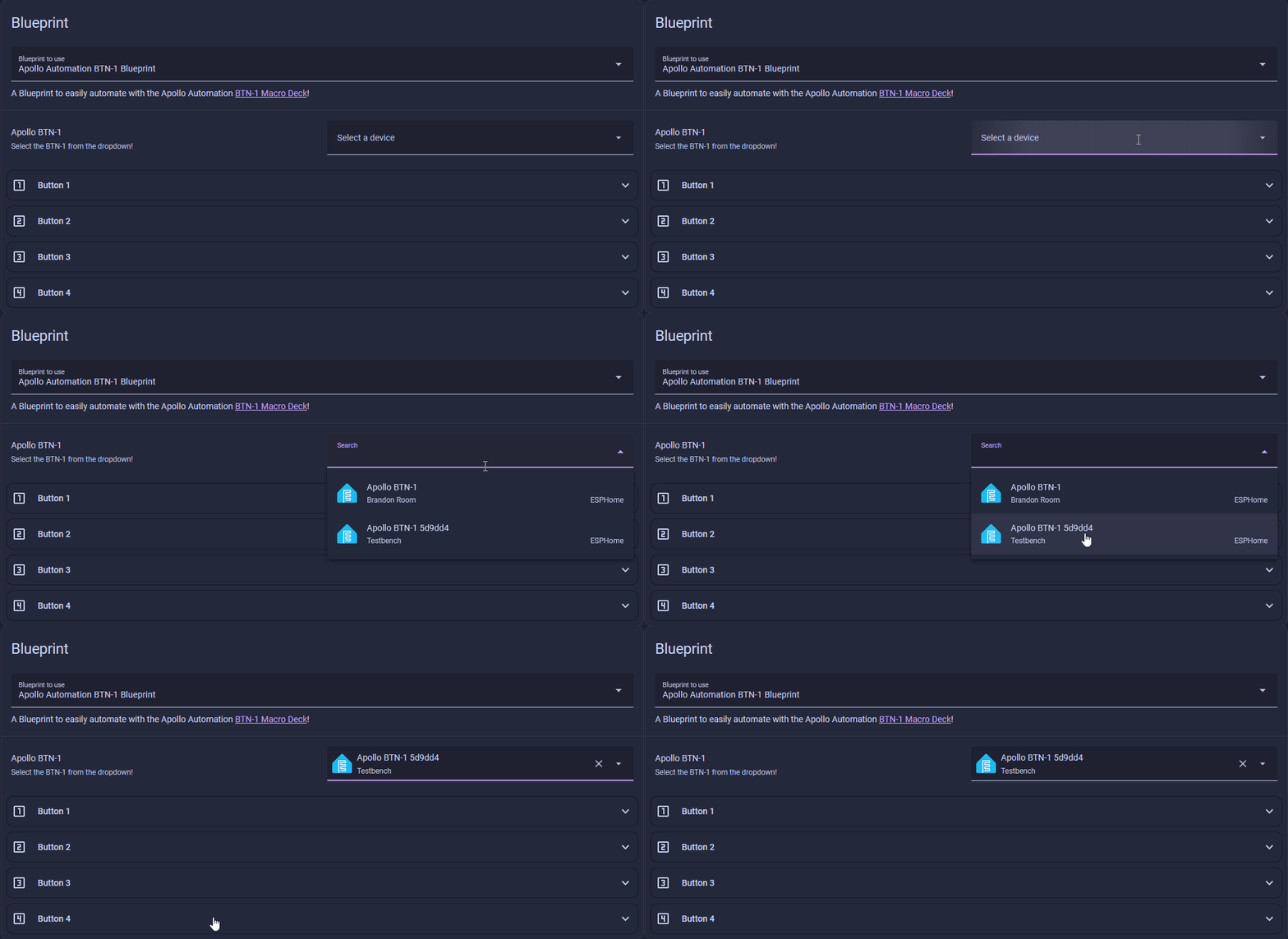
3. Click on Apollo Automation PLT-1 Blueprint and click on Select a device then choose your Apollo PLT-1 or PLT-1B from the dropdown menu.
4. Enter your plant's name (this appears in notification messages), then select your mobile device for push notifications.
5. Enable the sensor groups you want to monitor (e.g. Soil Moisture, Air Temperature, Light Intensity) and adjust the thresholds to suit your plant.
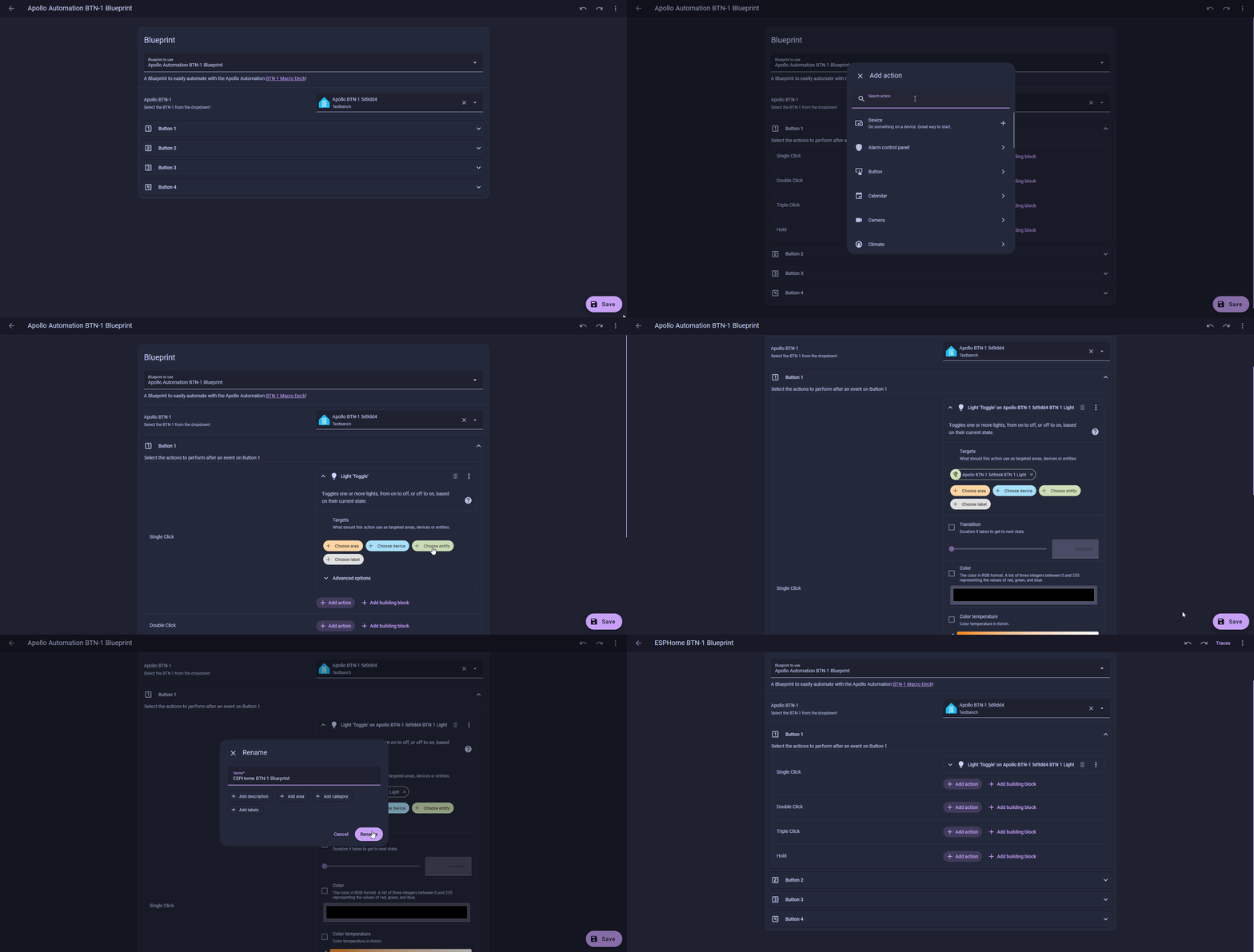
Each sensor group is disabled by default — enable only what matters!
Soil Moisture alerts are enabled out of the box. Expand any sensor group, toggle it on, and set your preferred min/max thresholds. You can also configure an Alert Delay to avoid false alerts from brief fluctuations.
6. Click Save. Your blueprint is now live and will send push notifications whenever your plant needs attention!
Manual Import
1. Head to the automations page and click on Blueprints in the top right then select Import Blueprint.
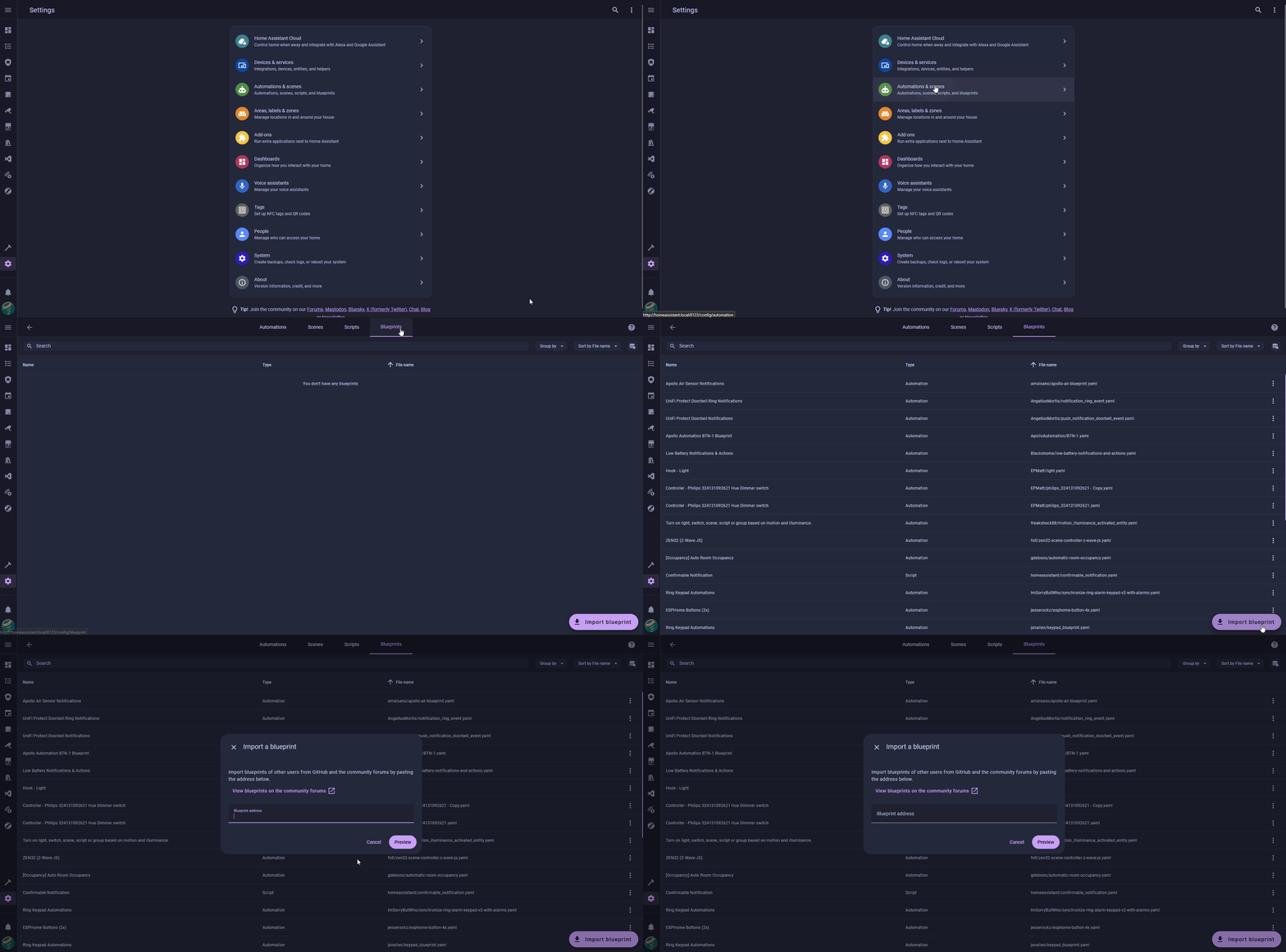
2. Copy this link and paste it into the Blueprint address box and click Preview then click Import blueprint.
3. Click on Apollo Automation PLT-1 Blueprint and click on Select a device then choose your Apollo PLT-1 or PLT-1B from the dropdown menu.
4. Enter your plant's name, select your mobile device, enable the sensor groups you want, and set your thresholds.
Each sensor group is disabled by default — enable only what matters!
Soil Moisture alerts are enabled out of the box. Expand any sensor group, toggle it on, and set your preferred min/max thresholds. You can also configure an Alert Delay to avoid false alerts from brief fluctuations.
5. Click Save. Your blueprint is now live and will send push notifications whenever your plant needs attention!